Duplicate Display Not Detected: Fixes That Work
Duplicate display not detected usually means Windows and the external display are failing at mode selection or EDID handshakes. Start with the display mode, then the cable, dock, or adapter before blaming the monitor. If you ignore it, you can get stuck on one screen, lose resolution options, or force Windows to mirror at the wrong timing. This guide covers the fastest checks for laptops, desktops, docks, adapters, TVs, and external monitors, plus the fixes that point to EDID or mode-setting faults.
What duplicate display not detected usually means
Duplicate and Extend are different troubleshooting targets. Duplicate is a project mode, chosen with Win + P or in Display settings; detection happens earlier, when Windows and the external display agree on a valid signal path. If that path is weak, Duplicate can fail for a different reason than a plain no-signal problem.
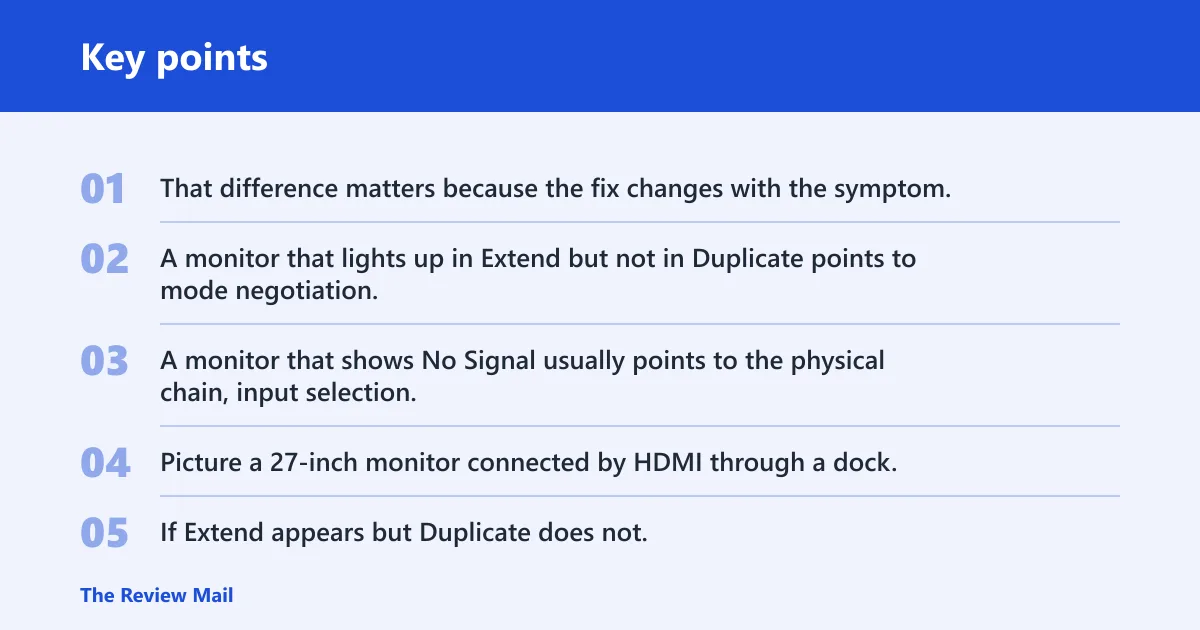
That difference matters because the fix changes with the symptom. A monitor that lights up in Extend but not in Duplicate points to mode negotiation. A monitor that shows No Signal usually points to the physical chain, input selection, or power state.
Picture a 27-inch monitor connected by HDMI through a dock. If Extend appears but Duplicate does not, the dock may be passing a display mode the monitor accepts only as a separate desktop, or the timing may not match what mirroring needs. That is a different problem from a dead cable.
Duplicate display decision table
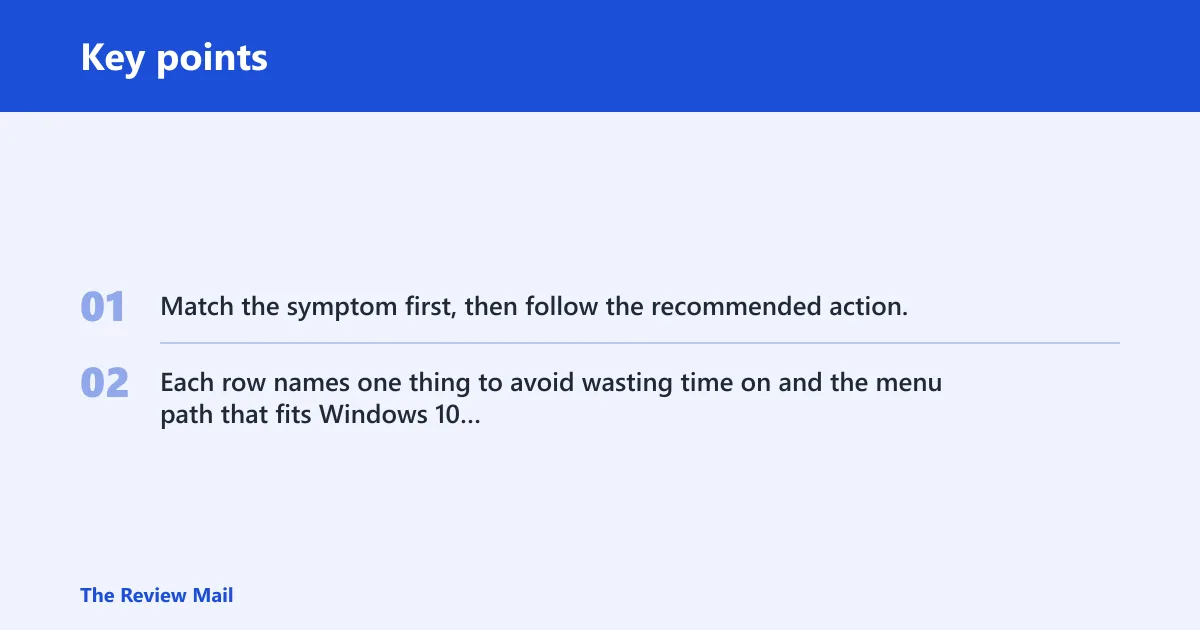
Use this table to stop guessing. Match the symptom first, then follow the recommended action. Each row names one thing to avoid wasting time on and the menu path that fits Windows 10 and Windows 11 wording.
| Symptom | Most likely cause | Recommended action | Do not waste time on | Windows 10/11 path |
|---|---|---|---|---|
| Duplicate works but Detect fails | Mode is already active, but Windows is not offering a fresh detect result for that path | Leave Duplicate in place, then open Display settings and check Advanced display for the active panel before changing cables or docks | Repeatedly clicking Detect as if it should behave the same on every setup | Settings > System > Display |
| Monitor shows No Signal | Power, input source, cable, dock, or adapter problem | Confirm power, then select the correct input on the monitor or TV, and reseat HDMI or DisplayPort at both ends | Driver reinstall before confirming the monitor is on the right input | Settings > System > Display |
| Extend works but Duplicate does not | Mirroring mode negotiation is failing even though the display path is usable | Try Win + P again, then check graphics driver state in Device Manager and test another cable or port | Assuming the monitor itself is broken | Win + P or Settings > System > Display |
| Resolution changes only in Extend | Duplicate inherits the primary display’s mode, while Extend allows independent control | Use Extend to choose a separate resolution, then return to Duplicate only if mirroring is the goal | Chasing a duplicate-only resolution setting that does not exist on that setup | Settings > System > Display |
| Win + P shows only one usable mode | Windows, the graphics driver, or the display path is not exposing the other project modes | Open Display settings, verify the second display, then update, roll back, or reinstall the graphics driver | Assuming Win + P itself is the fault | Win + P plus Settings > System > Display |
Why is duplicate display not working?
Duplicate display fails when Windows, the graphics driver, and the external display do not agree on a mirrored mode. The most common causes are a bad cable path, the wrong input on the monitor or TV, a dock or adapter that does not pass the needed signal cleanly, or a driver that no longer negotiates the mode correctly.
Start with the physical chain. Windows Central says to check physical cable connections first, and it specifically calls out HDMI and DisplayPort as input sources. If the monitor is on the wrong input, Windows can keep detecting the screen while the panel still reports No Signal.
Suppose a laptop on a desk is connected through a USB-C dock to a 32-inch TV. If the TV input is still set to another HDMI port, Duplicate may look broken even though the PC is sending a valid signal. Change the TV input before touching driver settings.
Check cable, dock, adapter, and input source first
Reseat the cable at both ends. Then open the monitor or TV input menu and pick the port that matches the active connection. If a dock or adapter sits in the path, try a direct connection to the PC so you can separate a Windows problem from a hardware path problem.
That order matters. A driver reinstall cannot fix a monitor that is powered off, asleep on the wrong input, or connected through an adapter that is not passing the current mode cleanly.
Check power state and wake behavior
Some external displays wake slowly or stay on the wrong input after sleep. Power the display off, wait a few seconds, then power it back on before opening Display settings. If the panel wakes only after a source change, the issue is likely in the monitor or TV input state, not Windows.
How to show duplicate screen on Windows
You can set Duplicate from Win + P or from Display settings. Use Project mode first if the target is simple mirroring, then confirm the second display is active in the display page. On Windows 10 and Windows 11, the wording in Settings can differ slightly, but the path starts in the same place.
Use Win + P project mode
- Press Win + P.
- Select Duplicate.
- If Duplicate is missing or not usable, select Extend first, then return to Duplicate after the display path is active.
Win + P is the quickest way to switch project mode. It is also the fastest way to confirm whether Windows can offer more than one usable mode.
Windows 10 display settings path
- Open Settings.
- Go to System > Display.
- Scroll to Multiple displays.
- Use Detect if the monitor is not listed, then choose the duplicate option if it appears.
Windows 10 often places the project controls lower on the Display page. If the page shows the external screen, use the multiple-display menu before moving on to driver work.
Windows 11 display settings path
- Open Settings.
- Select System > Display.
- Open Multiple displays.
- Use Detect if needed, then choose the project mode you want.
Windows 11 keeps the same core controls, but the layout is more condensed. Use Advanced display when you need refresh-rate or adapter details, especially if Duplicate appears but the picture is unstable.
Why is my second display not detected?
A second display is usually not detected because Windows cannot read a valid EDID or the signal path is incomplete. That can happen with a loose cable, the wrong monitor input, a dock that is not negotiating correctly, a bad adapter, or a driver that needs an update, rollback, or reinstall.
The same source says Windows Settings can manually detect displays, so Detect is worth trying once the physical path is confirmed. But do not treat Detect as a cure-all. If the monitor is on the wrong input or the adapter is at fault, detection will keep failing.
Why Windows says no monitor is detected
When Windows says no monitor is detected, it usually means the graphics stack cannot confirm an active external panel. That is different from a display being detected but not usable in Duplicate. If the monitor is dark and the source says No Signal, the first job is to restore the signal path, not to chase software settings.
If the second display works in Extend and then disappears after sleep or a dock reconnect, the problem may be project-mode negotiation during wake. In that case, use Win + P to force a fresh mode selection after the hardware path is stable.
Graphics driver fixes that matter
Driver work belongs after the display path checks. The issue is usually a driver problem, and the common fixes include updating the video driver, rolling back to a previously installed video driver, and repairing the driver stack through Device Manager. Windows Central also includes updating, reinstalling, or rolling back graphics drivers.
Update in device Manager
- Right-click Start and open Device Manager.
- Expand Display adapters.
- Right-click the graphics device and choose Update driver.
Use this when the monitor is detected but project modes are missing or unstable. An update is a reasonable first driver step when the current package is old or clearly faulty.
Roll back after a bad update
Rollback is the better move when the problem began after a recent graphics update. One suggested fix is rolling back to a previously installed video driver. That is the right call when Duplicate stopped working right after the system changed drivers and the rest of the hardware path is sound.
Reinstall when the driver stack is broken
Reinstall is the stronger option when Device Manager shows repeated faults, the display list keeps dropping, or the project modes behave unpredictably after a driver change. Remove and reinstall the graphics driver package from the vendor or through Device Manager if the current install looks damaged.
Refresh rate, SFC, and BIOS checks
These checks come later. They help when the display path exists but the mode still will not settle, or when the problem survives cable, input, driver, and project-mode work. Keep them conditional, not automatic.

When refresh rates need to match
One guide advises matching monitor refresh rates, and that can help when Duplicate refuses a stable mirrored mode. It is not a blanket requirement for every setup. Modern Windows and GPUs often negotiate a compatible mirror automatically, so change refresh rates only when the mirrored image flickers, blanks, or refuses to hold.
Open Settings > System > Display > Advanced display to compare the active rate on each screen. If the external display is fixed at an odd value and the primary screen is using a different one, try a matching setting and test Duplicate again.
How SFC fits into display troubleshooting
System File Checker, or SFC, belongs after display-specific checks if Windows still behaves oddly across project modes. One suggested fix is repairing corrupted system files. Use SFC when the symptoms spread beyond one monitor and point to damaged Windows files rather than a single bad cable or adapter.
Open an elevated Command Prompt and run the standard repair scan. If SFC reports corrupted system files and repairs them, retest Win + P and Display settings before changing hardware again.
When a BIOS or firmware update is worth the risk
A BIOS version update is a last-tier step for hardware-path problems, especially on laptops, docks, and newer desktops with display output quirks. Check the vendor support page first, read the release notes, and weigh the risk of update against the symptom. Firmware work is useful when the machine repeatedly fails to initialize the same port or dock across clean driver installs.
Do not jump to BIOS work for a simple input-source mistake. Firmware can help with stubborn hardware negotiation, but it is not the first fix for a monitor on the wrong HDMI port.
Frequently asked questions
How do I show duplicate screen on Windows?
Press Win + P and choose Duplicate. If that does not appear or does not hold, open Settings > System > Display and check the Multiple displays section. Windows 10 and Windows 11 use the same core path, even if the layout looks different.
Why does Windows say no monitor is detected?
That message usually means Windows cannot confirm an active external display path. The most common causes are a loose cable, the wrong monitor input, a sleeping display, or a driver issue. If the monitor also shows No Signal, fix the hardware path before using driver tools or SFC.
Why does duplicate mode work but display detect fails?
That usually means the display path is already active, but Windows is not offering a fresh detection result through the same control. Do not assume Detect should always behave the same way. Stay in Duplicate if it works, then check Advanced display, driver state, and port behavior only if the symptom returns.
Should I use Extend instead of Duplicate to change resolution?
Yes, if your goal is separate resolution control. Microsoft’s Q&A example on Windows 11 notes that Duplicate mirrors the primary display resolution, while Extend allows independent resolution control. Use Extend to set a different mode, then return to Duplicate only if mirroring is still the target. (Microsoft Learn)