Windows Bsod Page Fault in Nonpaged Area
For a Windows BSOD PAGE_FAULT_IN_NONPAGED_AREA, check the dump first: if it names a driver, fix that driver before anything else; if crashes appear in memory tests or after cold boots, treat RAM or storage as the main suspect. Skipping that order wastes time on fixes that do nothing and can turn a recoverable crash into file loss. This guide shows a triage-first path for drivers, RAM, storage, antivirus, paging file, and system file corruption.
Quick answer
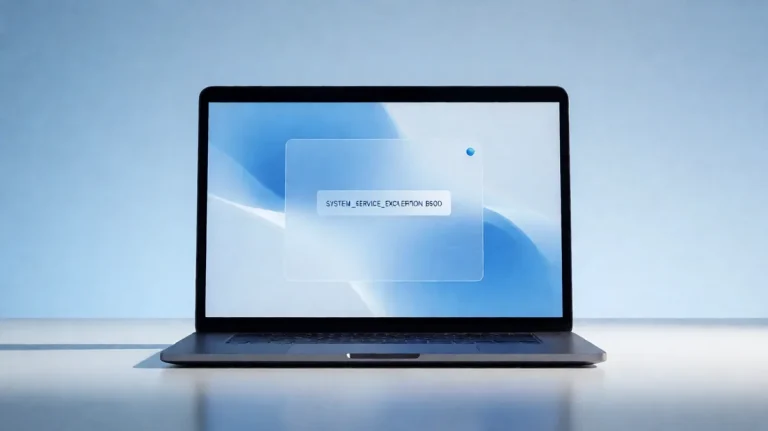
This stop code is bug check 0x00000050. In plain terms, Windows tried to touch memory that should have been available right then, and that access failed. The nonpaged pool is locked-in memory that should always stay in RAM, so the fault is about bad access, not automatically about a paging-file issue.
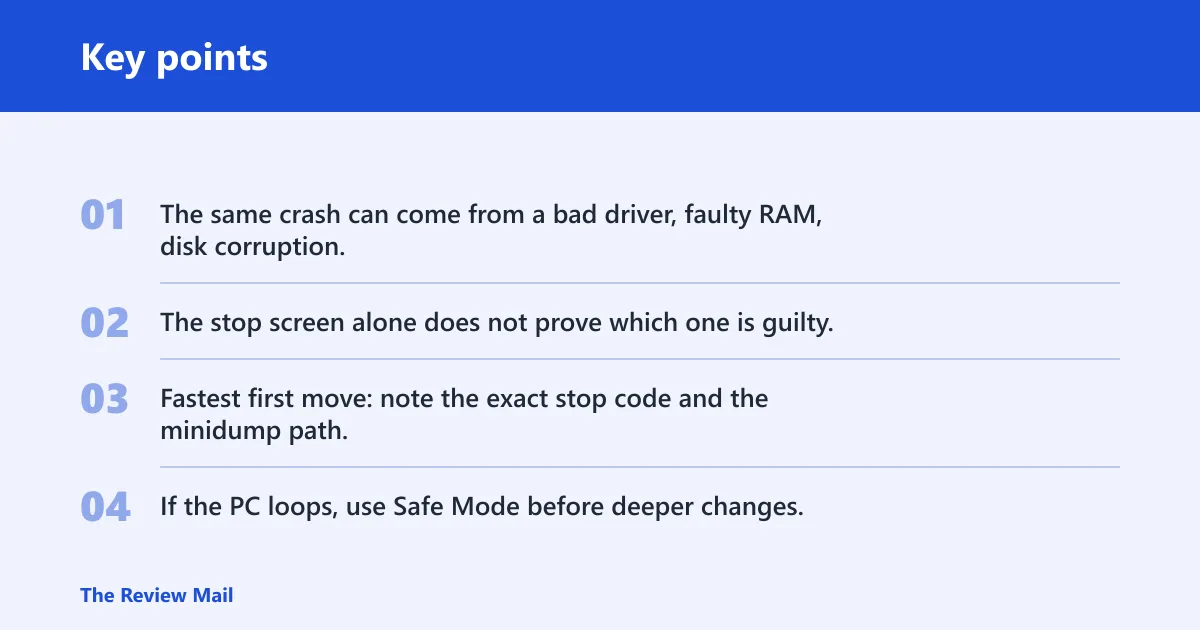
That distinction matters. The same crash can come from a bad driver, faulty RAM, disk corruption, third-party antivirus, or damaged Windows files. The stop screen alone does not prove which one is guilty.
Fastest first move: note the exact stop code and the minidump path, then boot normally once. If the PC loops, use Safe Mode before deeper changes.
Likely causes, ranked
Start with the causes that are fastest to rule out and least risky to check. Bad drivers and recent software changes are usually quicker to confirm than RAM swaps, while disk checks and memory diagnostics are better when the crash pattern points to hardware. Do not jump to a reinstall yet.
- Bad driver or kernel module. Often the quickest path when the dump names a device or service.
- RAM fault. More likely if crashes happen at boot, during memory-heavy work, or after recent hardware changes.
- Storage corruption or disk error. More likely if the system reports file-system trouble, freezes during reads, or the dump is inconsistent.
- Antivirus conflict. A third-party security filter can trigger the crash.
- Virtual memory misconfiguration. A custom paging file can worsen allocation problems.
- Corrupted system files. Windows files can be damaged after abrupt shutdowns or bad updates.
PAGE fault triage matrix
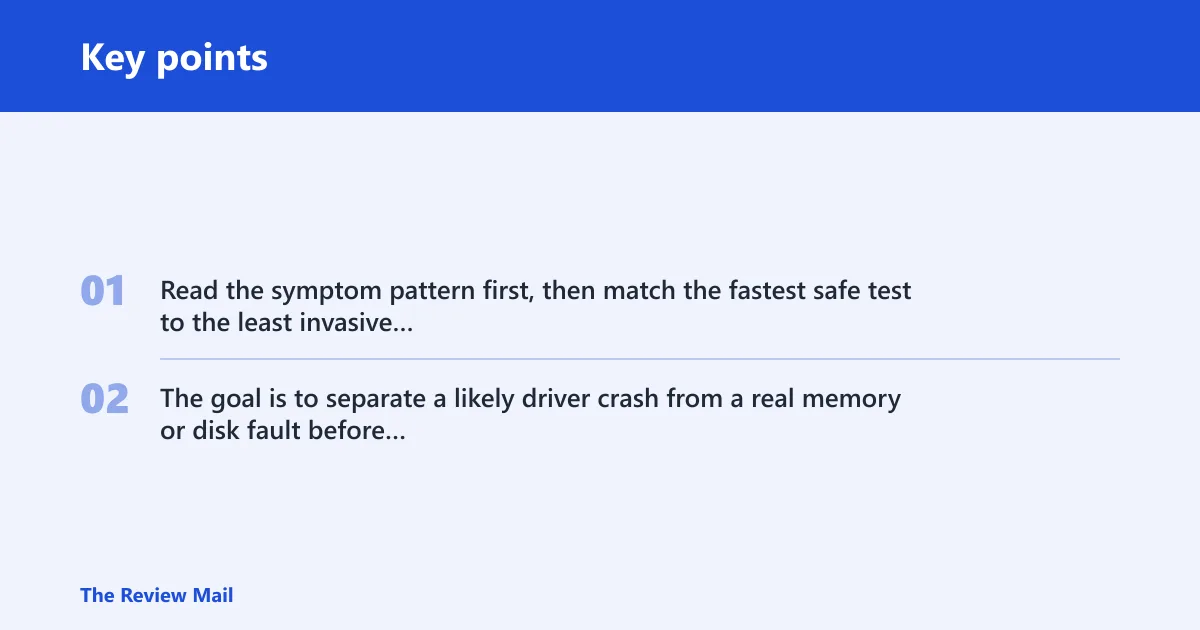
Use this matrix to choose the next test. Read the symptom pattern first, then match the fastest safe test to the least invasive next step. The goal is to separate a likely driver crash from a real memory or disk fault before you spend time on broad repair commands.
| Symptom pattern | Most likely cause | Fastest safe test | Confirming evidence | Next action |
|---|---|---|---|---|
| Crash names a driver file, recent update, or device service | Bad driver | Safe Mode, then Device Manager | Crash stops after driver rollback or removal | Roll back, update, or uninstall that driver |
| Crash during boot, random app use, or after adding RAM | RAM fault | Windows Memory Diagnostic | Test reports errors or fails repeatably | Reseat modules, test one stick at a time |
| File errors, long freezes, or repeated boot repair messages | Storage corruption | CHKDSK /f | NTFS or disk errors are repaired or reported | Back up data, then run deeper disk checks if needed |
| Crash began after security software install or filter update | Antivirus conflict | Temporarily disable or remove the third-party antivirus | Crash stops when the product is off | Replace it or keep it uninstalled |
| Crash appears after manual paging-file changes | Virtual memory misconfiguration | Return paging file to automatic sizing | Stability returns after automatic management is restored | Keep automatic sizing unless a specific workload needs custom settings |
| Crash follows a bad shutdown, update failure, or system file repair warning | Corrupted system files | SFC /scannow | SFC repairs files or reports integrity issues | Run DISM, then retest |
| System is unstable, but the root cause is still unclear | Do not reinstall yet | Collect minidumps and compare the stop context | Same module or device appears repeatedly | Fix the repeated offender before a reinstall |
Is it RAM or a driver?
Start in Safe Mode, then decide whether the pattern points more toward hardware or software. If the system is stable in Safe Mode but crashes in normal startup, a driver or service is more likely. If errors continue in Safe Mode or the memory test fails, shift attention to RAM.
- Open Settings > Recovery > Advanced startup > Restart now, then choose Troubleshoot > Advanced options > Startup Settings and enter Safe Mode.
- Run Windows Memory Diagnostic by pressing mdsched.exe, then choose Restart now and check for problems.
- If the PC has recent RAM changes, power down and reseat the modules. Test one stick at a time if the layout allows it.
- If errors appear only with both sticks installed, treat the failing module or slot as the next suspect.
Say your desktop boots cleanly in Safe Mode but crashes after a graphics driver update. That pattern points away from RAM and toward the new driver path. Suppose the same machine still fails the memory test after the driver is rolled back. Then the RAM test result matters more than the software change.
Can a bad driver trigger this BSOD?
Yes. A faulty or outdated driver is one of the more common triggers, and Device Manager is the fastest place to check recent changes. Focus on network and graphics drivers first, because those are common update targets and frequent crash paths. reported by howtogeek.com
- Open Device Manager, then expand Network adapters and Display adapters.
- Right-click the device, choose Properties > Driver, and select Roll Back Driver if the option is available.
- If rollback is unavailable, choose Uninstall device, then restart and let Windows reload a basic driver.
- Install only one updated driver at a time, then retest before changing another device.
Use Safe Mode if the system crashes too quickly to finish normal startup. It reduces loaded drivers and services, which makes it easier to see whether the problem follows one device path.
Should you run SFC or CHKDSK first?
Run SFC /scannow first when Windows files look damaged; run CHKDSK first when the disk or file system looks suspect. SFC checks corrupted system files, while CHKDSK checks logical and physical disk errors. If the storage layer is damaged, it can also corrupt Windows files, so both may be needed. reported by howtogeek.com
- Open an elevated Command Prompt and run
sfc /scannow. - If SFC reports problems it cannot fix, run
DISM /Online /Cleanup-Image /RestoreHealth, then runsfc /scannowagain. - To check the file system, run
chkdskC: /f. - Use
chkdsk /f /ronly when you need a deeper read of disk sectors and can accept the longer scan time.
If CHKDSK reports NTFS errors or repeated bad sectors, storage becomes the stronger lead. If SFC repairs files and the crash stops, the problem was likely software corruption rather than hardware.
Can antivirus or paging file settings cause it?
Yes. Third-party antivirus software can trigger the crash, and custom paging file settings can add pressure when memory allocation is already unstable. Windows can manage the paging file automatically, and that is usually the safer default unless a specific setup requires custom sizing. reported by howtogeek.com (Microsoft Learn)
- Temporarily disable or uninstall the third-party antivirus product, then restart.
- Open System Properties > Advanced > Performance > Settings > Advanced > Virtual memory.
- Turn on Automatically manage paging file size for all drives.
- Restart and retest before changing any other settings.
If the crash disappears after the antivirus is removed, that is a strong software clue. If it disappears after paging file settings return to automatic sizing, the custom configuration was part of the problem.
What to do if it still happens
If the basic checks do not clear the crash, move to hardware isolation and dump-file review. Check BIOS or firmware updates only after the obvious driver, storage, memory, and security-software paths are covered. A full reinstall is the last step, not the first.
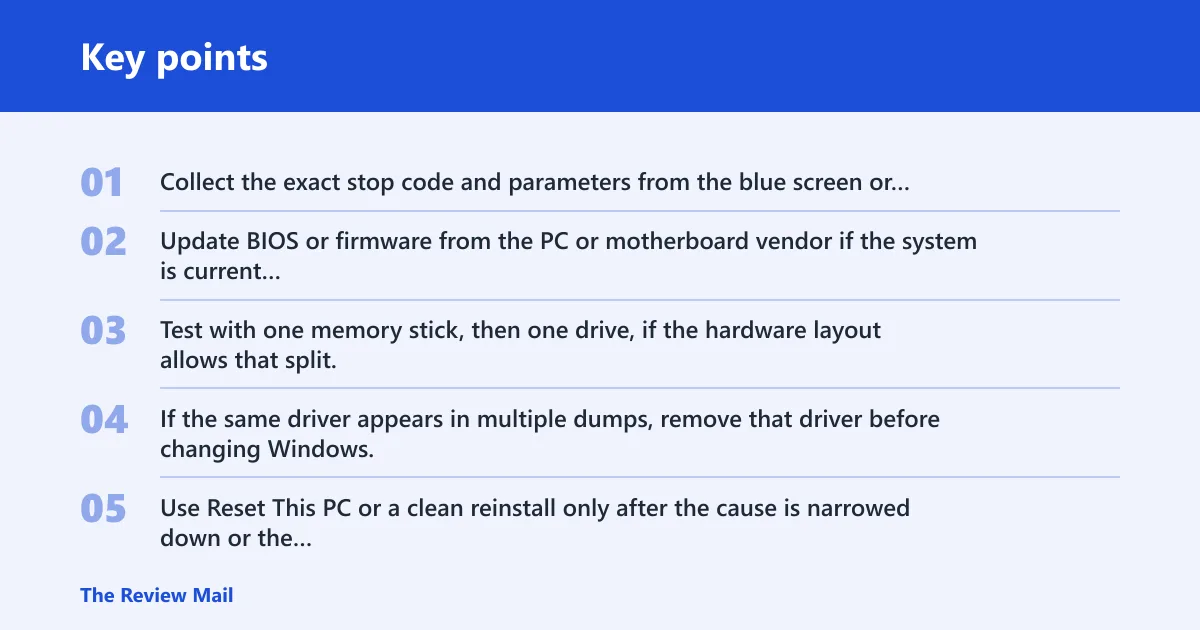
- Collect the exact stop code and parameters from the blue screen or
C:\Windows\Minidump\*.dmp. - Update BIOS or firmware from the PC or motherboard vendor if the system is current enough to support it.
- Test with one memory stick, then one drive, if the hardware layout allows that split.
- If the same driver appears in multiple dumps, remove that driver before changing Windows.
- Use Reset This PC or a clean reinstall only after the cause is narrowed down or the hardware checks are clean.
A common mistake is assuming a new SSD will stop a page fault in nonpaged area when the real problem is a bad driver loading at startup. That can hide the evidence and leave a failing stick of RAM or a bad storage device in place.
Prevention: Keep device drivers current, but change one driver path at a time so the next crash still points to the real offender.
Frequently asked questions
What causes page fault in nonpaged area?
Most often it comes from a bad driver, faulty RAM, a storage error, antivirus software, or damaged Windows files. The most useful clue is the dump file, because a repeated module name or device path narrows the fix much faster than a general repair pass.
How do I stop Page Fault in nonpaged area?
Start in Safe Mode, then check the dump, run mdsched.exe, and test sfc /scannow before changing anything invasive. If a driver is named, roll it back in Device Manager. If storage errors appear, run chkdsk C: /f and back up important files first.
Is page fault in nonpaged area a RAM problem or a driver problem?
It can be either. If the crash follows a new driver, focus on Device Manager first. If it appears during boot or memory diagnostics fail, treat RAM as the stronger suspect. Safe Mode helps separate those paths because it loads fewer drivers and services.
What should I check first after a PAGE_FAULT_IN_NONPAGED_AREA crash?
Check the exact stop code, the dump file, and whether the crash started after a driver, antivirus, or hardware change. Then boot into Safe Mode. That order gives you the fastest read on whether the next move should be driver rollback, memory testing, or disk repair.
Can antivirus software cause PAGE_FAULT_IN_NONPAGED_AREA?
Yes. A third-party antivirus filter can trigger the crash. The quickest test is to disable or uninstall that product, restart, and see whether the system stays up. If it does, replace the product rather than adding more fixes on top.
Does reinstalling Windows fix page fault in nonpaged area?
Sometimes, but only when the cause is corrupted Windows files or software that survives normal repair. It will not fix failing RAM, a bad drive, or a broken driver that comes back with the same install package. Treat reinstalling as a last step after the narrower tests.