Windows Error 0x80070585 Network Drive Not Found Error
Start by checking the UNC path and remapping the drive. This error usually traces to a bad path, name lookup failure, saved credentials, or an SMB mismatch, not a random Windows glitch.
What the message means
Windows cannot reach a mapped network drive, a shared folder, or sometimes a network printer. The first check is the path itself: a UNC path needs double backslashes, a computer name and share name, or the IP address in the same format. (Microsoft Learn)
Check the path before anything else
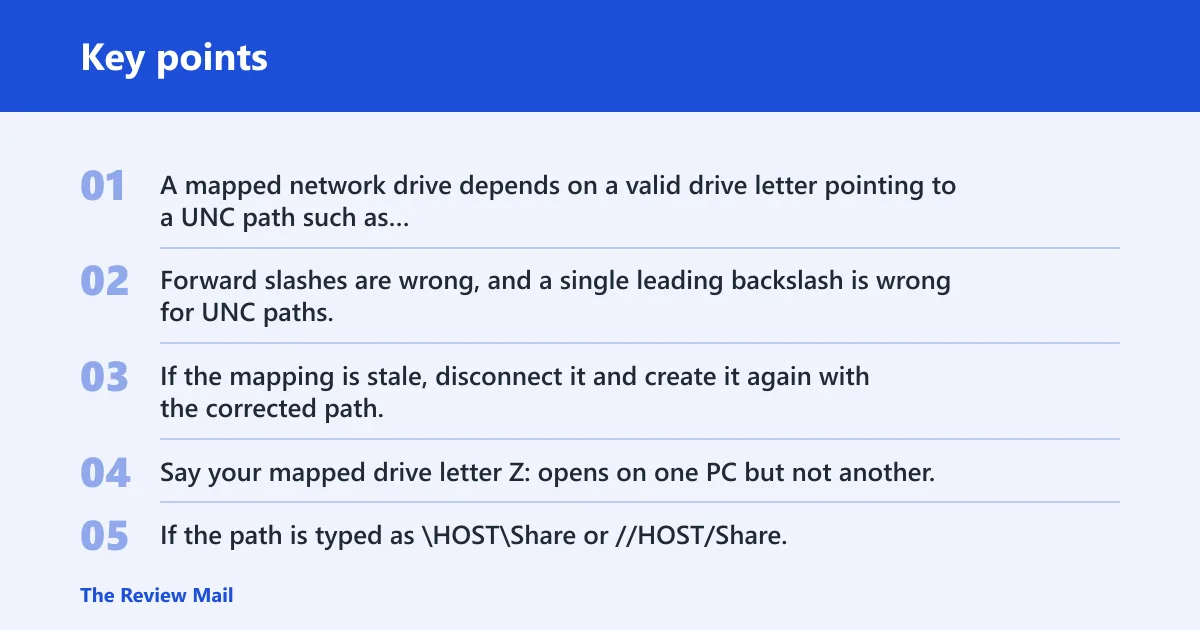
A mapped network drive depends on a valid drive letter pointing to a UNC path such as \\HOST\Share. Forward slashes are wrong, and a single leading backslash is wrong for UNC paths. If the mapping is stale, disconnect it and create it again with the corrected path.
Say your mapped drive letter Z: opens on one PC but not another. If the path is typed as \HOST\Share or //HOST/Share, Windows fails before it reaches permissions or firewall checks.
Network drive decision table
Use the symptom that matches what you see, then stop once the verification points to the real failure type. That keeps you from fixing DNS when the real issue is credentials, or enabling SMB 1.0 when the path is simply wrong.
| Symptom | Most likely cause | Fastest verification command or setting | Fix | When to stop |
|---|---|---|---|---|
| Works by IP but not by name | Name resolution failure | ping HOSTNAME and ping 192.168.1.20; if the IP works and the name fails, it is DNS-related (Microsoft Learn) | Use the IP UNC path, then run ipconfig /flushdns and remap after name lookup is fixed | Stop when \\192.168.1.20\Share opens and the name also resolves correctly |
| Share opens on one PC but not another | Profile, sharing, or firewall difference | Check Settings > Network & internet > Properties for Private, then Network discovery and File and printer sharing | Turn on the sharing setting on the host and allow the feature in Windows Defender Firewall | Stop when the same UNC path opens from both PCs on the same network |
| Saved password keeps coming back | Stale saved credentials | Open Credential Manager and inspect Windows Credentials for the host name or IP | Remove the old entry, disconnect the mapped drive, then sign in again with the correct account | Stop when Windows prompts once for the right credentials and then reconnects normally |
| Old NAS or legacy device only | SMB compatibility gap | Check whether the device only supports older SMB behavior; if so, look at SMB 1.0/CIFS File Sharing Support in Windows Features | Use it only as a temporary compatibility test, then turn it off again if you can avoid it | Stop when the old device opens and the device manual or vendor confirms the required SMB version |
| Domain or corporate PC fails only on managed network | Policy or security filtering | Check whether a firewall profile, endpoint tool, or domain policy is enforcing SMB rules | Ask the admin to verify SMB access, credential policy, and any blocked inbound rules | Stop when the admin confirms policy, not a local Windows setting, is the blocker |
Likely causes, ranked
Most often, the issue is a bad UNC path, a stale mapping, or name resolution that points to the wrong place. Less often, it is a saved credential problem, a legacy SMB device, or a firewall or policy block that affects only one PC.
Bad UNC path or stale mapped drive
This is the first place to check because a mapped drive can keep pointing at an old server name or a typo in the share name. The correct format is \\computer-name\share-name, and the shared folder must still exist on the target PC.
- Open File Explorer > This PC.
- Right-click the mapped drive and choose Disconnect.
- In the address bar, enter \\HOST\Share or \\192.168.1.20\Share.
- If it opens, remap the drive letter with the working path.
- If it does not open, move to the next section instead of repeating the same path.
Name resolution failure
If the share opens by IP address but not by computer name, DNS resolution is the problem. Windows can reach the host, but it cannot translate the name into the right address.
- Open Command Prompt.
- Run ping HOSTNAME, then ping 192.168.1.20.
- If only the IP works, run
ipconfig /flushdns. - Try the share again with \\192.168.1.20\Share.
- If the name still fails, check the DNS entry on another PC or on the router’s name lookup source.
ipconfig /flushdns
Credential or permission mismatch
If the share opens after you sign in on one machine but not another, saved Windows credentials are often the problem. Old entries in Credential Manager can keep sending the wrong username, even after you think you changed it.
- Open Control Panel > Credential Manager > Windows Credentials.
- Remove entries for the host name and the IP address.
- Open Command Prompt and run net use * /delete to clear mapped connections.
- Reconnect to \\HOST\Share and enter the correct account when prompted.
- If the PC is on a domain, confirm the account has permission on the share and on the folder itself.
Legacy SMB compatibility issue
Should you enable SMB 1.0 to access an old network share? Only as a compatibility check when the target is a legacy NAS or older device that truly needs it. Do not start here on a normal home PC or a modern shared folder.
- Open Control Panel > Programs > Turn Windows features on or off.
- Check SMB 1.0/CIFS File Sharing Support only if the device is old and other fixes failed.
- Restart Windows and test the share from the same path you used before.
- If the share works, plan a replacement or firmware update on the device.
- Turn SMB 1.0 back off after the test if you can avoid leaving it on.
Firewall or policy block
A firewall or antivirus tool can block SMB even when the drive letter and password are correct. On a home network, the host should use a Private profile, and Windows Defender Firewall must allow File and Printer Sharing or the related inbound SMB rules.
- On the host PC, open Settings > Network & internet > Properties.
- Confirm the active network is set to Private, not Public.
- Open Settings > Network & internet > Advanced network settings > Advanced sharing settings.
- Turn on Network discovery and File and printer sharing.
- In Windows Defender Firewall, allow File and Printer Sharing and confirm inbound access on 139 and 445 if your rule set uses ports directly.
What services should be running for Windows file sharing to work?
For normal Windows file sharing, the key checks are the sharing settings, the firewall profile, and whether the host can answer SMB traffic. TCP/IP NetBIOS Helper can matter on some older setups, but it is not a universal requirement for modern SMB access.
Check the host side first
- On the sharing PC, open Settings > Network & internet > Properties and confirm Private.
- Open Control Panel > Network and Sharing Center > Advanced sharing settings.
- Turn on Network discovery.
- Turn on File and printer sharing.
- In Services, check that TCP/IP NetBIOS Helper is set to Automatic and is Running only if you are dealing with an older device or name-based browsing issue.
A common first-timer mistake is to chase services before checking the share itself. If the folder was never shared on the host, no service setting will make \\HOST\Share work.
How do I check whether a shared folder is actually shared on the other PC?
Open the host PC and confirm that the folder has a share name, not just local file permissions. The folder must be shared, the network profile should be Private, and the host must allow inbound SMB traffic through Windows Defender Firewall.
Verify the share on the host
- On the host PC, right-click the folder and choose Properties.
- Open the Sharing tab.
- Choose Advanced Sharing if needed and confirm the folder is shared.
- Write down the share name exactly as shown.
- From another PC, test \\HOST\ShareName or \\192.168.1.20\ShareName.
Suppose the folder shares correctly on a desktop named OFFICE-PC but not on a laptop. That usually points to a profile or firewall difference on the laptop, not a missing share on the host.
If that didn’t work, try this next
If the share still fails after the path, name lookup, credentials, and host settings checks, move to the more invasive options. Resetting network components can clear broken local state, but it should come after the direct SMB checks above.
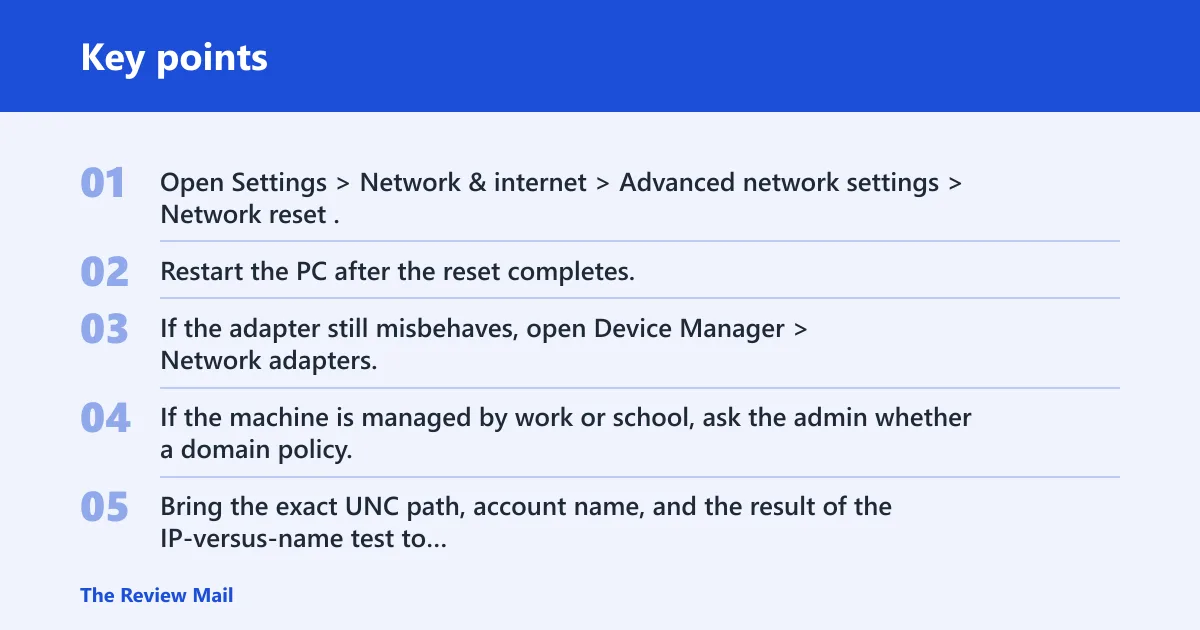
- Open Settings > Network & internet > Advanced network settings > Network reset.
- Restart the PC after the reset completes.
- If the adapter still misbehaves, open Device Manager > Network adapters, uninstall the adapter, then scan for hardware changes.
- If the machine is managed by work or school, ask the admin whether a domain policy, endpoint tool, or firewall rule is blocking SMB.
- Bring the exact UNC path, account name, and the result of the IP-versus-name test to support.
ipconfig /release
ipconfig /flushdns
ipconfig /renew
netsh winsock reset
netsh int ip reset
Frequently asked questions
How do I fix the network path was not found error in Windows?
Start with the exact path format: \\computer-name\share-name or \\IP-address\share-name. Then check whether the host is shared, whether the network is Private, and whether File and printer sharing is allowed in Windows Defender Firewall.
Why does Windows say the network path was not found on a shared drive?
That usually means Windows can reach the device poorly or not at all through the path you gave it. Check for a stale mapped drive, a typo in the share name, blocked SMB traffic on 445, or a name lookup issue that disappears when you use the IP address instead.
How do I connect to a network drive using the IP address instead of the name?
In File Explorer, type \\192.168.1.20\Share in the address bar, then map the drive from This PC if it opens. If that works but \\HOST\Share does not, run ipconfig /flushdns and fix the DNS name before remapping.
Should I enable SMB 1.0 to access an old network share?
Only if the device is genuinely old and the share fails after you confirm the path, credentials, and firewall settings. Turn on SMB 1.0/CIFS File Sharing Support as a temporary test, then turn it back off if the device can be updated or replaced.
Can firewall or antivirus block a mapped network drive from opening?
Yes. A local firewall or security suite can block SMB traffic even when the mapping looks correct. Check the Windows Defender Firewall rule for File and Printer Sharing, and confirm inbound access on 139 and 445 if your rule set uses explicit ports.