
Stop Code Ntfs File System Windows 11
Check the storage path first: boot to Safe Mode or Windows Recovery Environment, then see whether the crash tracks a driver change, repeated disk errors, or a failing SSD/HDD before you repair anything. Forced reboots can deepen a boot loop, damage files, or make the drive harder to read.
What the stop code points
NTFS_FILE_SYSTEM is a BSOD tied to stop code 0x00000024, and the crash message names ntfs.sys, the Windows kernel driver for NTFS volumes. Because Windows uses NTFS as the default file system, failures here can show up during startup or inside a boot loop when storage access breaks early.
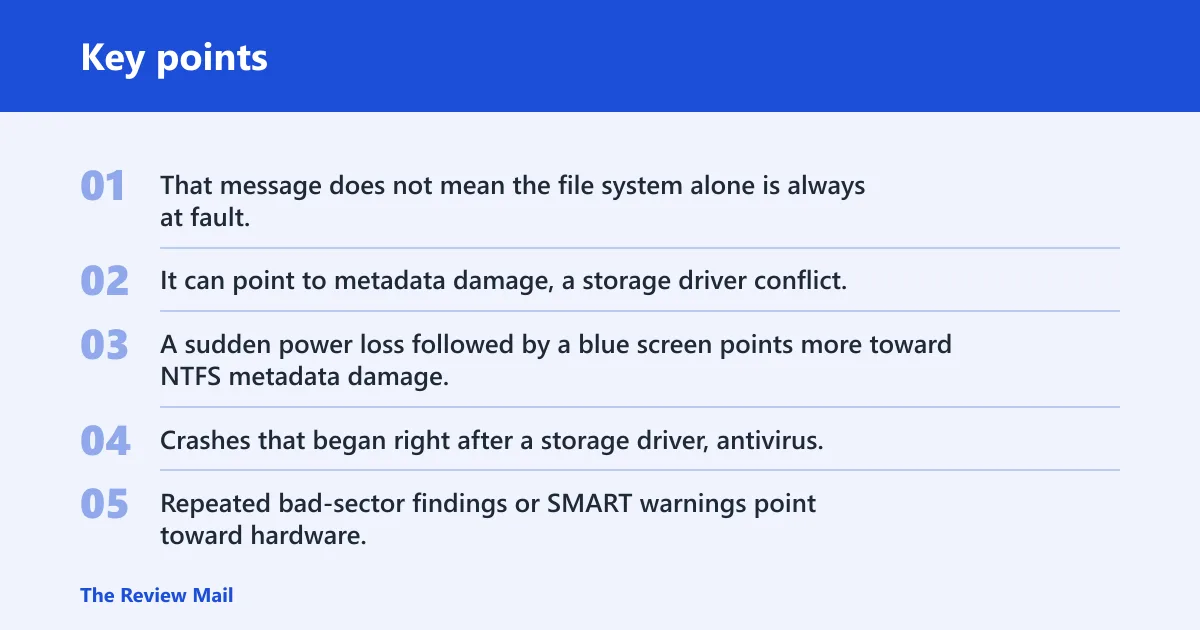
That message does not mean the file system alone is always at fault. It can point to metadata damage, a storage driver conflict, a third-party filter driver above ntfs.sys, bad RAM, or a drive that is starting to fail.
Likely cause pattern
Rank the clues by symptom, not by guesswork. A sudden power loss followed by a blue screen points more toward NTFS metadata damage. Crashes that began right after a storage driver, antivirus, or backup tool change point more toward filter-driver interference. Repeated bad-sector findings or SMART warnings point toward hardware.
| Symptom pattern | Most likely cause | Safest next action |
|---|---|---|
| Boot loop after power loss | NTFS metadata corruption | Enter WinRE and run CHKDSK on the Windows volume |
| Crashes began after installing antivirus or backup software | Third-party filter-driver conflict | Boot Safe Mode and remove the new software |
| Blue screen repeats after a storage-driver update | SATA, NVMe, RAID, or chipset driver conflict | Roll back the driver from Device Manager |
Repeated CHKDSK finds new file-system errors | Drive surface or metadata damage | Back up data, then recheck drive health |
| Drive health tool shows growing warning counts | Failing drive | Copy data off the disk and plan replacement |
| Drive shows unstable sectors or read errors | Unstable storage media | Stop normal use and clone or back up first |
| Drive reports recurring read/write errors | Unreliable storage media | Do not keep rerunning repair passes |
| WinRE command prompt shows the wrong drive letter | Repair aimed at the wrong volume | Confirm the Windows volume before any command |
| Blue screen after new RAM settings or XMP changes | Memory instability | Return RAM to default speed and rerun the test |
| Same bad sectors return after a second scan | Hardware failure, not just file-system damage | Copy data now and stop repair-only attempts |
| Drive shows repeated mount failures plus warning counts | Drive near failure threshold | Replace the drive now and recover data first |
Say your laptop started blue-screening after a midnight power cut, and the next boot goes straight back to the same stop code. That pattern fits metadata damage better than a random software conflict, so the first move is a disk repair from WinRE, not a Windows reset.
Suppose the error began the same day a backup tool installed its filter driver. In that case, Safe Mode matters because it loads only essential drivers and services, which helps separate Windows storage code from outside software layered on top of it.
How do I fix stop code NTFS_FILE_SYSTEM if Windows 11 won’t boot?
Start in Windows Recovery Environment, then confirm the Windows drive letter before you run any repair. Use CHKDSK first when the pattern looks like file-system damage, then move to SFC and DISM if Windows files are also damaged. If the disk keeps reporting errors, stop and check health instead of repeating repairs.
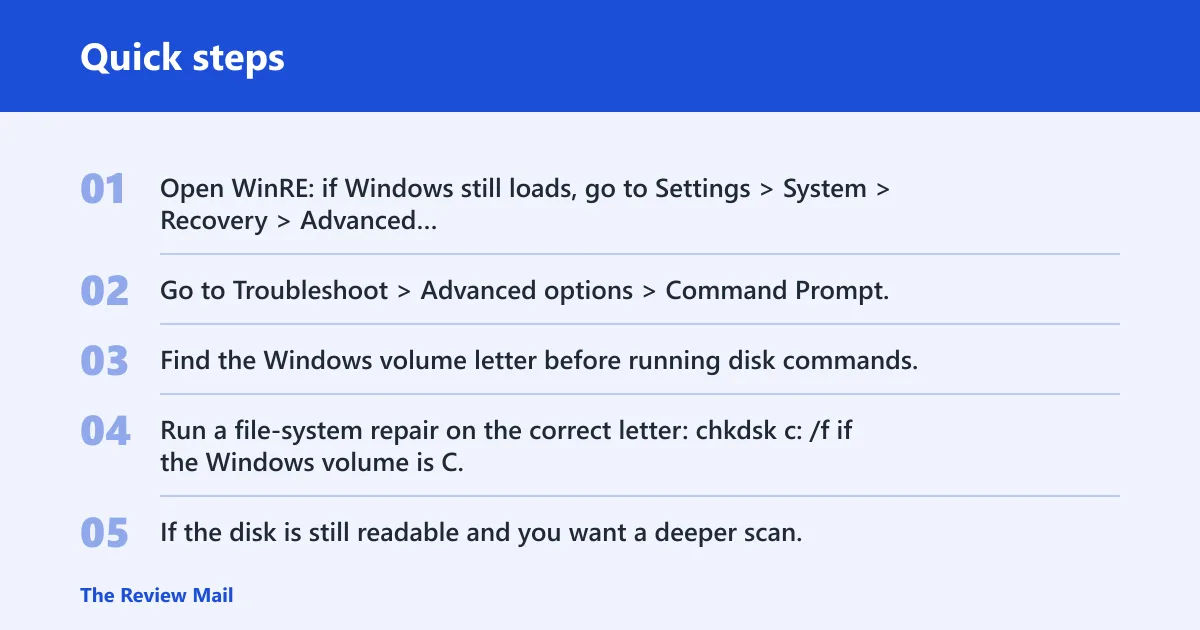
- Open WinRE: if Windows still loads, go to Settings > System > Recovery > Advanced startup and select Restart now. If Windows will not load, power on the PC and interrupt startup until recovery opens.
- Go to Troubleshoot > Advanced options > Command Prompt.
- Find the Windows volume letter before running disk commands. In the prompt, type diskpart, then list volume. Match the volume that contains the Windows folder, then type exit.
- Run a file-system repair on the correct letter:
chkdskc: /f if the Windows volume is C:, or replace the letter if WinRE assigned another one. - If the disk is still readable and you want a deeper scan, use
chkdskc: /r with the correct Windows volume letter. - After Windows boots, run
sfc /scannow, thenDISM /Online /Cleanup-Image /RestoreHealthfrom an elevated Command Prompt.
CHKDSK /f repairs logical file-system errors. CHKDSK /r does that and checks for bad sectors, so it can take an hour or more on a large drive. If the same sectors keep reappearing, stop treating it as a routine repair problem.
WinRE path:
Troubleshoot > Advanced options > Command Prompt

Before repairs:
diskpart
list volume
identify the Windows partition letter
exit

Disk repair:
chkdsk c: /f
chkdsk c: /r

System files after boot:
sfc /scannow
DISM /Online /Cleanup-Image /RestoreHealth
Could the drive be failing?
Yes. A failing SSD or hard drive can trigger this stop code because ntfs.sys depends on the storage stack returning clean reads and writes. The fastest clue is the drive’s health data or warning indicators: if a health utility reports growing errors, a warning state, or repeated unreadable sectors, the disk may be struggling to keep data readable.
- Open the drive’s health report with your vendor tool or a reputable health utility.
- Check whether the tool reports warning counts or an unhealthy state.
- Check whether the tool reports unreadable or unstable sectors.
- Check whether error counts are increasing over time.
- If
CHKDSKreports bad sectors, rerun it only once with the deeper scan option and compare results. - If the same sectors show up again on the next scan, copy data off the drive and stop repair attempts.
Repeated CHKDSK findings are a warning, not a victory lap. A clean pass after one repair can happen on a healthy disk with a limited metadata problem. The repeated return of the same sectors is the line that should push you from repair mode to replacement mode.
Could Safe Mode or drivers be the trigger?
Often, yes. Safe Mode strips away most nonessential drivers and services, which makes it useful when a new SATA, NVMe, RAID, chipset, antivirus, or backup filter driver sits between Windows and the disk. That layer can fault and get blamed on ntfs.sys even when the file system is not the root problem.
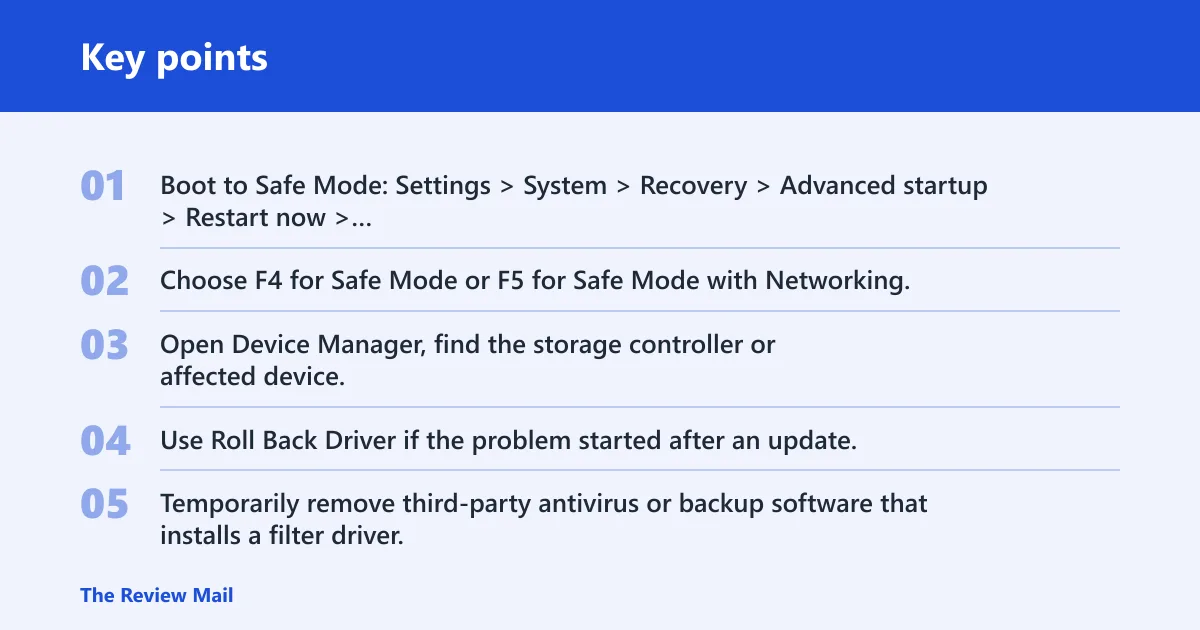
- Boot to Safe Mode: Settings > System > Recovery > Advanced startup > Restart now > Troubleshoot > Advanced options > Startup Settings.
- Choose F4 for Safe Mode or F5 for Safe Mode with Networking.
- Open Device Manager, find the storage controller or affected device, then open Properties > Driver.
- Use Roll Back Driver if the problem started after an update. If rollback is unavailable, choose Uninstall device and restart.
- Temporarily remove third-party antivirus or backup software that installs a filter driver.
- Return RAM to default settings, then rerun Windows Memory Diagnostic from the Start menu.
A common mistake is to keep rebooting into Windows 11 and rerunning CHKDSK after every NTFS file system stop code without checking the drive cable or SSD health first. If the error returns only after that software comes back, the cleaner test is to leave it off long enough to confirm whether the boot loop stops.
Bad RAM can also create storage-looking failures. When memory settings were changed recently, return them to default before you blame the disk.
Do I need to reinstall Windows if NTFS_FILE_SYSTEM keeps happening?
Not first. Reinstalling Windows only makes sense after you have checked the volume letter, repaired the file system, removed obvious driver conflicts, and reviewed drive health. If the same sectors keep returning or the drive health tool shows warning counts, a reinstall will not fix a dying drive.
- Back up data if the drive still mounts.
- Run
CHKDSK, then SFC and DISM after boot if Windows becomes reachable. - Test memory with Windows Memory Diagnostic.
- If the issue survives those checks and the disk health is clean, consider Reset this PC from WinRE.
- If the disk shows warning counts or repeat bad sectors, replace the drive before any reinstall.
Windows still uses NTFS because it remains the default file system on Windows systems, and that is why this error keeps appearing in storage-related failures. The format is not the problem by itself. The problem is that Windows depends on it at the point where storage access must already be correct.
Frequently asked questions
What does stop code NTFS_FILE_SYSTEM mean in Windows 11?
It means Windows hit a storage-path failure while accessing an NTFS volume, often with stop code 0x00000024 and ntfs.sys named in the crash. The fastest first check is whether the issue began after a driver change, sudden power loss, or a drive-health warning.
Can NTFS_FILE_SYSTEM be caused by a failing SSD or hard drive?
Yes. Check the drive’s health report for warning indicators, unreadable sectors, or increasing error counts. If the same bad sectors reappear after a second scan, copy your files off the drive and plan replacement instead of more repair runs.
Should I run CHKDSK for NTFS_FILE_SYSTEM?
Yes, if the symptom pattern points to file-system corruption or after a power loss. Use chkdsk c: /f for logical repairs and chkdsk c: /r when you also want sector checks, replacing the drive letter with the correct Windows volume if needed. On large drives, the deeper scan can take an hour or more.
What is the difference between ntfs.sys and the NTFS file system?
NTFS is the Windows file system that stores and manages files on disks. ntfs.sys is the Windows kernel driver that handles read and write access to NTFS volumes. A crash in ntfs.sys often points to a deeper problem below or above the file system.
Why does Windows still use NTFS?
Because NTFS is still the default Windows file system, including on Windows 11. That means storage problems often surface through NTFS-related code paths. For recovery, the practical step is to inspect the disk, the driver layer, and memory before you jump to a reinstall.