Bsod Repair Exe: What It Means and How to Fix It
bsod_repair.exe is usually a crash label, not proof that the .exe caused the BSOD; treat it as the suspect only if Event Viewer, minidumps, or file path point to that exact binary. Guessing wrong sends you after the wrong app, driver, or malware, and the blue screens keep coming. This guide shows how to verify the file, tell a wrapper from the real fault, and decide what to repair first.
Why the named executable may not be the crash cause
A Blue Screen of Death is a critical Windows error that stops the system to prevent further damage, and the stop code is the most important clue. On Windows 10 and Windows 11, a visible .exe name can sometimes indicate the crashing program, a loaded module, or the last symbol a dump tool surfaced.
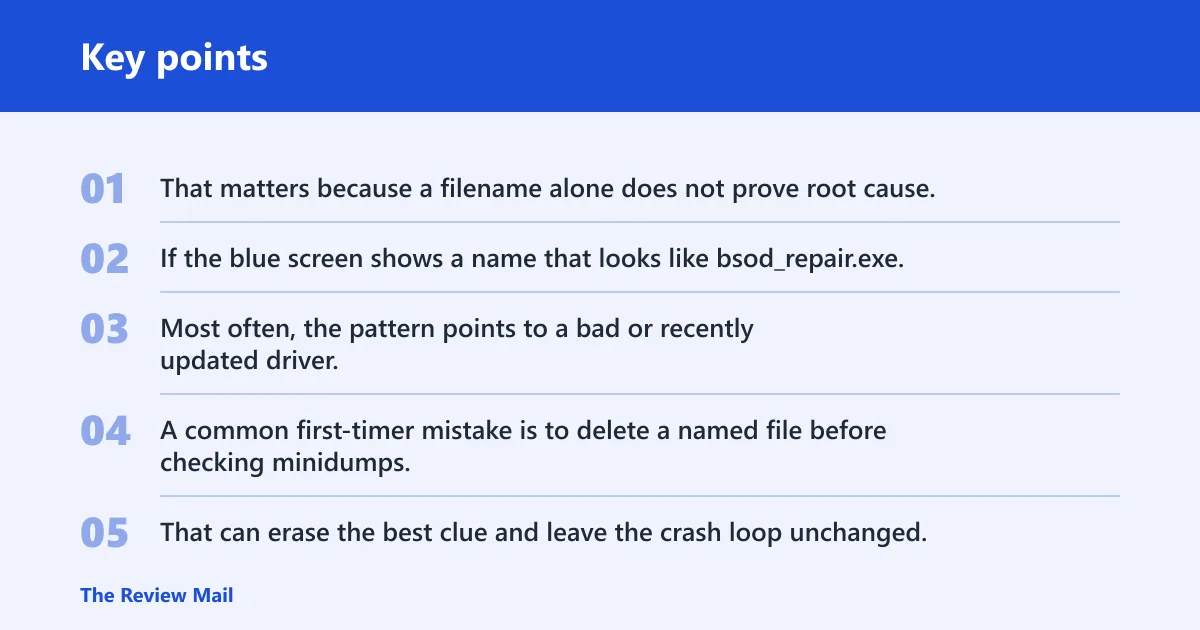
That matters because a filename alone does not prove root cause. If the blue screen shows a name that looks like bsod_repair.exe, first check whether it matches a real program path, a driver wrapper, or a dump artifact from the crash report.
Likely causes
Most often, the pattern points to a bad or recently updated driver, corrupted Windows files or image damage, or faulty RAM and unstable firmware. A common first-timer mistake is to delete a named file before checking minidumps. That can erase the best clue and leave the crash loop unchanged.
Say your PC starts blue screening right after a GPU driver update and the screen names an .exe. That does not automatically mean the file is malware. It may be the driver path, the loaded module, or the crash tool’s label.
If the BSOD names an.exe, then check this first
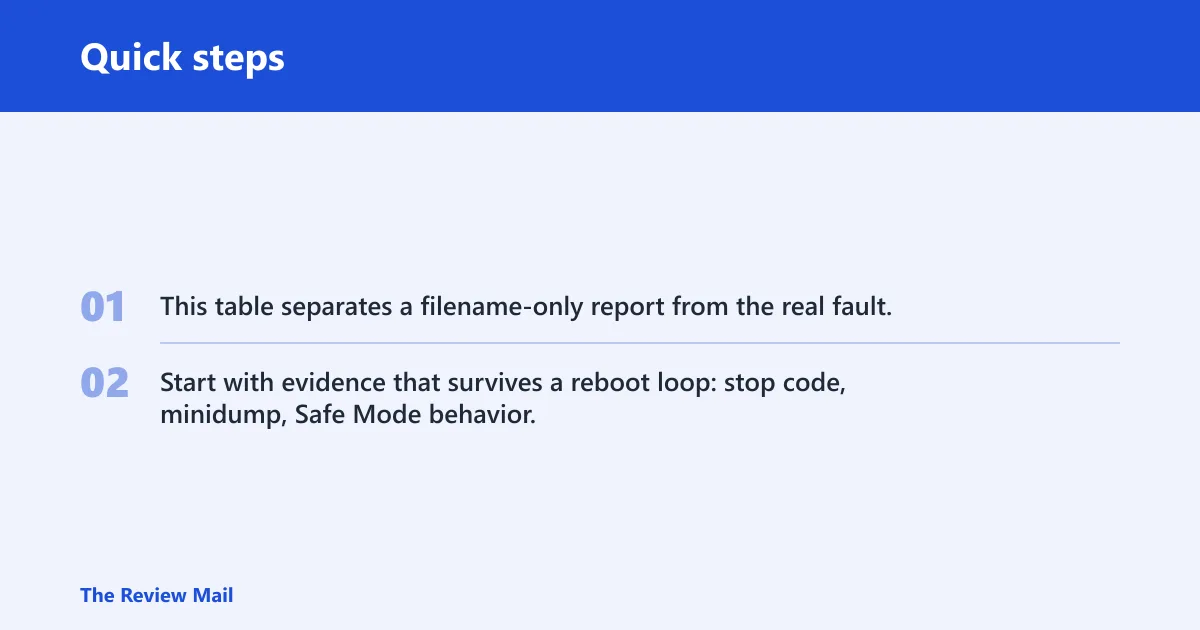
This table separates a filename-only report from the real fault. Start with evidence that survives a reboot loop: stop code, minidump, Safe Mode behavior, recent driver changes, RAM results, and BIOS age.
| Symptom | Likely layer | Evidence to collect | Next action |
|---|---|---|---|
| Name appears once, stop code is clear | Loaded module or crash site | Stop code, minidump path, module name | Open the dump before changing files |
| Name changes between crashes | System instability | Several minidumps, each stop code | Test RAM, storage, and firmware |
| Crash begins after a driver update | Driver layer | Recent driver install date, Device Manager changes | Roll back or reinstall that driver |
| Safe Mode is stable | Third-party software or driver | Safe Mode with Networking result | Clean boot, then remove the last change |
| Safe Mode still crashes | Core Windows corruption or hardware | Minidumps, SFC, DISM, RAM test | Run repair commands and hardware checks |
| Recent BIOS update or very old firmware | BIOS / UEFI layer | Firmware version, board model, power stability | Update only after other evidence points there |
How to check the crash report first
Collect the dump before another restart overwrites useful context. Windows writes a memory dump file to C:\Windows\Minidump after a crash, and that file is often better evidence than the visible .exe name. Use WinDbg or WhoCrashed to inspect the failing driver name, module path, and stop code.
- Open
C:\Windows\Minidumpin File Explorer and copy the newest files to another folder. - Open the dump in WinDbg or WhoCrashed and note the stop code.
- Look for the failing driver name and full module path, not only the first filename shown.
- Check whether multiple dumps point to the same driver or to different modules.
- If the dump mentions a recent device driver, compare that date with the crash start date.
If the same driver appears across several dumps, that is a stronger clue than a single .exe label. If each dump names a different module, treat that as instability evidence and widen the search to RAM, storage, or firmware.
Why Safe Mode helps
Safe Mode starts Windows with only the minimum required drivers and services. Third-party drivers and startup programs stay out of the boot path. That makes it useful for checking whether the crash follows extra software or survives without it. On Windows 10 and Windows 11, Safe Mode can usually be reached through Settings, Shift+Restart, msconfig, or a boot interruption.
Use Safe Mode as a filter
Try Safe Mode first, then Safe Mode with Networking if you need to download a driver or repair tool. If the system stays up there, the issue is more likely tied to a third-party driver or startup item than to the Windows core.
- Open Settings > System > Recovery > Advanced startup > Restart now on Windows 11, or Settings > Update & Security > Recovery > Advanced startup > Restart now on Windows 10.
- Choose Troubleshoot > Advanced options > Startup Settings > Restart.
- Press 4 for Safe Mode or 5 for Safe Mode with Networking.
- If Windows will not boot, use Shift+Restart or interrupt startup to reach WinRE.
Suppose a desktop crashes only after a vendor RGB utility loads, but Safe Mode is steady. That points away from the .exe name and toward software loaded later in a normal boot.
Should you run SFC and DISM before replacing files?
Yes. Start with sfc /scannow, then use DISM /Online /Cleanup-Image /RestoreHealth if SFC still reports corruption. SFC repairs protected system files. DISM repairs the Windows image and may need internet access to pull clean components. Run SFC again after DISM if symptoms remain.
- Open Terminal or Command Prompt as administrator.
- Run
sfc /scannowand wait for the result. - If SFC reports unrepaired corruption, run
DISM /Online /Cleanup-Image /RestoreHealth. - Run
sfc /scannowagain after DISM finishes. - Reboot and check whether the same stop code returns.
Do not download replacement Windows files from random sites. If the protected file set is damaged, these repair commands are the safer first pass.
Can faulty RAM cause an.exe-related BSOD?
Yes. Faulty RAM can corrupt data in memory and make a crash look like it involves an .exe even when the named file is only collateral. Run Windows Memory Diagnostic with mdsched.exe, then narrow it further with stick-by-stick testing if the system has more than one module.
- Press Win+R, type mdsched.exe, and start the test.
- Choose the restart-and-check option.
- If errors appear, power off and reseat the memory modules.
- Test one stick at a time in the same slot if the machine has multiple modules.
- If errors persist on one stick, replace that module before moving on.
Memory problems often show up as random, shifting crash names. If one module passes and another fails, the .exe label is a symptom, not the source.
When should you update BIOS for repeated BSODs?
Check BIOS / UEFI firmware after software checks fail or when crashes started after a newer Windows build. Outdated firmware can conflict with newer Windows versions, but update it carefully. Power stability matters during the process, because a failed flash can leave the system unbootable.
- Open System Information and note the BIOS version and date.
- Compare that version with the motherboard or PC vendor’s support page.
- If the board is behind and the crash pattern still points to firmware, follow the vendor update method exactly.
- Use stable power and avoid updates during storms or on a weak battery.
- After the update, retest the system before changing more settings.
BIOS updates are generally not a first move. They belong after dump review, Safe Mode checks, and file repair, unless the vendor’s notes match the crash pattern closely.
What should you try next?
If the dump points to a recent driver, update or roll back the graphics, chipset, storage, and network drivers. If the crash started after a new device, remove it and retest. If Safe Mode is stable but normal boot is not, clean boot the machine with msconfig and remove recent software one by one.
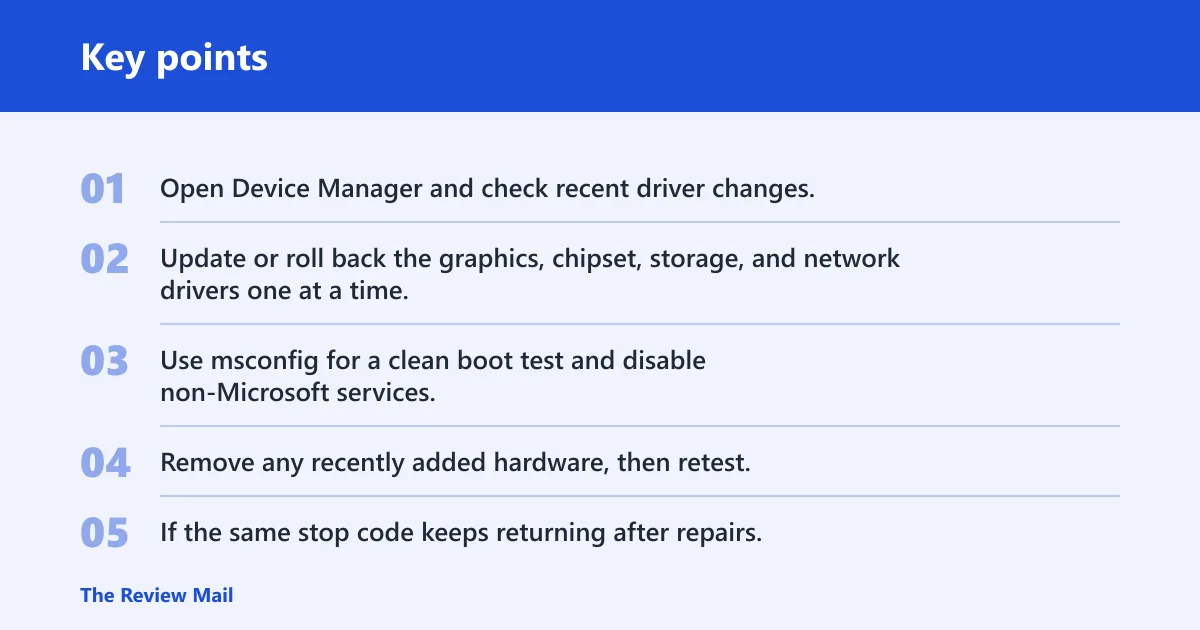
- Open Device Manager and check recent driver changes.
- Update or roll back the graphics, chipset, storage, and network drivers one at a time.
- Use msconfig for a clean boot test and disable non-Microsoft services.
- Remove any recently added hardware, then retest.
- If the same stop code keeps returning after repairs, move to Reset this PC or a clean reinstall.
If that did not work, stop chasing the filename and work backward from the evidence. When multiple dumps, Safe Mode results, and driver dates do not line up, the problem is usually deeper than one visible .exe label.
Prevention helps only when a clear change triggered the crash. Keep driver updates staged, and note the date of any new hardware or firmware change so a repeat BSOD has a starting point.
Frequently asked questions
What does bsod_repair.exe mean on my Windows blue screen?
It usually means the crash screen or dump tool surfaced a filename tied to the event, not that the file is automatically bad. Check the stop code first, then confirm the exact path in a minidump under C:\Windows\Minidump. If the path does not match a real installed program, treat the name as a clue only.
Is bsod_repair.exe a real Windows file or malware?
Do not assume either one from the name alone. Verify the full path in the dump, then check whether the file lives in a normal program folder or a suspicious location. If the file is missing, the crash may still involve a driver or a broken system component rather than malware.
How do I find which driver caused the BSOD if an.exe is named?
Open the newest dump in WinDbg or WhoCrashed and look for the failing driver name, module path, and stop code. If the same driver repeats across dumps, that is a stronger lead than the screen name. If different modules appear each time, focus on RAM, storage, or firmware next.
Why does Safe Mode help with blue screen errors?
Safe Mode loads only the minimum required drivers and services, so third-party drivers and startup programs stay out of the picture. That makes it useful for deciding whether the crash depends on extra software. If Safe Mode with Networking works, use it to download the next repair step.