Windows Event Code 7000: What It Means and Fixes
Windows Event Code 7000 indicates that a Windows service failed to start; a practical next step is to match the Event Viewer message and act on the dependency, account, or file-path clue it provides. Ignore it, and the service can stay down, break logon, stop updates, or block another app that depends on it. This guide shows how to read the 7000 wording, trace the most likely cause, and choose the next fix without guesswork.
What event ID 7000 means
Event ID 7000 is a Service Control Manager error that means a Windows service did not start when SCM tried to launch it. On Windows 10 and Windows 11, the event is a symptom, not a diagnosis. The useful part is the General tab text, which points to the specific service and the failure type.
Why 7000 points to a start failure
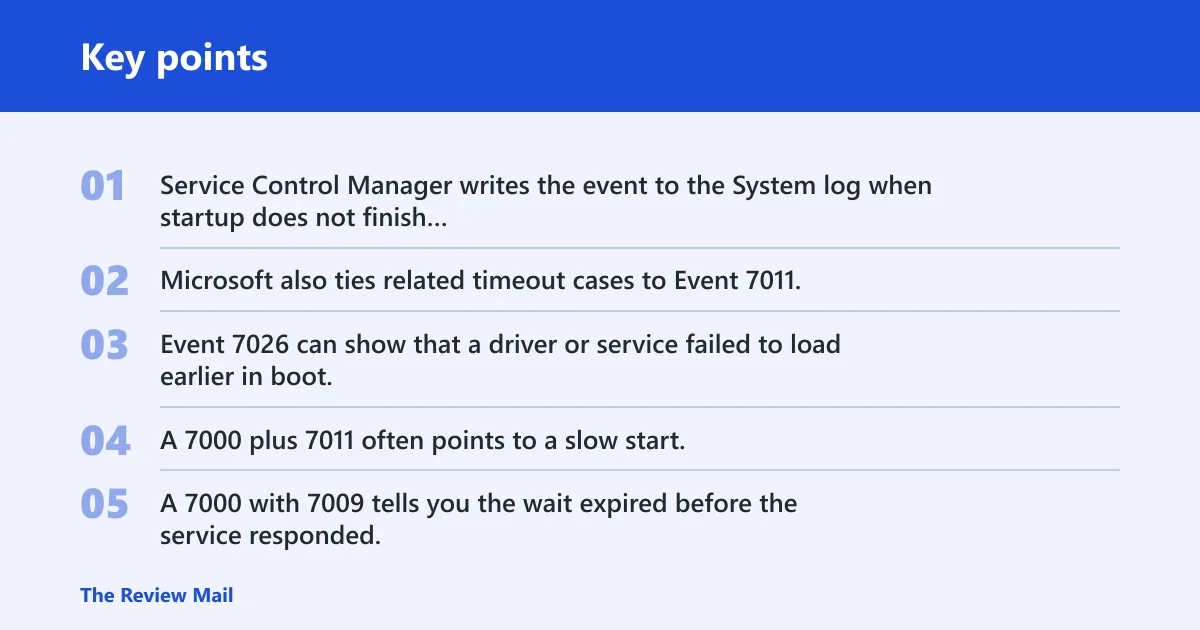
Service Control Manager writes the event to the System log when startup does not finish cleanly. Microsoft also ties related timeout cases to Event 7011, while Event 7009 often appears when the wait limit is reached. Event 7026 can show that a driver or service failed to load earlier in boot.
Which related events matter?
Do not treat 7000 alone. A 7000 plus 7011 often points to a slow start, while 7000 with 7026 can point to a failed driver or service binary. A 7000 with 7009 tells you the wait expired before the service responded, which is different from a bad password or missing file.
📊 Microsoft says event 7000 and 7011 are logged when a slow service does not start due to timeout. Source: Microsoft.
Where to find the failing service
Open Event Viewer and go to Windows Logs > System. Find the Event ID 7000 entry, then open the General tab and read the exact service name and error text. That wording is the fastest path to the right fix, because it tells you whether the failure is access, file path, dependency, or logon related.
Read the General tab, not just the event number
The event number tells you only that a service start failed. The General tab usually names the service and gives the specific reason, such as access denied, the file was not found, or the service could not start because a dependency failed. That is the first clue to use.
Copy the exact service name and error text
Use the exact service name as it appears in Event Viewer and in the Services console. Many fixes depend on whether the service is Microsoft-provided or third-party, whether it starts automatically or manually, and whether the failing component is the service itself or something it calls at boot.
Event 7000 decision table
This table maps the General tab wording to the most likely cause, the first check, and the next action. Start here before changing registry values or reinstalling software.
| Exact General tab wording | Likely cause | First check | Next action |
|---|---|---|---|
| Access is denied | Wrong Log On account or missing service rights | Services console > Log On tab | Fix the account, password, and service permissions |
| The system cannot find the file specified | Missing executable or bad path | Service path in the registry or the program folder | Repair, reinstall, or correct the binary path |
| The service is disabled | Startup type set to Disabled | Services console > Startup type | Change it to Manual or Automatic as needed |
| A dependency service or group failed to start | Upstream service is stopped | Dependencies tab and related services | Start the required services first |
| The service did not start due to a logon failure | Bad password or invalid account | Services console > Log On account | Update credentials or switch to the right service account |
| The service did not respond in a timely fashion | Startup timeout | Related 7009 or 7011 events | Check for a slow dependency, then consider ServicesPipeTimeout |
Say your print spooler service shows “The service did not start due to a logon failure” right after a password change. That is an account problem, not a timeout. The fix is to update the Log On credentials in services.msc and retry the service start before touching anything else.
How do you fix windows event id 7000?
Start with the service settings in services.msc, then move to dependencies and the logon account. For many third-party services, that solves the problem faster than file repair. If the General tab points to a missing binary or protected Windows file, switch to repair tools next.
Check startup type in services.msc
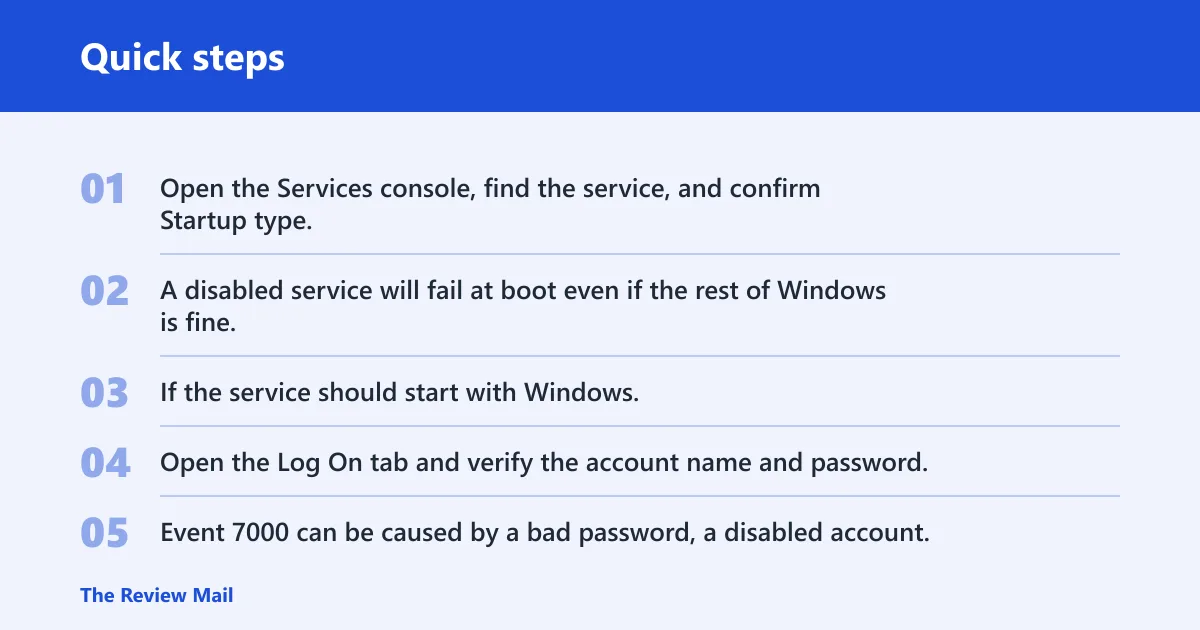
Open the Services console, find the service, and confirm Startup type. A disabled service will fail at boot even if the rest of Windows is fine. If the service should start with Windows, set it to Automatic or Automatic (Delayed Start) when appropriate, then start it manually.
Check the Log On account and password
Open the Log On tab and verify the account name and password. Event 7000 can be caused by a bad password, a disabled account, or a service configured to use an account that no longer exists. ManageEngine notes this pattern, and it is common on third-party software that runs under a custom account.
Inspect the Dependencies tab
Use the Dependencies tab to see what must be running first. Common dependency chains include RPC and Windows Event Log. If a required service is stopped or disabled, the target service may fail with Event 7000 even though its own settings look correct.
Start required services manually
If the dependency is stopped, start it first in services.msc, then start the target service. This matters after boot, when one service waits on another that is still loading. The failure may clear as soon as the upstream service is available.
Picture a backup agent that fails only after a restart. Its General tab says a dependency service failed, and the Dependencies tab shows Windows Event Log plus RPC. Starting those required services manually points to the real issue faster than reinstalling the backup app.
When should you raise ServicesPipeTimeout?
Raise ServicesPipeTimeout only when the General tab and related events point to a slow service that needs more startup time. Microsoft’s workaround uses the ServicesPipeTimeout registry value under HKLM\SYSTEM\CurrentControlSet\Control, and Microsoft says the value is measured in milliseconds. Their example uses 60000, or 60 seconds. (Microsoft Learn)
What the registry value does
ServicesPipeTimeout changes how long the Service Control Manager waits before a service start is treated as a timeout. Microsoft says event 7000 and 7011 are logged when a slow service does not start due to timeout. That makes the registry change a timing fix, not a cure for bad credentials or missing files.
When a timeout fix makes sense
Use this path when the service is valid, the executable exists, the account is correct, and the Dependencies tab looks right, but the service still starts too slowly. This is more likely with heavy storage, database, antivirus, or update-related services that need extra time after boot.
What to avoid before changing it
Do not raise the timeout first for every 7000 event. If the service is disabled, misnamed, missing, or configured with the wrong password, a longer wait does nothing. Check the General tab wording, then check startup type, logon, and dependencies before you edit the registry.
Repair files and reinstall services
If the service binary or protected Windows files are damaged, repair the files before assuming the service itself is bad. SFC and DISM are the right tools when the error text points to a missing file, corrupted system file, or a service that will not load because Windows components are damaged.
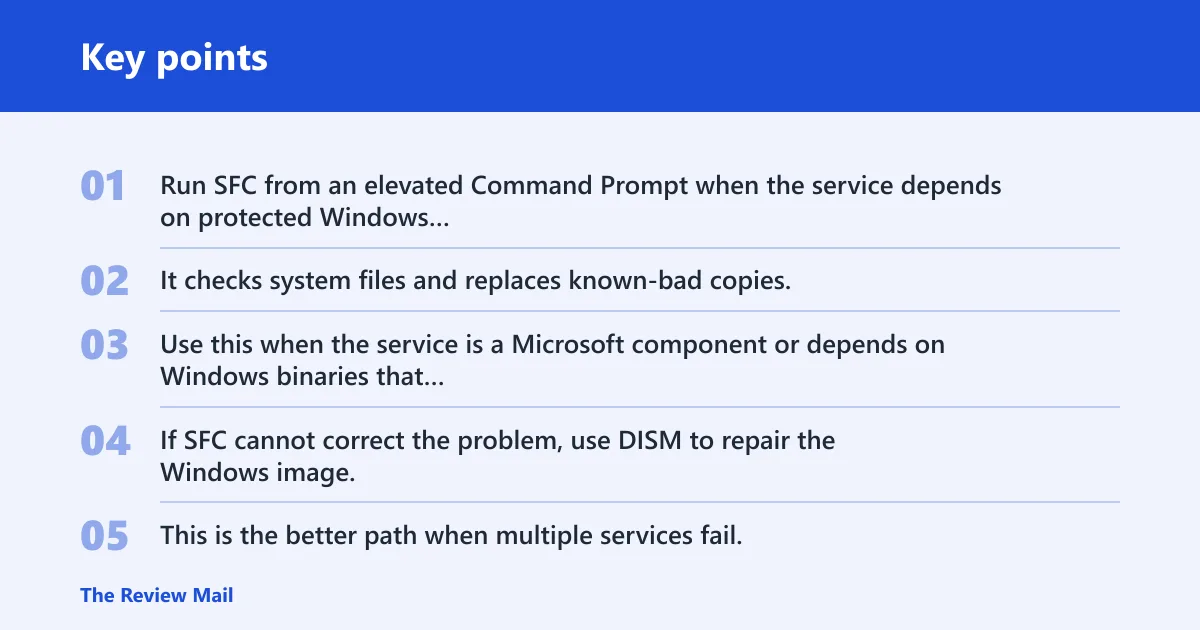
Run SFC from an elevated Command Prompt
Run SFC from an elevated Command Prompt when the service depends on protected Windows files that may be corrupted. It checks system files and replaces known-bad copies. Use this when the service is a Microsoft component or depends on Windows binaries that should be intact.
Run DISM if Windows files are damaged
If SFC cannot correct the problem, use DISM to repair the Windows image, then run SFC again. This is the better path when multiple services fail, when the issue spreads beyond one app, or when the General tab suggests broader Windows file damage.
Reinstall or repair the third-party app
For third-party services, reinstall or repair the application when the executable is missing or the service registration is broken. That is usually faster than manual registry edits. If the service name belongs to vendor software, the installer often restores the service entry, file path, and dependencies.
Suppose a VPN client service fails with “The system cannot find the file specified” after a partial uninstall. The fix is not ServicesPipeTimeout. Reinstalling the client restores the binary and the service registration, which is the real failure point.
Check the executable path and missing files
If the General tab mentions a missing file, verify the service path and the folder it points to. The service may still exist in the registry while its executable has been deleted or moved. That is a service problem, and in some cases a driver-like component can surface through Event 7026 as well.
Frequently asked questions
What is windows event id 7000?
Event ID 7000 is a Service Control Manager event that indicates a Windows service failed to start. It is commonly seen on Windows 10 and Windows 11, and it may also appear on Windows Server. The key detail is the General tab wording, which points to the specific service and failure type.
Why does event id 7000 appear in Event Viewer?
It appears because SCM could not start a service during boot or when a service was started manually. The usual reasons are a disabled service, a bad logon account, a missing file, a dependency failure, or a slow start that triggered a timeout. Related 7009, 7011, and 7026 events help narrow that down.
How do I find the service causing event id 7000?
Open Event Viewer, go to Windows Logs > System, and open the Event ID 7000 entry. Read the General tab for the exact service name and message. Then open services.msc and match that service to its Startup type, Log On settings, and Dependencies tab.
Is event id 7000 a driver problem or a service problem?
It is primarily a service start problem. A driver can be involved when the related event is 7026 or when the service name points to driver software, but 7000 itself means SCM could not start the service. Treat it as a service issue first unless the log text points to a driver.
What does service control manager error 7000 mean?
It means SCM tried to start a service and the start failed. The event number alone does not tell you why. The General tab text and nearby events do the real work, because they can separate a timeout from a logon failure or a missing binary.
Can event id 7000 be caused by a missing file or bad password?
Yes. A missing executable often shows up as a file-not-found message, while a service account problem can show up as access denied or a logon failure. Those are different fixes. One points to reinstalling or correcting the path; the other points to the Log On tab and credentials.