Windows Not Detecting Ethernet Cable
If Windows 11 shows no Ethernet link, no adapter, or “network cable unplugged,” start by checking the cable, the router or switch port, and the PC port before changing any settings. If those all look fine, move to the adapter, driver, and disabled network hardware. This guide helps you isolate the failure in the right order before you touch settings or replace hardware.
What failure are you seeing first?
Start with the exact symptom. “No link” means Windows does not see a live physical connection. “Connected, no internet” means the link exists, but traffic stops somewhere after that. “Unidentified network” usually points to IP or DHCP trouble, not a dead cable. That split tells you whether to test hardware first or software first.
What the Windows status text usually means
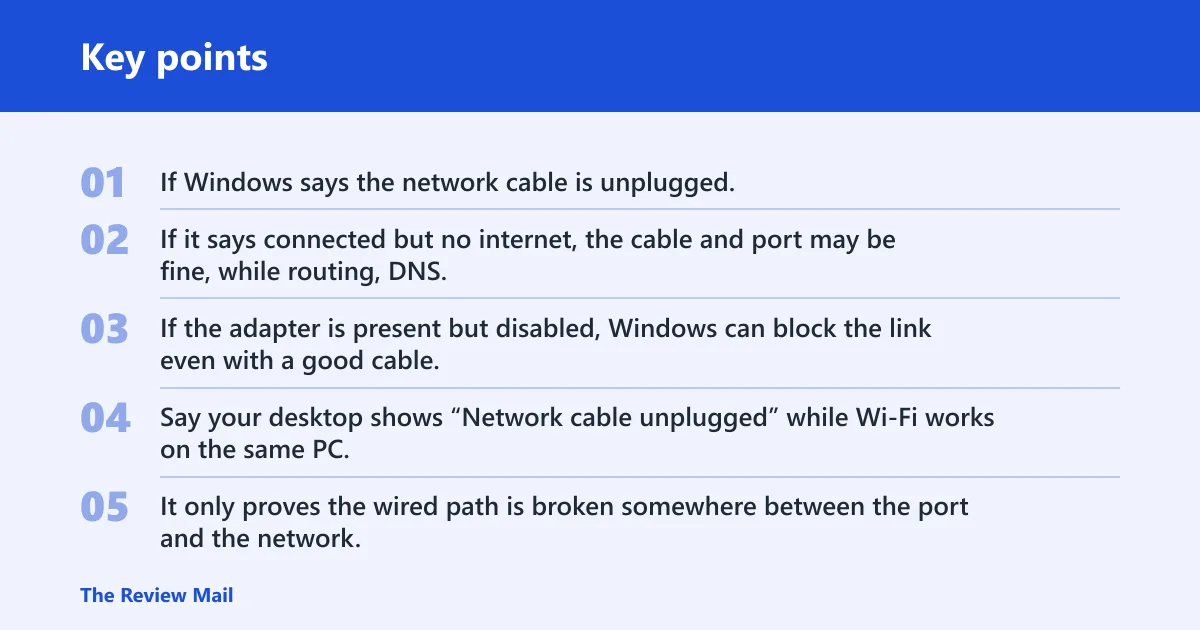
If Windows says the network cable is unplugged, the adapter is not sensing a live Ethernet link at the physical layer. If it says connected but no internet, the cable and port may be fine, while routing, DNS, or DHCP is failing. If the adapter is present but disabled, Windows can block the link even with a good cable.
Say your desktop shows “Network cable unplugged” while Wi‑Fi works on the same PC. That does not prove the cable is bad. It only proves the wired path is broken somewhere between the port and the network.
When to stop and test hardware instead of software
If the adapter is missing entirely in Device Manager, or the link light stays dark across known-good cables, stop chasing Windows settings. That pattern points toward a disabled NIC, BIOS/UEFI setting, damaged port, or a failed adapter. Software fixes are worth trying only after you know Windows can still see the device.
📊 Microsoft says the Network troubleshooter in Windows 11 runs from the Get Help app. Source: Microsoft.
Ethernet failure decision table
| Symptom | What to test first | What a pass means | What a fail means | Next action |
|---|---|---|---|---|
| No link, “network cable unplugged,” or no lights | Try another Ethernet cable on the same device | The original cable was faulty | The fault is farther down the chain | Test the router LAN port and the PC port |
| Link fails on one router jack but works on another | Move the cable to another LAN port on the router | The first router port is bad or disabled | All router ports behave the same | Test the PC port or adapter next |
| Ethernet fails on one computer but works on another | Plug the same cable into a second PC or laptop | The first PC port or adapter is the problem | The issue follows the cable or router port | Check Device Manager and the driver |
| Adapter present, warning icon, or link flaps after update | Inspect the Ethernet driver in Device Manager | The driver or stack is at fault | The adapter still fails after repair | Try rollback, reinstall, or manufacturer driver |
| Adapter missing entirely or disabled in BIOS | Check onboard LAN / integrated NIC in BIOS or UEFI | The hardware was disabled at firmware level | The device still does not appear | Treat it as a hardware failure |
Is the Ethernet cable or port bad?
The fastest split is cable versus port. Test the cable on another device first, then test a known-good cable in the same PC or wall jack. Microsoft recommends checking that the cable is plugged into both the router and PC, and trying another Ethernet cable if one fails. That single swap tells you a lot.
Test the cable on another device
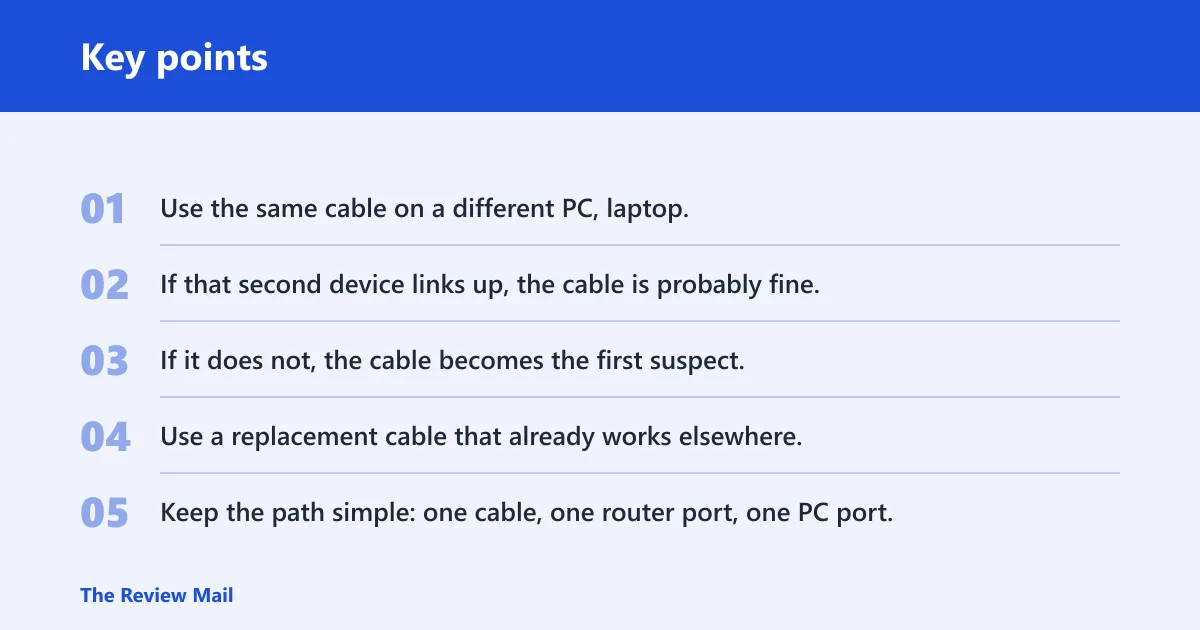
Use the same cable on a different PC, laptop, or docking station that already works on Ethernet. If that second device links up, the cable is probably fine. If it does not, the cable becomes the first suspect. One bad patch cord can mimic a dead adapter.
Swap to a known-good cable
Use a replacement cable that already works elsewhere. Keep the path simple: one cable, one router port, one PC port. If the new cable restores link lights and Windows detects Ethernet, the original cable is the problem. If nothing changes, move on to the ports.
Check router LAN ports and PC link lights
Routers usually separate LAN ports from the Internet or WAN port. Microsoft specifically says to verify the cable is in the router’s correct Ethernet port, not the Internet port. A cable in the WAN port can still show a physical Ethernet link, but it will not give the PC a working local connection.
Look at the LED light near the Ethernet port on both ends. FixTechUSA recommends checking that light, because it tells you whether the port senses link. No light on a known-good cable points to a dead port, a disabled adapter, or a firmware setting that turned the NIC off.
Use a wall jack and router as separate tests
If the cable from the wall jack works through a router but not directly into the PC, that is a clue, not a contradiction. The wall jack may hand off a network that expects DHCP, VLAN tagging, or authentication the PC does not provide by itself. The router may also be the only device handing out usable addresses.
Picture a home office with a live wall jack and a small router. The router can bridge the wall jack to the PC and make the link work, while the raw wall connection fails because the jack is part of a different network path. That points away from the cable and toward the network design.
How do you read Windows 11 Ethernet status?
Open Settings > Network & internet > Ethernet and read the status text before changing anything. Connection status, action needed messages, and Ethernet details tell you whether Windows sees a live adapter, a link with no IP address, or a deeper configuration issue. That is faster than guessing from the taskbar alone.
Check connection status and action needed messages
If Windows says connected, the cable and port are usually alive. If it says action needed, the adapter may have a driver, authentication, or IP problem. If it says disconnected or cable unplugged, Windows is not seeing a physical link. That difference separates a software issue from a hardware one.
Use Ethernet details to spot an adapter or link problem
Ethernet details should show whether the adapter exists, whether it is enabled, and whether Windows has a usable address. If the page shows an adapter but no working network details, the problem may be driver-related or upstream. If the page is empty or missing the adapter, go to Device Manager next.
What if the adapter is missing in Device Manager?
Open Device Manager and expand Network adapters. If the Ethernet adapter appears but is disabled, enable it. If it has a warning icon, Windows sees the device but does not trust the driver. If it is missing entirely, the problem may be BIOS/UEFI, hardware, or a device that failed to enumerate.
Find Network adapters and check enabled or disabled state
A disabled adapter is different from a missing adapter. Disabled usually means Windows can still see the device and can turn it back on. Missing means the operating system is not seeing the NIC at all, which moves the fault toward firmware, hardware, or a broken motherboard port.
Look for warning icons or unknown devices
A yellow warning icon often means a driver problem, though other issues can also be involved. The same source says Ethernet problems are often caused by driver issues, power settings, or network configuration. An unknown device can also mean Windows has no proper driver loaded for the NIC.
When a missing adapter points to hardware or BIOS issues
If the onboard Ethernet controller never appears, check BIOS or UEFI for integrated NIC or onboard LAN. If that setting is disabled, Windows cannot use the port no matter how many times you reinstall drivers. A missing adapter plus a disabled firmware setting is a hardware-level block.
Should you repair Windows or the driver first?
Run the Windows repair tools before a full reset, but do not treat them as magic. Microsoft says the Network troubleshooter in Windows 11 runs from the Get Help app. That makes it a low-risk first pass when the adapter exists but the connection is still broken.

Run the Network troubleshooter and Get Help
The troubleshooter can repair common stack problems, such as a stuck adapter or a broken IP configuration. It is useful when the cable works, the adapter exists, and Windows still refuses to build a usable connection. If it finds nothing, move to the driver.
Reset the driver with update, reinstall, or rollback
Go to Device Manager, open the Ethernet adapter, and update the driver first if Windows just began failing after a change. If that does not work, uninstall the adapter and restart. Microsoft says Windows will automatically install a compatible driver after restart.
That matters when a Windows update caused the breakage. A fresh driver can fix a post-update regression, but it can also make things worse if the new driver is the source of the fault. In that case, use the manufacturer’s backup driver instead of relying only on Windows Update.
Use Command Prompt network commands
Open an elevated Command Prompt and run the common reset sequence in order:
netsh winsock resetnetsh int ip resetipconfig /releaseipconfig /renewipconfig /flushdns
Microsoft includes those commands in its repair flow. They clear socket settings, reset IP components, renew the lease, and clear cached name lookups. They are useful when the adapter is alive but Windows cannot finish the network setup.
Restart networking components before a full network reset
A full network reset is a last-resort step. It resets adapters and networking components, and you will need to reconnect to networks afterward. Use it after cable checks, port checks, driver repair, and command-line fixes have failed.
Can a USB to Ethernet adapter prove the port is broken?
Yes. A USB to Ethernet adapter is a strong hardware comparison test, especially on a laptop with no built-in port or on a desktop with a suspect NIC. If Ethernet works through the USB adapter but not the built-in jack, the onboard port or its controller is likely the problem.
Use the adapter as a hardware comparison test
Plug the same cable into the USB to Ethernet adapter and compare the result. If Windows detects Ethernet immediately through the USB path, the cable, router, and network are probably fine. That leaves the built-in port, its driver, or its firmware setting as the remaining suspects.
What it means if the USB adapter works
If the USB adapter works and the built-in port does not, the internal NIC is the likely failure point. The issue may be a dead port, a disabled onboard LAN setting, or a driver that no longer matches the hardware after a Windows update. That result is far more useful than a blind reset.
What it means if the USB adapter also fails
If both the built-in port and the USB adapter fail on the same machine, look higher up the stack. The Windows network stack or another system issue becomes more likely. If another device works with the same cable, the cable and router side are probably not the issue.
Frequently asked questions
Why is Windows not detecting my Ethernet cable?
Windows is usually not detecting the cable because the physical link is missing. That can come from a bad cable, a dead router LAN port, a damaged PC port, a disabled adapter, or a BIOS setting that turned off onboard LAN. Start with link lights and a known-good cable.
How do I fix Ethernet cable not detected on Windows 11?
Check the cable on another device, move it to another router LAN port, then inspect Settings > Network & internet > Ethernet and Device Manager. If the adapter exists, try the troubleshooter, driver reinstall, and the netsh and ipconfig commands before using network reset.
Why does my Ethernet say not connected when the cable is plugged in?
That message usually means the adapter does not see a live physical link, even though the cable is seated. The fault may be the cable itself, the router port, the PC port, or disabled onboard LAN. It is different from “connected but no internet,” which points higher in the stack.
How do I know if my Ethernet cable or port is the problem?
Use a known-good cable and the same router port first. If the link returns, the original cable was the issue. If the replacement cable still fails, move the same cable to another PC or another router LAN port. That isolates cable failure from port failure fast.
What if the Ethernet adapter is missing in Device Manager?
If the adapter is missing entirely, check BIOS or UEFI for onboard LAN or integrated NIC and make sure it is enabled. If it appears only after a USB to Ethernet adapter is attached, the built-in hardware may be disabled or faulty. A missing adapter is not the same as a bad driver.
Should I reinstall the Ethernet driver or reset the network?
Reinstall or update the driver first if Device Manager still sees the adapter. Use network reset only after the cable, port, driver, and command-line steps fail. Network reset is broader, and it removes network settings you will need to set up again afterward.
Can a Windows update cause Ethernet to stop working?
Yes. A Windows update can break a working Ethernet setup by changing the driver, power settings, or networking stack. If the problem began right after an update, try the manufacturer’s driver package or roll back the adapter driver before a full reset. That narrows the cause faster.
Why does Ethernet work through a router but not directly from the wall jack?
The wall jack may not behave like a normal home router port. It can require DHCP, special switch settings, or network authentication. If the router makes the link work but the PC fails direct from the wall, the cable may be fine and the network path is the real issue.
What does it mean when Windows says the network cable is unplugged?
That message means Windows does not see a live Ethernet signal on the port. It usually points to a cable fault, a bad port, a disabled adapter, or a hardware-level issue. It does not mean the internet is down everywhere, and it does not mean DNS is the problem.
Will a USB to Ethernet adapter tell me if my laptop port is broken?
It often will. If the laptop works through the USB to Ethernet adapter but not through the built-in port, the internal port or onboard NIC is the likely failure point. If both fail with the same cable and network, look at firmware settings or the wider Windows network stack instead.