Bad_Pool_Caller Windows 11
Start by rolling back the newest driver, or remove the last hardware change. BAD_POOL_CALLER 0xC2 means Windows hit a bad pool request in kernel memory handling, and the fastest first check is the most recent change.
Driver: If the problem started after a driver or Windows Update change, focus on Device Manager rollback/reinstall first.
RAM: If the crash repeats across boots, apps, and sessions with no clear driver change, test memory next.
Hardware/Software Conflict: If a new peripheral, security suite, utility, or internal add-in was added, remove that change and retest.
- Disconnect newly added peripherals or internal hardware. If the crash stops, stop here. If not, continue to step 2.
- Boot Safe Mode and see whether the crash repeats. If Windows stays up there, stop here. If not, continue to step 3.
- Open Device Manager and inspect recent driver changes. If rollback or reinstall fixes the crash, stop here. If not, continue to step 4.
- Run SFC first, then DISM if needed. If the repair changes resolve corruption-related issues, stop here. If not, continue to step 5.
- Check
C:\Windows\Minidumpfor repeat crash patterns. If the same driver or module repeats, stop here and stay on that branch. If not, continue with RAM and conflict checks.
What BAD_POOL_CALLER means in Windows 11
This Windows 11 BSOD stop code points to a pool-memory request gone wrong at kernel level, so the first job is to separate a driver problem from bad RAM or a conflict. It can appear during normal use, startup, gaming, or right after installs.
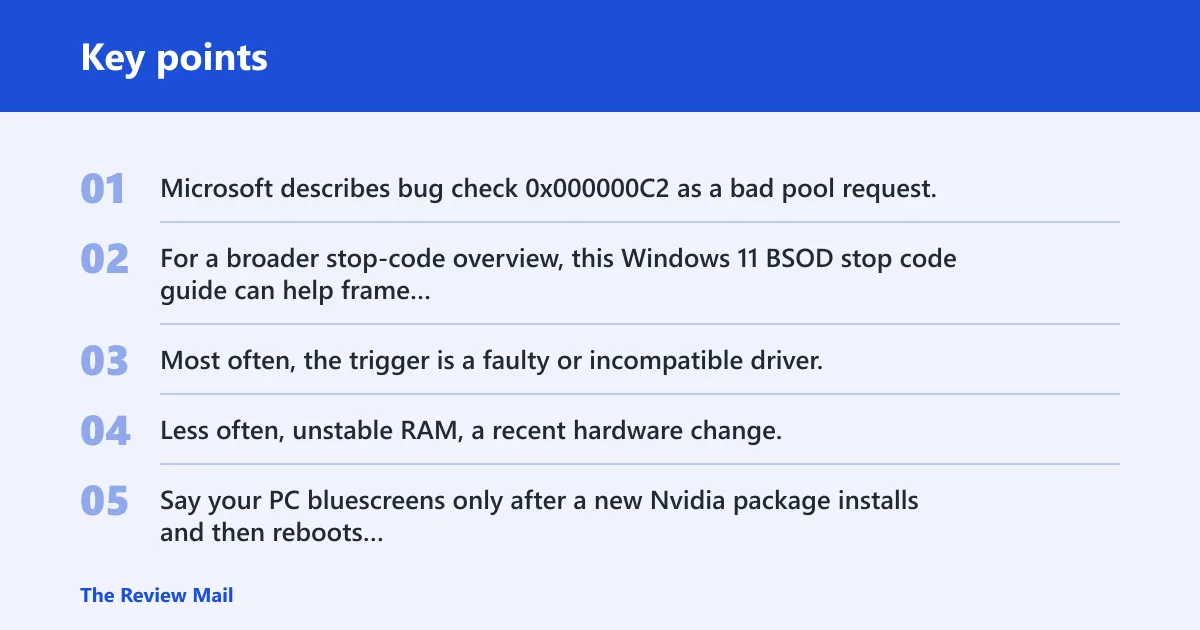
Microsoft describes bug check 0x000000C2 as a bad pool request, which usually means the fault is below the app layer. For a broader stop-code overview, this Windows 11 BSOD stop code guide can help frame the symptom while you narrow the cause here.
Likely causes, ranked
Most often, the trigger is a faulty or incompatible driver, especially after Windows Update or a vendor package replaced an older one. Less often, unstable RAM, a recent hardware change, or security software that hooks into kernel activity can push the system into repeated crashes.
Say your PC bluescreens only after a new Nvidia package installs and then reboots cleanly in Safe Mode. That pattern points more strongly to the display driver path than to storage or RAM, so you should test the GPU driver before spending time on broader repairs.
| Symptom | Most likely cause | First test | What confirms it | What to do next |
|---|---|---|---|---|
| Crash begins after a driver update | Driver mismatch or bad replacement | Device Manager rollback or reinstall | Crash stops after the same device is rolled back or replaced | Keep the stable driver or install the correct vendor package |
| Crash repeats across apps, boots, and games | RAM instability or hardware fault | Windows Memory Diagnostic | Repeated memory errors or instability with one module removed | Test sticks one at a time or replace suspect RAM |
| Crash starts after new USB, storage, or internal hardware | Device conflict or bad peripheral | Disconnect the recent hardware | System stabilizes when the new device is absent | Reconnect only after verifying the correct driver or port |
| Crash follows a security suite install | Kernel-level software conflict | Temporarily disable or remove it | Safe Mode is stable and normal mode improves after removal | Use a different security package or keep it uninstalled |
How do you triage BAD_POOL_CALLER fast?
Use a strict branch order: Driver, RAM, then Hardware/Software Conflict. Start with the newest change and validate each step before moving on. If the crash stops, do not stack more repairs on top of a working fix.
Text-only decision tree
- Driver branch
- Did the crash start after a driver update or Windows Update?
- Yes → open Device Manager and roll back or update the most likely driver.
- Check graphics, network, storage, USB, and chipset first.
- If the BSOD stops, no further branch is needed.
- RAM branch
- Did the crash start after new RAM, a new stick, or a component swap?
- Yes → run Windows Memory Diagnostic and watch for repeated errors.
- If errors repeat, test one module at a time or stop and replace suspect memory.
- Hardware/Software Conflict branch
- Did the crash start after a peripheral, app, security suite, or cleanup utility?
- Yes → disconnect the new hardware, boot Safe Mode, and disable or remove the recent software.
- If the system becomes stable, restore only one change at a time.
What are the first 5 checks?
These five checks give the fastest signal with the least risk. Do them in order. After each one, decide whether the crash stopped; if it did, stop there and avoid changing more parts than necessary.
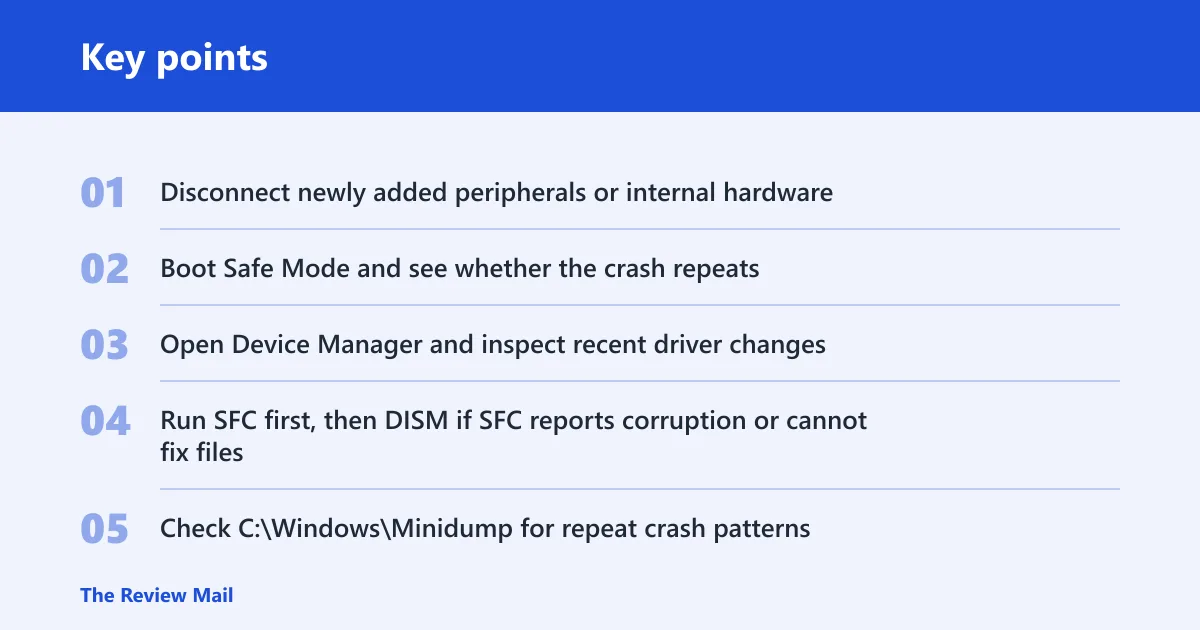
- Disconnect newly added peripherals or internal hardware. Unplug external drives, USB hubs, printers, docks, and extra adapters first. If a new internal card or drive was installed, remove it before the next boot. If the BSOD stops, the new device or its driver is the likely trigger.
- Boot Safe Mode and see whether the crash repeats. Go to Settings > System > Recovery > Advanced startup, then restart into Safe Mode. If Windows stays up there, a driver or third-party service is more likely than core Windows files. If it still crashes, move on.
- Open Device Manager and inspect recent driver changes. Right-click Start, select Device Manager, then check graphics, network, storage, USB, and chipset entries for a recent update. If you see one, use Properties > Driver > Roll Back Driver or reinstall the vendor package. Stop if the problem disappears.
- Run SFC first, then DISM if SFC reports corruption or cannot fix files. Open Windows Terminal as administrator and run
sfc /scannow. If it cannot repair files, runDISM /Online /Cleanup-Image /RestoreHealth, then run SFC again. If both complete cleanly and the crash remains, keep triaging. - Check
C:\Windows\Minidumpfor repeat crash patterns. If a minidump file is present, the same driver name or module appearing more than once is a high-value clue. A repeat name after the same change means you should stay on that branch instead of moving randomly. (Microsoft Learn)
Should you fix drivers first?
Yes, if the crash began after a driver change or after Windows replaced a vendor driver automatically. Driver issues are the most common high-signal branch, and Device Manager is the right place to roll back, update, or uninstall the suspect package before trying broader repairs.
This is also where Windows Update and vendor packages can conflict. A generic Microsoft driver may be stable enough for booting but still fail under gaming, GPU load, USB traffic, or network activity, so test the most likely device class first.
- Open Device Manager.
- Expand Display adapters, Network adapters, Disk drives, USB controllers, and System devices.
- Right-click the device that changed most recently.
- Select Properties > Driver, then choose Roll Back Driver if available, or Update driver to reinstall from the PC or motherboard vendor package.
- Restart the PC.
If that did not work, uninstall the suspect driver from Device Manager, then reinstall the exact package from the device maker or PC vendor. A common first-timer mistake is installing a newer package from the wrong source and assuming any update is safer than the old one. If the BSOD stops after the change, do not keep changing other drivers.
Could RAM be the cause?
Yes. Unstable memory can produce repeated kernel pool errors, especially if the crash shows up during startup, gaming, or after the machine has been on for a while. Windows Memory Diagnostic is the right first pass when the crash repeats across different apps and no single driver stands out.
Microsoft documents Windows Memory Diagnostic for checking RAM problems, which makes it the right branch when the stop code does not consistently point to one driver.
- Press Windows, type Windows Memory Diagnostic, and open it.
- Select Restart now and check for problems.
- Let the test complete after restart.
- Open Event Viewer if needed and look for memory test results after login.
- If errors repeat, test one module at a time or remove the suspect stick and retest.
Repeated errors point to a memory module, slot, or unstable setting rather than a Windows file problem. If you have multiple sticks and only one is installed at a time, the system should stay stable on the good one. If errors persist with each module, the motherboard or memory controller is worth suspecting next.
What if software or hardware is clashing?
Use this branch when the crash started after a new app, utility, cleanup tool, antivirus suite, dock, or internal add-in. Third-party security software can interfere with kernel-level memory handling, and a recently installed peripheral can trigger the same result without any Windows file corruption at all.
For branching on startup behavior, Microsoft’s Safe Mode and Advanced startup guidance helps isolate third-party conflict from core Windows behavior.
- Uninstall or remove the most recent app, driver utility, or security suite from Settings > Apps > Installed apps.
- Temporarily disable third-party antivirus or security software if uninstalling is not practical for the first test.
- Disconnect the newest hardware again if you have not already done so.
- Boot into Safe Mode and test whether the crash repeats.
- If the issue started right after a known change, open Control Panel > Recovery > Open System Restore and roll back to a point before that change.
Suppose the crash began right after a security suite update and stops in Safe Mode. That pattern points to the security software rather than a random Windows fault, so the next step is to remove that package and retest in normal mode before touching anything else.
Microsoft’s System Restore is useful when the crash started immediately after a software or driver change and you need to roll back to a known-good restore point.
When should you stop and escalate?
Stop DIY troubleshooting when the same driver name, module, or hardware change keeps showing up in minidumps and the crash survives the driver, RAM, and conflict branches. At that point, a repair install, hardware replacement, or vendor support is more practical than another round of broad fixes.
If the PC still crashes after Device Manager rollback, Windows Memory Diagnostic, Safe Mode, SFC, and DISM, the next step is to review the minidumps in C:\Windows\Minidump with a debugger or hand them to vendor support. A repeat 0xC2 tied to the same module is the strongest clue you will get without deeper analysis.
For lower-level analysis, Microsoft’s bug check references and debugger workflow are stronger than forum screenshots. See Bug Check 0xC2: BAD_POOL_CALLER for the kernel-level meaning, and use Analyzing a Kernel-Mode Dump File with WinDbg when the same module keeps appearing in minidumps.
If that didn’t work, try this next
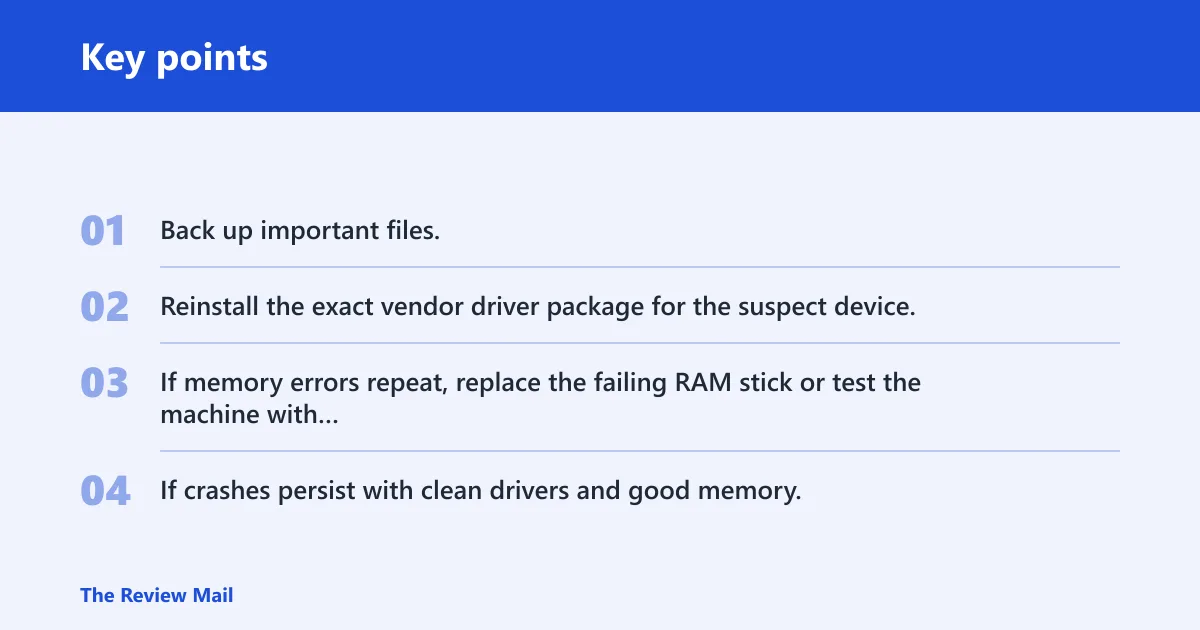
- Back up important files.
- Reinstall the exact vendor driver package for the suspect device.
- If memory errors repeat, replace the failing RAM stick or test the machine with known-good memory.
- If crashes persist with clean drivers and good memory, use Reset This PC or seek hardware service.
Prevention is limited here, but one step helps: avoid letting Windows replace a known-stable vendor driver without checking whether the new package matches your device class. A bad automatic swap can bring the crash back after it seemed resolved.
Frequently asked questions
What does BAD_POOL_CALLER mean in Windows 11?
It means Windows hit a bad pool request in kernel memory handling and stopped with bug check 0xC2. The quickest first move is to check the most recent driver, hardware, or security-software change, then test with Safe Mode or Windows Memory Diagnostic if the cause is not obvious.
How do I fix BAD_POOL_CALLER 0xC2 on Windows 11?
Start with the last change, then work in this order: disconnect recent hardware, roll back or update the suspect driver in Device Manager, run sfc /scannow, run DISM /Online /Cleanup-Image /RestoreHealth if needed, and use Windows Memory Diagnostic if the crash keeps returning.
Can a bad driver cause BAD_POOL_CALLER?
Yes. A faulty or incompatible driver is one of the most common causes. Check graphics, network, storage, USB, and chipset drivers in Device Manager first, because those classes are often involved after Windows Update or vendor software replaces an older package.
Should I uninstall recent software after a BAD_POOL_CALLER blue screen?
Yes, if the crash started right after a new app, utility, or security suite was installed. Remove the most recent software first, then reboot and retest. If the PC becomes stable, the newest change was likely the trigger rather than Windows itself.
How do I check if RAM is causing BAD_POOL_CALLER?
Run Windows Memory Diagnostic from the Start menu and let it reboot the PC for testing. Repeated errors point toward a bad stick, slot, or unstable memory setting. If there are multiple modules, test one at a time to isolate the failing part.
Is Safe Mode useful for fixing BAD_POOL_CALLER?
Yes. Safe Mode loads minimal drivers and services, so it helps separate Windows core behavior from third-party conflict. If the PC is stable there, focus on recent drivers, apps, antivirus software, or hardware rather than jumping straight to a full reset.