Windows 11 Administrator Account Not Working
If Windows 11 says the administrator account is not working, sort it into three buckets: the built-in Administrator account is hidden or disabled, elevation is broken in the current profile, or the admin profile itself is damaged. Start by checking whether the built-in Administrator is simply turned off.
Start here:
- Open an elevated shell and run net user administrator.
- If the account is disabled, enable it with net user administrator /active:yes.
- If UAC shows no Yes button, switch to another administrator account or create one.
- If no admin account works, use System Restore from Windows Recovery Environment.
- Use WinRE repair options before any last-resort changes.
Likely causes
Most often, the built-in Administrator account exists but is hidden or disabled. Less often, the current user has lost admin approval rights, or the admin profile is damaged enough that elevation no longer works. Edition limits also matter because some management consoles are not available everywhere.
Hidden or disabled built-in Administrator
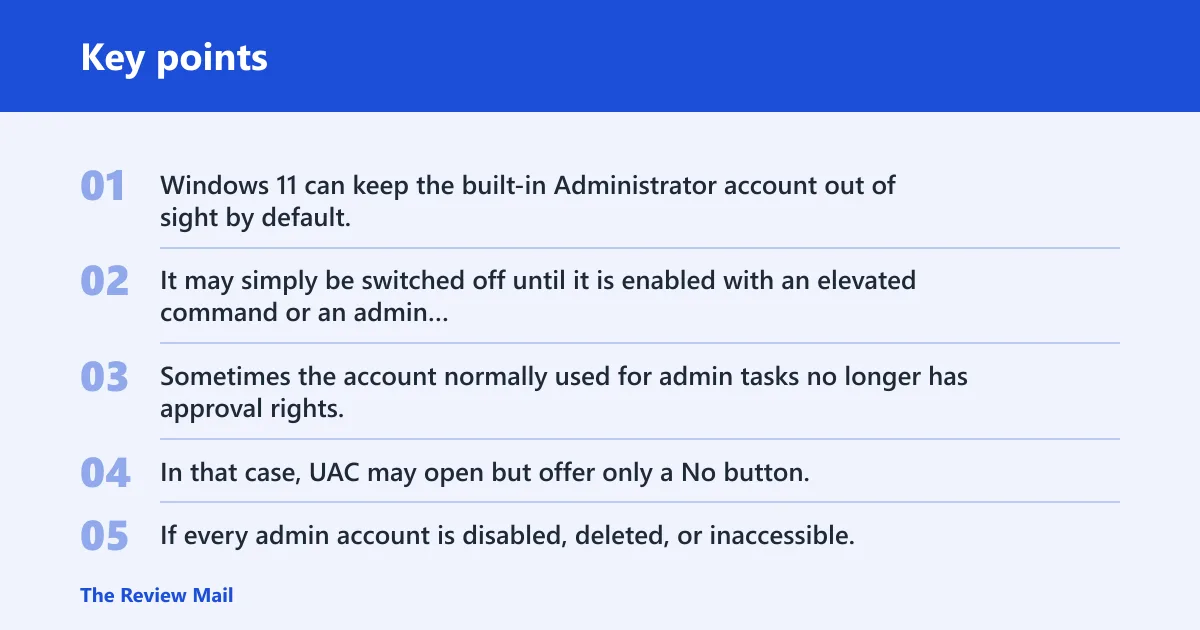
Windows 11 can keep the built-in Administrator account out of sight by default. That does not mean it is gone. It may simply be switched off until it is enabled with an elevated command or an admin console.
Lost admin rights in the current profile
Sometimes the account normally used for admin tasks no longer has approval rights. In that case, UAC may open but offer only a No button, because Windows cannot find a working administrator credential to approve the action.
No working administrator account is available
If every admin account is disabled, deleted, or inaccessible, normal elevation stops working. That is when recovery tools matter, especially Windows Recovery Environment and System Restore.
Tool availability differs by edition
Windows 11 Home commonly does not include lusrmgr.msc or secpol.msc. Windows Terminal may also be replaced by Command Prompt or PowerShell in some menus. When that happens, Windows Terminal (Admin) is interchangeable with any elevated shell that opens with administrator rights.
📊 Use Microsoft’s own account-management and recovery paths first. The built-in Administrator account, the net user command, UAC elevation behavior, and Windows Recovery Environment are all documented by Microsoft.
Administrator account decision table
| Symptom | Likely cause | Fastest safe fix | Required access level | Works on Home/Pro | Rollback step |
|---|---|---|---|---|---|
| UAC opens but the Yes button is missing | No working administrator credential is available for elevation | Sign in with another administrator account and create a fresh local admin account | Existing admin account on the device | Yes, if another admin account exists | Remove the temporary admin after repair |
| The Administrator account is not visible | The built-in account is hidden by default | Check status with net user administrator from an elevated shell | Any account that can open an elevated shell | Yes | Disable it again with net user administrator /active:no |
| The account is disabled | Built-in Administrator is switched off | Enable it with net user administrator /active:yes, or use Local users and groups / Local Security Policy | Admin rights for the device | Command yes; lusrmgr.msc/secpol.msc often no on Home | Turn it off again after troubleshooting |
| No admin credentials are available | All admin access is lost or damaged | Use Advanced startup, then try System Restore first | Physical access to the device and WinRE access | Yes | Undo the restore if it makes things worse |
| Command returns System error 5 | The command was run without elevation or from a restricted session | Open an elevated shell, or use another admin account to approve it | Working admin approval path | Yes | Rerun the command from an elevated shell |
lusrmgr.msc is missing | Edition limit, usually Windows 11 Home | Use net user or try secpol.msc on supported editions | Any account with local admin rights | Often no on Home; yes on Pro/Enterprise | Use the command method instead |
secpol.msc is missing | Edition limit, usually Windows 11 Home | Use net user or another admin account to change status | Any account with local admin rights | Often no on Home; yes on Pro/Enterprise | Use the command method instead |
| Corrupted profile vs lost elevation | Broken user profile, not necessarily a missing admin account | Create a fresh local admin account and compare behavior there | Any working admin account, or WinRE if none exists | Yes | Move data after confirming the new account works |
How do you enable the built-in Administrator account?
Use this path when another administrator account can still approve elevation. The built-in Administrator account is generally hidden by default in Windows 11, and it is best treated as a temporary repair account rather than the one used every day.
- Press Win+X and choose Windows Terminal (Admin).
- Confirm the UAC prompt with working administrator credentials.
- Run net user administrator to check its current status.
- If it is disabled, run net user administrator /active:yes.
- Sign out and confirm the account appears on the sign-in screen, or check it again with net user administrator.
Windows Terminal (Admin) is the right place for the command because it opens an elevated shell from the Win+X menu. If UAC cannot approve the launch, stop here and use another admin account or recovery tools instead.
What if Windows Terminal is not available?
If the terminal route is blocked, use a graphical admin tool. On supported Windows 11 editions, Local users and groups can expose the built-in Administrator account entry, and Local Security Policy can also switch the policy that controls it.
- Press Win+R, type
lusrmgr.msc, and press Enter. - Open Users, then double-click Administrator.
- Clear Account is disabled, then select OK.
- If
lusrmgr.mscis unavailable, press Win+R, typesecpol.msc, and press Enter. - Go to Local Policies > Security Options.
- Open Accounts: Administrator account status and set it to Enabled.
For example, if a Windows 11 Pro device still opens lusrmgr.msc, clearing Account is disabled is the direct fix. If the console itself is missing, edition differences are the likely reason, not a broken account.
What if the Yes button is missing on UAC?
When UAC shows only No, Windows does not have a usable administrator approval path. That usually means the current sign-in is not an admin, or the only admin account on the machine is broken or disabled. The best next step is to switch to a different administrator account, not to force the same one.
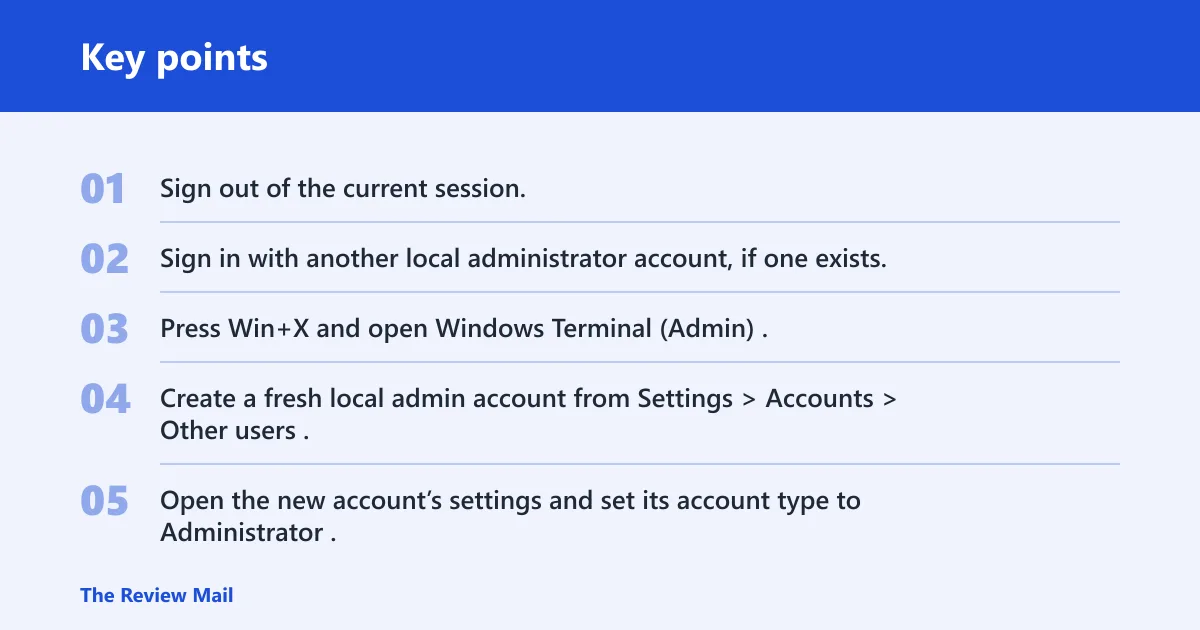
- Sign out of the current session.
- Sign in with another local administrator account, if one exists.
- Press Win+X and open Windows Terminal (Admin).
- Create a fresh local admin account from Settings > Accounts > Other users.
- Open the new account’s settings and set its account type to Administrator.
- Use the new account for repair tasks, then move data over in a controlled way.
Say the only sign-in shows a UAC dialog with no Yes button after trying to change a network setting. That is a lost-elevation problem, not a hidden-account problem. A new local administrator account is the safer repair path.
How can I regain administrator rights on Windows 11?
Start with System Restore if a restore point exists and the problem began after a recent change. This can roll back the permission state without forcing a full reinstall. It is the safer first recovery step when the admin breakage is new.
- Hold Shift while selecting Restart.
- Choose Troubleshoot > Advanced options > System Restore.
- Select a restore point from before the admin problem started.
- Let Windows finish the restore and restart.
- Sign in again and test whether UAC now shows a working Yes button.
Windows Recovery Environment is the right place for restore and repair options when normal sign-in no longer works. Recovery and reset tools are safer than registry changes, and System Restore is the first choice when the issue started recently.
What if net user administrator /active:yes does not work?
If the command fails, the issue is usually access, not syntax. You either lack an elevated shell, the account is not local, or every admin path is already blocked. That is when WinRE becomes the next step.
- Hold Shift while selecting Restart to enter Windows Recovery Environment.
- Open Advanced options.
- Try Command Prompt only if you still need to inspect account state or repair a broken admin setting.
- If a restore point exists, choose System Restore before making deeper changes.
- Use reset or repair options before any last-resort account recovery step.
If the problem started after a recent change, System Restore is still safer than deeper account repair. If no restore point exists, use the recovery tools that remain available rather than forcing a brittle manual fix.
What do I do if the account is disabled or missing?
First, confirm whether the built-in Administrator account is hidden or actually disabled. The account is present in Windows 11, but Windows traditionally hides it and expects manual activation. If it is missing from the sign-in screen, that does not prove it is gone.
- Open Windows Terminal (Admin) from Win+X.
- Run net user administrator.
- If the account is disabled, run net user administrator /active:yes.
- For a graphical path, open
lusrmgr.mscand clear Account is disabled. - For policy-based control, open
secpol.mscand set Accounts: Administrator account status to Enabled.
After troubleshooting, turn it back off with net user administrator /active:no. That keeps the built-in account available for emergencies without leaving it in daily use.
What if no admin credentials are available?
When no administrator account can approve changes, there is no safe way to force elevation from the current session. The next move is recovery, not repeated sign-in attempts. Use WinRE, then choose System Restore first if the device has a restore point available.
- Press Shift while selecting Restart.
- Open Troubleshoot > Advanced options.
- Run System Restore if a restore point exists.
- If restore is unavailable, open Command Prompt and review the repair options available in WinRE.
- Use reset or repair options before any last-resort account changes.
For example, if a laptop has only a standard user account left after a profile cleanup, UAC shows no Yes button, and net user administrator /active:yes cannot run because no admin shell exists. At that point, WinRE is the correct escalation.
Should the built-in Administrator be your daily account?
No. Keep it as a temporary repair account and disable it again after troubleshooting. A regular daily account with standard rights is safer, and you can switch to admin only when a task needs it. That reduces the chance of accidental system-wide changes.
Prevention: keep at least one separate local administrator account available, and leave the built-in Administrator disabled unless you need it for repair.
Frequently asked questions
Can’t access administrator account windows 11
First check whether the account is hidden or disabled with net user administrator from Windows Terminal (Admin). If UAC blocks elevation, sign in with another administrator account or use System Restore from Advanced startup.
Can’t enable administrator account windows 11
If net user administrator /active:yes fails, the usual issue is missing admin access, not a bad command. Try lusrmgr.msc or secpol.msc if they are available, or use System Restore from WinRE if all admin paths are broken.
Can’t find administrator account windows 11
The account can be hidden by default, so not seeing it on the sign-in screen is normal. Check it with net user administrator, then enable it with net user administrator /active:yes if it is disabled. Turn it back off later with /active:no.
Why am I not administrator windows 11
Your current profile may have lost admin rights, or UAC may have no working administrator to approve changes. If the Yes button is missing, sign in with another admin account and create a fresh local administrator account through Settings > Accounts > Other users.
What do I do if the Yes button is missing on UAC in Windows 11?
That usually means Windows cannot find a working administrator credential for elevation. Sign in with another admin account if one exists, then create a new local administrator account. Use that account for repair work, and keep the built-in Administrator turned off afterward.
What if net user administrator /active:yes does not work: use WinRE next?
Use WinRE next. Hold Shift while selecting Restart, then try System Restore first. If there is no restore point, use Command Prompt or repair options only as last-resort recovery tools, not as the first fix.
Sources
- Microsoft support documentation for net user syntax and account status commands
- Microsoft support documentation for the built-in Administrator account and local administrator management
- Microsoft support documentation for User Account Control behavior and elevation prompts
- Microsoft support documentation for Windows Recovery Environment and System Restore
- Microsoft support documentation for
lusrmgr.mscandsecpol.mscavailability by edition