Windows 11 Shut Down: Every Way to Power Off Properly
To force a true Windows 11 shutdown, disable Fast Startup or use shutdown /s /t 0 or Shift + Shut down. Otherwise Windows may hibernate the kernel instead of powering off. That can leave startup bugs, wake issues, and device-state problems in place. This guide shows how full shutdown differs from hybrid shutdown, how to force a real power-off, and what to check when Windows 11 appears shut down but is still partly running.
Shut down in Windows 11
The main path is Start > Power > Shut down. Microsoft documents that route for Windows 11. From the same Power menu, you can also choose Restart or Sleep, so this is the first place to check when you want to power off. (Microsoft Support)
Use the Start menu power button
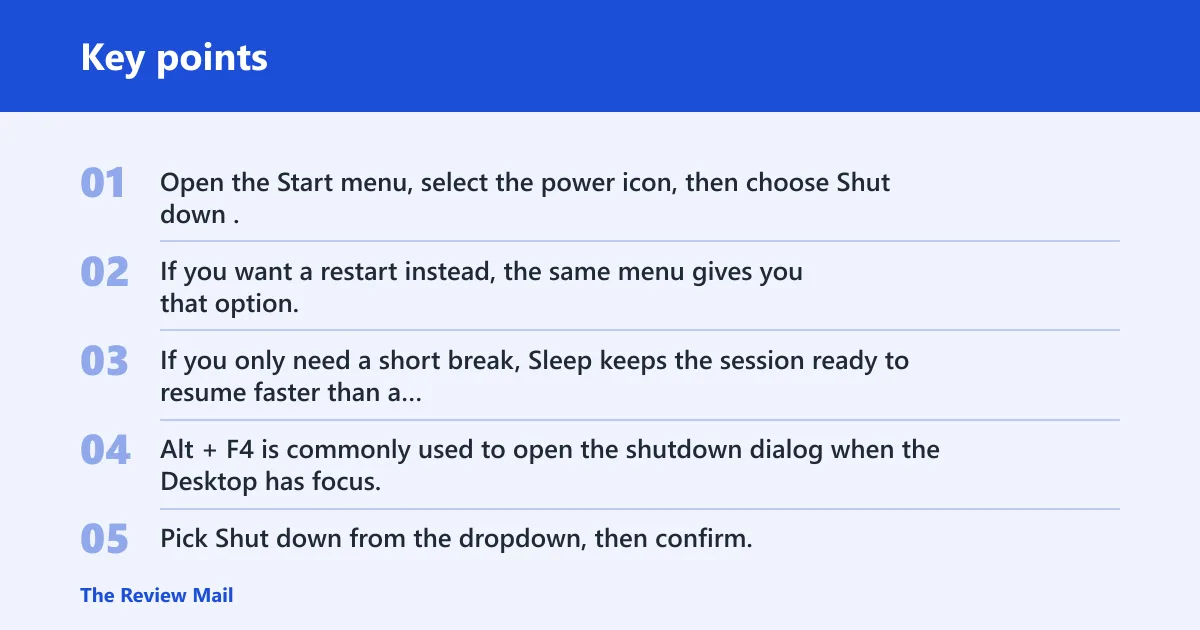
Open the Start menu, select the power icon, then choose Shut down. If you want a restart instead, the same menu gives you that option. If you only need a short break, Sleep keeps the session ready to resume faster than a shutdown.
Use Alt + F4 on the desktop
Alt + F4 is commonly used to open the shutdown dialog when the Desktop has focus. Pick Shut down from the dropdown, then confirm. If an app window is active instead of the Desktop, Alt + F4 usually closes that app first, so this shortcut works best after you minimize or show the Desktop.
Use Win + X for power options
Right-click Start or press Win + X to open the power-user menu. That menu includes Shut down or sign out, which then gives access to power choices. It is a quick route when the Start menu is already open or the taskbar is easier to reach than the center of the screen.
Which shutdown method to use in Windows 11?
Pick the method based on the result you need next. For an ordinary end-of-day power-off, the Start menu is fine. For a clean power-off that avoids hybrid behavior, use a command that forces shutdown. For a delay, use the shutdown timer with a value in seconds.
| Scenario | Best method | True shutdown? | Preserves Fast Startup? | Safe with unsaved work? | What failure mode to expect |
|---|---|---|---|---|---|
| Quick everyday power-off | Start > Power > Shut down | Often hybrid if Fast Startup is on | Yes | No | Unsaved work is lost |
| Clean full power-off | shutdown /s /t 0 | Yes | No | No | Apps that block shutdown can still delay it |
| Immediate restart for troubleshooting | shutdown /r /t 0 | No | No | No | Open work is lost |
| Planned later shutdown | shutdown -s -t TimeInSeconds | Yes, when it reaches zero | No, unless you choose a hybrid form elsewhere | No | Timer is cancelled or interrupted |
| Low-power pause | Start > Power > Sleep | No | N/A | Usually yes, but save first | Battery drain can still occur |
How do you fully shut down Windows 11?
For a true power-off, turn off Fast Startup or use a command that avoids hybrid shutdown. Fast Startup changes shutdown behavior so the next boot can be quicker, but it also means plain Shut down may keep part of the system state instead of closing every component cleanly.
Turn off fast Startup
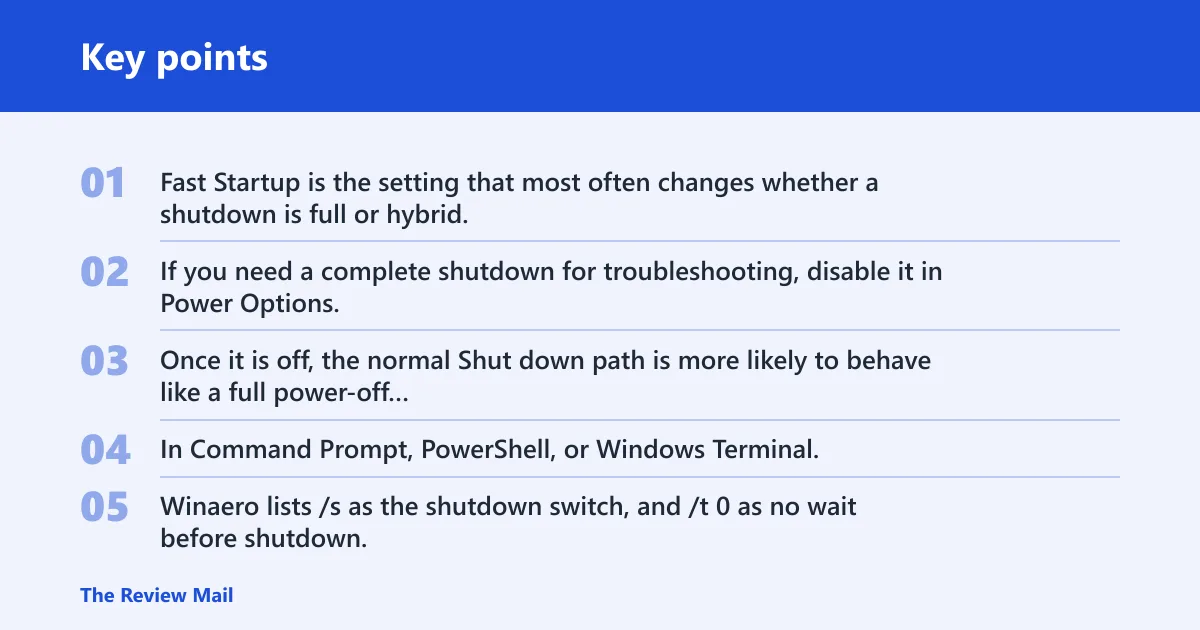
Fast Startup is the setting that most often changes whether a shutdown is full or hybrid. If you need a complete shutdown for troubleshooting, disable it in Power Options. Once it is off, the normal Shut down path is more likely to behave like a full power-off instead of a hybrid one.
Use shutdown.exe with /s
In Command Prompt, PowerShell, or Windows Terminal, shutdown /s /t 0 is the direct full-shutdown command. Winaero lists /s as the shutdown switch, and /t 0 as no wait before shutdown. For a restart, use shutdown /r /t 0. The /hybrid switch belongs with /s, not by itself.
Avoid hybrid shutdown when you need a clean power-off
The same source says /hybrid performs a hybrid shutdown that preserves Fast Startup. That is useful when you want the next boot to be faster, but it is the wrong choice when the goal is to clear driver or kernel-state problems. Use /s without /hybrid for a true shutdown.
What is the difference between Windows 11 shut down vs restart?
Shut down powers the PC off. Restart closes Windows, then starts it again right away. Winaero identifies /r as the restart switch, and that is often the better move after a driver change, update, or stubborn app problem because it rebuilds the session without a full power-off gap.
What shutdown does
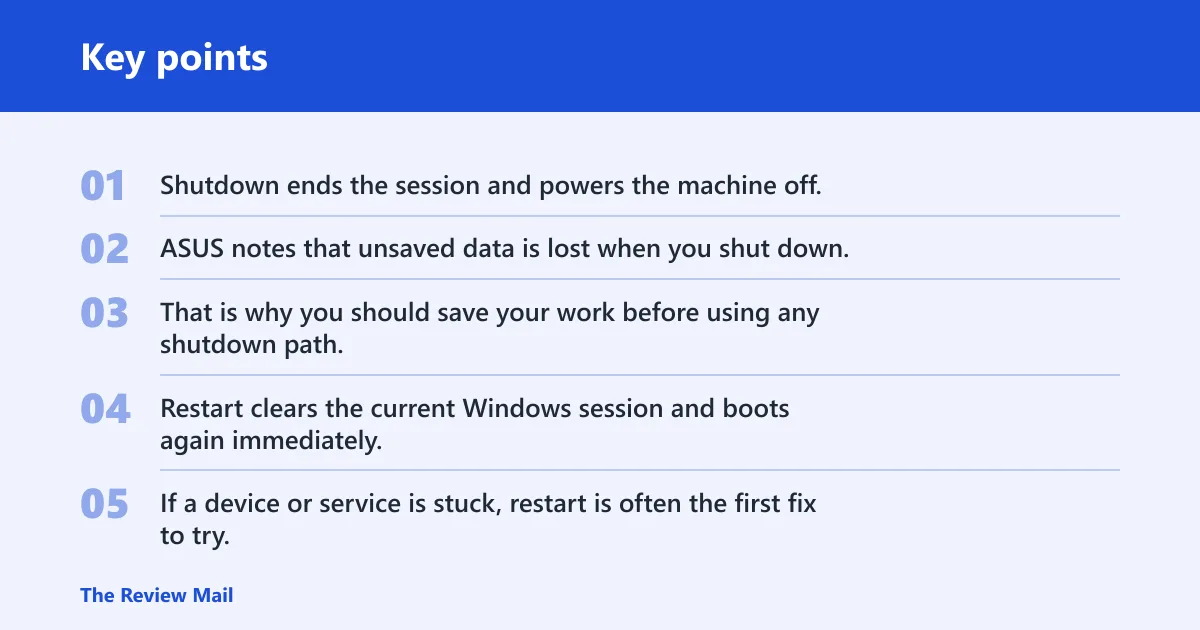
Shutdown ends the session and powers the machine off, but Fast Startup can make that process hybrid. ASUS notes that unsaved data is lost when you shut down. That is why you should save your work before using any shutdown path, especially if the system has already started to hang.
What restart does
Restart clears the current Windows session and boots again immediately. If a device or service is stuck, restart is often the first fix to try. It is not the same as sleep, and it is not the same as a full power removal, but it does reset more of Windows than a resume from sleep.
When restart is the better fix
Use restart when a driver, update, or shell component is acting oddly and the machine still responds. If Windows shows a printer error after a driver install and the Start menu still opens, restart is usually the cleaner first step before you move on to a forced shutdown or deeper troubleshooting.
Windows 11 shut down vs hibernate: which should I use?
Choose Hibernate when you want to resume work later without leaving the machine in a high-power state. The same source says Hibernate uses less power than Sleep. Shutdown uses the least active state of all, but you will reopen apps after boot instead of resuming them from memory or disk.
Hibernate for longer gaps
Hibernate saves the session and powers the machine off more completely than Sleep. It is useful for laptops that will sit unused for a long time or when battery matters. It may need to be enabled in power settings before it appears in the Power menu.
Shutdown for a clean stop
Use shutdown when you want the system fully off, especially if you are chasing odd wake behavior or a kernel-state issue. Fast Startup can blur the line, so a true shutdown is most useful when paired with disabled Fast Startup or with shutdown /s /t 0.
Windows 11 shut down vs sleep: what is the difference?
Sleep is a low-power pause that resumes faster than shutdown. The same source says Sleep uses very little power and starts up faster. Shutdown ends the session and turns the machine off, which takes longer to return from but uses no active power until you press the power button again.
Sleep for short breaks
Use Sleep when you expect to return soon and want the desktop back quickly. It is the better fit for a brief meeting or lunch break. On a laptop, battery still drains slowly, so Sleep is not ideal if the device will sit unplugged for many hours.
Shutdown for battery and state cleanup
Shutdown is better when you want the lowest ongoing power use and a fresh start next time. A common first-timer mistake is choosing Sleep on a laptop that will stay in a bag overnight. That can leave the machine warm, drain battery, and resume into the same problem you were trying to clear.
How do you shut down Windows 11 quickly with a shortcut?
The fastest keyboard route is usually Alt + F4 on the Desktop, then choose Shut down in the dialog. If you need something repeatable, a shortcut that runs shutdown /s /t 0 gives a one-step power-off. For a delay, use the timer form with seconds.
Create a shortcut or timer
You can run shutdown commands from Run, Command Prompt, PowerShell, or Windows Terminal. FAQforge gives the timer format as shutdown -s -t TimeInSeconds, and says the value is measured in seconds. For a 5-minute delay, that is 300 seconds.
Use the lock or sign-in screen
The power button on the lock or sign-in screen also reaches shutdown options. That helps when Windows is locked but still responsive. GeeksforGeeks also lists Ctrl + Alt + Delete as a way to reach power options, which gives another route if the desktop is not available.
Why Windows 11 may not shut down
Most shutdown failures come from three places: a hang during the power-off process, pending updates, or something that blocks the session from ending cleanly. If the screen sits on Shutting down, check whether an app is frozen, a driver is waiting, or Windows Update wants to finish first.
A hang on “Shutting down”
If Windows stalls on the shutdown screen, an open app or service may still be responding in the background. Save work first if the desktop is still live. Then try a restart, or use shutdown /s /t 0 from a command prompt if the GUI route is stuck.
Pending updates and “Update and shut down”
Windows sometimes offers Update and shut down instead of plain Shut down. If that path appears, Windows intends to install pending updates before powering off. There is no safe universal bypass for updates in progress; the best option is to wait until the update finishes, then shut down normally.
Apps or drivers blocking power off
Some apps ask Windows for extra time to close. Drivers can do the same. If the machine hangs at shutdown after a recent hardware or software change, try a clean boot path later and check whether a startup app or device driver is the one holding the session open.
Shutdown on laptops and desktops
Laptops and desktops can behave differently because their power button and lid settings are configurable. The same source says the power button or lid action can be set to Do nothing, Sleep, Hibernate, or Shut down. That makes the same hardware button act very differently from one device to another.
Power button behavior in settings
Check Power Options before assuming the hardware button will shut the machine down. On some systems, the power button only sleeps the device. On others, it hibernates or shuts down. If the wrong action is assigned, Windows may appear to ignore your intended shutdown method.
Lid close behavior on laptops
Laptop lid-close settings matter because closing the lid does not always mean shutdown. It may trigger Sleep or Hibernate instead. If you want the notebook to power off when closed, confirm the lid action in the battery and power settings instead of relying on assumptions.
Physical power button fallback
Use the physical power button only according to the machine’s power settings. A long press can force power off, but the exact behavior varies by model and settings, so check the manufacturer’s listing or the owner’s manual for your device. Do not assume one hold time fits every laptop or desktop.
Windows 11 shutdown table
This table helps you pick the right action quickly when Windows 11 seems to shut down but does not truly power off, or when you need a delayed stop, a cleaner reset, or a lower-power pause.
| Scenario | Best method | True shutdown? | Preserves Fast Startup? | Safe with unsaved work? | What failure mode to expect |
|---|---|---|---|---|---|
| You want the usual Windows 11 power-off | Start > Power > Shut down | Depends on Fast Startup | Yes, if Fast Startup is enabled | No | Next boot may behave like a hybrid start |
| You need a clean power-off for troubleshooting | shutdown /s /t 0 | Yes | No | No | Open work is lost if not saved |
| You want to restart immediately | shutdown /r /t 0 | No | No | No | Current session ends at once |
| You want to power down later | shutdown -s -t TimeInSeconds | Yes, when the timer ends | No, unless hybrid is used elsewhere | No | The timer can be cancelled before it expires |
| You only need a short break | Start > Power > Sleep | No | N/A | Usually yes, after saving | Battery continues to drain slowly |
| You will return much later and want low battery use | Hibernate | No | N/A | Usually yes, after saving | Resume may require the feature to be enabled first |
Frequently asked questions
How do I shut down Windows 11?
Use Start > Power > Shut down. That is the standard Windows 11 path. If you need a keyboard route, Alt + F4 on the Desktop opens the shutdown dialog. For a command-line method, shutdown /s /t 0 powers the machine off immediately.
How do I shut down Windows 11 without updating?
If Windows shows Update and shut down, it is trying to finish pending updates before powering off. There is no safe blanket bypass for an update already queued. If plain Shut down is available, choose it; if not, let the update complete and then shut down normally.