Microsoft Windows Search High Disk Usage
If Windows Search keeps disk near 100% for roughly a day or more after a fresh install or a major file change, it may be a stuck indexer; otherwise, short spikes are usually normal. Handled poorly, it can slow app searches, keep the drive busy, and hide the real cause of a failing search index. This guide shows how to tell normal indexing from a problem, then apply the least disruptive fix first.
Why is Windows Search using so much disk?
Windows Search powers search from the taskbar and File Explorer on current versions of Windows. It can find files, apps, and settings, and on Copilot+ PCs it may also use locally stored semantic indexing. When disk use spikes, the search indexer may be doing normal first-run work, recovering after a large file change, or hitting another resource limit.
Normal indexing versus a runaway indexer
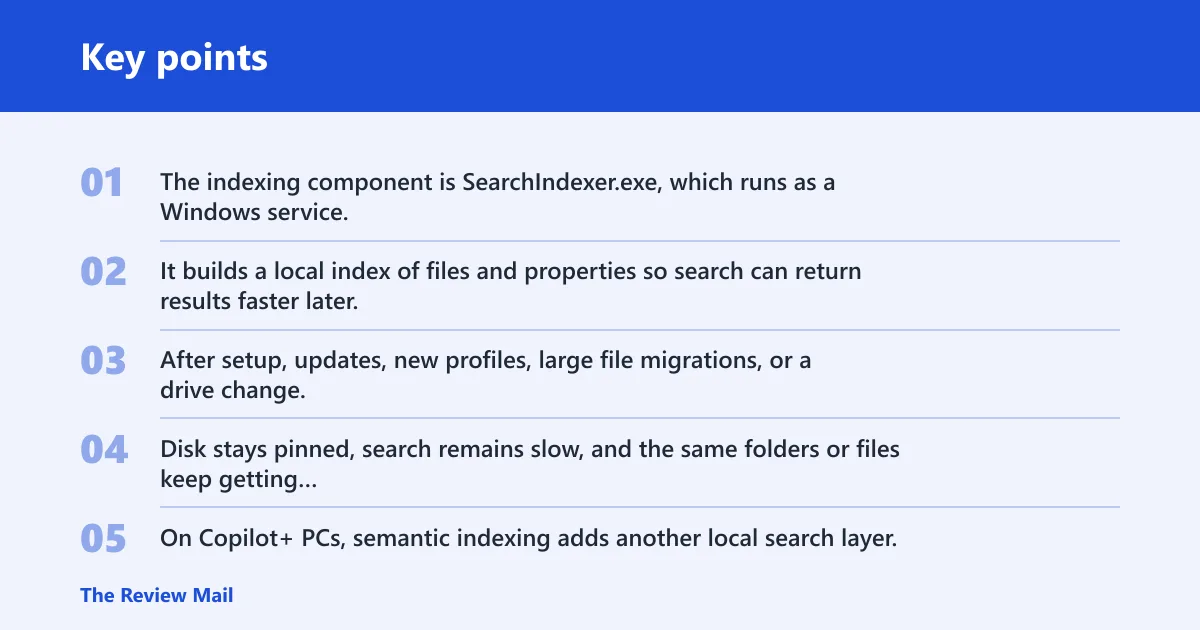
The indexing component is SearchIndexer.exe, which runs as a Windows service. It builds a local index of files and properties so search can return results faster later. After setup, updates, new profiles, large file migrations, or a drive change, the service can work hard for a while. That is expected if the activity tapers off.
A problem looks different. Disk stays pinned, search remains slow, and the same folders or files keep getting scanned. On Copilot+ PCs, semantic indexing adds another local search layer, so a large library or a recent profile reset can create more background work than a plain install. The key is whether the activity is shrinking or looping.
When high disk points to another cause
Not every 100% disk report is a search problem. Other background work can do it too, including antivirus scans, startup apps, sync tools, or a failing drive. EaseUS notes that high disk usage can come from System, Startup, Antimalware Service Executable, Skype, or other apps, and Avast’s guidance for Windows 10 or 11 also points to viruses, virtual memory, clean boot, or drive health.
Search is more likely when the spike lines up with indexing changes, recent file moves, or a search that works but feels delayed. If the spike begins with a browser sync, a backup tool, or a Windows update, search may be only one process in a broader load problem.
How do you check disk usage in Windows?
Use Task Manager first. It shows whether disk activity is near 100%, which processes are active, and whether the pressure comes from apps or background tasks. Then open Settings and check Windows Search indexing options so you can tell whether SearchIndexer.exe is scanning expected folders or stuck on one location.
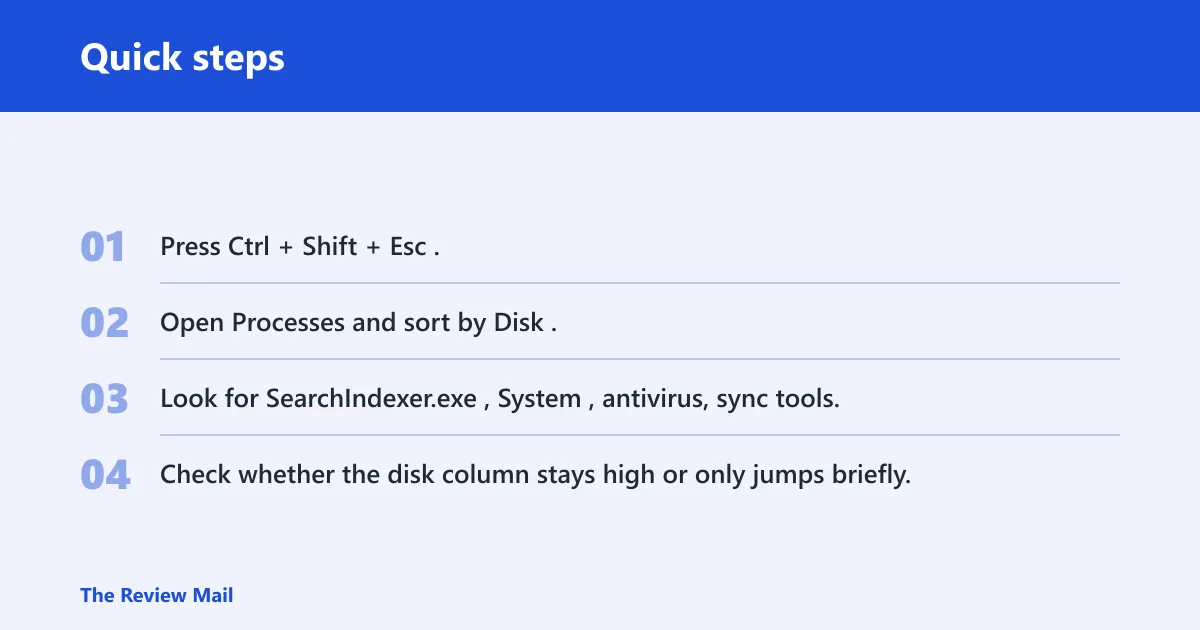
Use Task Manager to confirm the spike
- Press Ctrl + Shift + Esc.
- Open Processes and sort by Disk.
- Look for SearchIndexer.exe, System, antivirus, sync tools, or another process near the top.
- Check whether the disk column stays high or only jumps briefly.
If SearchIndexer.exe is active and the disk is high only while the index is being built, that points toward normal indexing. If a different process leads, fix that first. The search service can be present in the mix without being the main cause.
Check search settings and indexed locations
Open Settings, then Privacy & Security, then Searching Windows or the indexing area on your build. Advanced indexing options let you change indexed locations and file types. You can scope search to selected folders or drives, or remove paths that do not need indexing.
| Symptom | Likely cause | What to check in Task Manager/Settings | First action |
|---|---|---|---|
| Fresh Windows install | Initial index build for files and apps | SearchIndexer.exe active; disk high but trending down; indexing progress still changing | Leave it running, then restart only if it stays pinned beyond a long first pass |
| After file migration or new profile setup | Large reindex after copied data or a new user profile | Recently added folders under indexed locations; heavy reads from the migrated drive | Let indexing settle, then trim locations you do not need |
| OneDrive-heavy libraries | Many cloud-synced files, placeholders, and local metadata | OneDrive and SearchIndexer.exe both active; frequent background reads | Limit indexing to the folders that matter most |
| Low-RAM PCs | Memory pressure slows indexing and increases paging | High memory use, paging activity, and disk spikes alongside search | Close heavy apps, then review virtual memory settings if the machine is consistently short on RAM |
| HDD systems | Slow random I/O makes indexing feel stuck | Disk near 100% with modest transfer rates; search and other reads both slow | Reduce indexed scope and let the service finish during idle time |
| Corrupted index | Search database problem or a stuck catalog entry | SearchIndexer.exe keeps returning to the same folders; results missing or inconsistent | Rebuild the index from Advanced indexing options |
| Battery-powered laptops | Windows Search Service slows work under low battery or low power states | On battery, disk activity slows while search still lingers | Plug in and check power settings before changing search |
| Windows 10 after support ended | Out-of-support system with unresolved search or driver issues | Windows Update no longer delivers normal support; spikes repeat after restarts | Back up data and plan an upgrade to a supported release |
Picture a laptop with 8 GB of RAM, a nearly full HDD, and a OneDrive folder full of documents. Search may look broken because indexing competes with paging and slow disk reads at the same time. The safer fix is to trim the search scope first, not to disable search outright.
What should you try first?
Start with the least disruptive steps. Restart the PC, let first indexing finish if the machine is new or just finished copying data, and check whether a battery-powered laptop is being slowed by power settings. Then apply Windows updates and scan for malware if the disk activity does not match search work.
Restart, wait, and watch the pattern
The same source recommends restarting the PC as the first fix, and that advice fits search spikes too. A reboot clears a stuck service state, and a fresh start can let indexing resume more cleanly. If the spike followed a large file move, give the service time to finish before you change settings.
Suppose a desktop just imported 200,000 small files from an old drive. SearchIndexer.exe may stay busy for a while because the index has to read file names, paths, and properties. If disk use falls over time, that is work finishing, not failure.
Check power, updates, and malware
- Plug in a laptop and turn off aggressive battery saver settings while search is indexing.
- Install pending Windows updates, then restart.
- Run a malware scan if Task Manager shows activity that is not tied to search or your own apps.
- If the drive is still maxed out after those checks, move to search-specific settings.
That means a slow index is sometimes a response to pressure, not a bug. In that case, reducing load or plugging in may help more than disabling the service.
How do you fix SearchIndexer.exe high disk usage?
Start by narrowing what gets indexed, then rebuild the index only if the search database seems stuck. Use Advanced indexing options to remove folders or file types you do not search often. Keep disable options as temporary workarounds, not the first answer, because Windows Search is what powers taskbar and File Explorer search.
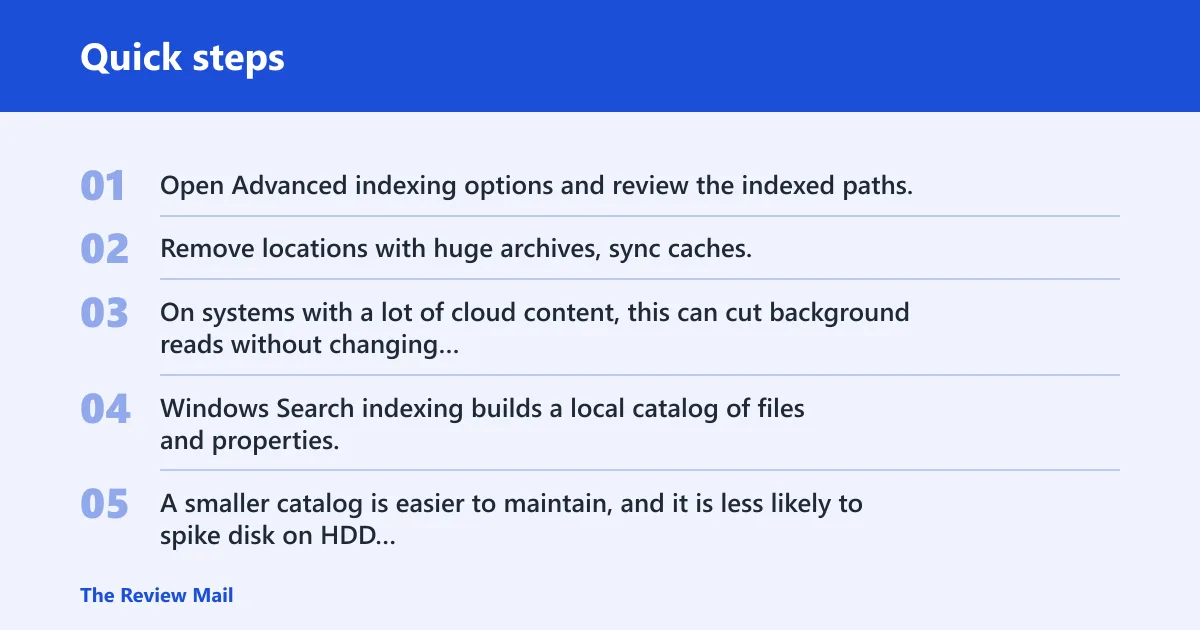
Adjust indexing scope before you disable search
Open Advanced indexing options and review the indexed paths. Remove locations with huge archives, sync caches, or old project folders if you rarely search them. On systems with a lot of cloud content, this can cut background reads without changing how you search active work files.
Windows Search indexing builds a local catalog of files and properties. A smaller catalog is easier to maintain, and it is less likely to spike disk on HDD systems. Keep folders that matter; drop the rest.
Rebuild a stuck index
If search returns missing results, or SearchIndexer.exe keeps rechecking the same folders, rebuild the index. That is a stronger step, but it is still more targeted than turning off the entire search service. Give the rebuild time to complete before judging the result.
Windows 10 and Windows 11 both use the same basic search path, and Copilot+ PCs add semantic indexing on top. If the issue appears right after a profile reset or a large sync re-download, a rebuild can clear stale catalog entries faster than repeated restarts.
Pause or disable Windows Search only as a temporary workaround
EaseUS includes disabling Windows Search as a fix, but use that as a temporary move if disk pressure is breaking work. Turning it off can reduce background load, yet it also slows search from the taskbar and File Explorer. Re-enable it once the underlying cause is clearer.
Windows Search Service can also be tuned by location and file type, which is usually a better first move than a full disable. If the service is only hitting a huge photo archive or backup folder, remove that path instead of cutting search across the whole PC.
Can low memory or low disk space make indexing slow?
Yes. Low RAM forces more paging, and that can look like a search problem because the disk stays busy while the system swaps memory. Low free disk space can also slow indexing because the search database and pagefile compete for limited room. In both cases, check memory pressure before blaming search alone.
When to check virtual memory or pagefile settings
If Task Manager shows memory near its limit while search is active, virtual memory may be part of the bottleneck. EaseUS includes resetting virtual memory in its fix list, and that can help when RAM is tight. Do not treat pagefile settings as the first move unless memory pressure is obvious.
Why a nearly full drive slows search
Search indexing writes metadata while it reads files. When the system drive is nearly full, those writes have less room and can slow down. That is more noticeable on HDDs, where random reads and writes are already slower. Freeing space is often safer than changing search service settings.
Should you use a clean boot?
Use a clean boot when the search spike looks tied to third-party software or drivers. It helps isolate startup apps, services, and background tools that may keep the disk busy while SearchIndexer.exe is trying to work. It is a useful test, but it is not the right answer for every search problem.
When a clean boot helps
Clean boot is a good next step if disk use stays high after a restart, updates, and a check of indexing scope. It can separate a search issue from backup tools, sync clients, or security software that also touch the same files. EaseUS and Avast both include clean boot in their high-disk guidance.
When it is not the right next step
If search began after a huge file import, a new account, or a fresh install, the better move is often to wait and narrow indexed folders first. Clean boot is for isolation. It is less useful when the pattern already points to first-run indexing, low battery, or a nearly full drive.
Frequently asked questions
Why is disk usage so high on my PC?
High disk use can come from search indexing, updates, malware scans, startup apps, or a drive that is struggling. If SearchIndexer.exe is near the top and the spike follows a file move or new install, indexing is a likely cause. If not, look for another process first.
Why is Windows Search using 100% disk?
Windows Search can hit 100% disk during first indexing, after a big file migration, or when it is rebuilding a damaged catalog. It can also slow down under low RAM, low battery, or a nearly full drive. If the spike never eases, rebuild the index or trim the scope.
How do I fix search indexer high disk usage?
Start by narrowing indexed folders and file types in Advanced indexing options. If search is stuck or results are inconsistent, rebuild the index. Use a temporary disable only if the disk pressure is blocking work, and turn search back on once the problem is isolated.
What’s the difference between Windows Search and SearchIndexer.exe?
Windows Search is the feature users interact with from the taskbar and File Explorer. SearchIndexer.exe is the background component that builds and maintains the index behind that feature. The service can be paused or tuned, but the visible search box is still the user-facing part.
Is high disk usage from Windows Search a sign of malware or a bad drive?
Sometimes, but not always. Malware and failing hardware can cause heavy disk use, so a scan and a drive-health check are smart if the pattern does not match indexing. If the spike began right after a file migration or update, search is more likely than infection or drive failure.
Why is disk usage so high?
High disk use usually means something is reading or writing a lot, or the drive is slow under pressure. Search indexing, updates, pagefile activity, and startup software are common reasons. The safest move is to identify the top process first, then fix the specific source.