Windows Search Indexer High Disk
If Windows Search Indexer keeps the disk near 100% for about 10–15 minutes after sign-in, or returns after a reboot, treat it as a likely stuck indexer or a slow-drive bottleneck. Ignoring it can make searches lag, apps stutter, and the whole PC feel frozen. This guide shows how to tell normal indexing from a problem and which fix to try first, beginning with the least disruptive change.
What Search Indexer does
Microsoft Windows Search Indexer is a background indexing service. It scans files, folders, email, and content so Windows can build a database and find items faster later. That work uses CPU, memory, disk reading and writing, and some disk space, so a temporary spike can be normal after changes.
The process usually appears as searchindexer.exe in Task Manager. It often runs after an update, a new PC setup, a large file copy, or a sync event. On systems with many items or an older hard drive, the same work can look louder and last longer.
Is this normal indexing or a real problem?
Use the pattern, not the spike alone. Short bursts after updates or large file changes often settle on their own. Persistent disk activity that keeps returning, especially after a restart, points to a stuck index, a drive bottleneck, or another background task that is being mistaken for Search Indexer.
| Symptom | Likely cause | Safe action | When to escalate |
|---|---|---|---|
| Disk use rises after a Windows update, then fades within a short period | Post-update indexing | Wait and keep the PC plugged in | Escalate if it stays near the top of Disk for about 10–15 minutes on repeat sign-ins |
| Disk activity stays high after downloading, syncing, or copying many files | Large file churn | Let the file set settle before changing settings | Escalate if the same folders keep triggering scans for hours |
| Older desktop with an HDD feels slow while searchindexer.exe stays busy | HDD saturation | Reduce indexed folders and avoid extra background tasks | Escalate if the drive remains slow even when indexing is reduced |
| Disk and memory both stay pressured, and the system swaps a lot | Low-RAM paging | Close heavy apps and watch whether paging drops | Escalate if high disk use continues after memory pressure falls |
| The same files seem to be processed over and over | Likely corrupt index | Restart the Windows Search service or rebuild the index | Escalate if rebuilds fail or the drive shows errors |
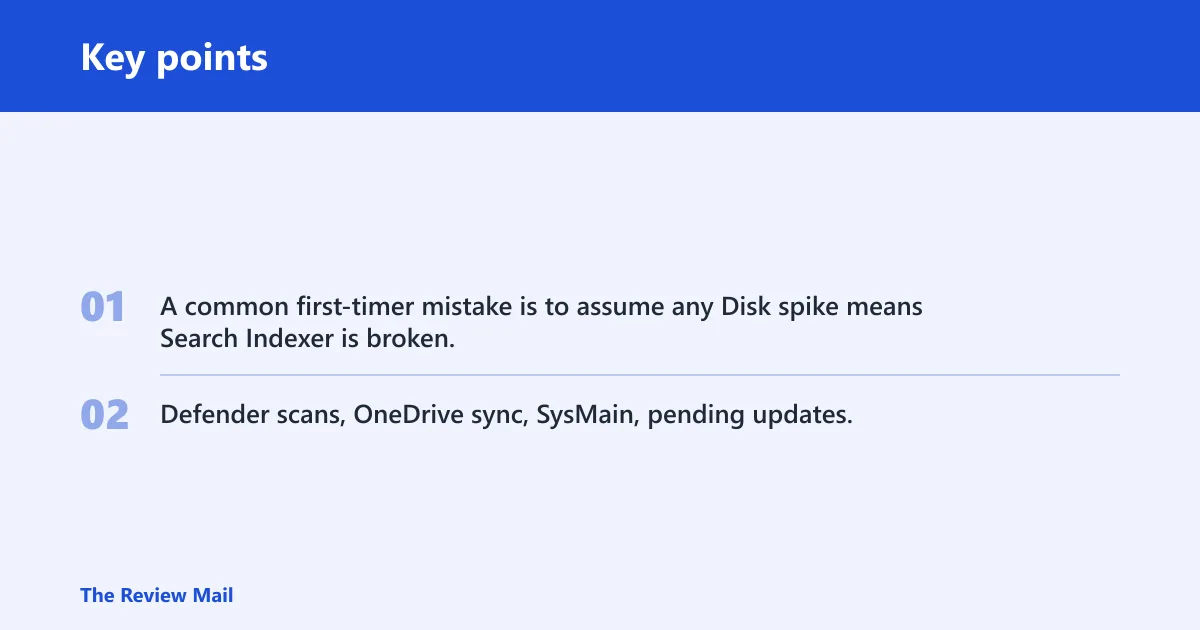
A common first-timer mistake is to assume any Disk spike means Search Indexer is broken. That is not always true. Defender scans, OneDrive sync, SysMain, pending updates, and low-memory paging can all keep the drive active while searchindexer.exe is only one part of the picture.
Why is Search Indexer using so much disk?
Search indexer uses more disk when it is creating or updating the database that Windows uses to locate files faster. That is expected after a large update, first sign-in on a new PC, or a big batch of new documents, pictures, music, mail, or app data.
Post-update indexing and first-run setup
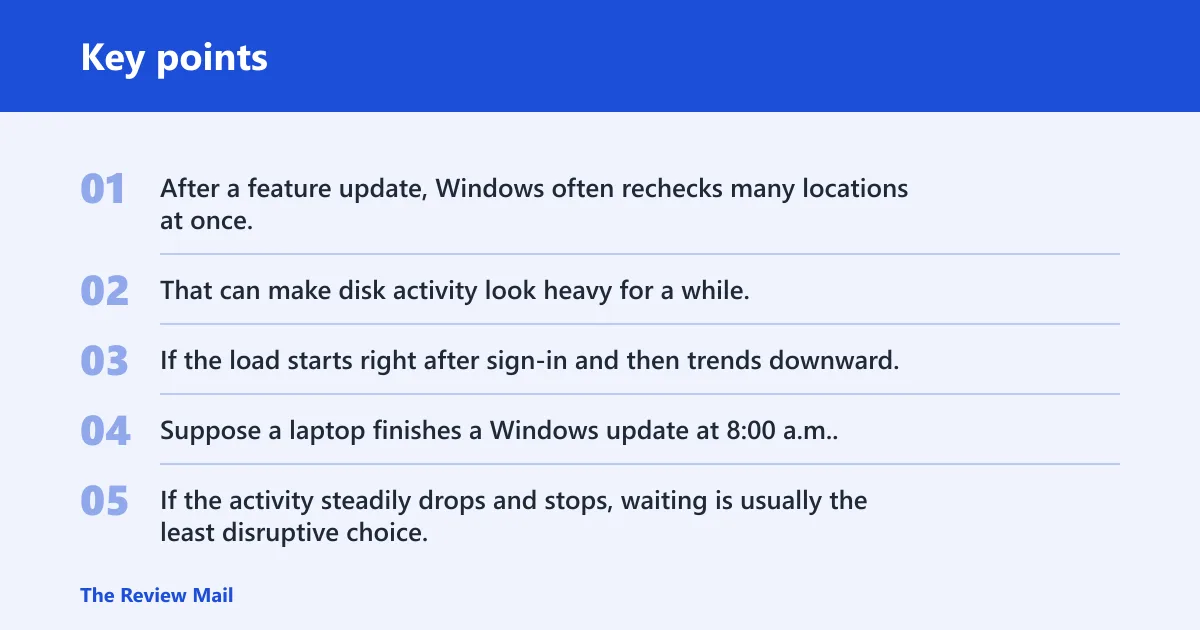
After a feature update, Windows often rechecks many locations at once. That can make disk activity look heavy for a while, especially on a system with thousands of files. If the load starts right after sign-in and then trends downward, that usually looks like normal indexing rather than a fault.
Suppose a laptop finishes a Windows update at 8:00 a.m., then Task Manager shows searchindexer.exe using Disk for 12 minutes while the PC is idle. If the activity steadily drops and stops, waiting is usually the least disruptive choice.
Large file churn from downloads, mail, sync, or backups
Indexing locations that contain mail archives, cloud sync folders, backup sets, or large downloads can keep the service busy for a long time. Fewer folders reduce indexing load, while large file sets increase scan time and disk activity. Next of Windows also recommends reducing indexing locations when many items are indexed.
Why HDDs usually feel it more than SSDs
Search Indexer may struggle more on older hard drives than SSDs. HDDs are more likely to show prolonged slowdowns because random reads and writes are slower, so the same scan feels heavier. SSDs usually handle search indexing more easily, so the symptom may be shorter or less noticeable.
The same process can also raise CPU use. Next of Windows says a slow drive can contribute to high CPU usage by Search Indexer, because the service waits on storage while it keeps working through the queue.
How do you check whether it is stuck?
Open Task Manager and confirm that searchindexer.exe is the process doing the work. Then watch whether Disk use falls after a few minutes. If it remains high for a long stretch, returns after every reboot, or keeps processing the same files, treat it as more than ordinary indexing.
- Press Ctrl+Shift+Esc to open Task Manager.
- Sort by the Disk column.
- Check whether searchindexer.exe is near the top.
- Watch a few minutes and see whether Disk activity falls.
- Look for other heavy processes such as Defender, OneDrive, or a large install before changing Windows Search.
Also check memory pressure. If RAM is low, Windows may page heavily, and that can look like a disk problem even when Search Indexer is not the only cause. When Disk stays high while multiple apps are open and memory is nearly full, the fix may be closing apps rather than changing the index.
How do you stop searchindexer.exe from using so much disk?
Start with the least disruptive change: reduce what Windows has to scan. Open Indexing Options, remove folders you do not need searched, and then give the system time to catch up. If that does not help, restart the Windows Search service. Save disabling indexing for the end of the list.
Reduce the indexing load
Open Control Panel, search for Indexing Options, then use Modify to remove locations you rarely search. The smaller the indexed set, the less work the service does. This is often the best fix on systems with huge mail stores, sync folders, or archive drives.
- Open Indexing Options.
- Select Modify.
- Clear folders you do not need in search results.
- Keep locations such as Documents if you use them often.
- Close the dialog and let Windows rebuild the smaller set.
Picture a desktop that indexes a 2 TB backup drive, a mail archive, and a sync folder at the same time. Removing the backup drive from Indexing Options can cut the scan load without touching the rest of Windows Search.
Which folders should you remove from indexing?
Start with folders that change often but rarely need instant search: backup folders, cloud cache folders, download dumps, old project archives, and large mail stores you never search inside Windows. Keep personal work folders and the paths you open every day. Do not remove system locations blindly if you depend on quick search results there.
Should you restart, rebuild, or disable Windows Search?
Restart first if the service looks stuck. Rebuild when the index appears damaged or keeps looping through the same files. Disable Windows Search only if you are willing to trade faster search for less background activity. That last step can help, but it should not be the first move.
Restart the Windows Search service
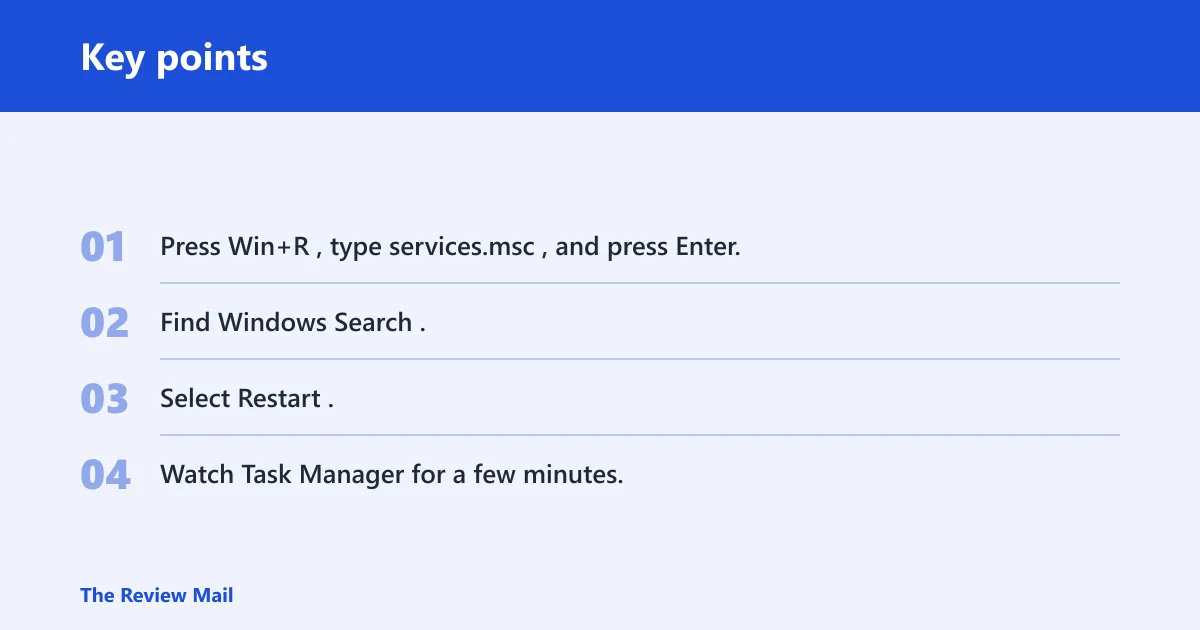
Open Services, find Windows Search, and use Restart. That can clear a stuck indexer without changing your folders or search settings. Next of Windows includes stopping and restarting the Windows Search service as a fix, and it is a reasonable first move when the process refuses to settle.
- Press Win+R, type
services.msc, and press Enter. - Find Windows Search.
- Select Restart.
- Watch Task Manager for a few minutes.
Use Rebuild when the index looks damaged
Open Indexing Options, choose Advanced, then select Rebuild if the index keeps processing the same files over and over. Next of Windows lists Rebuild as a fix for a damaged index. It can take a long time, depending on file count, so do not expect an instant result.
Can a rebuilt index fix high disk usage? Yes, if the current index is stuck or corrupted. It will not help much if the true issue is a slow drive, a failing disk, or another background task keeping storage busy. That is why checking the pattern first matters.
Disable Windows Search only as a tradeoff
One fix is to disable the Windows Search service in Services. That can help if you notice high disk or CPU usage, but it slows file search and can affect apps that rely on indexed data, including Outlook, Microsoft Edge, Settings, and some Microsoft Store apps. Use it only when that tradeoff is acceptable.
Should you disable Windows Search indexing? On an older HDD desktop that is mostly used for manual browsing and rarely searched, maybe. On a modern laptop where search matters every day, it is usually better to reduce indexed locations first and keep the service on.
What if disk usage stays high after the fix?
If searchindexer.exe no longer looks guilty but Disk is still busy, look at the other usual suspects: Defender scans, OneDrive sync, SysMain, pending updates, file system errors, or drive health problems. Persistent disk activity after Windows Search is reduced often means the cause lies elsewhere.
Check for a broader system problem
Run Task Manager again and sort by Disk. If Defender, OneDrive, Windows Update, or SysMain sits above Search Indexer, fix that task first. If the drive remains slow across reboots, or file copies feel erratic, the issue may be storage health rather than indexing.
Search Indexer can also be a symptom of deeper trouble. A damaged file system or a failing drive can make the service look busy because it keeps retrying reads. In that case, rebuilding the index may help only briefly, or not at all. A disk check or hardware check becomes the next step.
When to stop treating it as normal indexing
Use this simple rule: if high Disk starts after a major change and fades, wait. If it returns every boot, keeps the PC sluggish, and the same files keep appearing in the index work queue, move past waiting and try restart, reduce locations, or rebuild. If none of that changes the pattern, look outside Search Indexer.
That same rule also helps on new hardware. SSD systems usually absorb indexing with less pain, while HDD systems can show visible slowdowns from the same workload. If the machine has an older hard drive, the threshold for “this is too long” is lower.
Frequently asked questions
Why is Microsoft Search Indexer high disk usage?
High disk usage usually means Windows is building or updating the search database. It often appears after updates, a new PC setup, or a large file change. If the load fades within a short time, it is often normal. If it keeps returning, something is stuck or the drive is slow.
Why does Windows Search Indexer keep running?
It keeps running because it is meant to stay in the background and watch for file changes. That is normal. The concern is not that it is running, but that it keeps using Disk at a high level for a long time or reprocesses the same files again and again.
How long should Windows Search Indexer run after an update?
After a Windows update, it may run for several minutes while the index is refreshed. A brief burst is expected. If Disk remains near the top of Task Manager for more than 10–15 minutes after sign-in, or the same pattern repeats after reboot, treat it as more than routine indexing.
Is high disk usage from Search Indexer normal on HDDs?
Yes, it is more noticeable on HDDs than on SSDs. Older hard drives handle random reads and writes more slowly, so indexing can look severe even when it is doing ordinary work. On an HDD, reducing indexed folders often helps more than it does on an SSD.
Should I disable Windows Search indexing?
Only as a last-step tradeoff. Disabling it can reduce Disk and CPU use, but search gets slower and some apps rely on indexed data. Start by reducing indexed locations, then try a service restart or rebuild. Disable the service only if faster search is less important on that PC.