CPU Fan Running on High Constantly
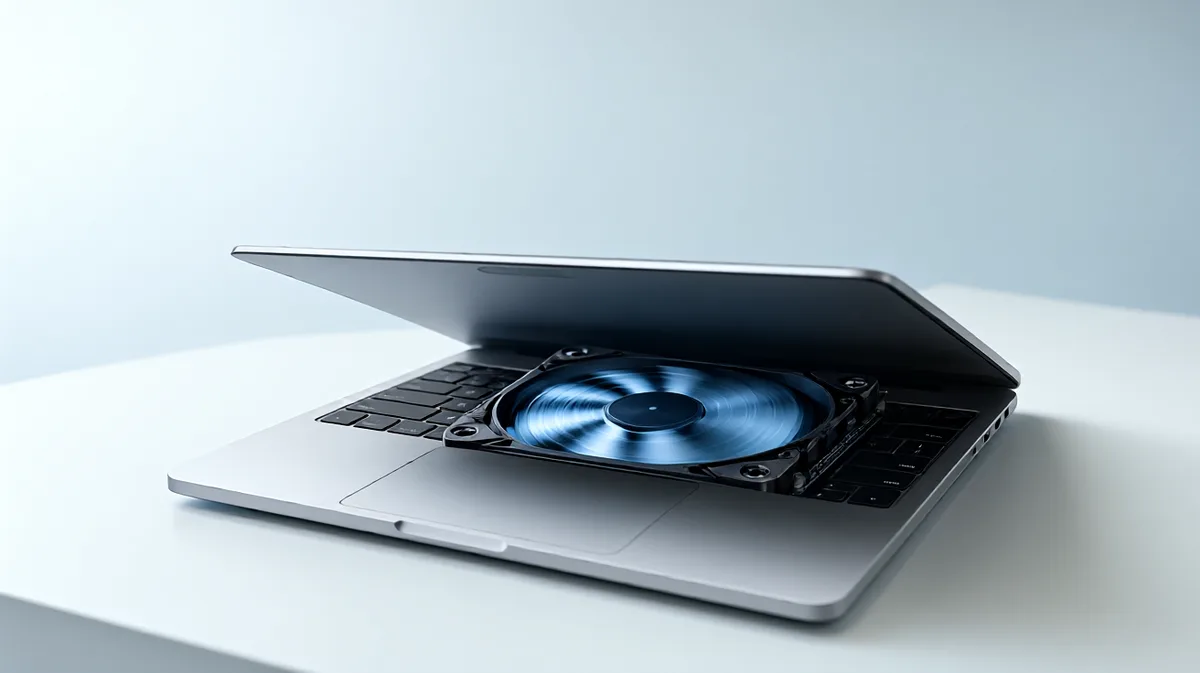
A CPU fan running at high speed all the time usually points to a heavy background load, blocked airflow, or a cooling fault. If it stays loud in BIOS or at idle after startup, treat it as a hardware problem. Ignoring it can leave the PC throttling, crashing, or shutting down. This guide walks Windows 11 users through a software-versus-hardware decision path and the fixes to try in order.
Why your Windows fan is high
Constant fan speed is a symptom, not a diagnosis. In Windows, the first split is simple: either the system is making too much heat, or the cooling system is not moving heat out fast enough. A short burst of fan noise can be normal during startup, updates, or heavy work. A fan that stays at high speed needs a closer look.
High CPU usage can make a PC too loud, hot, or slow, and AVG treats 100% CPU usage as a serious sustained problem. That is why the quickest first check is Task Manager, not the fan itself. If CPU load is high, the fan may be doing its job.
| symptom | likely cause | quick check in Windows | next action |
|---|---|---|---|
| Fan is loud, and CPU usage stays high | Heavy app load, browser tabs, startup items, or background work | Open Task Manager, then sort the Processes tab by the CPU column | Close extra apps and browser tabs; pause scans or updates if appropriate |
| Fan runs hard even when the system feels idle | Blocked airflow or dust in vents and heatsinks | Check whether the vents are covered and whether the PC is on a soft surface | Move it to a flat desk or table and clear dust from vents with compressed air |
| Fan noise starts after power setting changes | Performance mode or aggressive power behavior | Check Power mode in Settings | Switch to Balanced or Power Saver |
| Fan stays high while CPU load is low | Sensor fault, firmware issue, dust, or cooling hardware problem | Compare readings in Task Manager and temperature tools | Update firmware, inspect cooling, and consider service |
Why is my CPU fan running so fast?
A fast-spinning CPU fan usually means the processor is producing heat faster than the cooler can shed it. On Windows, the most common cause is a heavy workload that is visible in Task Manager. Browser tabs, startup apps, Windows Update work, and antivirus scans can keep CPU load elevated long enough for the fan to stay high.
Check CPU load first
Windows Task Manager can identify which programs use the most CPU, and the Processes tab with the CPU column is the fastest way to sort them. AVG instructs Windows 11 users to right-click the taskbar to open Task Manager. Once it is open, look for an app or background process that stays near the top instead of spiking briefly.
Open Task Manager. In Windows 11, right-click the taskbar and choose Task Manager. If it opens in compact view, switch to the full view so you can see the Processes tab and CPU column.
Sort by CPU. Click the CPU column so the heaviest users rise to the top. This shows whether the heat is coming from a browser, a game launcher, an update task, or something else that is eating cycles in the background.
Close unneeded load. Shut unused applications and extra browser tabs one by one. That cuts active CPU work, which can lower heat output enough for the fan curve to relax.
Say your laptop fan is loud while a browser sits on ten tabs and Task Manager shows the browser near the top of the CPU list. Close the heaviest tabs first, then wait a minute. If the CPU percentage falls and the fan slows, the problem was workload, not a failing cooler.
A common first-timer mistake is checking only the main window while a background task keeps running. Windows Update, cloud sync, search indexing, and antivirus scans can all keep the processor busy without much on-screen activity. If CPU stays high after closing visible apps, look for background processes before assuming hardware trouble.
Why is my computer fan constantly running?
A computer fan that never seems to slow down often points to poor airflow. Blocked vents and dust buildup can trap heat inside the case, so the fan keeps pushing harder to compensate. On a laptop, a soft surface can also choke intake or exhaust openings and make cooling worse.
Check airflow and dust
Cooling airflow matters because the fan can only move air that can actually enter and leave the chassis. Flat, hard surfaces help a laptop breathe better, and dust in the vents can reduce intake and exhaust. If the fan is full speed but CPU use is not high, airflow is one of the first things to inspect.
Place it on a flat surface. Move the laptop or desktop to a solid, level surface with open space around the vents. Asurion recommends a flat surface for better airflow, and even a small change in clearance can improve cooling.
Inspect the vents. Look for dust on intake and exhaust openings, especially near the rear and bottom edges. If the vents are clogged, the fan may run continuously because the heatsink cannot dump heat fast enough.
Clear dust carefully. Use short bursts of compressed air to blow dust from the vents and heatsinks. Compressed air is commonly listed as a first-line maintenance tool, and short bursts are generally safer than long blasts that can drive debris deeper.
Picture a 15-inch laptop sitting on a bedspread with the rear exhaust pressed partly flat. The CPU may be fine, but the fan still roars because the air path is restricted. Move it to a desk, clear the vent openings, and the noise may drop without any software change.
Why is my laptop fan running constantly?
On a laptop, continuous fan activity can be normal under sustained load, especially when temperatures are high. It is less normal when the machine is idle, because a quiet desktop, light browsing, or a fresh boot should not keep the fan pinned high for long. The key is whether the noise tracks heat and workload.
Check power mode and normal heat
Windows power mode can change how aggressively the system uses CPU performance. The same source notes that Balanced or Power Saver can reduce fan activity, while Performance mode can drive temperatures up. If the machine is warm because the power plan is pushing higher clocks, the fan may simply be responding to that setting.
Open power settings. In Windows Settings, check the current Power mode. If it is set to Performance, switch to Balanced first, or try Power Saver for a quick comparison on light workloads.
Watch for heat spikes. Leave the system idle long enough to see whether the fan drops after startup tasks finish. Windows Update activity, antivirus scans, and background syncing can make the fan sound persistent for a while, then settle when the load ends.
Compare temperature and noise. If you use a temperature tool such as SpeedFan or HWMonitor, check whether the fan speed matches a genuinely high temperature. The same source recommends those tools for checking system temperature, which helps separate normal cooling from a sensor or control issue.
Suppose a thin laptop is quiet on Balanced power mode but becomes noticeably louder after switching to Performance mode. That change points to power behavior rather than a sudden fault. If the fan is still loud on Balanced while the machine is idle, move to firmware and hardware checks next.
Check Windows power settings and startup load
Startup apps and background services can keep heat high long after the login screen disappears. That is why a fan that looks constant during the first few minutes after boot may not be failing at all. The goal is to remove avoidable load before assuming a cooling fault.
Review startup apps. Open Task Manager and inspect the Startup apps area. Disable items you do not need at login, then restart so you can see whether the fan settles sooner.
Check background work. Look for update activity, cloud sync, backup tools, and antivirus scans. These tasks can keep CPU load elevated even when the desktop looks idle.
Adjust the power mode. Use Balanced or Power Saver for routine use if the fan noise is a problem. Save Performance mode for cases where you actually need the extra responsiveness and can accept the added heat.
Update firmware and driver software
BIOS and firmware updates may fix fan issues, and outdated firmware can contribute to abnormal thermal behavior. Driver software can matter too, especially chipset and thermal-related components that influence how Windows reads temperatures and manages power states. This is a later step, not a first one.
Update with care
Firmware changes can alter fan curves, sensor behavior, and power handling. If the fan problem started after a recent change, a rollback or update may help. If it began after a driver or Windows update, the timing is worth noting before you change more settings.
Check for firmware updates. Visit the device maker’s support utility or support page and look for BIOS or firmware updates. The same source says firmware updates may fix fan issues, especially when thermal behavior is inconsistent.
Update chipset drivers. Install chipset and thermal-related driver updates if the manufacturer offers them. These can affect how the system reports temperatures and responds to load changes.
Recheck the symptom. After updating, restart and watch the fan through a normal boot and a few minutes of idle time. If the fan still stays high with low CPU usage, the issue is less likely to be a simple software setting.
When low CPU load points to hardware trouble
If CPU load is low but the fan still runs high, the problem often points away from software and toward cooling hardware. Dust, a bad fan sensor, a failing fan motor, or dried-out thermal paste can all leave the system trapped at high fan speed. This is the path to follow when Windows looks calm but the machine still sounds hot.
Know when to stop troubleshooting
Thermal paste or TIM reapplication may help on older systems, but it often means removing the heatsink and servicing the cooling assembly. That is not a first-line fix. Use it when cleaning and software checks do not explain the behavior, especially on a machine that has aged or run hot for a long time.
Compare load and noise. Open Task Manager and confirm that CPU usage is low while the fan remains loud. If the CPU stays modest but temperatures or fan speed stay high, the cooler or sensor deserves attention.
Look for hardware signs. Listen for grinding, clicking, or an uneven fan sound. A laptop fan that runs continuously at full speed can indicate overheating when the system cannot regulate itself properly.
Escalate to service. If dust cleaning, airflow changes, and firmware updates do not help, seek hardware repair. That is the point to inspect the fan assembly, thermal paste, heatsink contact, and sensors.
A desktop that idles at a low CPU percentage but still ramps its case fan the moment it boots can point to a bad temperature reading or a cooling fault. In that case, software changes alone will not solve the problem. Hardware service becomes the safer next step.
Frequently asked questions
Should the cpu fan always be running?
Usually, yes. Many systems keep the CPU fan spinning whenever the computer is on, even if it is only at a low speed. What matters is not whether it moves at all, but whether it stays loud, fast, or at full speed without a clear reason such as a heavy load or high temperature.
Why does my cpu fan keep running?
The most common reason is ongoing heat from CPU load, background apps, Windows Update tasks, or antivirus scans. If the fan keeps running after those settle, check airflow, dust, and power mode. If it still stays high while the CPU is quiet, sensor or cooling hardware problems move higher on the list.
Why is my laptop fan running constantly: a laptop fan can run?
A laptop fan can run constantly when the machine is under sustained load, on a performance power plan, or sitting where airflow is blocked. That can be normal for short periods. It is not normal if the laptop stays loud at idle after startup, which points to cooling trouble or another fault.
Why is my computer’s fan running high?
High fan speed usually means heat, and heat usually comes from CPU load or restricted airflow. Start with Task Manager, then check vents, dust, and power settings. If Windows shows little load but the fan stays high, look at firmware, sensors, and hardware condition instead of only software.
Why isn’t my cpu fan running
If the CPU fan is not running at all, treat that as urgent. Check whether the system is off, whether the fan cable is connected, and whether the fan is blocked by dust or a failed motor. If the machine is on and the fan still will not spin, stop heavy use and arrange service.
Why is fan constantly running on laptop?
Constant fan activity on a laptop can be normal during heavy work, updates, or charging-related heat, but it should not stay high forever. Check for CPU-heavy apps in Task Manager, switch from Performance mode to Balanced or Power Saver, and make sure the vents are clear and the laptop is on a flat surface.