Limited Internet Connection Windows 10
For a Windows 10 limited or no internet connection warning, first check whether other devices on the same Wi‑Fi or Ethernet link are online; if they are, fix the PC’s adapter, DHCP, DNS, or firewall before touching the router. Taking the wrong branch wastes time and can make a working network look broken. This guide gives you a decision-tree fix path for Wi‑Fi and Ethernet, from DHCP and DNS to adapter, router, and firewall checks.
What the warning means
Limited or no internet access usually means Windows can reach the local network, but not the wider internet. The taskbar may show a Wi‑Fi Connected icon with a warning, a No Internet icon, or a VPN Connected icon that changes the path you should check first. Start by comparing the PC with other devices on the same network.
Read the taskbar cue first
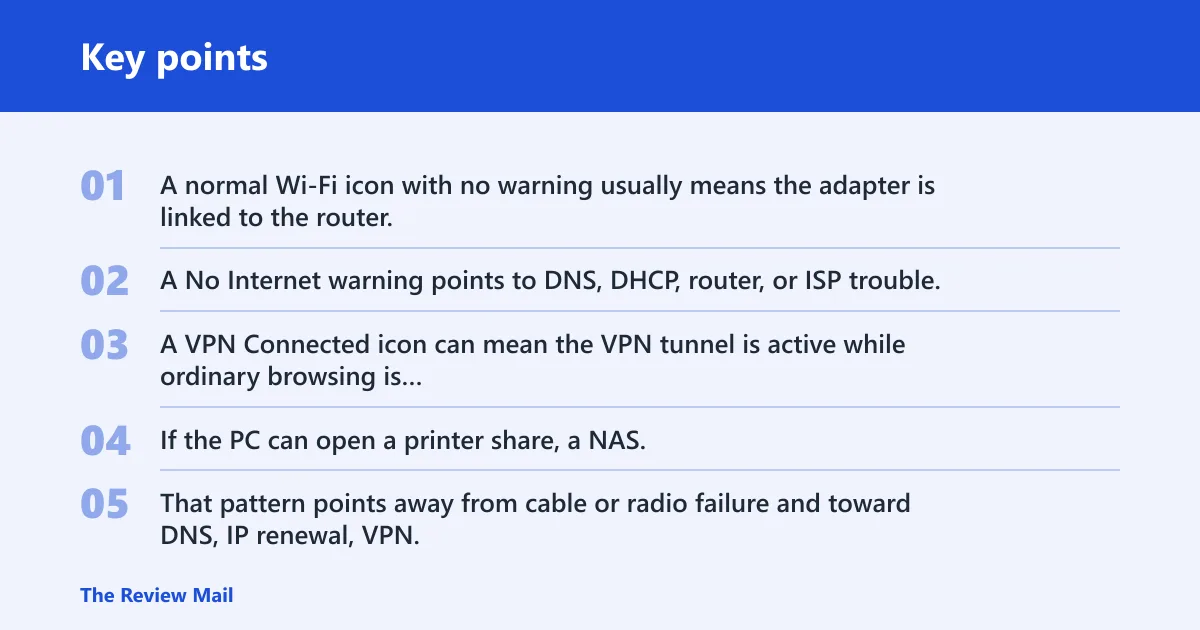
A normal Wi‑Fi icon with no warning usually means the adapter is linked to the router. A No Internet warning points to DNS, DHCP, router, or ISP trouble. A VPN Connected icon can mean the VPN tunnel is active while ordinary browsing is blocked by the VPN client, a firewall rule, or an account issue.
Separate local network access from internet access
If the PC can open a printer share, a NAS, or the router’s local page but cannot load public sites, the local link is working. That pattern points away from cable or radio failure and toward DNS, IP renewal, VPN, or firewall filtering. If nothing local opens either, the adapter or Wi‑Fi association is more likely.
Check whether other devices on the same network are online
Use another phone, laptop, or tablet on the same Wi‑Fi or Ethernet line. If those devices also fail, the router or ISP is the first branch. If only one PC fails, stay on that PC and inspect the adapter, DHCP lease, DNS, and security software before restarting network hardware.
📊 Microsoft says the guide applies to both Windows 10 and Windows 11. Source: Microsoft.
Internet connection decision table
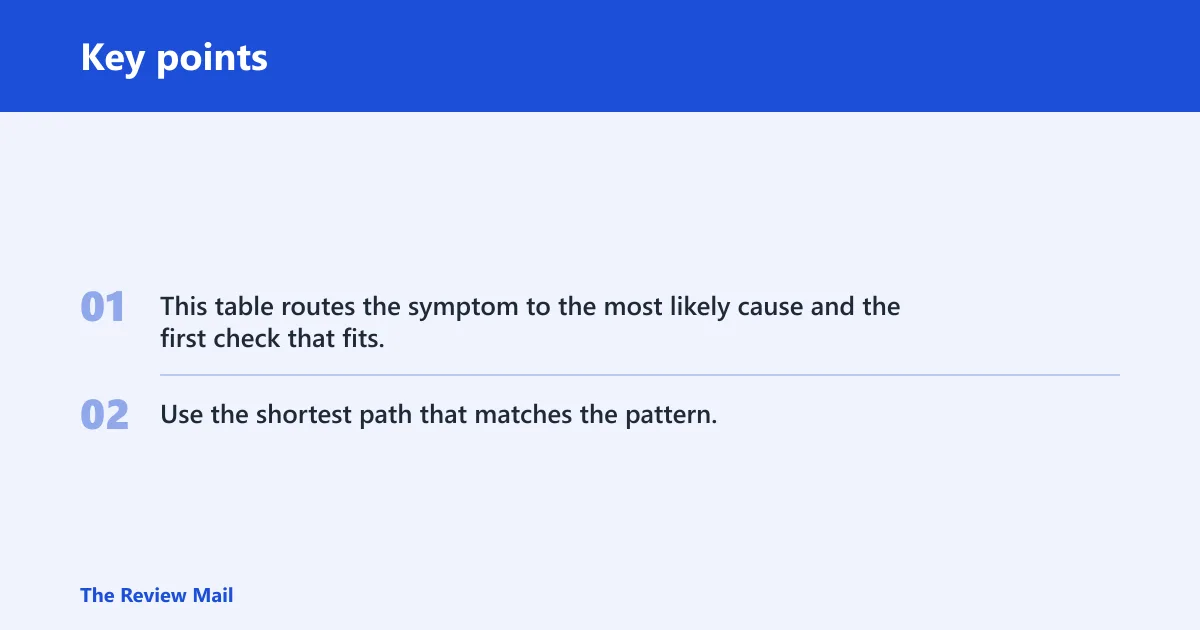
This table routes the symptom to the most likely cause and the first check that fits. Use the shortest path that matches the pattern, then stop and escalate if the branch does not improve after the listed fix.
| Symptom pattern | Most likely cause | First Windows 10 check | Exact menu path or command | When to stop and escalate |
|---|---|---|---|---|
| After sleep or lid close | Wi‑Fi adapter power saving or wake issue | Disable and re-enable the adapter; check power management | Device Manager > Network adapters > adapter > Disable device, then Enable device; Properties > Power Management | If the drop repeats after a fresh resume and driver update, move to router or advanced driver handling |
| Only one PC affected | Driver, DHCP, DNS, or firewall on that PC | Run the Network troubleshooter, then check DNS and IP renew | Settings > Network and Internet > Status > Network troubleshooter | If other devices stay online and this PC still fails after driver and DNS checks, escalate to adapter repair or security software review |
| All devices affected | Router, modem, or ISP issue | Restart modem and router in sequence | Unplug power, wait 30 seconds or more, restore power to the modem first, then the router (Microsoft Support) | If every device still fails after the restart and cables are seated, contacting the ISP is a common next step. |
| Connected but no internet access | DNS failure or stale TCP/IP state | Change DNS or reset TCP/IP stack | Admin Command Prompt: netsh winsock reset; netsh int ip reset | If browsing still fails after reboot and DNS change, continue to IP renew or firewall checks |
| Ethernet only | Cable, router port, or Ethernet adapter | Swap the cable and try another router port | Physical check; then Device Manager for adapter status | If a known-good cable and port still fail, inspect the adapter driver or onboard NIC |
| Wi-Fi only | Weak signal, band choice, or adapter power settings | Forget the network, reconnect, and try a stronger band | Settings > Network and Internet > Wi‑Fi > Manage known networks > Forget | If 2.4 GHz and 5 GHz both fail on one PC but other devices work, focus on the adapter |
Why does Windows 10 say limited connection?
Windows 10 says limited connection when the PC gets partway onto the network but cannot complete internet access. Common causes are a DHCP lease failure, DNS trouble, adapter power saving after sleep, a blocked VPN or firewall path, or a router or ISP outage. The symptom tells you where the break sits.
DHCP address did not renew
When DHCP fails, the PC may not receive a valid IP address from the router. That often appears as a connection that links briefly, then loses browsing. Use IP renew first if the network icon suggests a live link but websites will not open.
DNS cannot resolve sites
DNS failure is common when the PC can connect, but names such as web addresses do not resolve. In that case, manual DNS or a DNS cache reset is a better first move than a full network reset. Google DNS values 8.8.8.8 and 8.8.4.4 are common fallback entries.
Adapter power saving cut the link
After sleep or a long idle period, Windows may power down the Wi‑Fi adapter enough to break the next handshake. A disable/enable cycle, driver update, or power management change can clear that branch. If the problem appears only after waking, do not start with router resets.
Router or ISP is failing
If every device on the network shows the same warning, the PC is probably not the fault line. Restart the modem and router in the right order, then check the ISP status if the whole network remains down. A single-device fix is unlikely to help that branch.
Should you use DNS or TCP/IP reset?
Use DNS first when the PC is connected but pages do not load by name. Use TCP/IP reset when the Windows network stack seems stuck, the warning survives a reboot, or an adapter keeps misbehaving after an IP renew. If DHCP looks stale, try ipconfig /release and ipconfig /renew before the larger reset.
Try DNS first when browsing fails
Open the adapter’s IPv4 properties and compare automatic DNS with a manual setting. If automatic DNS is already in place, switch to a manual test with 8.8.8.8 and 8.8.4.4. WinTips also pairs that step with ipconfig /flushdns to clear the local DNS cache.
Use TCP/IP reset when the stack is stuck
Open an administrator Command Prompt and run netsh winsock reset, then netsh int ip reset. Reboot afterward. That sequence repairs Winsock and IP stack settings that can hold a connection in a bad state even when the adapter looks fine.
Use IP release and renew when DHCP needs a fresh address
If the PC got a bad or expired lease, a release and renew can fetch a new address from the router. Run ipconfig /release, then ipconfig /renew. That is the right branch when the PC is connected locally but has no usable IP for internet traffic.
Say your laptop works on Ethernet at the office, then shows limited connection on home Wi‑Fi after waking from sleep. That pattern points first to the Wi‑Fi adapter power settings, not the home router, because the same PC behaves normally on a different link type.
How do I fix limited internet connection?
Start with the branch that matches the symptom, not a random reset. For one PC only, use the troubleshooter, driver checks, DNS, and IP renew. For every device on the network, restart modem and router. For Wi‑Fi-only failures, check the adapter, band, and saved network first.
Run the built-in troubleshooter
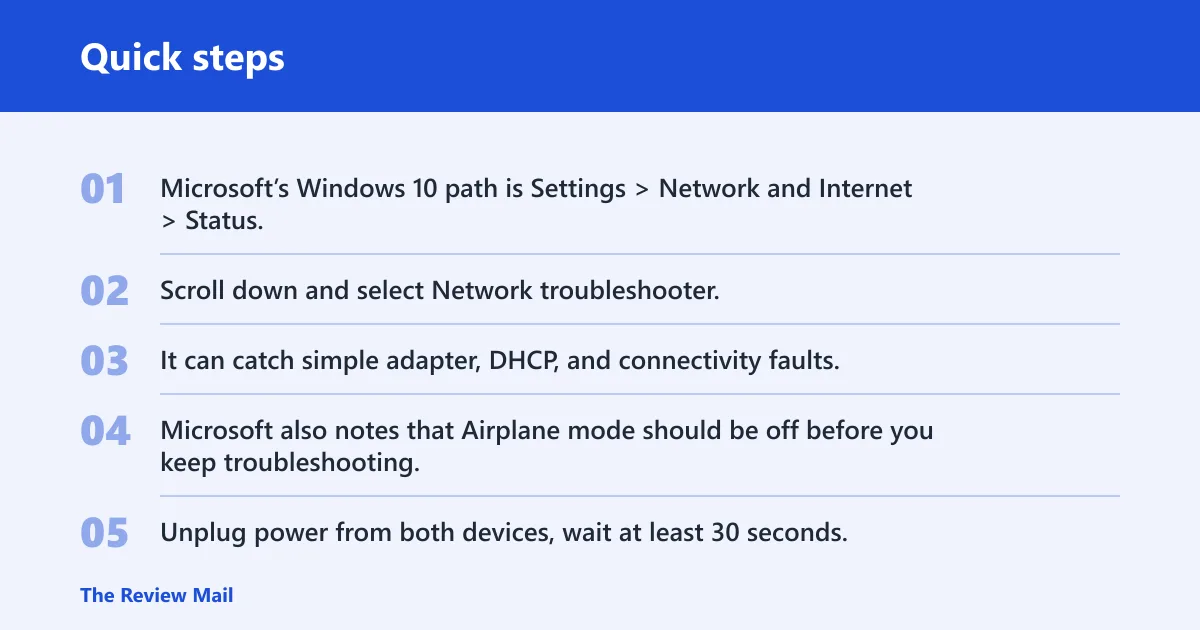
Microsoft’s Windows 10 path is Settings > Network and Internet > Status. Scroll down and select Network troubleshooter. It can catch simple adapter, DHCP, and connectivity faults, and may do so without changing anything else. Microsoft also notes that Airplane mode should be off before you keep troubleshooting.
Restart modem and router in sequence
Unplug power from both devices, wait at least 30 seconds, then restore power to the modem first and the router second. That order lets the modem regain the upstream line before the router starts handing out local addresses. If all devices still fail after that, escalate to the ISP.
Forget the Wi-Fi network and reconnect
Go to Settings > Network and Internet > Wi‑Fi > Manage known networks, select the network, and choose Forget. Reconnect from the Wi‑Fi list and enter the password again. Microsoft recommends this step for stubborn saved-profile issues, especially when the SSID is correct but the connection refuses to complete.
Review metered connections and hotspot behavior
Windows 10 can treat a connection as metered, which changes how updates and some background traffic behave. Check the metered setting when you are on a phone hotspot or a capped plan, because a hotspot can make a limit look like a fault when it is actually a policy choice. Turn off metering if the connection should behave normally.
Wi-Fi adapter checks
Wi‑Fi-specific failures deserve their own branch because radio, band, and power settings do not apply to Ethernet. If the warning appears only on Wi‑Fi, focus on Device Manager, power management, the saved network, and signal quality before you touch the router again.
Update or cycle the adapter
Open Device Manager, expand Network adapters, right-click the Wi‑Fi adapter, and update the driver. If the update does not help, disable the adapter and then enable it again. That quick cycle can clear a stuck driver state without changing the rest of the system.
Check power management settings
In the adapter’s Properties window, open Power Management and review any option that allows Windows to turn off the device to save power. If the problem appears after sleep, this checkbox is often part of the answer. A bad power policy can look like a weak signal, even when the signal is fine.
Review IPv6 and signal band settings
Some fixes ask you to uncheck IPv6 in the adapter properties, then test again. That is not a universal cure, but it is a useful branch when the PC keeps failing while other devices on the same network work. If the network offers both bands, try the stronger Wi‑Fi band and retest.
Picture a desktop connected by Ethernet to a router port that other devices also use. If the warning appears only on that desktop, swap the cable first, then move the plug to another router port. That separates a dead cable or port from a failing network card in one pass.
Network restart checks
These checks make sense after the adapter branch or when the issue touches more than one device. They are also useful when a VPN or firewall seems to interfere with normal browsing. Keep the order tight: troubleshooter, restart hardware, reconnect Wi‑Fi, then review security and connection policies.
Check VPN and firewall interference
A VPN Connected icon can hide the real failure behind a tunnel that no longer passes traffic. Disable the VPN temporarily and test again. If the PC starts working, the VPN client or its policy rules need attention. A personal firewall or security suite can create the same symptom.
Use the network path that fits your adapter
Do not use Wi‑Fi-only steps for an Ethernet fault, and do not waste time on cable swaps for a wireless problem. That separation matters because the right first fix is different for radio, port, or driver failures. A single generic list hides the cause and slows recovery.
Frequently asked questions
What does limited internet connection mean?
It means Windows can talk to the local network, but it cannot reach the internet. The PC may still show a Wi‑Fi link, a router connection, or even access to local devices. The usual causes are DHCP, DNS, adapter power saving, router trouble, or a VPN or firewall block.
Why does my internet say limited connection?
Windows shows that warning when the connection is partial. The PC may have linked to the router, but it never got a working address, cannot resolve websites, or lost the path after sleep. Check whether other devices work first, because that tells you whether the fault is local or network-wide.
Should I use DNS or TCP/IP reset for limited connectivity?
Use DNS first when the PC is connected but websites do not open by name. Use TCP/IP reset when the adapter, Winsock, or IP stack appears stuck after a reboot or update. If the PC likely lost its address, try ipconfig /release and ipconfig /renew before either reset.
What if Windows says connected but no internet access?
That usually means the local link is up, but name resolution or upstream routing is broken. Check DNS, run the troubleshooter, and compare the PC against other devices on the same network. If all devices fail, restart the modem and router in sequence before you test anything else.
How do I disable internet connection in Windows 10?
You can turn off Wi‑Fi from the system tray, enable Airplane mode, or disable the adapter in Device Manager. For a temporary cut, the easiest path is the network icon in the taskbar. For a stronger block, disable the adapter itself until you are ready to reconnect.