Reset Network Windows 10: What It Does and When
Use reset network Windows 10 only after narrower fixes fail and you have Wi‑Fi, adapter, DNS, or VPN problems that survive a restart. Used at the wrong point, it wipes saved Wi‑Fi networks, VPN profiles, and custom network adapters, then forces you to set them up again. This guide tells you when to reset, what it removes, and which targeted fix to try first.
What network reset changes
Windows 10 Network reset is a built-in Settings feature that is designed to remove and reinstall network adapters, restore default network settings, and typically requires a reboot when it finishes. You find it under Settings > Network & Internet > Status > Network reset, and it is meant for problems that persist after lighter repairs.
Built-in Settings path
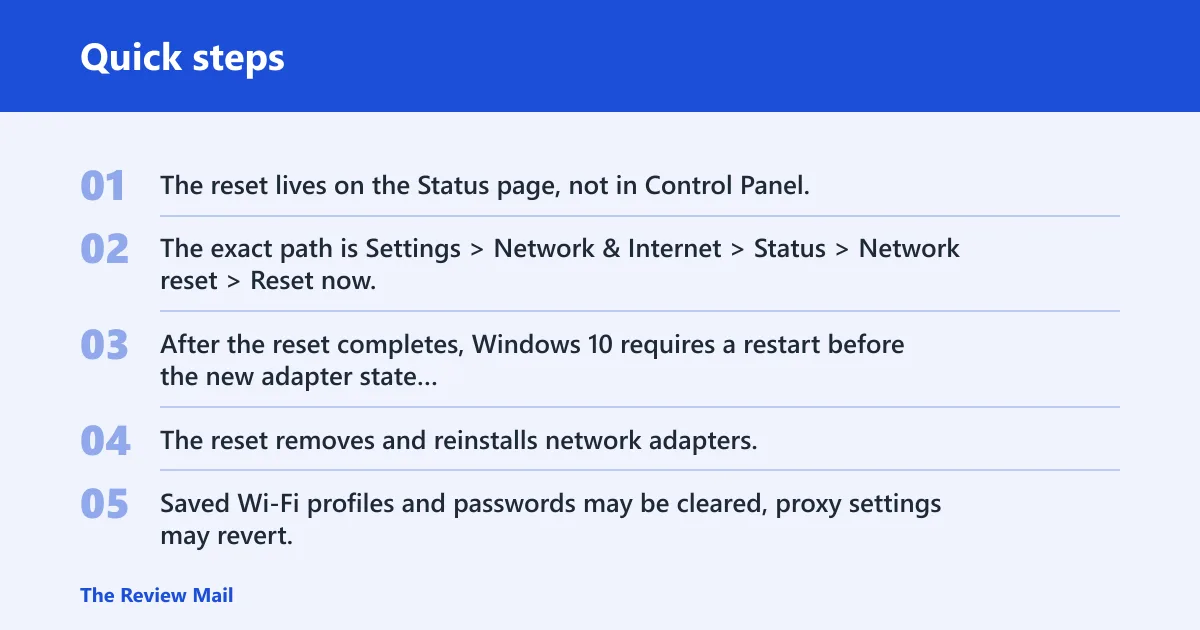
The reset lives on the Status page, not in Control Panel. The exact path is Settings > Network & Internet > Status > Network reset > Reset now. After the reset completes, Windows 10 requires a restart before the new adapter state and defaults fully take effect.
Adapters, Wi‑Fi profiles, and VPN impact
The reset removes and reinstalls network adapters, so anything tied to those adapters can change. Saved Wi‑Fi profiles and passwords may be cleared, proxy settings may revert, and VPN clients or virtual adapters may need reinstalling or reconfiguration. Static IP settings and manual routes can also be affected because they are part of a custom network setup.
Restart required after reset
Do not skip the reboot. The reset is not complete until Windows restarts, because adapter removal and reinstall happen in stages. If the computer comes back up without networking, that does not automatically mean the reset failed; it may simply mean you need to reconnect Wi‑Fi, re-enter credentials, or restore custom settings.
Network reset decision table
Use the table below to decide whether to try a narrower repair first or move to Network reset. The last column shows what may be lost if you escalate.
| Symptom | Least-destructive fix | When to escalate to Network reset | What may be lost |
|---|---|---|---|
| Wi‑Fi disconnected | Restart the Wi‑Fi adapter, then reconnect to the network | If the adapter keeps disappearing, fails to reconnect after a reboot, or multiple networks fail at once | Wi‑Fi profiles, passwords |
| No internet | Run ipconfig /flushdns, then try the Network troubleshooter | If DNS, DHCP, and adapter restarts do not restore access | Proxy settings, Wi‑Fi profiles |
| Unidentified network | Reset the TCP/IP stack with netsh int ip reset | If the same unknown network state returns after reboot or affects every adapter | Static IP settings, manual routes |
| DNS failure | Use ipconfig /flushdns | If name resolution still fails after flushing DNS and retrying the connection | Proxy settings may need checking after reset |
| VPN failure | Repair or reinstall the VPN client | If the VPN virtual adapter is missing, broken, or multiple adapters are corrupted | VPN profile, virtual adapters, proxy settings |
| Adapter missing | Check Device Manager and reinstall the driver | If the adapter vanishes across reboots or several adapters are broken at once | VPN virtual adapters, custom adapter settings |
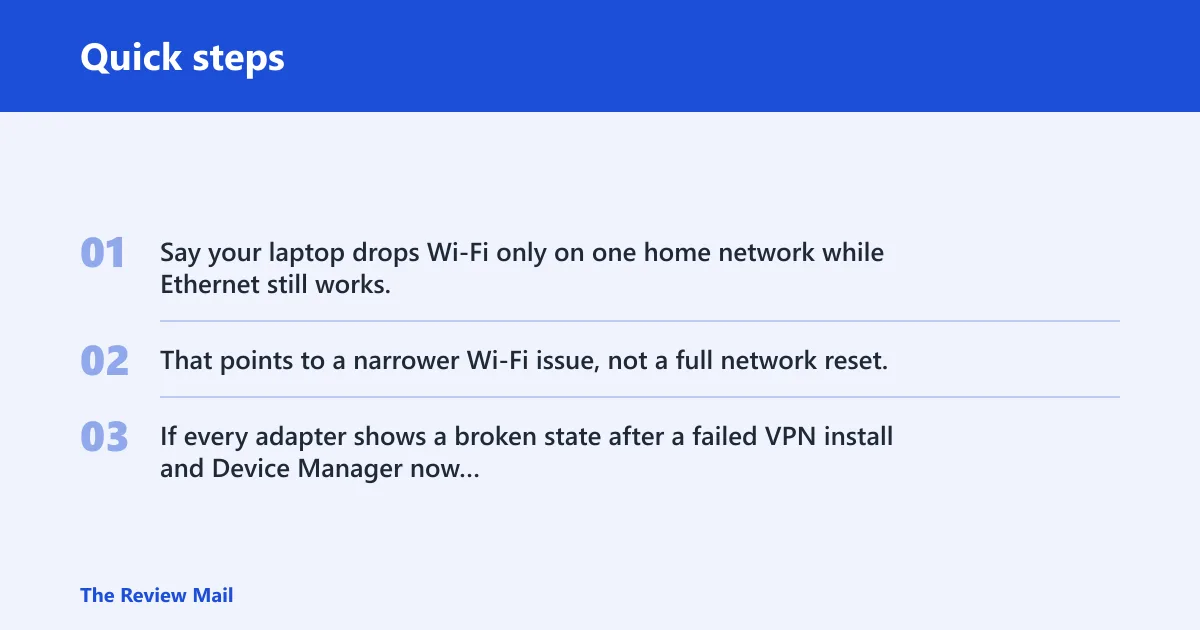
Say your laptop drops Wi‑Fi only on one home network while Ethernet still works. That points to a narrower Wi‑Fi issue, not a full network reset. If every adapter shows a broken state after a failed VPN install and Device Manager now lists a missing virtual adapter, that is a stronger case for a reset.
What to try before a reset
Start with the smallest repair that matches the symptom. Restart the adapter or the service first, then use the Network troubleshooter, then move to command-line repairs, and only then consider Network reset. That sequence avoids wiping custom settings unless the problem keeps returning.
Restart the adapter or service
If the issue is limited to one adapter, a restart can be enough. Open the adapter, disable it, wait a few seconds, and turn it back on. If the networking service looks stuck, a service restart can also clear a temporary fault without touching Wi‑Fi profiles or VPN settings.
Run the Network troubleshooter
The built-in Network troubleshooter is useful when the cause is unclear or when a reset alone does not fix the problem. It checks common configuration mistakes, broken connectivity paths, and some adapter issues. Use it before a full reset if the symptoms are limited to one machine and one problem type.
Update or reinstall the network driver
If an adapter is missing, unstable, or repeatedly disconnecting, driver repair belongs before a reset. A reset does not fix a bad driver package or damaged hardware. On managed PCs, driver installs may be blocked by policy, so you may need admin approval or IT support.
When should you reset network settings?
Reset network settings when the failure is wider than one adapter, when manual fixes stop helping, or when multiple pieces of the networking stack appear corrupted at once. It is also reasonable after repeated changes to VPN, proxy, or static IP settings have left the PC in a broken state that simpler repairs cannot unwind.
Signs the problem is wider than one adapter
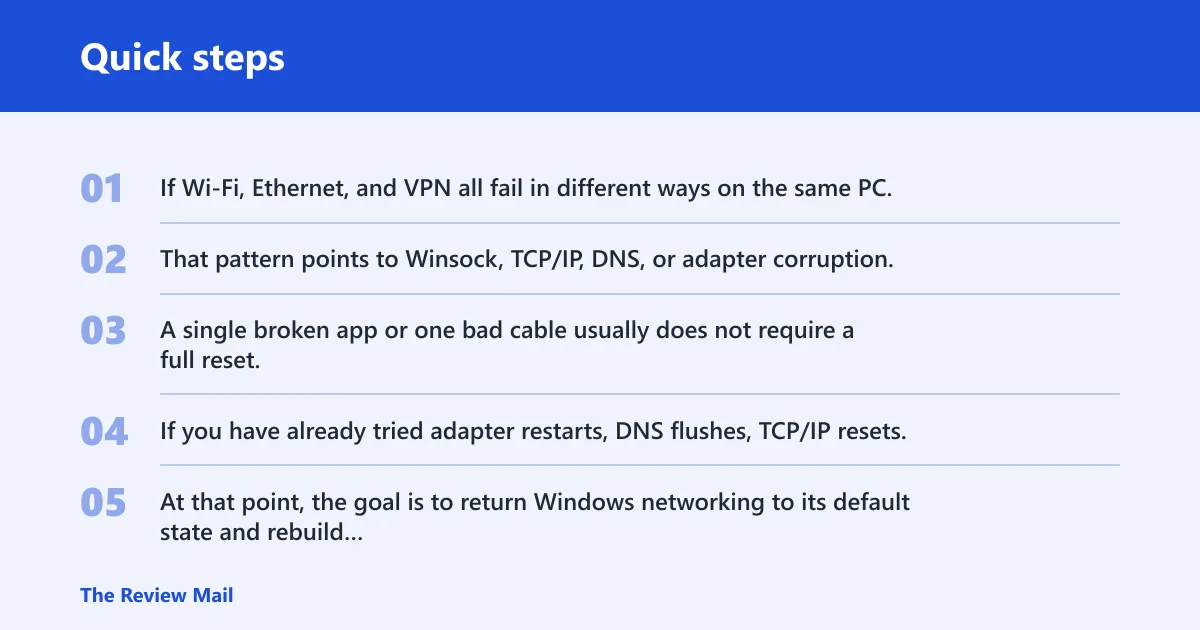
If Wi‑Fi, Ethernet, and VPN all fail in different ways on the same PC, the issue is likely above the adapter level. That pattern points to Winsock, TCP/IP, DNS, or adapter corruption. A single broken app or one bad cable usually does not require a full reset.
When manual fixes stop helping
If you have already tried adapter restarts, DNS flushes, TCP/IP resets, and driver repairs, a full reset becomes the cleaner next step. At that point, the goal is to return Windows networking to its default state and rebuild the configuration from scratch.
When a work PC may need admin approval
On a managed or work PC, Network reset can conflict with policies, VPN management tools, or fixed proxy settings pushed by IT. If the device is joined to a domain or managed by an organization, ask before resetting. You may not be allowed to reinstall the same adapters or client software on your own.
Reset network settings from Settings
Use the Settings path when you want the standard Windows 10 reset, not a command-line repair. This is the easiest route, but it is still a last resort because it removes and reinstalls adapters and can clear saved connection data.
- Open Settings.
- Go to Network & Internet.
- Select Status.
- Choose Network reset.
- Select Reset now.
- Confirm the prompt and wait for completion.
- Restart the computer when Windows tells you to.
After the reboot, reconnect to Wi‑Fi manually, sign back in to any VPN client, and reapply proxy or static IP settings if you used them before. If the network still fails after that, move to the troubleshooter or driver repair rather than repeating the reset.
Reset network from Command Prompt
Command-line repairs are narrower than a full reset, and each one targets a different layer. Use them to match the symptom instead of wiping everything at once. Several of them require a restart to take effect.
Winsock
Run netsh winsock reset when socket-layer networking seems broken, especially after malware removal, proxy changes, or software that installs its own network hooks. This command resets the Winsock catalog and requires a reboot.
TCP/IP stack
Use netsh int ip reset for IPv4 problems and netsh int ipv6 reset for IPv6 problems. These commands affect registry-based network parameters, so they are better suited to address corruption in the protocol stack than a plain adapter restart. A reboot is part of the fix.
DNS cache
Run ipconfig /flushdns when websites fail to resolve by name, but the link itself still appears up. This clears the DNS cache and is often a first-line command before more destructive repairs. You can use it alone or alongside other resets.
Aggressive adapter removal
Use netcfg -d when the standard reset is not enough and you need to remove all network adapters more aggressively. It is more severe than Windows 10 Network reset, and it also requires a reboot. On systems with VPN clients or virtual adapters, expect more cleanup afterward.
Will resetting network settings delete anything?
Yes. Network reset can delete or alter more than people expect. Saved Wi‑Fi profiles and passwords may be cleared, proxy settings may return to defaults, VPN clients or virtual adapters may need repair, and manual IP or routing settings can be lost. Treat it as a configuration rebuild, not a harmless refresh.
Wi‑Fi passwords and saved profiles
If you use remembered wireless networks, plan to enter the Wi‑Fi password again after the reset. The machine may forget multiple SSIDs, not just the one that failed. Keep the network name and password handy before you start.
Proxy and VPN settings
Proxy settings often need to be re-entered after a reset, especially on work machines. VPN clients can also break if the reset removes their virtual adapter or strips out custom bindings. If your VPN is managed by IT, reinstalling the client may not be enough without policy support.
Static IP and manual routes
If you configured a static IP, custom DNS server, or manual route, write those values down before resetting. Those settings are exactly the kind that may disappear when Windows restores defaults. Without them, a device can come back online but still miss the right gateway or internal subnet path.
Frequently asked questions
How reset network windows 10
Use the Settings path only after narrower fixes fail: Settings > Network & Internet > Status > Network reset > Reset now. Windows 10 removes and reinstalls network adapters, restores default network settings, and requires a restart. Reconnect to Wi‑Fi and reapply VPN or proxy settings afterward if you used them before.
What does network reset do windows 10?
Network reset removes and reinstalls all network adapters, returns networking to default settings, and forces a reboot. That can clear saved Wi‑Fi profiles, proxy settings, VPN virtual adapters, and static IP or manual network settings. It does not fix broken hardware, and it will not override managed policies on a work PC.
Will resetting network settings delete anything windows 10?
Yes. It may delete saved Wi‑Fi profiles and passwords, reset proxy settings, and remove or break VPN virtual adapters. Static IP settings and manual routes can also be lost. That is why it should be used after simpler fixes fail, not as the first step for every connectivity problem.