Windows Wi‑Fi Connected No Internet: What to Do
Windows connected but no internet usually points to one of three fixes: if every device is offline, check the router or ISP; if only one PC fails, reset that PC’s network; if hotspot works, fix home Wi‑Fi or DNS. Picking the wrong branch burns time and sends you through fixes that miss the fault. This guide starts with the symptom, then gives the next step for each case, from router checks to Windows resets and DNS repair.
Start with the symptom split
First, sort the pattern. Check whether every device on the same Wi‑Fi is offline, only one Windows PC fails, or the laptop works on a hotspot but not on home Wi‑Fi. That split points to the right branch fast.
All devices offline on the same Wi‑Fi
If phones, tablets, and other computers all fail on the same network, the problem is usually the router, modem, or ISP, not Windows. Check power, cable seating, and the modem or router status lights before changing anything on the PC.
Only one Windows PC cannot reach the internet
If one Windows PC is the only device with the problem, focus on that machine’s saved Wi‑Fi profile, DNS settings, VPN adapter, proxy, and network stack. That is where a Windows-specific fault lives.
Hotspot works, home Wi‑Fi does not
If the laptop connects to a mobile hotspot but fails on home Wi‑Fi, the PC can reach the internet path in general. That pattern usually points to home router compatibility, a bad DNS assignment, a saved Wi‑Fi profile problem, or a router setting that clashes with the laptop.
Windows network troubleshooter
Run the Windows Network and Internet troubleshooter first when the problem appears on one PC. Microsoft’s built-in diagnostic can fix common network problems, including some adapter, DNS, and stack issues that block normal browsing.
What it checks first
The troubleshooter checks common configuration errors and broken connectivity paths. It is a low-risk first pass because it can repair simple issues without changing more than Windows needs to change.
When a built-in fix is enough
If the troubleshooter restores access and the connection stays stable, stop there. Do not keep stacking deeper fixes onto a problem that is already resolved.
When to move on after it fails
If it reports no issue, or the error returns right away, move to the symptom branch that matches your case. A failed troubleshooter is not a dead end; it is a clue that the fault is outside the basic repair set.
What does the outage pattern mean?
The outage pattern separates router or ISP trouble from a PC fault. If every device on the same Wi‑Fi loses internet, check the modem, router power, and indicator lights first. If another device works but one Windows PC does not, the fault is local to that PC.
Router or modem lights and power
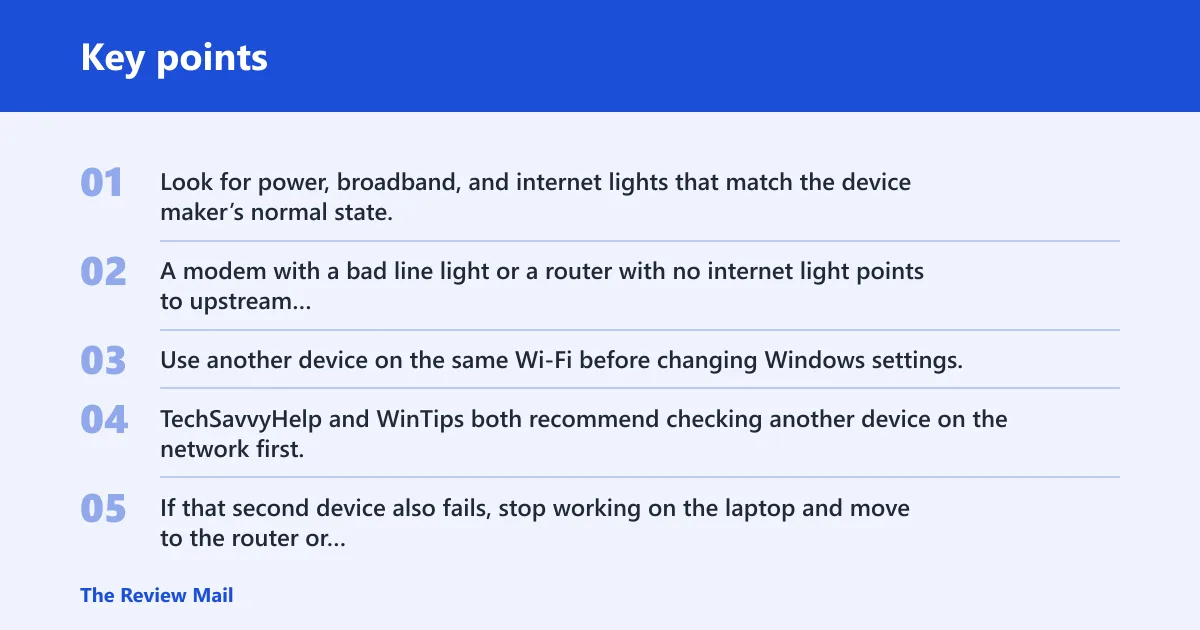
Look for power, broadband, and internet lights that match the device maker’s normal state. A modem with a bad line light or a router with no internet light points to upstream trouble, especially if every device is down at once.
How to separate ISP trouble from a PC fault
Use another device on the same Wi‑Fi before changing Windows settings. TechSavvyHelp and WinTips both recommend checking another device on the network first. If that second device also fails, stop working on the laptop and move to the router or ISP.
When to check another device on the same Wi‑Fi
Check another device before opening Device Manager, before changing DNS, and before resetting adapters. That one test can save a long detour when the real issue is a home outage.
Wi-Fi triage matrix
This matrix turns the symptom into the next step. Use the row that matches what you see, then stop guessing and apply only the branch that fits.
| Symptom pattern | Likely cause | Fastest test | Next action |
|---|---|---|---|
| All devices offline | Router, modem, or ISP outage | Check another phone or laptop on the same Wi‑Fi | Check power, restart router/modem, then contact the ISP if the outage remains |
| Only one Windows PC offline | Saved profile, adapter, DNS, VPN, or proxy issue | Compare with a phone or another computer on the same network | Forget the Wi‑Fi profile, check VPN and proxy, then repair the stack |
| Hotspot works but home Wi‑Fi fails | Home router setting, DNS, or compatibility issue | Connect the PC to a mobile hotspot | Test DNS, IPv6, and router settings; contact the router vendor if needed |
| Apps work but websites fail | DNS resolution problem | Open a site by name, then compare with app behavior | Flush DNS and verify automatic DNS server assignment |
| Wi‑Fi reconnects after reboot, then drops again | Driver, adapter, power, or profile problem | See whether the failure returns after a few minutes | Check the adapter, disable third-party virtual adapters, then consider Network Reset |
Suppose a laptop joins the Wi‑Fi, shows connected, and can still open a messaging app, but websites time out. That is the classic DNS branch, not an all-devices outage. The fastest next step is to flush DNS and verify the DNS server assignment.
Which Windows fixes should you try next?
Once you know the problem is on one PC, start with the least disruptive fixes. Rejoin the Wi‑Fi profile, check VPN and proxy settings, and test third-party network adapters before you reset the stack or the whole network.
Forget and re-add the Wi-Fi profile
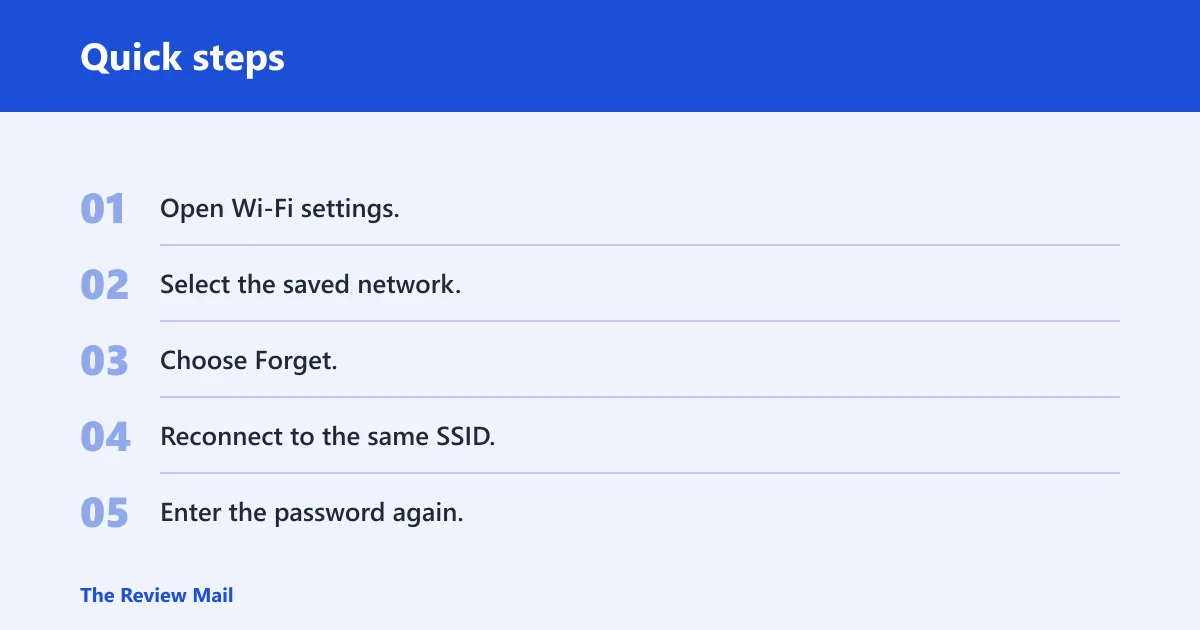
A corrupted Windows Wi‑Fi profile can keep a bad saved setup alive. Use Forget on the network, then reconnect and re-enter the password. This clears the stored profile without wiping the whole PC’s network settings.
- Open Wi‑Fi settings.
- Select the saved network.
- Choose Forget.
- Reconnect to the same SSID.
- Enter the password again.
Say your laptop connects to a home network named OfficeWiFi, but it fails after a router change and works on a hotspot. Forgetting the saved profile forces Windows to build a fresh connection record instead of reusing one that may still hold stale settings.
Check VPN, proxy, and third-party network adapters
VPN adapters and third-party virtual adapters such as TAP, TUN, or Wintun-style devices can interfere with normal routing. Proxy settings can do the same on managed devices. Disable those adapters temporarily for testing, and check whether a VPN client or proxy is forcing traffic through a dead path.
On work or school devices, some proxy, firewall, and policy settings are locked down. If the setting cannot be changed, contact the IT admin instead of trying to override managed policy locally.
Test IPv6 by turning it off briefly
IPv6 can cause a home-router compatibility issue even when IPv4 still works elsewhere. Disable IPv6 as a test, then recheck the connection. If the network starts working, turn IPv6 back on later and treat the router or ISP equipment as the likely compatibility problem.
Do not leave IPv6 disabled permanently unless the environment requires it. A test should confirm the cause, not create a new one.
DNS and TCP/IP repairs
If websites fail but apps appear connected, move to DNS and the TCP/IP stack. TechSavvyHelp and Make Tech Easier both recommend command-line repair steps such as ipconfig /flushdns, netsh winsock reset, and netsh int ip reset. These are stronger than profile fixes, but still short of a full network reset.
Automatic versus manual DNS server assignment
DNS server assignment should usually be automatic on a home network. If a manual DNS entry is wrong, sites may fail to resolve by name even though the Wi‑Fi link itself looks fine. That can make Windows look connected while browsers stall.
Make Tech Easier suggests changing DNS to Google or Cloudflare when manual or router-provided DNS is the problem. If a custom DNS entry is in place, revert to automatic as a test before trying a different public resolver.
Flush cached DNS entries
Use ipconfig /flushdns when apps seem connected but websites do not load. That command clears cached DNS entries, which can remove stale or bad name-resolution results. TechSavvyHelp specifically lists it for cached DNS issues.
Reset Winsock and the TCP/IP stack
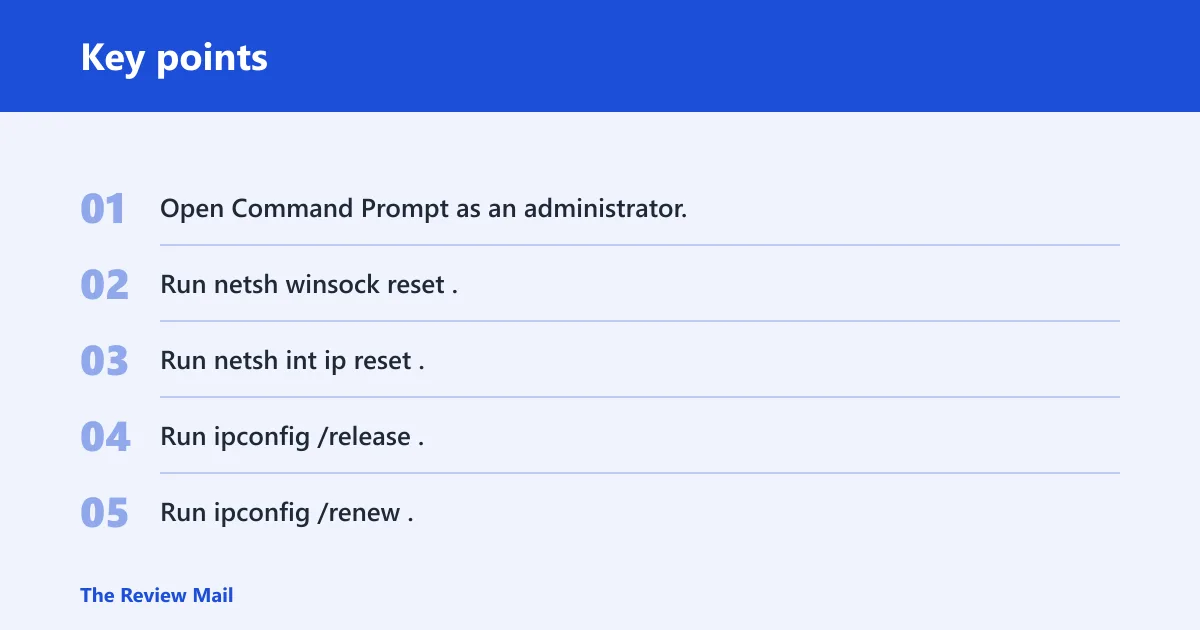
When the problem persists, repair the stack itself. The same source recommends netsh winsock reset and netsh int ip reset. TechSavvyHelp also includes ipconfig /release before renewal.
- Open Command Prompt as an administrator.
- Run
netsh winsock reset. - Run
netsh int ip reset. - Run
ipconfig /release. - Run
ipconfig /renew. - Restart Windows.
These commands clear socket-layer problems, reset IP configuration, and request fresh network settings from the router. If the IP lease or stack was corrupted, this is the branch that usually exposes it.
When should you use Network Reset?
Use Network Reset only after the simpler branches fail. TechSavvyHelp calls it the last step, and that is the right order. It reinstalls network adapters and restores default network settings, so it can fix stubborn configuration damage, but it also wipes custom network choices.
What it changes in Windows
Network Reset removes and reinstalls network adapters, clears saved network settings, and returns many networking options to default values. Expect to reconnect to Wi‑Fi afterward and re-enter the password.
What to expect after the reset
After the reset, Windows may restart and then require you to choose the network again. That is normal. If the problem was a corrupted adapter or a broken settings state, this can restore access without more manual repair.
When to stop and contact someone else
If every device is offline, contact the ISP or router vendor. If the issue only affects a managed laptop, contact the IT admin. If the PC still fails after Forget, VPN and proxy checks, DNS repair, stack repair, and Network Reset, the remaining fault is likely outside Windows.
Frequently asked questions
How to fix windows 11 wifi connected but no internet access
Start by checking whether every device is offline or only one Windows PC is affected. If only one PC fails, run the Windows Network and Internet troubleshooter, forget and rejoin the Wi‑Fi, then check DNS, VPN, proxy, and adapter settings before using Network Reset.
What should I check first if only one Windows PC has no internet on Wi‑Fi?
Check another device on the same Wi‑Fi first, then compare that result with the problem PC. If other devices work, focus on the PC’s Wi‑Fi profile, DNS server assignment, VPN, proxy, and third-party virtual adapters instead of the router or ISP.
Can DNS cause Wi‑Fi connected but no internet on Windows?
Yes. Bad DNS server assignment can stop websites from resolving names even when the Wi‑Fi connection itself stays up. That is why apps may still appear connected while browsers fail. Flush DNS, then verify whether DNS is automatic or manually set.
Can a VPN or proxy cause no internet even when Wi‑Fi is connected?
Yes. VPN adapters and proxy settings can route traffic through a dead or restricted path, especially on managed devices. Temporarily disable third-party virtual adapters and check proxy settings before deeper repairs. If the settings are locked by policy, contact the IT admin.
Why does my laptop work on hotspot but not home Wi‑Fi?
That pattern usually points to the home network, not the laptop alone. It can mean router compatibility trouble, a bad DNS setting, a saved Wi‑Fi profile problem, or a router feature that conflicts with the PC. Test DNS and IPv6 next, then check the router.
Should I reset network settings when Wi‑Fi says connected but no internet?
Use Network Reset only after easier steps fail. It is the last-step fix because it reinstalls network adapters and restores default network settings. Expect to reconnect to Wi‑Fi afterward. If all devices are offline, contact the router vendor or ISP instead.