Bsod Whea_Uncorrectable_Error
If WHEA_UNCORRECTABLE_ERROR appears at idle or during boot, suspect BIOS, power, or storage first; if it appears under load, CPU, RAM, or GPU stability is more likely. WHEA_UNCORRECTABLE_ERROR is a Windows Hardware Error Architecture stop code that can point to a hardware-related failure. Start by setting any overclock back to stock and note the next crash point. That timing narrows the fault to driver, firmware, storage, memory, or hardware.
Crash timing triage
This article describes common bug check codes displayed on the bug check screen. The screen can appear on Windows 10 during installation, Windows Update, or normal use, so timing may matter more than the blue screen alone. Use the pattern below to choose the first test.
| Trigger pattern | Likely component | First test | Escalation step |
|---|---|---|---|
| After Windows Update or a specific driver install | Driver or firmware conflict | Roll back the last graphics, chipset, storage, or network driver | Use Safe Mode or a clean boot, then retest |
| Under gaming or rendering load | CPU, GPU, or instability from overclocking | Return clocks to stock and rerun the same workload | Check cooling, power connections, and board seating on a powered-off desktop |
| 20-30 seconds after login | Startup driver or service | Boot into Safe Mode, then use a clean boot | Undo the most recent startup driver or app change |
| Random idle crashes | Storage, memory, or CPU stability | Run CHKDSK on the Windows drive, then Windows Memory Diagnostic | If both are clean, check BIOS/UEFI settings and recent hardware changes |
Yes/no checklist:
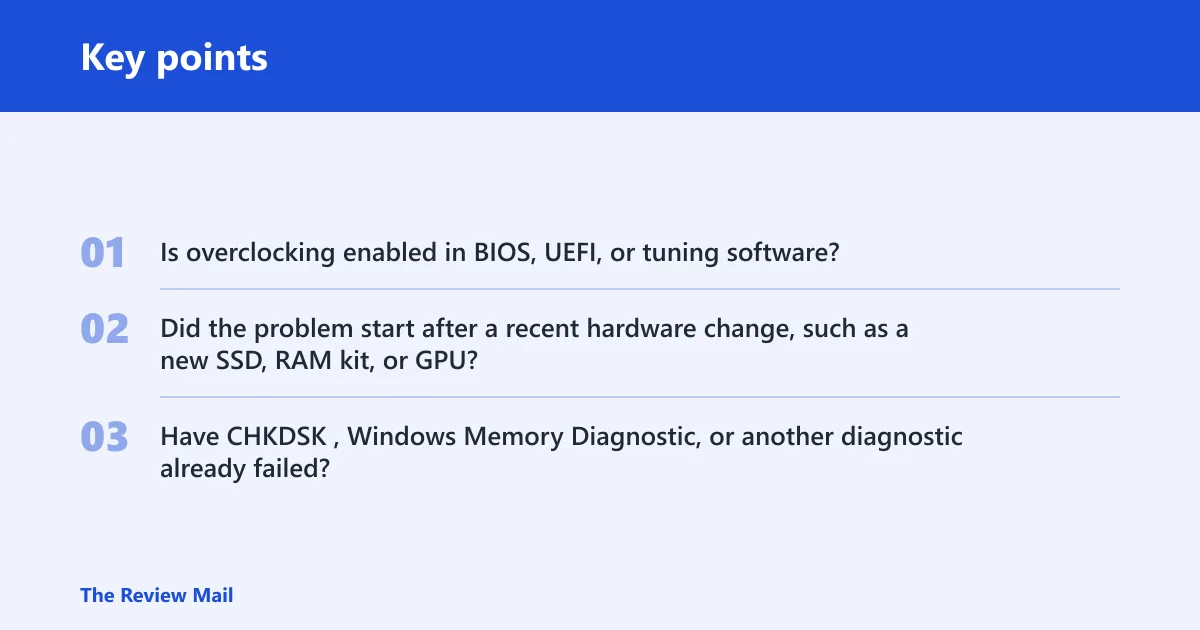
- Is overclocking enabled in BIOS, UEFI, or tuning software?
- Did the problem start after a recent hardware change, such as a new SSD, RAM kit, or GPU?
- Have
CHKDSK, Windows Memory Diagnostic, or another diagnostic already failed?
Say your desktop begins crashing 25 seconds after the sign-in screen appears, but it stays stable in Safe Mode. That points away from core hardware and toward a startup driver or service that loads with normal Windows sessions.
Suppose a laptop blue screens only when a game launches and the same game crashes after a graphics driver update. That pattern makes the driver package the first thing to roll back or update before you chase deeper hardware causes.
Is this a driver, firmware, or Windows update problem?
If the crashes started right after a cumulative update or driver package, treat the update path first. Drivers from Windows Update can conflict with the OS, and a recent graphics, chipset, storage, or network driver is a better first suspect than a random hardware part. Safe Mode can help separate startup software from the core system.
- Open Settings > Windows Update > Update history and note the last driver or cumulative update that landed before the crashes began.
- Open Device Manager, expand Display adapters, IDE ATA/ATAPI controllers or Storage controllers, and Network adapters, then open the device Properties > Driver tab.
- Choose Roll Back Driver if available. If not, use Uninstall device, then restart and let Windows reload the older package or a Microsoft-supplied one.
- If the machine still crashes, boot to Safe Mode, then use a clean boot to disable non-Microsoft services and startup items.
- If the crash began after a specific cumulative update and persists across reboots, pause updates until the driver path is stable again.
Could storage or file corruption be triggering it?
Run disk and system-file checks when the crash appears at boot, during idle time, or after a failed update. The first thing you should do after encountering the WHEA Uncorrectable Error is run Chkdsk. If Windows files are damaged, follow with SFC /scannow and then DISM /Online /Cleanup-Image /RestoreHealth so the image can be repaired before you repeat the reboot cycle.
- Open an elevated Command Prompt and run
chkdskC: /f. If Windows asks to schedule the scan, accept and restart. - After Windows loads again, run
sfc /scannow. - If SFC reports corruption it cannot fix, run
DISM /Online /Cleanup-Image /RestoreHealth. - Restart, then retest the same activity that triggered the crash.
A clean CHKDSK result does not clear every storage problem, and a clean SFC result does not rule out every device or firmware issue. It only means those specific checks did not find obvious damage.
Could RAM or unstable settings be the cause?
Turn off overclocking first. Overclocking can be a direct result of added stress on your hardware. Then run Windows Memory Diagnostic to look for RAM problems. A clean pass helps, but it does not clear every intermittent memory fault or every unstable slot or timing issue.
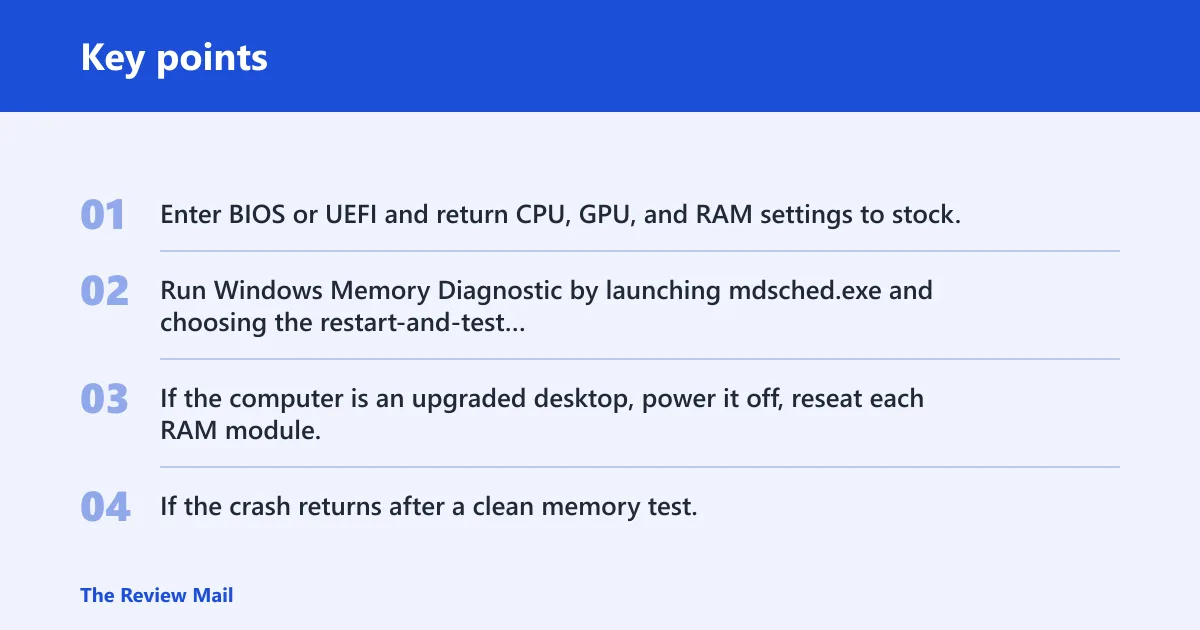
- Enter BIOS or UEFI and return CPU, GPU, and RAM settings to stock. If tuning software is active in Windows, disable it too.
- Run Windows Memory Diagnostic by launching mdsched.exe and choosing the restart-and-test option.
- If the computer is an upgraded desktop, power it off, reseat each RAM module, and verify each stick is in the correct slot pair for the board manual.
- If the crash returns after a clean memory test, treat the result as a clue and repeat the test, then move on to firmware or hardware seating checks.
Could the CPU, GPU, PSU, or thermals be involved?
Use crash timing to separate load-related faults from idle faults. Under gaming or rendering, the likely path is processor, graphics, power delivery, or cooling instability; at idle, the stronger suspects are storage, memory, or CPU stability. If the machine crashes only under the same heavy workload, test it again at stock settings before replacing parts.
- Launch the same game, renderer, or workload that usually triggers the crash.
- Compare behavior with stock clocks, not with an overclock enabled.
- On a powered-off desktop, inspect and reseat power cables, storage cables, and RAM.
- If the crash pattern points to the processor, use the processor maker’s diagnostic utility on that platform.
- If you are using an Intel system and CPU-related hardware errors are suspected, run Intel Processor Diagnostic Tool.
If the crash appears only when the machine is loaded, do not chase a storage-only fix first. The timing is the clue.
Can a BIOS or UEFI update fix it?
Yes, a BIOS or UEFI update can help when the crash started after a hardware change, a CPU swap, a RAM upgrade, or an update that left the system unstable. BIOS updates are commonly recommended because they can improve compatibility and fix firmware-level behavior that Windows drivers cannot reach. They are worth trying after you have ruled out obvious software conflicts. (Intel)
- Check the motherboard or laptop support page for the exact model and current firmware version.
- Save any custom BIOS settings first, including boot order and memory profiles.
- Update the BIOS or UEFI using the vendor’s documented method.
- After the update, load default settings, then reapply only the settings you actually need.
- If the crash does not change, return to the timing branch that best matches the failure pattern.
Prevention: Keep firmware, chipset, storage, and graphics drivers on the same update cadence, and avoid overclock settings unless the system stays stable at stock first.
What to do if WHEA keeps coming back
If the crash loops after the same cumulative update or driver package, repeat the branch that matches the timing, then move to recovery tools. On Windows 10, use Settings > Update & Security > Recovery, then choose Advanced startup and select Restart now to reach recovery options. If the machine stays unstable after driver rollback, disk repair, memory testing, and firmware review, an in-place upgrade can repair Windows without deleting files.
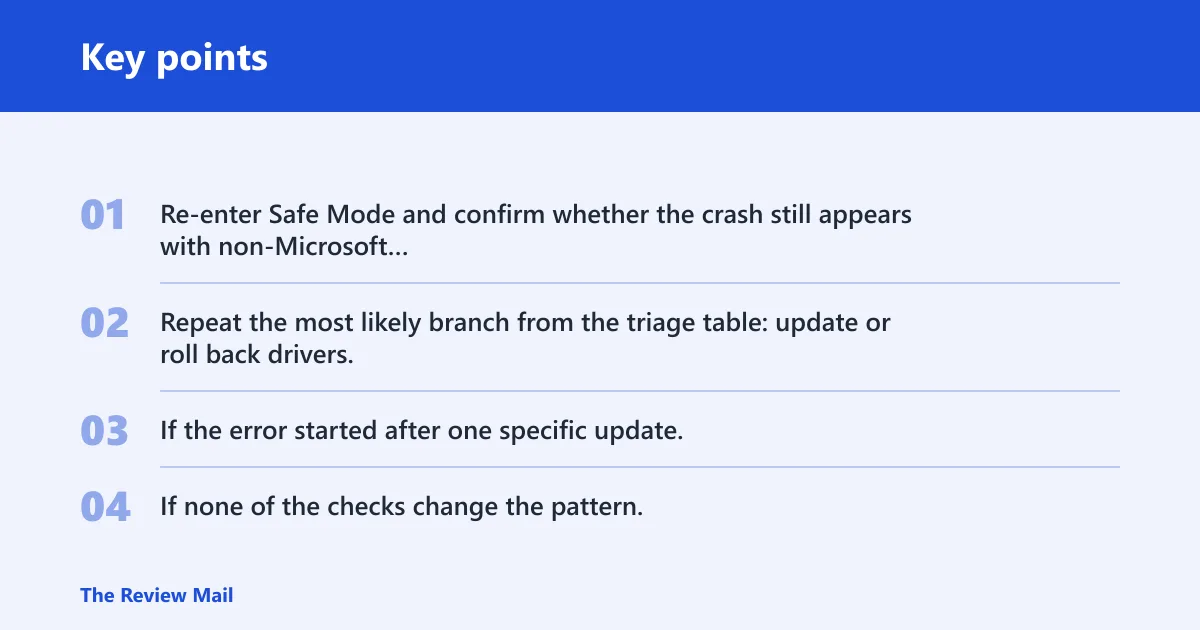
- Re-enter Safe Mode and confirm whether the crash still appears with non-Microsoft services disabled.
- Repeat the most likely branch from the triage table: update or roll back drivers, run
CHKDSK, or retest memory. - If the error started after one specific update, uninstall that update or revert the driver package.
- If none of the checks change the pattern, use an in-place upgrade or seek vendor hardware support for board, CPU, SSD, or memory diagnostics.
What to check first: If you only do one thing, note the exact trigger pattern and whether overclocking is enabled. Those two details decide whether the next step should be a driver rollback, CHKDSK, memory testing, or firmware work.
Frequently asked questions
What does BSOD WHEA_UNCORRECTABLE_ERROR mean?
It is a stop code that points to a hardware-related fault report, but it can also be triggered by incorrect drivers or firmware behavior. Use the crash timing to choose the first fix instead of treating every case the same.
Why does WHEA_UNCORRECTABLE_ERROR happen after a Windows update?
A new driver or cumulative update can conflict with the OS. Start with Settings > Windows Update > Update history, then roll back the newest driver in Device Manager > Properties > Driver. If the crash persists, boot into Safe Mode and use a clean boot to isolate startup software.
How do I fix WHEA_UNCORRECTABLE_ERROR on Windows 11?
Use the same timing-first workflow: roll back the last driver, run chkdsk, then sfc /scannow and DISM /Online /Cleanup-Image /RestoreHealth if file corruption is possible. On Windows 11, use the matching recovery path in Settings for Safe Mode and startup repair.
Can faulty drivers cause WHEA_UNCORRECTABLE_ERROR?
Yes. Driver conflicts are a known trigger, especially after Windows Update or a fresh graphics, chipset, storage, or network package. Roll back the newest driver first. If the crash began right after a change, that test is faster and more useful than a broad reset.
Should I run CHKDSK or memory diagnostics for WHEA_UNCORRECTABLE_ERROR?
Run CHKDSK when the crash happens at boot, idle, or after a failed update. Run Windows Memory Diagnostic when overclocking, upgraded RAM, or random idle crashes point to memory instability. A clean result narrows the field, but it does not fully rule out every hardware fault.
What if WHEA_UNCORRECTABLE_ERROR happens right after login?
That pattern often points to a startup driver or service. Boot into Safe Mode, then use a clean boot and watch whether the crash still appears 20-30 seconds after login. If it stops there, restore startup items one group at a time until the faulty package is identified.