Dns Problem Windows 11
If Wi‑Fi is connected but websites fail, a dns problem windows 11 is usually not Windows 11 until pinging an IP like 8.8.8.8 fails too; if IP works and names do not, the DNS server is the fault. Skipping that split sends you to the wrong fix and can leave the outage untouched. This guide shows how to isolate Windows 11, the router, or the DNS server before you change anything.
DNS decision table
| Symptom pattern | Most likely failing layer | Exact verification command |
|---|---|---|
| Wi‑Fi connected but pages won’t load | DNS server, proxy, or router path | nslookup example.com and ping 8.8.8.8 |
| Hostnames fail but IPs work | DNS server or DNS cache | nslookup example.com |
| Works on hotspot but not home Wi‑Fi | Home router DNS settings or ISP resolver | ipconfig /all then nslookup example.com |
| Fails on Ethernet too | Windows DNS settings, proxy, or ISP path | ipconfig /all and nslookup example.com |
| DNS works after reboot but breaks again | DNS cache, Winsock, or recurring router issue | ipconfig /flushdns then nslookup example.com |
The table’s job is simple: prove the break before you repair it. A healthy lookup returns a DNS server response and an IP address; a DNS failure returns a timeout, no answer, or a server that cannot resolve common names. If ping 8.8.8.8 works while nslookup fails, general connectivity is fine and name resolution is not.
What DNS is doing here
DNS maps names to IP addresses. Windows networks use DNS as the default name resolution service, and the DNS Client service runs by default on Windows client systems after installation. That service queries DNS servers to find domain controllers and to resolve computer names to IP addresses. (Microsoft Learn)
That is why Windows 11 can show “connected” while websites still refuse to load. The adapter has a link. The browser still needs name resolution. If the DNS step fails, the computer may reach the network but not translate example.com into an IP address it can contact.
Say your laptop joins home Wi‑Fi and the taskbar shows connected, but a browser stalls on every site. If ping 8.8.8.8 works and nslookup example.com does not, the network path is up and the DNS layer is not.
Suppose a household printer, phone, and tablet all fail on the same network while a phone on cellular data works. That pattern points away from the laptop and toward the router DNS settings or the ISP resolver path.
How do you prove the break point?
Start with two commands: ipconfig /all and nslookup. Together they show what DNS servers Windows 11 has been assigned and whether those servers can answer name queries. Run them before flushing cache or changing anything, because they tell you whether the problem is local, router-side, or upstream.
Check assigned DNS servers with ipconfig /all
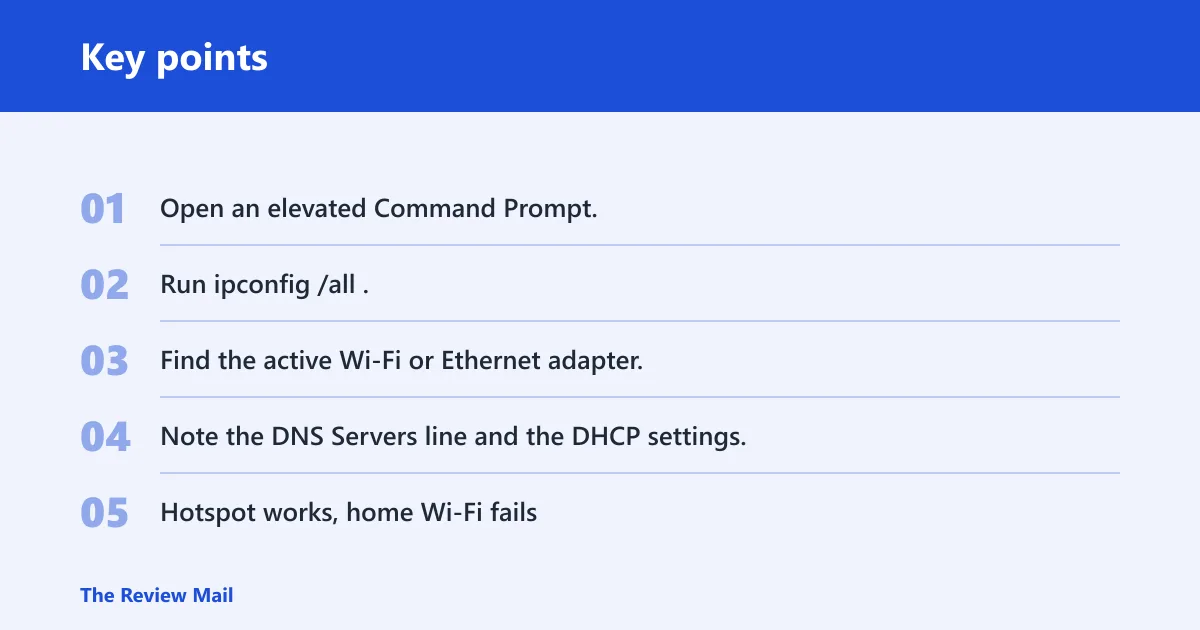
- Open an elevated Command Prompt.
- Run
ipconfig /all. - Find the active Wi‑Fi or Ethernet adapter.
- Note the DNS Servers line and the DHCP settings.
On many home networks, the DNS server address is the router, such as 192.168.1.1 or 192.168.0.1. You may also see an ISP address or a public resolver such as 8.8.8.8 or 1.1.1.1. The suspicious case is not “different from another PC” by itself. It is an address that does not match the router you expect, or a configuration that changes every time the issue returns.
ipconfig /all also shows DNS registration settings. That matters when one adapter has stale configuration and another adapter works cleanly. Compare the working setup and the broken setup side by side.
Test name resolution with nslookup
Run nslookup example.com. That tests DNS directly and separates name resolution from browser behavior. If the lookup returns a server address and an IP, DNS is working for that name. If it times out or says the server cannot be reached, the DNS server path is still failing.
Use a second test for confirmation: ping 8.8.8.8. If ping works and nslookup fails, general connectivity is alive while DNS is not. If both fail, look earlier in the chain at the adapter, router, or ISP connection.
Compare Wi‑Fi, Ethernet, and hotspot results
Windows 11 home users often see different behavior on different links. Hotspot works. Home Wi‑Fi fails. Ethernet fails too. Each split points somewhere different.
- Hotspot works, home Wi‑Fi fails: the PC is probably fine; inspect router DNS settings.
- Wi‑Fi fails, Ethernet works: check the wireless adapter, its DNS assignment, or Wi‑Fi-specific settings.
- Both fail, hotspot works: look at Windows settings, proxy, or the home network.
- All fail everywhere: the DNS Client path, Winsock, or browser proxy settings may be involved.
What if only this PC fails?
If only one Windows 11 device fails on a network where other devices work, start with cache, Winsock, and proxy checks. That pattern fits a local PC issue more than a router issue, especially when other phones or laptops on the same Wi‑Fi still browse normally.
Flush the DNS cache with ipconfig /flushdns
ipconfig /flushdns clears the DNS cache and belongs in an elevated Command Prompt. Use it when cache corruption looks likely, especially if DNS worked earlier and now fails after sleep, reconnect, or a recent change. It is a fast first repair, but it is not a diagnosis by itself. (Microsoft Learn)
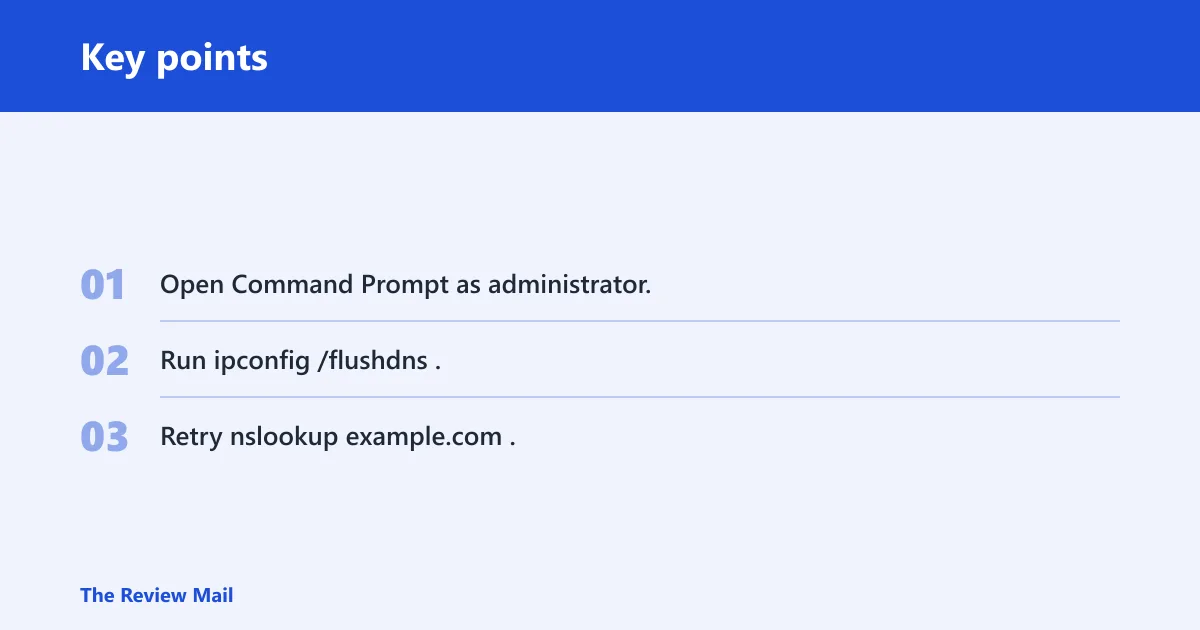
- Open Command Prompt as administrator.
- Run
ipconfig /flushdns. - Retry nslookup example.com.
If the problem disappears and later returns, that points to a recurring cause rather than a one-time cache error. Keep note of when it comes back and what changed before it returned.
Reset Winsock and reboot
netsh winsock reset resets the Winsock catalog. Use it when the Windows networking stack looks broken, especially if multiple sites fail, browser traffic is inconsistent, or cache flushing did nothing. Reboot after the reset, because Windows does not fully apply it until startup.
This step differs from flushing DNS. The first clears name data. The second repairs the Windows networking layer that applications use to reach the network.
Review proxy settings and LAN Settings
Proxy settings can block browser traffic while Wi‑Fi still looks connected. Check Use a proxy server for your LAN in Internet Options under LAN Settings. It should be checked only if your network actually uses a proxy, and unchecked for ordinary home networks.
This is where many people mix up browser failure with DNS failure. nslookup tests DNS directly. A proxy mainly affects browser and app traffic. So if nslookup succeeds but a browser still cannot reach pages, proxy settings deserve attention.
What if every device fails on home Wi‑Fi?
If every device on the same home network fails, move to the router and ISP before blaming Windows 11. That pattern usually means the router is handing out bad DNS information, the router’s DNS settings need attention, or the ISP resolver is failing.
Check the router DNS settings
Local router DNS settings can affect both local-name and internet-name resolution. If the router acts as the DNS server, every device that uses it can inherit the same failure. Check whether the router is set to use the ISP resolver, an automatic setting, or a public resolver.
Compare the router’s DNS addresses with what ipconfig /all shows on a working device. If both point to the router and the router is failing, that is a strong clue. If the router forwards to an ISP resolver that is failing, the router may look fine while lookups still break.
Restart the router and retest
Reboot the router, then test again with nslookup example.com and ping 8.8.8.8. A reboot can clear a stuck DNS forwarder, stale cache, or a temporary ISP path issue. If the problem returns after the reboot, you need the router settings or ISP path, not another PC-only fix.
Confirm whether the ISP resolver is failing
Run nslookup example.com and compare the default server with a known public resolver only for testing. If the default DNS server fails but a public resolver answers, that points toward the home DNS path rather than basic internet access. Document both results before changing settings.
How do you isolate IPv6 and adapter issues?
IPv6 can help isolate the fault, but it is not required for basic DNS troubleshooting. If disabling it changes the result, the issue may be protocol-specific. Restore the setting afterward if it does not help, because disabling IPv6 should stay a test, not a permanent habit.
Temporarily disable IPv6 for testing
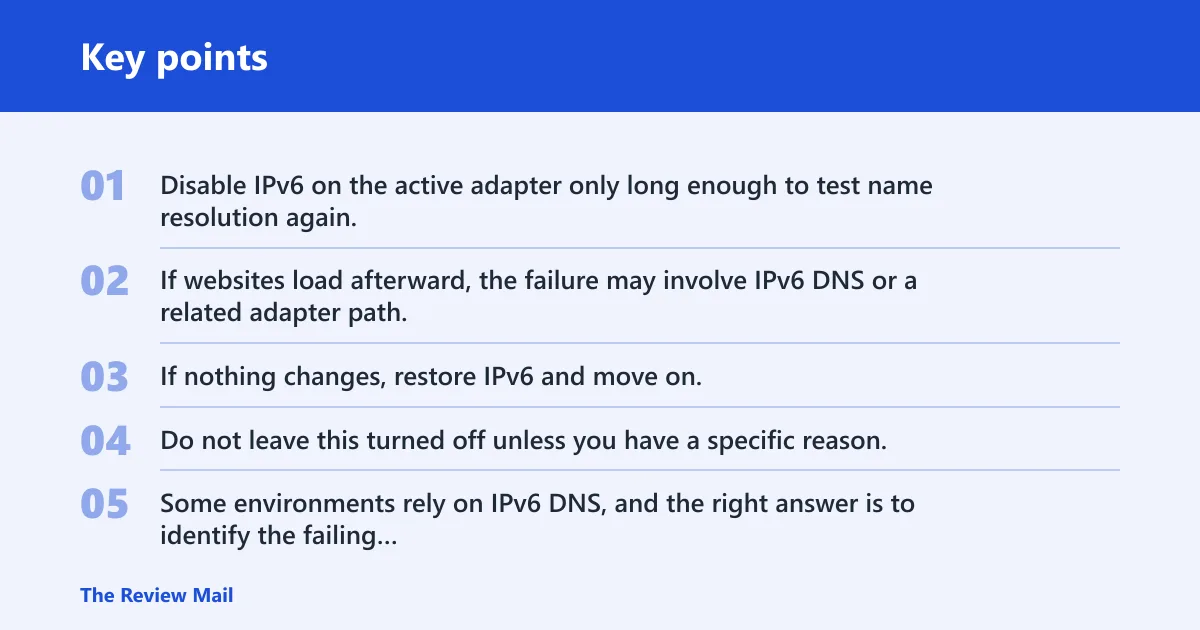
Disable IPv6 on the active adapter only long enough to test name resolution again. If websites load afterward, the failure may involve IPv6 DNS or a related adapter path. If nothing changes, restore IPv6 and move on.
Do not leave this turned off unless you have a specific reason. Some environments rely on IPv6 DNS, and the right answer is to identify the failing layer, not to mask it.
Reconnect the adapter or toggle airplane mode
If the adapter looks stuck, reconnect it. On a laptop, toggling airplane mode off and on can reset the wireless link without changing DNS settings. That is useful when the connection badge says connected but the route behaves as if it never refreshed.
Also consider Windows 11 Network reset if the configuration is badly tangled. Use it after simpler checks, not before them, because it clears more than DNS and can require you to reconnect afterward.
Compare wired and wireless behavior
Different results on Ethernet and Wi‑Fi are valuable. If Ethernet works and Wi‑Fi fails, the wireless adapter, its driver, or its DNS assignment is a more likely suspect. If both fail, focus on Windows settings or the shared router path instead of the radio link alone.
When Windows 11 keeps breaking DNS again
Recurring DNS failure after reboot usually means something keeps changing the settings. That can be a router update, a Windows update, a security product, a VPN, or a network profile change. Document the DNS server addresses, the adapter in use, the proxy state, and the exact error from nslookup before you roll anything back.
That documentation matters. Without it, you can fix the symptom and miss the trigger. If the failure appears after updates, compare ipconfig /all before and after the change. If the DNS server address changes, or if proxy settings come back on, you have a lead.
When the issue keeps returning, use Network reset only after the basic checks above. It is a broader reset and may remove useful custom settings. Start with proof. Then choose the smallest repair that matches the fault.
Frequently asked questions
Why is my computer having dns issues?
A single PC can have DNS issues because of cache corruption, bad DNS assignment, proxy settings, Winsock problems, a VPN, security software, or a local adapter issue. It is not automatically a Windows 11 fault. If other devices fail too, look at the router or ISP path.
Why is windows 11 connected but websites won’t load?
Connected means the adapter has a link. It does not mean DNS resolution works. If ping 8.8.8.8 works but nslookup example.com fails, the computer can reach the network but cannot resolve names. That is why the browser stalls even though Wi‑Fi shows connected.
Is the problem my router or my windows 11 pc?
If only one PC fails and other devices work, start with that PC’s cache, proxy, and Winsock. If every device on the same home Wi‑Fi fails, the router DNS settings or ISP resolver is more likely. Compare hotspot, Ethernet, and Wi‑Fi to separate the layers cleanly.