Power Options Greyed Out Windows 11
Greyed-out Power Options in Windows 11 usually mean one of three things: a policy lock, missing power schemes, or an OEM utility overriding Windows settings. If the change keeps coming back after a reboot, that is a strong sign the setting is being re-applied by policy or vendor software rather than by a one-time UI glitch.
Which power settings are locked out?
Windows 11 can hide or lock power choices in two places: Control Panel power plans and the Settings power mode slider. The right fix depends on which control is disabled and whether the device is managed by work, school, or a domain. Start by matching the symptom to the branch below.
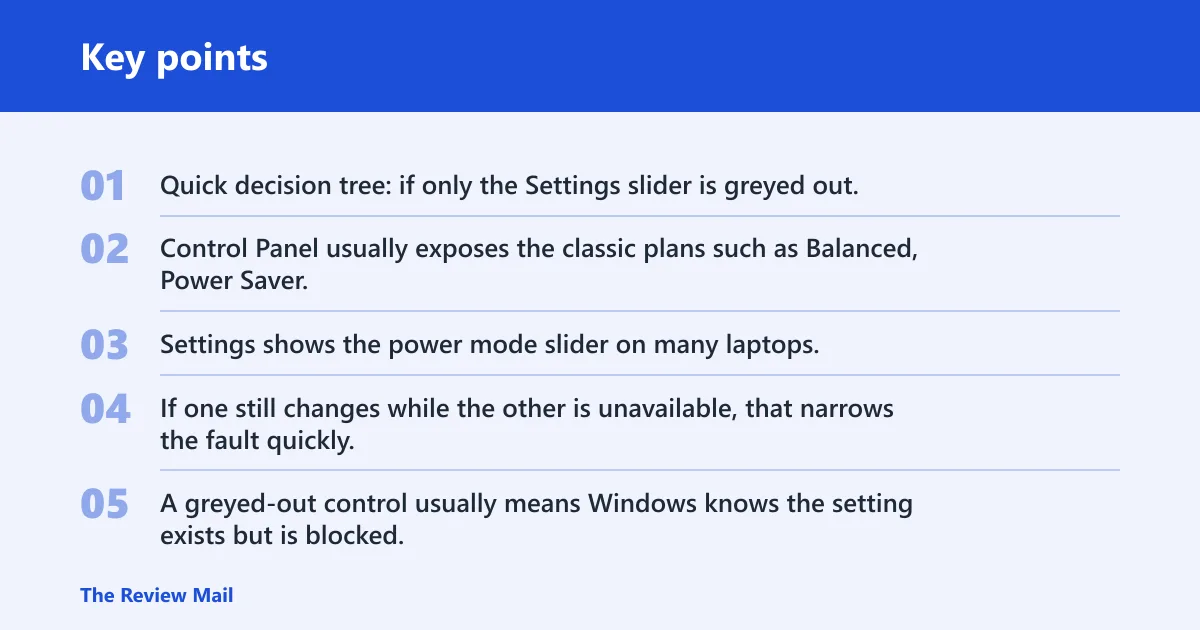
Quick decision tree: if only the Settings slider is greyed out, check whether Windows can still list power schemes with powercfg /list; if only Control Panel options are greyed out, look for policy or management restrictions; if both are greyed out, suspect policy plus an OEM utility or a damaged power scheme; if plans are missing, restore default schemes; if the PC is domain-managed, stop local edits and check policy source first; if the setting reverts after reboot, treat that as reapplication, not a one-time failure.
Control Panel usually exposes the classic plans such as Balanced, Power Saver, and High Performance. Settings shows the power mode slider on many laptops. If one still changes while the other is unavailable, that narrows the fault quickly.
Greyed out, missing, and locked: the three failure modes
A greyed-out control usually means Windows knows the setting exists but is blocked. A missing plan means the scheme is absent or not active. A locked slider often means Windows cannot enumerate the active schemes, or a driver or utility has taken control of them.
| Symptom | Likely cause | Safest fix order |
|---|---|---|
| Greyed-out Power Options in Control Panel | Group Policy, registry policy, or device management lock | Check management status, then Group Policy, then registry |
| Missing plans in the list | Scheme corruption or removed defaults | Use powercfg to list schemes, then restore defaults |
| Locked power mode slider in Settings | Windows cannot enumerate active power schemes | Run powercfg restore, then verify active schemes |
| Domain-managed PC | Policy pushed from work or school management | Check policy source before editing anything local |
| OEM utility override | Dell, Lenovo, HP, or ASUS power app reapplying a profile | Disable the vendor app, then recheck after reboot |
| Balanced or High Performance vanished | Default schemes removed or corrupted | Restore default schemes, then reactivate the plan |
Power options
This is the quickest way to choose the right fix. Match the symptom to the likely cause, then stop when the safest fix order says to verify. That keeps you from editing the registry before you know whether the PC is simply using a vendor profile.
One common first-time mistake is jumping straight to registry edits on a work laptop. If the machine is domain-managed, the change may disappear after the next policy refresh or reboot.
When to stop and check for policy reapplication
After any change, restart and check again. If the same setting flips back, a domain policy or OEM utility is reapplying it. That is the point to look for management tools, not to keep changing local settings.
If a laptop shows a dimmed power slider in Settings but still lists Balanced in Control Panel, that usually points to a scheme or driver issue, not a blanket Windows failure. The slider can return once power schemes are restored and the vendor app stops overriding them.
- Identify the symptom: Control Panel, Settings slider, or both.
- Check whether the PC is managed by a work or school account, or joined to a domain.
- List power schemes with powercfg.
- Restore default schemes if plans are missing or corrupted.
- Check Group Policy or registry policy only if the device is not being managed externally.
- Inspect vendor power software if the lock returns after reboot.
Why are power options greyed out in Windows 11?
Greyed-out power options in Windows 11 usually point to a policy lock, a missing or corrupted power scheme, or an OEM utility overriding the Windows setting. On managed PCs, the lock may be intentional. On consumer laptops, the culprit is often a vendor power manager or a scheme Windows cannot read correctly.
Managed device or domain policy
If the PC is joined to a domain or managed through work or school settings, policy can block changes to power plans. That is common on business laptops. The key check is whether the setting reappears after a reboot, because domain policy can reapply it automatically.
OEM power utility override
Vendor power utilities can override Windows power settings and reassert their own profile after sign-in or reboot. On factory-built computers, that kind of app may start with Windows and keep the slider or plan from changing until it is disabled or reconfigured.
Corrupted or missing power scheme
If Control Panel is greyed out but powercfg still lists schemes, the UI may be blocked while the underlying plans still exist. If the list is thin or missing Balanced and High Performance, the schemes themselves may need to be restored.
How do you ungrey power options in Windows 11?
First, check whether the machine is managed, restart it, and see whether the UI changes after sign-in. If the lock persists, move to Group Policy or registry policy. If the plans are missing, restore the default schemes before touching policy settings. Microsoft’s Windows Power Troubleshooter is a useful next check because it can surface inconsistent power settings before you change policy or registry values.
Start with the least invasive checks
Open Settings and look for a work or school account connection. Then check whether the PC is domain-joined. If the device is managed, the change may not be local to Windows at all.
Next, open the Windows Power Troubleshooter from Settings > System > Troubleshoot > Other troubleshooters, then run the Power troubleshooter. Microsoft documents it as a built-in way to find and correct common power issues, but it will not override a domain policy or OEM lock.
Verify whether the UI changes after restart
Restart after each change that affects power policy or power schemes. The registry fix in particular needs a reboot for Power Options to refresh. If the setting returns to grey after reboot, treat that as evidence of reapplication, not as a failed click.
Is a group policy blocking power plan changes?
Yes, on Pro, Enterprise, and Education editions, Group Policy can block power plan changes, hide options, or force specific behavior. Windows 11 Home does not include the same Group Policy Editor experience, so Home users usually need the registry route instead. Microsoft documents the edition-based availability of Group Policy and the administrative template path for power settings.
Gpedit.msc and the Not Configured state
Open gpedit.msc, then go to Computer Configuration → Administrative Templates → System → Power Management. Set the relevant policy back to Not Configured. That is the cleanest fix when a local or domain policy is the cause.
If the setting keeps reverting, the policy may be coming from a higher-level source such as a domain controller or device management profile. In that case, local changes are temporary.
When Home edition needs the registry route
Home edition does not include the same Group Policy Editor availability as Pro, Enterprise, and Education. If you are on Home, move to Registry Editor instead of hunting for gpedit.msc. That keeps the fix path realistic. (Microsoft Learn)
How do I restore missing power plans in Windows 11?
Use powercfg first. Microsoft documents it as the command-line tool for viewing, restoring, and changing power schemes, and it can often fix missing plans without any registry edit. This is the safer path when the issue is missing plans rather than a policy lock.
Use powercfg to restore defaults
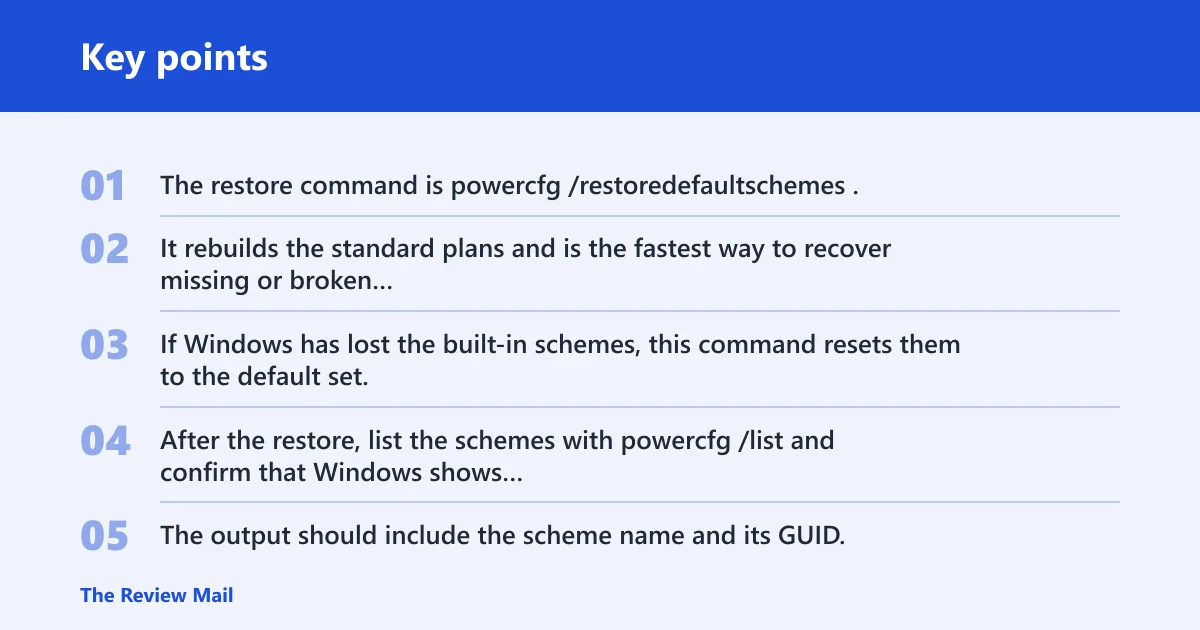
The restore command is powercfg /restoredefaultschemes. It rebuilds the standard plans and is the fastest way to recover missing or broken defaults. If Windows has lost the built-in schemes, this command resets them to the default set.
List and set active schemes
After the restore, list the schemes with powercfg /list and confirm that Windows shows the expected plans. The output should include the scheme name and its GUID, and the active scheme is marked with an asterisk. If you need to reactivate a plan, use the scheme GUID directly.
| Plan | GUID | Typical use |
|---|---|---|
| Balanced | 381b4222-f694-41f0-9685-ff5bb260df2e | General use and battery balance |
| High Performance | 8c5e7fda-e8bf-4a96-9a85-a6e23a8c635c | Higher responsiveness and fewer power-saving delays |
To bring Balanced back online, set that GUID active with powercfg /setactive 381b4222-f694-41f0-9685-ff5bb260df2e. To activate High Performance, use powercfg /setactive 8c5e7fda-e8bf-4a96-9a85-a6e23a8c635c. If the plans appear but are inactive, that is a much smaller problem than a policy lock.
Recreate Balanced and High performance plans
If a built-in plan is missing after powercfg /restoredefaultschemes, check the list again and then set the desired plan active with its GUID. If the plan returns and then disappears again, look for policy or OEM reapplication rather than editing the plan repeatedly.
Registry and Group Policy fixes
Use these only after you have ruled out a missing scheme. The registry path fixes a policy lock, not a missing power plan. That difference matters, because the wrong fix order wastes time and can hide the real cause.
Registry Editor and the HKLM policy path
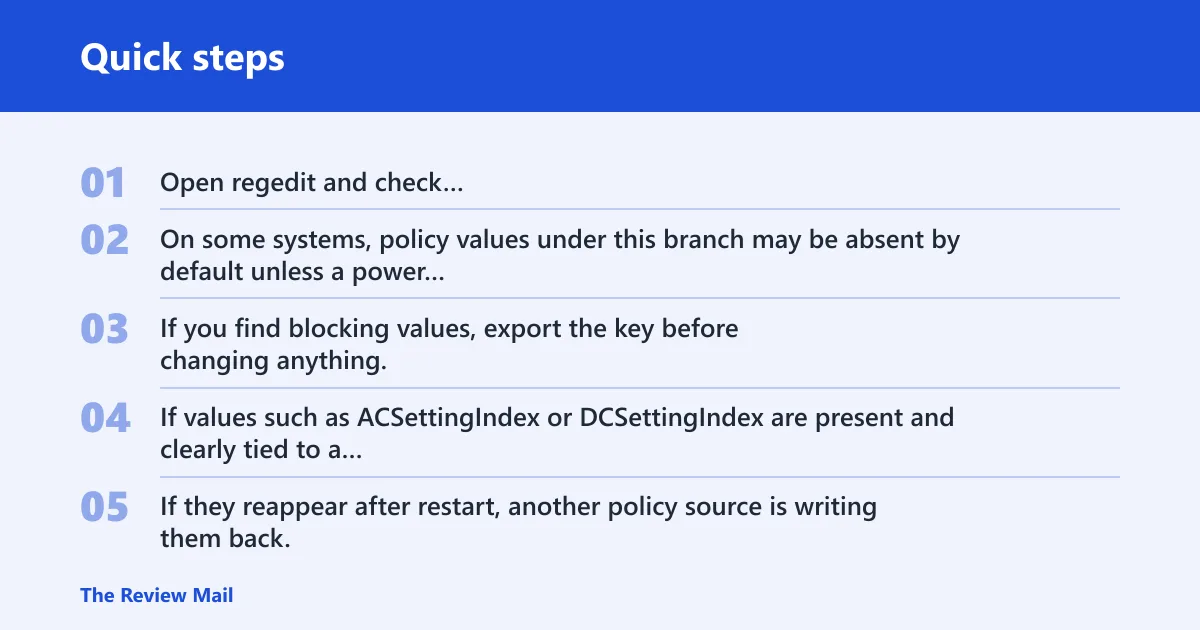
Open regedit and check HKEY_LOCAL_MACHINE\SOFTWARE\Policies\Microsoft\Power\PowerSettings. On some systems, policy values under this branch may be absent by default unless a power policy has been applied. If you find blocking values, export the key before changing anything, and only delete policy values on unmanaged PCs where you are sure the setting is local.
If values such as ACSettingIndex or DCSettingIndex are present and clearly tied to a policy lock, deleting them can clear the restriction after a reboot. If they reappear after restart, another policy source is writing them back. That is common on managed devices. It is also the point where you should stop assuming the issue is local.
Group policy editor alternative for pro, enterprise, and education
On supported editions, use gpedit.msc and navigate to Computer Configuration → Administrative Templates → System → Power Management. Set the policy to Not Configured. Then restart and verify whether the controls are clickable again.
If the device is on a domain, policy can return during the next refresh cycle. Check again after reboot and after the next sign-in. That tells you whether the fix is local or temporary.
Can OEM utilities lock power settings?
Yes. Vendor power utilities can override Windows power settings and keep the same battery or performance profile in place after reboot. On factory-built systems, those apps may start automatically and override Windows even after you change the plan in Control Panel or Settings.
How to check whether the vendor app is reapplying a profile
Look in startup apps and the system tray for the vendor utility. Then change the power setting, restart, and check whether it flips back. If it does, the vendor app is likely the source.
Suppose a laptop shows the Balanced plan after a restore, but the setting returns to a quiet battery profile after reboot. That points to the vendor power manager rather than Windows policy. Disabling the utility’s startup entry is often the cleanest way to confirm the cause.
Frequently asked questions
Can a Dell, HP, Lenovo, or ASUS utility lock power settings?
Yes. Vendor power apps can override Windows power settings. Check startup items and the system tray, then see whether the lock returns after reboot. If it does, the vendor app is probably reapplying the same profile.
What registry setting hides power modes in Windows 11?
The policy branch is HKEY_LOCAL_MACHINE\SOFTWARE\Policies\Microsoft\Power\PowerSettings. Policy values such as ACSettingIndex and DCSettingIndex may appear there on systems where a setting has been enforced. Delete only after exporting the key, and only on an unmanaged PC where you have confirmed the values are local policy.