Cannot Load Profile Windows 11
If Windows 11 says it cannot load your profile, first identify the symptom: a one-time temporary profile can often be fixed by a registry profile-path repair, while a repeated sign-in loop or missing administrator account calls for recovery options first. Guessing wrong can leave you locked out longer or turn a fixable account issue into a worse one. This guide follows the safest order for true profile corruption, temporary-profile loops, and cases with no spare admin access.
What the error means
Windows shows this error when the User Profile Service cannot load the data tied to your account. That service reads your profile folder, registry profile entry, and sign-in state. If any part is unreadable, Windows may stop the normal profile and fall back to a temporary profile instead.
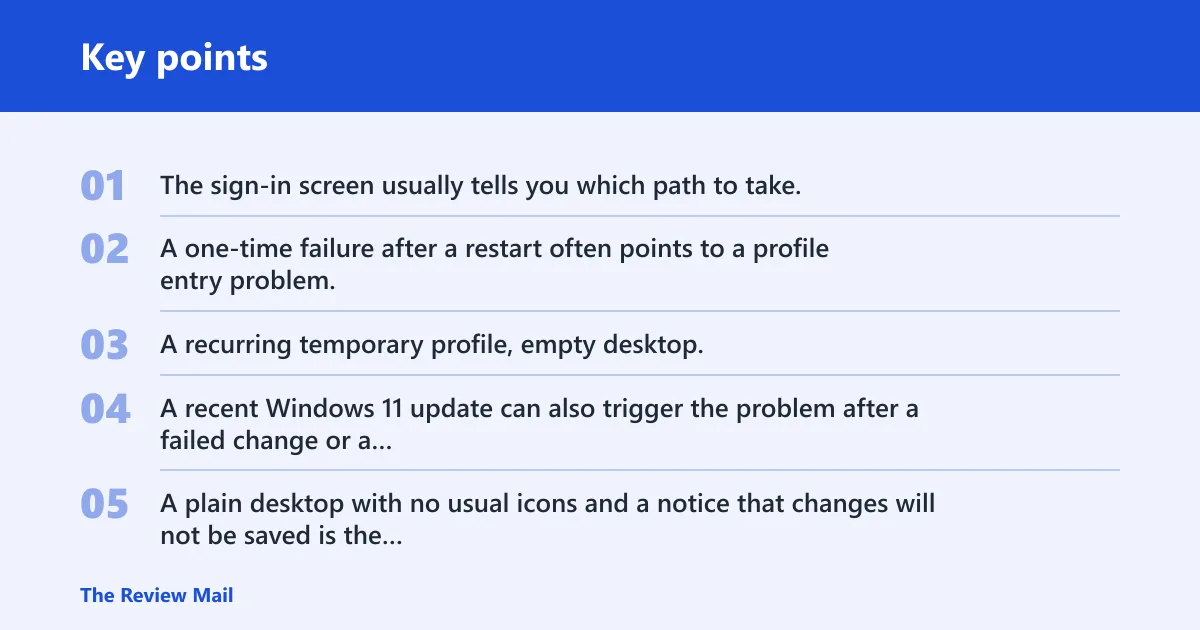
The sign-in screen usually tells you which path to take. A one-time failure after a restart often points to a profile entry problem. A recurring temporary profile, empty desktop, or missing files points to a profile folder or registry issue. A recent Windows 11 update can also trigger the problem after a failed change or a feature update.
A plain desktop with no usual icons and a notice that changes will not be saved is the classic temporary profile pattern. A different case is a sign-in that never reaches the desktop and keeps returning to the same error, which is more consistent with true profile corruption.
Before any repair, remember that the user profile folder often still contains Desktop, Documents, and AppData. If the folder is readable, copy those files first. If the folder is not readable, move sooner to alternate-admin recovery or Safe Mode rather than forcing registry changes.
📊 Windows 11 Installation Assistant requires 9 GB of free disk space. Source: Download Windows 11.
Profile fix decision table
| Signs you see | Likely cause | Best first action | Risk level | When to stop and back up files first |
|---|---|---|---|---|
| One sign-in opens a temporary profile banner, empty desktop, or “changes may not be saved” message | Temporary profile fallback from the User Profile Service | Sign out, restart, and try again. If it repeats, check the profile entry. | Low | Stop before registry edits if Desktop, Documents, or AppData still open normally |
| The error appears every time, the profile will not open, or files are missing from the usual locations | True profile corruption or damaged profile folder data | Use another administrator account or Safe Mode to copy files and repair the profile entry | Medium | Back up immediately if the user profile folder still opens even once |
| You can sign in with another account, but the broken account still fails | Broken profile SID entry or profile path mismatch | Check the account’s registry profile entry and compare the path | High | Always back up the profile folder before editing Registry Editor |
| The problem began right after a Windows 11 update or failed update | Update-related profile service failure | Try System Restore before deeper manual repair | Low to medium | Back up files first if the old profile folder is still readable |
| No alternate admin account exists and sign-in is blocked | You need recovery tools before profile repair | Open Safe Mode, then create a new administrator account or reach recovery tools | Medium | Back up files as soon as you reach a readable profile folder |
Can a restart fix it?
A restart can fix a temporary profile loop when the fault is brief and the normal profile still loads after a fresh sign-in. It will not repair a damaged profile folder or a broken registry entry. Use restart as the first low-risk check, not as the only plan.
Sign out and sign in again
Start with a full sign out, then restart Windows and try the same account again. If the error appeared after a failed update, a fast restart may clear the profile service state. If the same temporary profile banner or blank desktop returns, stop treating it as a one-off glitch.
- Sign out of the affected account.
- Restart the PC, not just the app session.
- Sign in again and watch for the same error wording.
- If the normal desktop returns, confirm your files save correctly.
Check for temporary profile symptoms
If Windows opens with a plain desktop, missing taskbar items, or a warning that files will not save, you are likely in a temporary profile. That means Windows loaded a fallback account shell. The fix path is different from a truly unreadable user profile folder.
When a restart is enough
A restart is enough only when the account signs in normally afterward and your usual files are still there. If the temporary profile appears again, or if the desktop stays empty, move to alternate-admin recovery or file backup before deeper repair.
Can another admin account help?
Yes. A working administrator account is the safest next step because it lets you inspect the broken profile folder, copy data, and create a new administrator account if needed. It also avoids risky registry edits when you do not yet know whether the problem is temporary or permanent.
Sign in from a working administrator
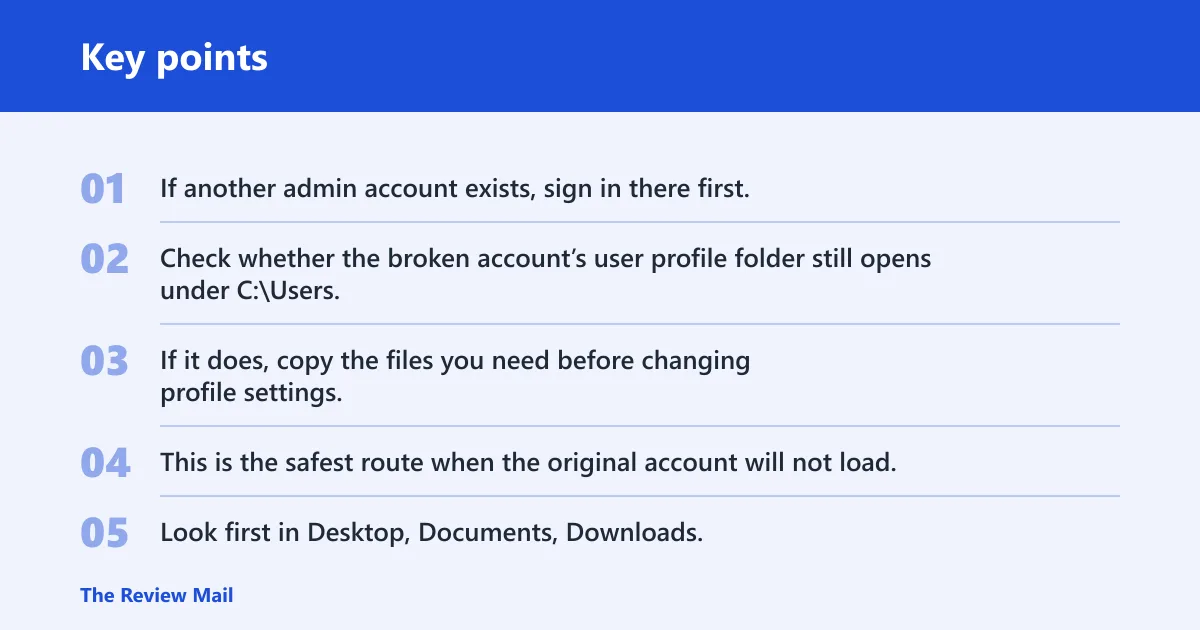
If another admin account exists, sign in there first. Check whether the broken account’s user profile folder still opens under C:\Users. If it does, copy the files you need before changing profile settings. This is the safest route when the original account will not load.
Copy files from the broken user profile folder
Look first in Desktop, Documents, Downloads, and any folders inside AppData that matter to your apps. Save the copies to an external drive or another healthy account folder. If the folder is readable, back it up before touching Registry Editor or System Restore.
If the broken account shows an empty desktop but the C:\Users\name folder still opens from the admin account, copy the personal folders first, then fix the account. That way, a repair attempt does not erase the only usable copy of the data.
Create a new administrator account
If the old account will not load cleanly, create a new local administrator account from the working admin account. Then sign in once with the new account to verify it works, and move files from the broken profile folder into the new account’s folders. Use this when repair looks too risky or the old profile is badly damaged.
How do you use safe Mode?
Safe Mode is the Windows troubleshooting environment that loads a limited set of drivers and services. It can help when normal sign-in fails, especially if you need to create a new administrator account, copy files, or reach repair tools that normal startup blocks.
Open Safe Mode from Windows recovery
If you can reach the recovery screen, use it to start Safe Mode. If Windows will not boot normally, Safe Mode may still let you reach the sign-in screen with fewer services loaded. That gives you a better chance to copy files or repair account settings.
Create a new admin account in Safe Mode
Use Safe Mode when the regular desktop will not open but local tools still do. A new administrator account created there can become the migration path out of a broken profile. After that, move the needed files and test whether the original account still fails.
Use Safe Mode to reach repair tools
Safe Mode can also help when you need access to recovery options, a command prompt, or other built-in repair tools. Use it to get control first, not as the final repair. If the profile itself is damaged, you still may need a new account or registry recovery afterward.
How do you repair the profile entry?
Use Registry Editor only after you have backed up files and ruled out a simple temporary profile loop. This step is for damaged profile SID entries or a bad profile path. If edited wrong, it can make the account harder to recover, so proceed carefully and only after safer checks.
Back up files before Registry Editor
Copy the user profile folder first if you can still open it from another account or from Safe Mode. That folder holds Desktop, Documents, and AppData, which are often among the hardest items to replace later. Do not edit profile keys first and back up later.
Find the damaged profile SID entry
In Registry Editor, the damaged account usually has a profile SID entry that points to the wrong path or has the wrong state. The fix commonly involves checking the profile path and correcting the profile state and refcount values. Match the account carefully before changing anything.
Fix the profile state and refcount values
The goal is to make Windows point back to the original profile folder rather than forcing a temporary profile. If the entry is duplicated or marked incorrectly, Windows may refuse the normal account and load a fallback shell instead. After the change, restart and test the original account again.
Will System Restore help?
System Restore can help when the error began right after a Windows 11 update or another recent system change. It rolls back system files and settings without targeting personal files directly. It will not repair every profile corruption case, but it is safer than manual registry work when the timeline fits.
When to use rollback after an update
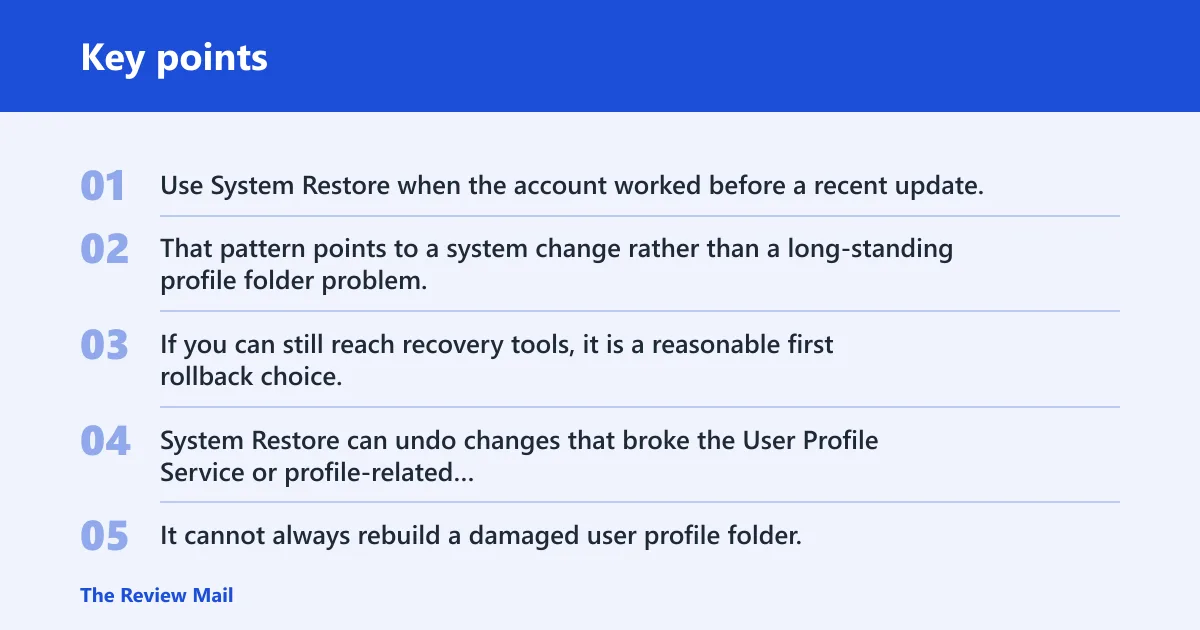
Use System Restore when the account worked before a recent update, then started failing after the reboot that followed. That pattern points to a system change rather than a long-standing profile folder problem. If you can still reach recovery tools, it is a reasonable first rollback choice.
What System Restore can and cannot fix
System Restore can undo changes that broke the User Profile Service or profile-related settings. It cannot always rebuild a damaged user profile folder, and it does not replace a missing backup. If the profile keeps falling back to temporary mode afterward, move to account repair or a new administrator account.
Try it before deeper registry work
When the error started after a feature update, try rolling back before editing profile keys. If you are considering a repair install later, Microsoft says to check Windows release information status before installing. Windows 11 Installation Assistant requires 9 GB of free disk space, works only on x64 processors, and needs Windows 10 version 2004 or higher. Windows 11 can only run on 64-bit CPUs, and the media creation tool cannot create Arm installation media. Windows 11 media creation requires a blank USB or blank DVD.
How do you recover files first?
Recover files before risky fixes whenever the user profile folder still opens, even partially. The safest order is backup first, repair second. Focus on the folders that hold personal data and app settings, then store the copies somewhere the broken profile cannot overwrite.
What to copy from Desktop, Documents, and AppData
Start with Desktop, Documents, Downloads, Pictures, and any app folders in AppData that matter to you. AppData often contains browser data, mail profiles, and application settings. Do not wait until after registry edits to save them.
Where to save recovered files
Save recovered files to an external drive, a different internal drive, or another healthy account folder. Avoid saving them back into the broken profile folder. That can overwrite useful files or make a later repair harder.
When the user profile folder is still readable
If the folder opens from another admin account or Safe Mode, copy the data right away. A readable folder is a window of opportunity. Once the repair changes begin, that window may close.
How to fix user profile cannot be loaded Windows 10
The same logic mostly applies in Windows 10. First separate a temporary profile from a truly broken profile, then use another administrator account, Safe Mode, Registry Editor, or System Restore in that order. The sign-in clues matter more than the version label.
The exact registry path and recovery screens can look slightly different, but the repair sequence does not change much. Start with the least risky option. Move to manual profile-entry repair only after you have copied files and confirmed the error keeps returning.
Frequently asked questions
Why does Windows 11 say it cannot load my profile?
Windows usually shows this when the User Profile Service cannot open the normal account profile. The cause may be a damaged profile folder, a bad registry profile entry, or a failed update. A temporary profile banner at sign-in often means Windows fell back to a disposable session.
Is the cannot load profile error a temporary profile issue?
Sometimes, yes. If you see a temporary profile notice, an empty desktop, or changes that do not save, Windows has likely loaded a fallback profile. If the error keeps returning at every sign-in, treat it as true profile corruption until proven otherwise.
Can Safe Mode fix a profile that won’t load in Windows 11?
Safe Mode can help you reach tools, create a new administrator account, or copy files from the broken profile folder. It does not repair every profile problem by itself. Use it as a recovery route when normal sign-in and another admin account are unavailable.
How do I create a new admin account if my profile is broken?
Use a working administrator account or Safe Mode to create a new local administrator account. Then sign in once to confirm it works, and move files from the old user profile folder. This is often the cleanest workaround when the original profile will not open.
Will System Restore fix the Windows 11 cannot load profile error?
It can, especially when the problem started after a recent update or system change. System Restore is less useful for a profile folder that is already badly damaged. Try it before manual registry repair when the timeline matches the failure.
How do I recover files when Windows 11 won’t load my user profile?
Copy Desktop, Documents, Downloads, and needed AppData contents from the user profile folder as soon as you can reach it from another admin account or Safe Mode. Save those files to a separate drive or healthy account folder. Do that before editing profile keys or reinstalling Windows.