System Interrupts High Cpu Usage Windows 11
If System Interrupts stays above about 5% CPU after external devices are unplugged, suspect a driver. If it drops, the device, cable, or dock is the cause. Ignoring it can leave Windows 11 sluggish, with stutters, audio dropouts, and random freezes. This guide gives a Task Manager triage path that separates external-device, driver, and internal-hardware causes, with exact next steps from each CPU pattern.
System interrupt triage decision table
Use this table when Task Manager shows System Interrupts near the top of the Processes tab. Match the CPU pattern to the fastest test, then act on the result instead of changing drivers at random.
| Symptom pattern | Likely cause | Fastest test | What result confirms the culprit | Next action |
|---|---|---|---|---|
| CPU drops sharply after unplugging a USB hub, flash drive, external SSD, keyboard, or mouse | External USB device, cable, or dock | Disconnect one device at a time, then watch Task Manager for about 30 to 60 seconds | System Interrupts falls back to a low baseline after one device is removed | Replace the device, cable, or hub; retest the port on the PC |
| CPU spikes when audio starts, changes device, or plays through a headset | Audio driver or audio processing path | Disable audio enhancements in the playback device properties | CPU drops or audio stops causing the spike after enhancements are off | Update, roll back, or reinstall the sound driver in Device Manager |
| CPU rises with Wi-Fi activity, Ethernet traffic, or docking station use | Network adapter driver | Disable and re-enable the adapter, then update or reinstall its driver | CPU changes when the adapter is disabled or after the driver is replaced | Use Device Manager to roll back or reinstall the networking driver |
| CPU spikes during graphics-heavy tasks, external monitor changes, or wake from sleep | GPU driver | Update or roll back the display driver in Device Manager | CPU behavior changes after the driver switch | Keep the stable version or install the vendor’s current package |
| CPU rises when files copy, a drive mounts, or storage activity starts | Storage device or storage controller driver | Test with another drive, another cable, or a different port | CPU falls when the suspect drive or controller path is removed | Replace the cable, move the drive, or update the storage driver |
| CPU stays high with no external devices attached, and the spike survives reboot and driver swaps | Internal hardware or controller issue, including ACPI-style failures | Check Device Manager, Windows Update, and advanced trace tools | No removable device changes the CPU pattern, but a controller or internal device does | Trace the driver with Process Explorer or LatencyMon; consider hardware repair |
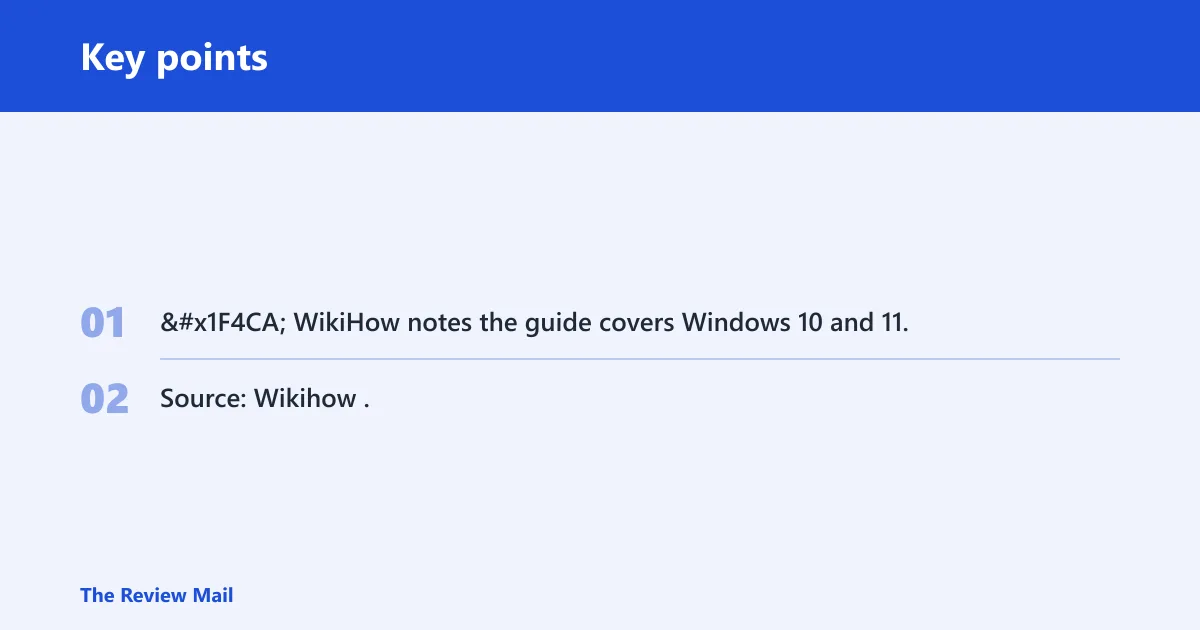
📊 WikiHow notes the guide covers Windows 10 and 11. Source: Wikihow.
Why is System Interrupts using so much CPU?
System Interrupts usually means Windows is spending time handling hardware-related interrupt activity and Deferred Procedure Call work, not running a normal app. That is why it can jump to 100% in short bursts, and why the fix is often a driver, a device, or hardware issue rather than a task to end.
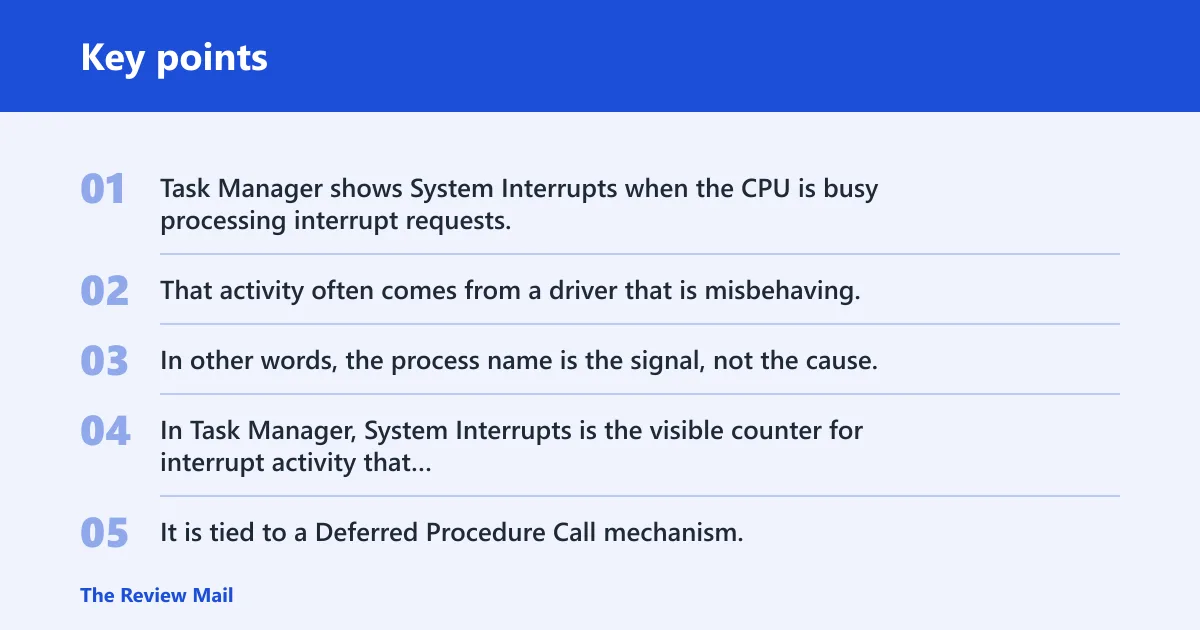
Task Manager shows System Interrupts when the CPU is busy processing interrupt requests. That activity often comes from a driver that is misbehaving, a device that keeps triggering events, or an internal controller that is not settling down. In other words, the process name is the signal, not the cause.
What does System Interrupts mean in Task Manager?
In Task Manager, System Interrupts is the visible counter for interrupt activity that Windows is handling on behalf of hardware. It is tied to a Deferred Procedure Call mechanism, which lets lower-priority work finish after the immediate interrupt response. High usage usually means some driver or device is creating too many interruptions.
Do not try to end it like a normal program. That does not remove the source of the interrupts. It only hides the symptom until the next hardware event brings it back.
Why Task Manager changes matter most
Open Task Manager, go to the Processes tab, and sort by CPU. If System Interrupts climbs while another app stays low, the bottleneck is likely hardware or a driver path. If another process, service, or browser tab is the true top CPU user, fix that first and do not chase System Interrupts.
That first read tells you whether you are dealing with a Windows process problem or a hardware signaling problem. It also decides whether you should start with USB isolation, driver changes, or deeper tracing.
How do I fix System Interrupts high CPU usage on Windows 11?
Restart Windows 11, then isolate external devices one by one, update Windows, and move through Device Manager only after the basic tests show where the spike lives. That order matters because many cases are tied to a single removable device, a bad driver, or a controller issue that does not need a full rebuild.
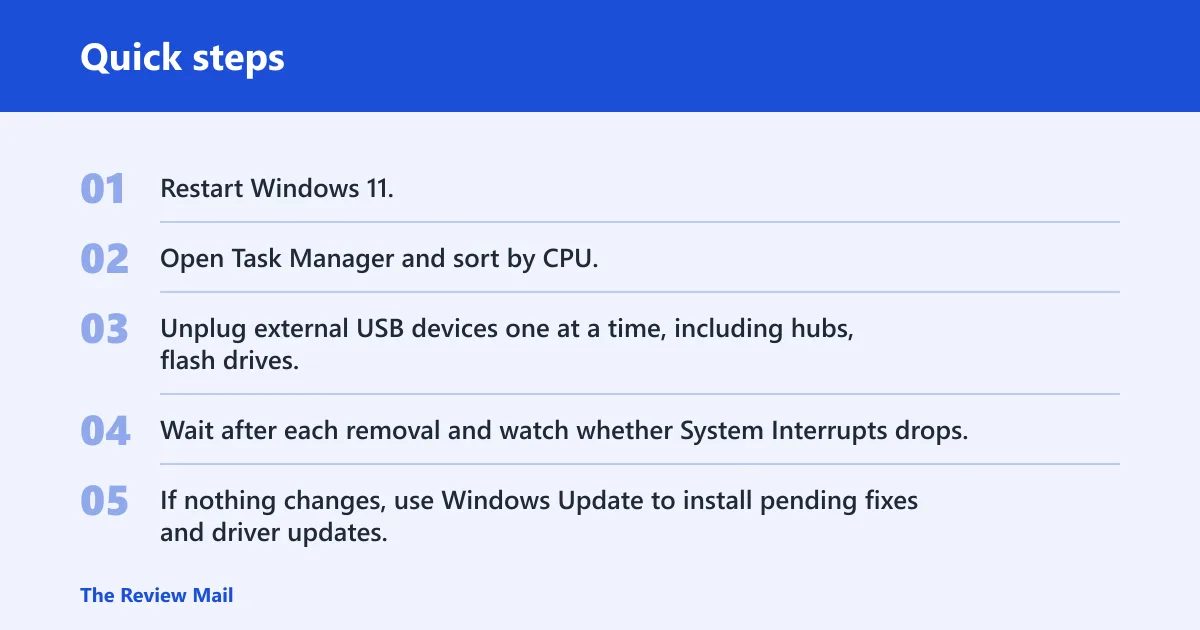
A common mistake is to update the Wi-Fi adapter, audio, and chipset drivers all at once when troubleshooting System interrupts high CPU usage in Windows 11. That makes the result hard to read. Change one thing, then check Task Manager again.
- Restart Windows 11.
- Open Task Manager and sort by CPU.
- Unplug external USB devices one at a time, including hubs, flash drives, external hard drives, external SSDs, keyboards, and mice.
- Wait after each removal and watch whether System Interrupts drops.
- If nothing changes, use Windows Update to install pending fixes and driver updates, then restart if prompted.
- Open Device Manager and inspect the suspect branch: network, audio, GPU, storage, webcam, or USB-related devices.
- Update, disable, uninstall, or roll back the suspect driver one at a time.
Can a USB device cause System Interrupts high CPU usage?
Yes. External USB devices are a common cause, and the fastest way to prove it is to disconnect them one by one. That includes hubs, flash drives, external hard drives, external SSDs, keyboards, mice, and dock-connected peripherals. If the CPU drops after one removal, you have your culprit. (Wikihow)
Suppose a USB hub feeds a keyboard, mouse, and storage enclosure. If System Interrupts is high, unplug only the hub first. If CPU usage falls, reconnect the devices one at a time to see which one brings the spike back. That keeps the test clear.
Should I update or reinstall drivers for System Interrupts issues?
Yes, but only after you have checked whether a removable device is the trigger. Use Windows Update to install pending driver fixes and patches, then restart if prompted. If the issue persists, Device Manager is where you update, disable, uninstall, or roll back the suspect driver.
One common fix is to reinstall or update the networking adapter driver. That path matters because a bad network driver can keep firing interrupts even when the rest of Windows looks normal. The same logic applies to audio, GPU, storage, and USB controller drivers.
Can Windows Update or audio enhancements trigger System Interrupts?
Windows Update can deliver a driver change that starts the problem, and audio enhancements can sometimes be the immediate trigger in sound-related cases. If the spike appears when audio starts, disable enhancements in the playback device properties and retest before swapping hardware or reinstalling every audio package.
If audio enhancements are the trigger, the CPU pattern often changes as soon as the sound device is switched or the enhancement is turned off. That makes the test useful because it narrows the problem to the audio processing path instead of the entire system.
How do I find the faulty device?
Use a stepwise approach. First, disconnect USB devices one by one. If that does not move the CPU, use Device Manager to disable, update, or roll back the likely driver. If Windows Update offers a related fix, install it and restart before you test again.
Think of the task as narrowing a branch. External USB gear comes first. Then the Device Manager path. Only after that should you move into advanced tracing.
Device Manager steps that matter
Device Manager is the right place to test the likely driver without guessing. For a network adapter, disable it briefly, then re-enable it. For audio, update or roll back the driver. For GPU and storage, test the current driver against a known-stable version or the newest vendor package.
If the CPU spike vanishes when a device is disabled, the driver or the device itself is suspect. If the spike survives several driver changes and external removals, the problem is more likely in a controller, chipset path, or internal hardware component.
How to separate external devices from internal hardware
External devices are the first branch because they are easy to remove and easy to replace. Internal hardware is the next branch when the symptom does not change after every removable device is gone. At that point, the pattern can point to ACPI-style failures, storage controllers, or a GPU path that is not recovering cleanly.
Picture a laptop that spikes only while docked. If unplugging the dock fixes the CPU issue, the dock chain is the likely cause. If it still spikes on battery with nothing attached, the fault is more likely inside the machine or in a driver attached to internal hardware.
Can audio, network, or GPU drivers trigger it?
Yes. Audio, network, and GPU drivers are common sources because each one can create repeated interrupt traffic. Treat them separately. A network fix does not tell you much about audio, and a GPU rollback does not prove the storage path is clean.
Update or roll back only one branch at a time. That gives you a clean yes-or-no result in Task Manager.
Audio path
Start by disabling audio enhancements in the playback device properties. If the spike stops, the sound-processing layer was likely the trigger. If not, update or roll back the sound driver in Device Manager and retest after the restart.
Network adapter path
Network adapters are a common fix target because they can flood the CPU with interrupt activity. Disable and re-enable the adapter first. If that does not help, reinstall or update the adapter driver. The evidence you want is a clear change in System Interrupts, not a general feeling that the PC is “better.”
GPU and storage path
GPU drivers can trigger spikes during sleep, wake, monitor changes, or graphics-heavy work. Storage devices can do the same during file copies or drive detection. Test them separately so you know whether the problem follows the display driver, a storage cable, or a controller path.
Say your desktop stutters the moment an external SSD spins up. If the CPU spike drops when the SSD is unplugged, that points to the storage path, not the keyboard, mouse, or network adapter. Keep the diagnosis narrow.
Advanced tools for stubborn cases
Use advanced tools only after the basic isolation steps stop giving you clear answers. Process Explorer can inspect the System process threads and help identify suspect drivers. LatencyMon can analyze DPC and interrupt behavior and point to drivers that are generating excessive interruptions. The Windows SDK Windows Performance Tools can help when you need deeper trace data.
These tools are for evidence, not guesses. Capture the driver name or thread information before changing hardware or rolling back a package, or the next step becomes much harder to judge.
What Process Explorer can reveal
Process Explorer is useful when Task Manager shows the symptom but not the driver behind it. Its thread view can expose which module is busy inside the System process. That is valuable when the same spike returns after every reboot and the obvious USB test changes nothing.
How LatencyMon helps identify bad drivers
LatencyMon is a third-party option for DPC and interrupt analysis. It helps you see which drivers are spending too much time in the interrupt path. If the top offender is a network, audio, storage, or graphics driver, you have a clear branch to fix in Device Manager.
When to try Driver Verifier carefully
Driver Verifier is for stubborn cases where a non-Microsoft driver looks wrong but will not expose itself. It stress-tests drivers and can reveal a faulty one, but it can also trigger crash loops if used carelessly. Use it only when you can recover the system if it becomes unstable.
When is System Interrupts high CPU a hardware problem?
It is more likely a hardware problem when the spike survives reboot, persists after disconnecting external USB devices one by one, and does not change after driver updates or rollback. At that point, the issue may sit in a failing device, controller, cable, dock, or internal hardware path rather than a simple software fault.
Tech News Today notes that the issue can indicate a failing hardware component or driver. That is the right way to think about the final branch: if the driver steps do not move the result, the hardware side deserves the next round of attention.
Frequently asked questions
Why is system CPU usage so high?
High system CPU usage often means Windows is handling interrupt activity from hardware, a driver, or a controller path. If System Interrupts sits near the top in Task Manager, the problem is usually not a normal app. Start by checking whether unplugging devices changes the CPU load.
How do I find the hardware causing high System Interrupts CPU?
Disconnect external USB devices one by one, then watch Task Manager after each change. If nothing changes, move to Device Manager and test the likely branches: audio, network, GPU, and storage. If those also fail, use Process Explorer or LatencyMon to identify the driver behind the spike.
What tools can pinpoint the real driver behind System Interrupts?
Process Explorer can inspect System process threads, and LatencyMon can show which drivers are producing excessive DPC or interrupt activity. For deeper trace work, install the Windows SDK Windows Performance Tools. Use those tools after the basic USB and driver tests stop giving a clear answer.