Driver Cannot Be Loaded Reinstall Fixes That Work
If “driver cannot be loaded re-install” appears after a reboot or update, a common first step is Windows Update; if it appears during device setup or a fresh install, use Device Manager or the maker’s driver package, and roll back only if the error started after a new driver. Using the wrong fix can leave the device unusable, keep Windows stuck on a bad driver, or waste time reinstalling the same broken package. This guide shows how to match the fix to when the error started, then verify whether to update, reinstall, or roll back.
What the error usually means
This message usually means Windows cannot load the driver the device needs, or it loaded the wrong version. The problem may be a missing driver, a damaged driver, a driver package that did not finish installing, or a mismatch between the file you chose and the Windows version or architecture on the PC.
Missing driver versus bad driver
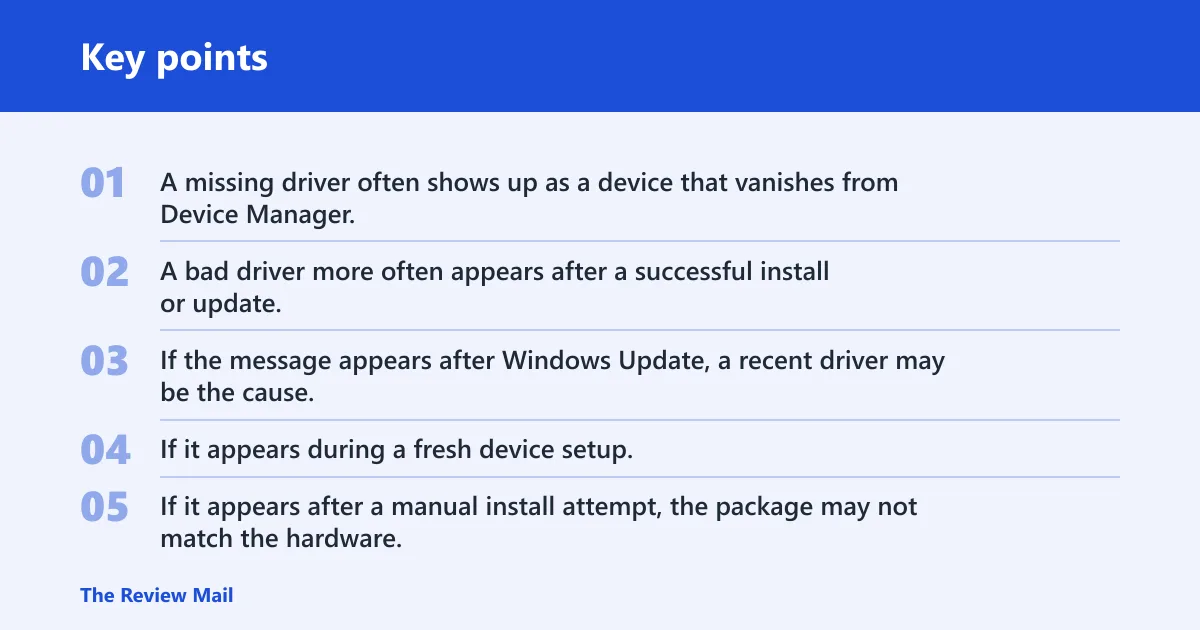
A missing driver often shows up as a device that vanishes from Device Manager, shows a warning icon, or stops working right after a restart. A bad driver more often appears after a successful install or update, then fails when Windows tries to load it on the next boot.
When the error appears
The timing matters. If the message appears after Windows Update, a recent driver may be the cause. If it appears during a fresh device setup, the device may never have received the correct package. If it appears after a manual install attempt, the package may not match the hardware.
What Windows is trying to do
Windows normally delivers driver updates through Windows Update, and Device Manager can update or reinstall drivers. Microsoft’s reinstall flow starts with Uninstall device, then a restart. After restart, Windows attempts to reinstall the driver automatically. (Microsoft Support)
📊 Drivers and support are available for Windows 10/11 processors and graphics. Source: AMD.
Which reinstall path should you use?
Use the symptom and the timing to choose the path. That prevents one common mistake: reinstalling the wrong component when the real issue is a bad update, a missing device entry, or a package mismatch.
| Symptom | Likely cause | Best fix | Fallback |
|---|---|---|---|
| Error after Windows Update | New driver loaded badly | Roll Back Driver in Device Manager | Uninstall device, restart, then reinstall |
| Missing device after reboot | Driver did not load or reinstall | Uninstall device, restart, let Windows reinstall | Manually install the correct package |
| Graphics driver install failure | Wrong package, old leftovers, or architecture mismatch | Use the manufacturer package for the exact GPU | Cleanup utility, then reinstall |
| Printer driver not reinstalling automatically | Windows has no compatible print package yet | Install from the printer maker’s site | Use Device Manager or printer software |
| Version or architecture mismatch | Wrong Windows build, 32-bit versus 64-bit, or old package | Download the correct version from the maker | Choose the folder manually in Browse my computer for drivers |
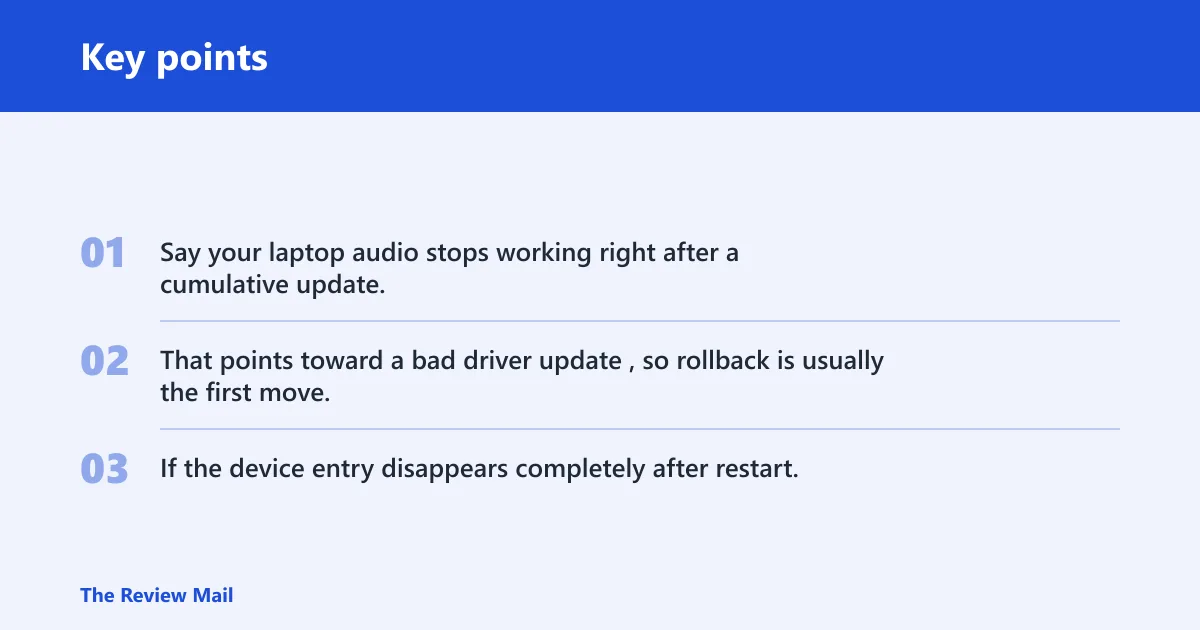
Say your laptop audio stops working right after a cumulative update, but the speaker device still appears in Device Manager. That points toward a bad driver update, so rollback is usually the first move. If the device entry disappears completely after restart, that is more like a missing driver, so reinstall is the better path.
Should you start with Windows Update?
Yes, if the problem started recently and the device is a standard component, Windows Update is often the first check. Microsoft says driver updates are normally delivered through Windows Update, and it can automatically download and install recommended drivers. That makes it a sensible early step, not a final answer for every case.
Check for recommended drivers
Open Windows Update and look for optional or recommended driver updates. This is especially useful when the device was working before the issue started, or when Windows installed a new build and the device broke soon after.
When Windows Update is enough
Windows Update is often enough for common devices such as network adapters, audio, and some chipset components. It is also a good first stop when you need a stable Microsoft-delivered driver and do not need a vendor-specific utility.
When to move
If Windows Update finds nothing, or the device still fails after restart, move to Device Manager or the manufacturer’s package. For graphics, chipset, and many printers, the maker’s installer is usually the better source when the device needs a specific model match.
How do you reinstall a driver in Device Manager?
Open Device Manager, find the affected device, and use the built-in reinstall flow. Microsoft notes that Device Manager can update or reinstall drivers, and the reinstall workflow starts by right-clicking the device and selecting Uninstall device. Restart the PC after that, then check whether Windows brings the driver back automatically.
Open device Manager
On Windows 10/11, right-click Start and open Device Manager. If the device is listed with a warning symbol or under an unexpected category, note its exact name before making changes.
Uninstall the device
- Right-click the device.
- Select Uninstall device.
- Confirm the prompt.
- Restart the PC.
Administrator permissions may be required for some driver actions. That matters most on managed PCs or when Windows asks for approval during the uninstall or rollback step.
Restart and watch for reinstall
After restart, Windows attempts to reinstall the driver automatically. If the device returns and works normally, the reinstall path succeeded. If it does not return, or it returns with the same error, the next move is manual installation.
Use Update driver if needed
If the device stays listed but the driver is still wrong, right-click it again and choose Update driver. That can help when Windows has a better local or online match than the one already in place.
What if Windows still will not reinstall it?
Check Device Manager again. If the device is missing, disabled, or still showing an error icon, Windows may not have a compatible driver package ready. At that point, use the correct manufacturer driver, especially for graphics, chipset, and printers, because those often need a model-specific installer.
Try a manual reinstall path
Download the driver package from the hardware maker, then install it manually. This works best when Windows Update has nothing useful, or when the device is too specific for a generic package.
A common first-timer mistake is grabbing “the latest driver” without checking the exact device model. A Wi-Fi card, for example, can look similar across several laptops, but the wrong package may fail to load even though it installs without an obvious error.
Look for the correct driver package
Match the device name in Device Manager to the vendor’s support page. For graphics, identify the manufacturer and model before you download anything. For printers, use the printer model, not the computer model. For chipset updates, use the platform family, not a random board name.
How do you manually install a downloaded driver?
Download the driver from the manufacturer site, confirm it matches your Windows version and architecture, then install it through Device Manager. In the manual path, choose Browse my computer for drivers and point Windows to the folder that contains the extracted files.
Match Windows version and architecture
This step matters more than most users expect. A driver meant for a different Windows version or the wrong 64-bit or 32-bit architecture can fail to load even if the file name looks close. AMD’s download page specifies Windows 11 and Windows 10 64-bit version 1809 and later for its auto-detect tool.
Use Browse my computer for drivers
- Open Device Manager.
- Right-click the device and choose Update driver.
- Select Browse my computer for drivers.
- Choose the folder path with the extracted driver files.
- Continue the install and restart if prompted.
Point to the extracted folder
Do not point Windows at the downloaded archive if the package still needs extraction. Use the folder that contains the .inf and related files. If the installer comes as a vendor setup program, run that package first when the maker says to do so.
When should you roll back a driver?
Use rollback after a recent update if the device worked before and failed right after the new driver loaded. Microsoft recommends rolling back the driver in that case, and rollback requires administrator permissions. Choose a reason when prompted, then restart if Windows asks you to.
Choose a reason
Open the device in Device Manager, go to the Driver tab, and select Roll Back Driver. Pick the reason that best matches the failure, such as the device stopping after an update or showing new instability after the latest install.
Restart if prompted
If Windows asks for a reboot, complete it before trying more changes. That gives the older driver a chance to reload cleanly and helps separate a rollback problem from a deeper hardware issue.
Graphics and chipset drivers
Graphics and chipset updates often need the manufacturer’s package, not a generic Windows driver. AMD’s auto-detect tool is for Radeon graphics and Ryzen chipsets, and AMD says to download and run it on the system that needs updating. That makes it useful when the exact model is known but the right package is not.
AMD auto-Detect and install tool
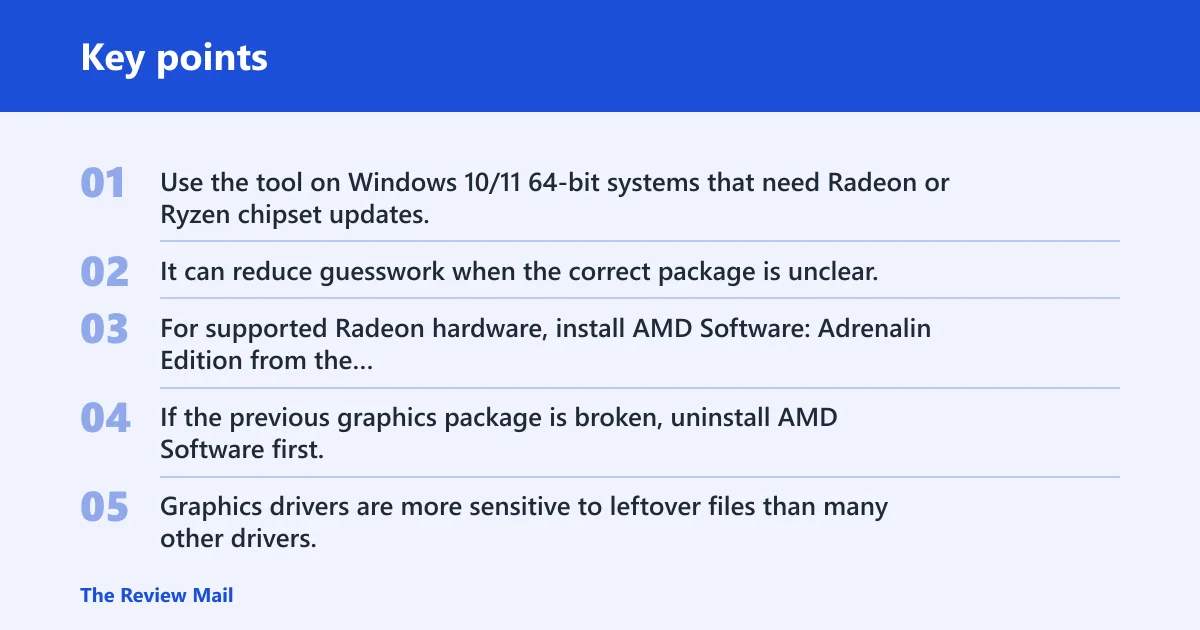
Use the tool on Windows 10/11 64-bit systems that need Radeon or Ryzen chipset updates. It can reduce guesswork when the correct package is unclear, but it still needs to run on the target PC itself.
AMD software: Adrenalin Edition
For supported Radeon hardware, install AMD Software: Adrenalin Edition from the manufacturer’s driver page. If the previous graphics package is broken, uninstall AMD Software first, then use the cleanup utility if the installer or support page recommends removing old files before reinstalling.
Cleanup before reinstalling
Graphics drivers are more sensitive to leftover files than many other drivers. If a new AMD graphics package fails, remove the existing AMD software, restart, and then install the fresh package. That order often avoids the same broken components loading again.
Picture a desktop with a new GPU driver that installs, then blanks the screen on reboot. That points to a bad graphics package more than a missing one. The better path is rollback if the problem started after the update, or a cleanup-and-reinstall sequence if the old package must be removed first.
Frequently asked questions
What does “driver cannot be loaded reinstall” mean on Windows?
It usually means Windows cannot start the driver the device needs. The cause may be a missing driver, a damaged one, a bad update, or a package that does not match the Windows version or architecture. The fix depends on when the error started and which device is affected.
How do I reinstall all drivers in Windows?
There is no reliable one-click way to reinstall every driver at once. Start with Windows Update, then use Device Manager for the specific device that failed. For graphics, chipset, or printer issues, install the correct manufacturer package instead of trying to rebuild everything on the system.
Why is my driver not installing?
The most common reasons are a version mismatch, the wrong architecture, a corrupted download, or a driver meant for a different model. Windows may also block a driver until you remove the old one, restart, and let it reload cleanly. Check the exact device name before trying again.
What should I do if Windows still won’t reinstall the driver after restart?
Go back to Device Manager and check whether the device is still listed, missing, or showing an error icon. If Windows cannot restore it automatically, download the correct package from the manufacturer and install it manually. For graphics or chipset hardware, use the vendor’s exact model-specific driver.
Should I use Windows Update or the manufacturer driver first?
Start with Windows Update if the issue is recent and the device is a common one that Windows normally supports. Move to the manufacturer package when Windows Update has nothing useful, when the device is graphics or chipset hardware, or when the first install clearly failed because the package was wrong.