Video TDR Error Windows 11: How to Fix It
Start with the stop code and the crash trigger: VIDEO_TDR_FAILURE usually points to a GPU timeout, but if the dump names nvlddmkm.sys, amdkmdag.sys, or igdkmd64.sys, driver cleanup comes before hardware checks. Ignoring it can mean repeat BSODs, corrupted work, and a system that fails under graphics load. This article maps the fastest fix order for Windows 11 by file name, trigger pattern, and whether you’re on a laptop or desktop.
The fastest first step is usually a clean driver rollback or reinstall. If the crash appears only in one app, test that app’s GPU path before you touch hardware.
Start with the driver clue
What usually triggers it?
The usual pattern is a graphics stall that Windows cannot recover from in time. TDR, or Timeout Detection and Recovery, is the Windows graphics recovery feature, and the default timeout is about 2 seconds. If the same fault repeats quickly, Windows can stop again rather than recover cleanly.
Look at timing first. A crash that starts right after a graphics driver update points you toward driver cleanup. A crash that appears only during gaming, video export, or 3D load points more toward temperature, unstable settings, or power delivery. A laptop with hybrid graphics adds one more branch: the app may be running on the wrong GPU path.
TDR clues decision table
Which Video TDR Failure Clue Points Where?
| BSOD file name | Likely GPU vendor | Trigger pattern | First test | Second test | When to suspect hardware |
|---|---|---|---|---|---|
| nvlddmkm.sys | NVIDIA | Crash starts after a driver update, game launch, or a heavy 3D app | Roll back or clean reinstall the NVIDIA driver | Test the same app with hardware acceleration off | If clean drivers and stock settings still crash under load |
| atikmdag.sys / amdkmdag.sys | AMD Radeon | Crash appears during gaming, export, or after an AMD branch change | Remove the current AMD driver, then install a known-stable branch | Retest the same workload after turning off app hardware acceleration | If repeated load crashes survive a clean reinstall |
| igdkmd64.sys | Intel integrated graphics | Crash shows up on laptops or office PCs, often in video playback or browser use | Update or roll back the Intel graphics package | Move the affected app to the other GPU path in Windows Graphics settings | If the same crash returns on both GPU paths |
Laptop versus desktop troubleshooting order
| System type | First path | Second path | Third path |
|---|---|---|---|
| Laptop with hybrid graphics | Test the app on the other GPU path in Settings > System > Display > Graphics | Use DDU in Safe Mode, then install a stable driver branch | Retest the same workload at stock settings |
| Desktop with a discrete GPU | Rollback or clean reinstall the display driver | Disable app hardware acceleration and retest | Return GPU and memory overclocks to stock, then retest |
Fix the driver first
Most often, the safest first repair is a driver rollback or a clean reinstall. Tom’s Hardware identifies the most common cause as a video driver problem, and SolveTechToday notes that the Windows 11 version is usually a graphics driver problem. If the crash began after a driver or Windows update, do this before hardware checks.
- Open Settings > Windows Update > Update history and note any recent display driver or cumulative update.
- Open Device Manager > Display adapters, right-click the GPU, and choose Properties > Driver.
- If Roll Back Driver is available, use it, then restart and retest the same workload.
- If rollback is unavailable or the crash returns, boot into Safe Mode, run Display Driver Uninstaller (DDU), and remove the current GPU driver.
- Reboot, then install a known-stable driver branch from the GPU maker’s support page.
If your game crashes only after a fresh GPU update and the desktop stays stable otherwise, roll back first. Then retest the exact same match or benchmark before changing anything else.
How do you test the app path?
When the crash shows up in one browser, one editor, or one player, test the software path before chasing hardware. Windows 11 can assign different apps to different GPUs, and hardware acceleration inside the app can trigger the same stall that the display driver sees.
- Open Settings > System > Display > Graphics.
- Choose the affected app, then open Options.
- Select the other GPU path if the app offers one, then save.
- In the affected app or browser, open its settings and turn off hardware acceleration.
- Reopen the same file, page, export, or game and retest the same workload.
A laptop that crashes while streaming video in a browser but not while idling on the desktop needs this check first. Turn off browser hardware acceleration and move that browser to the other GPU path for a clean, reversible test.
How do you tell if heat or instability is involved?
Load-only crashes matter here. GPU overheating can throttle the card until the driver misses its recovery window. Overclock instability, including GPU or memory overclock settings, can do the same. Power delivery instability can also trip a graphics crash under load, especially with high-power desktop cards.
- Open your GPU tuning tool and return GPU clock, memory clock, and voltage offsets to stock.
- If the system uses any CPU, RAM, or GPU overclock profile in BIOS, disable it before the next reboot.
- Restart Windows, then rerun the same game, render, or benchmark that caused the crash.
- Open Task Manager > Performance while the workload runs and watch for a repeat crash under sustained load.
If the crash appears only after about 10 to 20 minutes of gaming or rendering, the pattern can point to a load-related fault more than a pure app bug. If it happens at idle, heat is less likely than a bad driver or a failing component.
When the GPU path still fails
If a clean driver, a disabled acceleration path, and stock settings do not stop the crash, move to the platform-specific branch. On a laptop with hybrid graphics, keep testing the same app on the alternate GPU path in Settings > System > Display > Graphics. On a desktop, stay with the discrete card and retest the same workload after every change, one at a time.
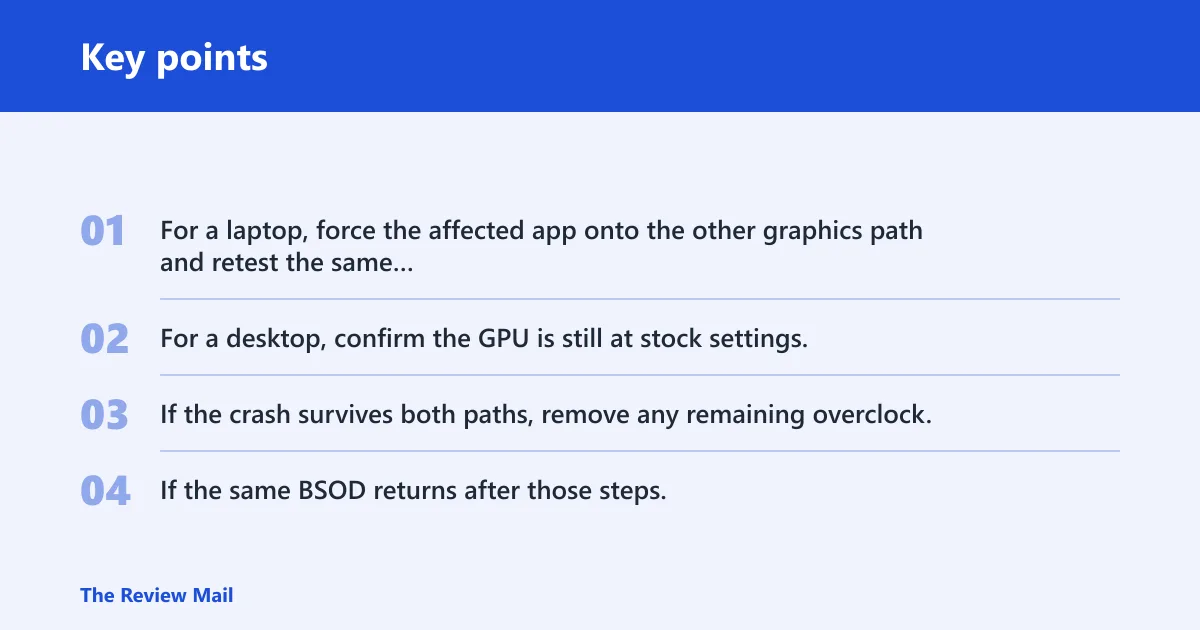
- For a laptop, force the affected app onto the other graphics path and retest the same task.
- For a desktop, confirm the GPU is still at stock settings, then retest the same workload after the clean driver install.
- If the crash survives both paths, remove any remaining overclock, reinstall the driver once more, and test again.
- If the same BSOD returns after those steps, stop changing software and move to vendor service or hands-on hardware testing.
On a desktop, the next meaningful test is not another driver package. It is whether the same card can finish the same workload with stock settings and a clean reinstall already in place.
Still not working?
At this point, the fault has survived the main software fixes. That leaves hardware validation, vendor support, or a repair shop with test gear. If the system is a laptop, contact the manufacturer with the exact file name from the blue screen and the steps already taken. If it is a desktop, the next useful checks are component-level, not more driver swaps.
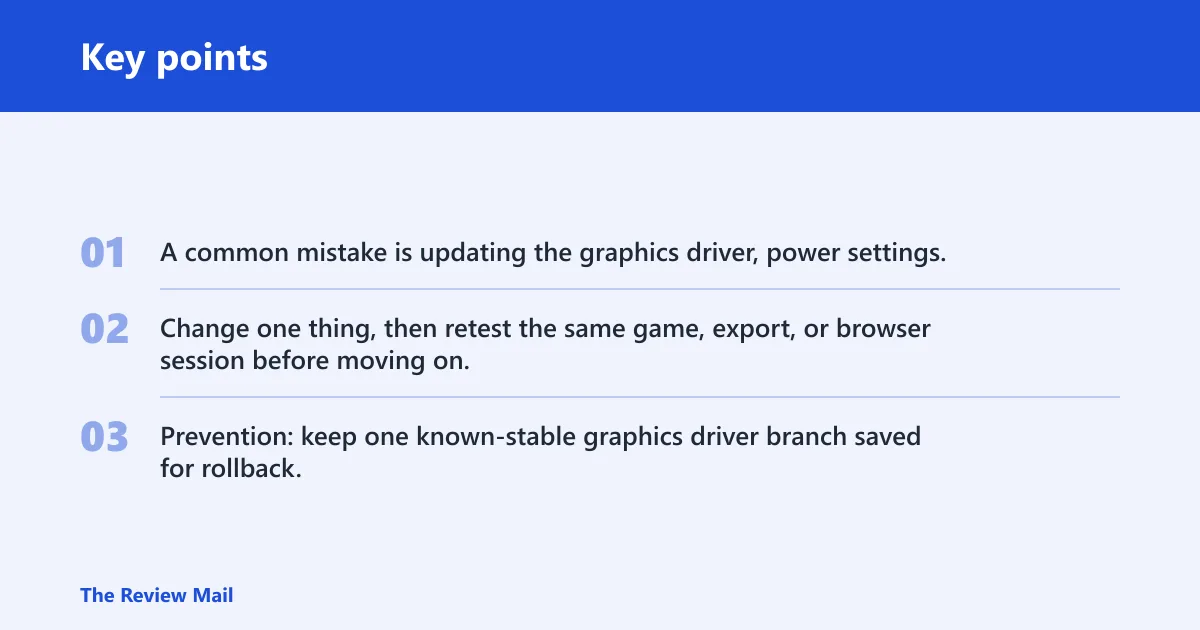
A common mistake is updating the graphics driver, power settings, and BIOS options all at the same time when troubleshooting a Video TDR error in Windows 11. Change one thing, then retest the same game, export, or browser session before moving on.
Prevention: keep one known-stable graphics driver branch saved for rollback, and avoid stacking new GPU drivers, app updates, and overclock changes in the same maintenance window.
Frequently asked questions
What is video tdr failure Windows 11?
It is a Windows stop code tied to graphics timeout and recovery. The quick fix order is driver rollback or clean reinstall first, then app acceleration settings, then stock clocks, then hardware checks if the same crash keeps returning under graphics load.
What is the 0x00000116 stop code?
That is the internal stop code associated with VIDEO_TDR_FAILURE. If you see it again after several repeat crashes in a short span, stop changing apps and move to a clean driver removal in Safe Mode, followed by a known-stable driver branch.
What does nvlddmkm.sys mean on a video tdr failure blue screen?
It points to NVIDIA display driver activity. The next step is a clean NVIDIA driver reinstall with DDU in Safe Mode, then a retest of the same workload. If the crash remains after that, check stock clocks and load behavior before suspecting hardware.
Is video tdr failure a driver problem or a bad GPU?
It is more often a driver problem first. If a clean reinstall and rollback do not help, and the same crash survives stock settings and repeated load tests, then hardware becomes more likely. Do not skip the software branch before replacing parts.
How do I fix video tdr failure on Intel graphics?
Use Device Manager > Display adapters to update or roll back the Intel driver, then test the affected app on the other GPU path in Settings > System > Display > Graphics. If the same crash happens on both paths, move to a clean reinstall and hardware checks.
How do I tell if video tdr failure is overheating or hardware?
If the crash appears only after sustained load, heat or instability is more likely. Return all overclocks to stock, rerun the same workload, and watch whether the system fails only under pressure. If it fails at idle too, the cause is less likely to be temperature alone.