Troubleshoot Wifi Adapter Driver Windows 10
To troubleshoot a Wi‑Fi adapter driver on Windows 10, first decide: roll back if the problem began after an update, clean reinstall if Device Manager shows corruption or a generic driver, and download the vendor driver if the device is missing or misidentified. Pick the wrong route and you can stay offline, keep a weak fallback driver, or repeat the same bad reinstall. This guide helps you choose the right path before you touch Device Manager.
What is failing?
Use the symptom you can see. A missing adapter, a disabled adapter, a broken driver after an update, and a connected-but-no-internet problem are different cases, and each one calls for a different first move. Do not start with a blind reinstall when rollback is the better match.
Missing adapter in Device Manager
If the wireless adapter is absent from Device Manager, the cause may be a failed driver load, hidden hardware, or a device that Windows no longer identifies correctly. Confirm the hardware model first, then look for an OEM package before you assume a generic reinstall will recover it.
Adapter shown but disabled
If the adapter appears under Network adapters but is disabled, turn it back on before you remove anything. A disabled device is not the same as a broken driver. If enabling it fails or it immediately disables itself again, then treat it as a driver or hardware fault.
Adapter present, but Wi-Fi breaks after an update
If Wi‑Fi failed right after a Windows update or a driver update, rollback is usually the safest first step. That reverses the last change without forcing Windows to rebuild everything. If Roll Back Driver is unavailable, move to a clean uninstall and reinstall.
Connected to Wi-Fi, but no internet
If the PC joins the network but cannot reach websites, the driver may be fine and the fault may be elsewhere. Start with the Internet Connections troubleshooter, then check whether Windows is using the correct adapter driver and whether the router or DNS side is at fault.
📊 The Intel package installs Wi‑Fi drivers for Windows 10 and Windows 11. Source: Intel.
Wi-Fi adapter decision table
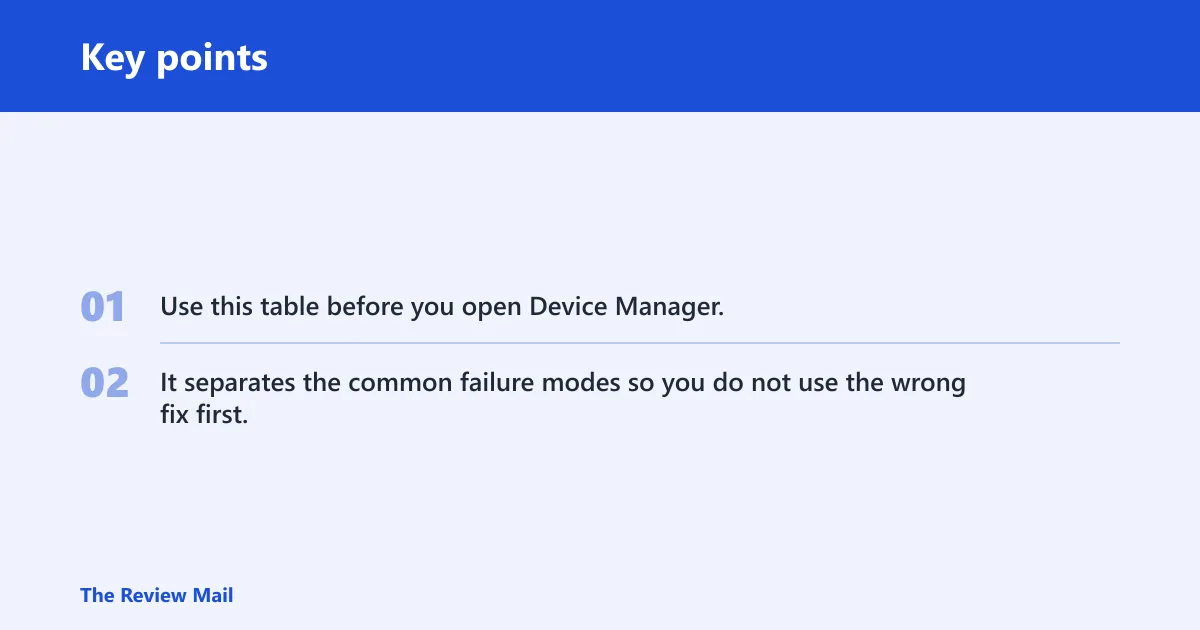
Use this table before you open Device Manager. It separates the common failure modes so you do not use the wrong fix first.
| Symptom | Likely cause | Safest first action | When to uninstall | When to roll back | When to download from OEM | What result confirms the fix |
|---|---|---|---|---|---|---|
| Wi‑Fi stops working right after a driver or Windows update | Incompatible update or bad driver revision | Roll back the driver | If rollback is unavailable or fails | Yes, first choice after a recent change | If the older driver is missing or Windows restores the bad one | Wi‑Fi reconnects and stays stable after restart |
| Adapter appears with a warning icon or odd generic name | Corrupted or substituted driver | Uninstall the adapter in Device Manager | Yes, if the device looks corrupted or unstable | Only if the problem started after a recent update | If Windows keeps reinstalling the wrong package | The adapter reappears with the correct vendor name and works normally |
| Adapter is missing from Network adapters | Driver failed to load, hardware not detected, or bad package | Check the model, then use an OEM driver | After you confirm the device was present before and Windows still cannot detect it correctly | If the failure began immediately after an update | Yes, usually the best path here | The adapter returns to Network adapters and scans visible networks |
| Connected to Wi‑Fi, but no internet access | Network stack, DNS, router, or access issue | Run the Internet Connections troubleshooter | Only if the adapter shows corruption or repeated dropouts | If the issue began right after a driver change | If the adapter model is wrong or unstable after reinstall | Windows reports internet access and sites load normally |
How do you check the adapter model?
You need the exact wireless adapter name before you download anything. Device Manager is the place to start, and driver changes need administrator privileges. Open it with Windows + X or by searching for Device Manager in Windows Search, then expand Network adapters to find the Wi‑Fi device name.
Open device Manager
- Press Windows + X and choose Device Manager, or search for it in Windows Search.
- Confirm you have administrator rights before changing driver settings.
- Look under Network adapters for the wireless device name.
Match the hardware name
The adapter name should match the vendor package as closely as possible. If the device reads as Intel wireless hardware, use an Intel package. If it shows a different vendor, do not pick an Intel download just because it mentions Wi‑Fi. Use the model printed in Device Manager, not a generic search result.
A common first-timer mistake is downloading a “Wi‑Fi driver” without checking the exact adapter name. Suppose Device Manager shows an Intel 9xxx-series wireless card, but the download page is for a Broadcom package. That mismatch can keep the adapter offline even after a reinstall.
Should you roll back the driver?
Roll back first when Wi‑Fi broke after a recent driver update or a Windows update. That reverses the last change without forcing a deeper cleanup. It can fix a bad revision, but it cannot repair a driver that is missing, corrupted, or never installed correctly in the first place.
When rollback is the right call
Choose rollback when the adapter worked before an update and failed soon after. This is the safest move when the timing is clear. If the issue predates the update, or if the driver has been unstable for a while, rollback is less likely to help.
What rollback can and cannot fix
Rollback can return you to a previous, working version. It cannot solve a damaged driver store, a missing adapter entry, or a device that Windows has replaced with a basic fallback package. If the button is unavailable, that usually means Windows has no earlier version to restore.
If roll back driver is unavailable
If the button is greyed out, move to a clean uninstall and reinstall. That gives Windows a chance to rebuild the adapter entry. If Windows restores the same broken package again, use the OEM driver instead of accepting the automatic choice.
How do you uninstall and reinstall a Wi-Fi adapter driver in Windows 10?
Use uninstall when the driver looks corrupted, unstable, or stuck on the wrong package. In Device Manager, expand Network adapters, right-click the Wi‑Fi adapter, and remove it. Windows 10 may auto-install a replacement driver after reboot, but that replacement is not always the right one.
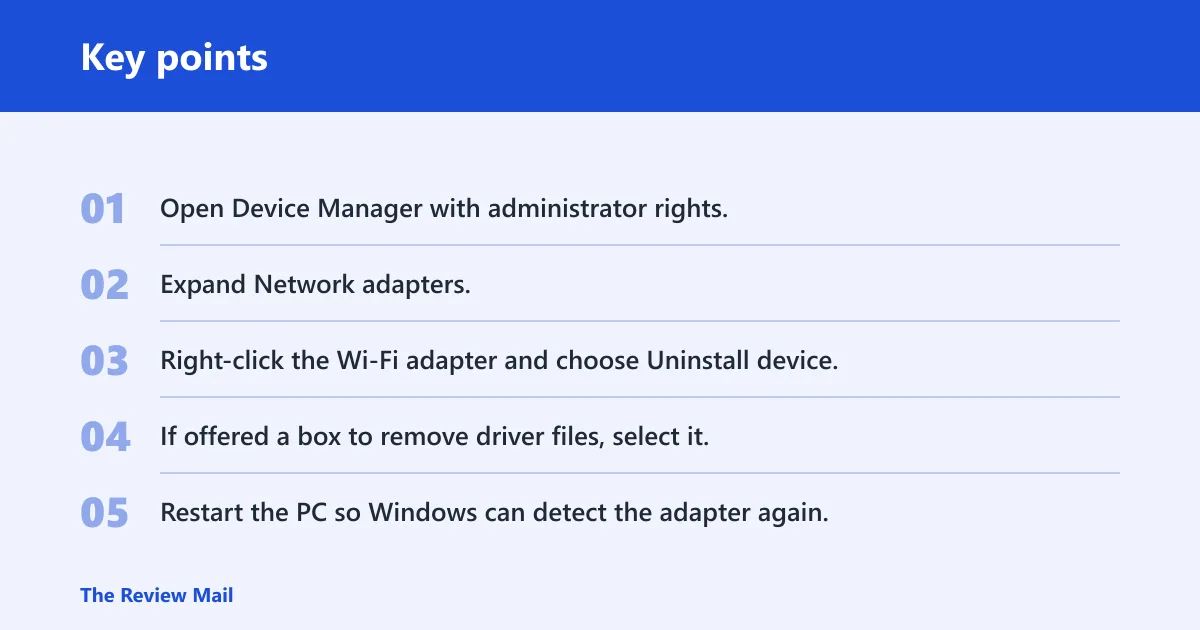
Clean uninstall from Device Manager
- Open Device Manager with administrator rights.
- Expand Network adapters.
- Right-click the Wi‑Fi adapter and choose Uninstall device.
- If offered a box to remove driver files, select it.
- Restart the PC so Windows can detect the adapter again.
TP-Link says this procedure is used to troubleshoot hardware malfunctions, can resolve driver conflicts, and starts in Device Manager. It also notes that driver changes are for Windows 10 or Windows 11 and typically require administrator rights, and that checking the box to remove driver files can help clear the bad package. That matters when the same broken driver keeps coming back.
What Windows may do after restart
After restart, Windows may reinstall a working replacement on its own. That is fine if the adapter comes back with the right vendor name and stable connectivity. If Windows restores the wrong driver, or the same fault returns, stop trusting the automatic choice and move to the vendor package.
When Windows keeps reinstalling the wrong driver
If the wrong driver keeps returning, the bad package may still be sitting in the driver store. Uninstalling the device alone may not remove it. In that case, install the correct OEM driver manually after the uninstall, and avoid letting Windows select a substitute that does not match the adapter model.
How do you find the right OEM driver?
Use the adapter model, not a generic Wi‑Fi search. The safest download is the one that matches the exact device name in Device Manager. If you guess, Windows may load a driver that technically installs but does not fit your hardware.
Intel driver example
Intel’s latest listed package is version 24.80.0. It installs Wi‑Fi drivers for Windows 10 and Windows 11, and Intel says it supports Wi‑Fi 7, Wi‑Fi 6E, Wi‑Fi 6, and Intel 9000 series Wireless Adapters. That makes the model match especially important before you download it. (Intel)
When to stay on a stable release
If a newer package arrived right before the problem began, do not assume newer is better. Stay on the last stable release if that is the version that worked. If the current driver is unstable but the hardware is healthy, a rollback or a known-good OEM release is safer than chasing the newest package.
Say your laptop loses Wi‑Fi immediately after a driver update, and Device Manager still lists the same Intel adapter model. Roll back first. Suppose the adapter disappears entirely after an uninstall and reappears with a generic name, then the OEM package is the better next move.
Frequently asked questions
How do I fix my wifi adapter driver?
Fix the adapter driver by matching the symptom to the safest action. If the problem started after an update, roll back. If the driver looks broken or the adapter shows a generic entry, uninstall it and let Windows reinstall. If the model is missing or wrong, use the vendor package.
Why is my wifi adapter not working in Windows 10?
The most common driver-related causes are corruption, an incompatible update, or Windows loading the wrong package after a reinstall. A disabled adapter or a missing entry in Device Manager points to a different path than a simple internet outage. Check the symptom first, not the router.
Should I update or roll back my Wi‑Fi driver?
Roll back if the failure began after a recent update. Update only when you have confirmed the current driver is outdated, missing support, or plainly unstable and no recent change explains the break. If the current driver worked yesterday, rollback is the safer first move.
How do I find the correct Wi‑Fi driver for my adapter?
Check the exact adapter name in Device Manager under Network adapters, then match it to the vendor’s download page. Do not search only for “Wi‑Fi driver.” A correct package should name your hardware family or model group, such as a specific Intel wireless series.
What should I do if Windows keeps reinstalling the wrong driver?
Uninstall the adapter again, remove driver files if that option appears, and then install the correct OEM package manually. Windows may keep pulling the same bad package from the driver store. If that happens, stop relying on automatic reinstalls and force the correct vendor driver.
Can I use Device Manager to fix a Wi‑Fi adapter problem?
Yes. Device Manager is the right place to start for rollback, uninstall, and model identification. It is also where you confirm whether the adapter is missing, disabled, or shown with a generic name. Use it before trying broader network resets or router changes.
How do I remove a corrupt network adapter driver completely?
Uninstall the adapter from Device Manager, check the box to remove driver files if Windows offers it, and restart. If the same bad package returns, install the correct OEM driver immediately after the reboot. That reduces the chance that Windows restores the faulty driver again.
Why does my Wi‑Fi work on the network but not on the internet?
That usually points beyond the adapter driver itself. Run the Internet Connections troubleshooter first, then check DNS, router access, and the adapter’s current driver state. If the adapter joined the network cleanly, the driver may be fine even though internet access is still blocked.