PC Not Detecting WiFi Adapter: Fixes That Work
If Windows does not detect your Wi‑Fi adapter, check three common states in order: disabled, driver-related failure, or missing hardware/firmware support. Skip that order and you can waste time reinstalling drivers or replacing parts that were never the problem. This guide shows how to read Device Manager, Settings, BIOS, and USB or PCIe symptoms so you can fix the right branch first.
Quick diagnosis table
Start with what Windows actually shows. That tells you whether to flip a radio switch, repair a driver, or stop and inspect firmware or hardware.
| What Windows shows | Most likely cause | Next best action |
|---|---|---|
| Wi‑Fi icon is present, but no networks appear | Radio off, WLAN AutoConfig stopped, or a broken driver state | Check Airplane mode, vendor hotkey, and WLAN AutoConfig first |
| Adapter is disabled in ncpa.cpl | Windows-only disable state | Enable the Wi‑Fi adapter in Network Connections |
| Adapter is missing from Device Manager | Hardware/firmware absent, BIOS disablement, or severe driver failure | Check hidden devices, BIOS/UEFI wireless settings, and power-state toggles |
| Yellow triangle with Code 10 or Code 43 | Driver failure or device cannot start | Reinstall the correct OEM or chipset driver, then reboot |
| Wi‑Fi returns only after a reboot | Power-state issue, driver corruption, or fast startup residue | Use a full shutdown and power-on cycle, then repair the driver |
| Stop here and escalate | BIOS/UEFI wireless disabled, antenna/cable failure, or true hardware failure | Check firmware settings, reseat the card if accessible, or move to a USB Wi‑Fi adapter |
Is the Wi‑Fi adapter disabled?
If the adapter exists but is turned off, Windows can hide it from normal use while still showing it in control panels. Check ncpa.cpl first, because a grayed-out Wi‑Fi entry is a simpler fix than a driver reinstall or hardware replacement.
Check network connections first
Open ncpa.cpl and look for the Wi‑Fi adapter in Network Connections. If it is grayed out, right-click it and choose Enable. That matches the disabled state described in Windows network settings, and it is often the fastest branch to clear.
Also check Airplane mode. A laptop can show a normal desktop, yet the wireless radio is still off. Use Action Center or Settings to confirm Airplane mode is off before you go deeper.
Vendor hotkeys matter here. Common combos include Fn + F2, F3, or F12, and some Dell, HP, and Lenovo systems also use a physical wireless switch. If the radio is off at hardware level, Windows can look fine while Wi‑Fi stays silent.
- Open ncpa.cpl.
- Look for the Wi‑Fi adapter and check whether it is grayed out.
- Enable the adapter if Windows lists it.
- Turn off Airplane mode.
- Use the vendor hotkey or physical switch to re-enable the radio.
Say your laptop shows Ethernet and Bluetooth in Network Connections, but Wi‑Fi is gray and disabled. Enabling it there is the right fix; a driver reinstall would be wasted effort if the adapter was only turned off.
Why is Device Manager not showing the adapter?
Device Manager is the place to inspect the wireless card when Windows stops seeing it. Open the Network adapters section first, then check whether the adapter is missing entirely or present with a yellow triangle, Code 10, or Code 43.
What to look for in Device Manager
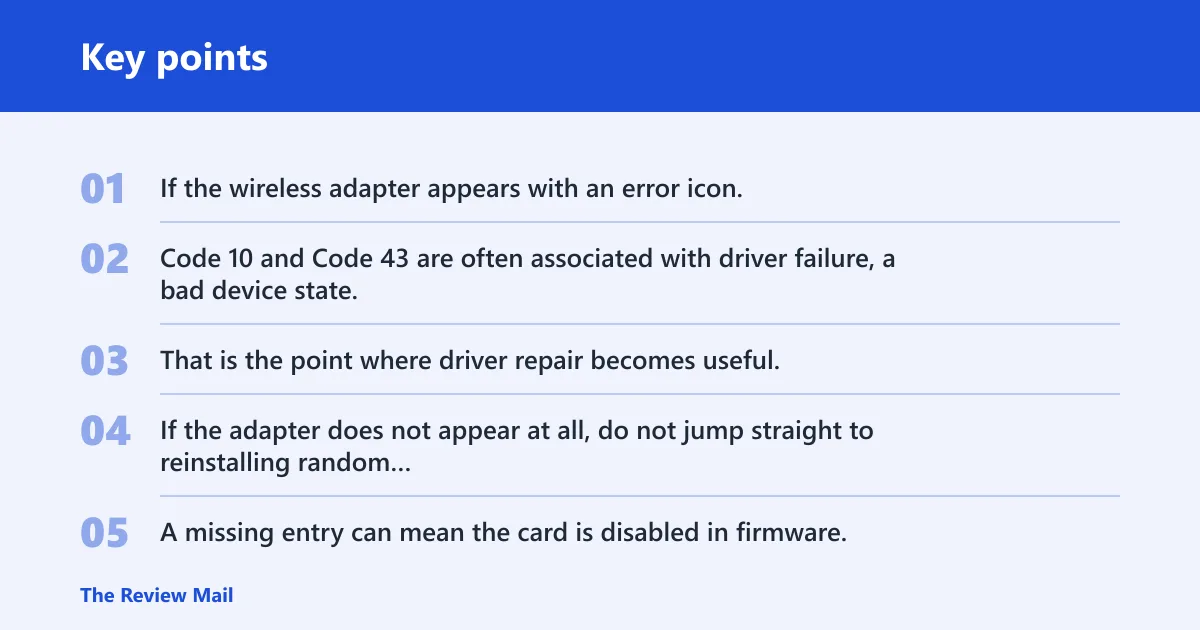
If the wireless adapter appears with an error icon, the device exists but Windows cannot start it correctly. Code 10 and Code 43 are often associated with driver failure, a bad device state, or a conflict after an update. That is the point where driver repair becomes useful.
If the adapter does not appear at all, do not jump straight to reinstalling random packages. A missing entry can mean the card is disabled in firmware, the system is not enumerating it, or the hardware has failed. Use hidden devices if needed, but do not confuse hidden with healthy.
Check device status in the Properties window. A working adapter should report that the device is operating properly. Any status that says the device cannot start, or that the device is absent from the list, changes the branch you should follow next.
A common first-timer mistake is to reinstall a Wi‑Fi driver for a device that Device Manager never lists. That only helps when the card is still present but broken. If the list is empty, you need to inspect power, firmware, or hardware visibility first.
WLAN AutoConfig and wireless toggles
WLAN AutoConfig is an important Windows service for Wi‑Fi discovery. If it is stopped, Windows may fail to scan for networks even when the adapter is present and enabled. Check the service before treating the card like dead hardware.
Check the service and radio controls
Open the Services console and confirm that WLAN AutoConfig is running. If it is stopped, Wi‑Fi discovery can fail or behave inconsistently. Restarting the service can restore scanning without touching the driver.
Then check Airplane mode again, because it can override the radio state. If a vendor hotkey or physical switch is engaged, Windows may show normal network controls while the wireless radio stays off. That is why the toggle order matters.
Use a full shutdown, then start the PC again from a cold power state, not sleep mode. If Wi‑Fi only returns after a reboot, that often points to driver or power-state residue rather than a permanently failed card.
Why a reboot sometimes helps
A brief return after reboot usually means the adapter is not dead. It often means the driver loaded cleanly only after a fresh boot, or the hardware needed a full power cycle to reset a stuck radio state.
That difference matters. A reboot that fixes the problem for an hour suggests software or power-state trouble. A reboot that never restores the device, with the adapter still absent from Device Manager, points you back toward firmware or hardware.
Which driver should you reinstall?
Reinstall the driver only after you confirm the adapter exists in Windows. If the device is present but broken, the correct source matters. OEM driver first. Chipset vendor second if the OEM package does not solve the issue.
Match the driver to the chipset
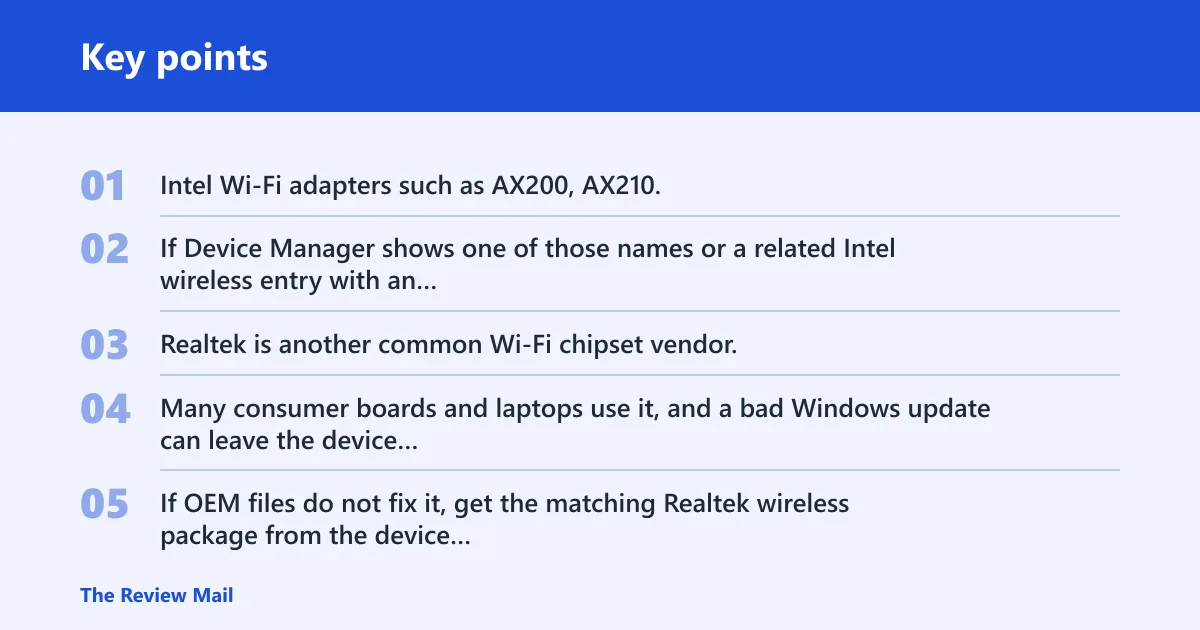
Intel Wi‑Fi adapters such as AX200, AX210, and AX201 are often reported as trouble spots after updates. If Device Manager shows one of those names or a related Intel wireless entry with an error, use the laptop or motherboard maker’s driver package first.
Realtek is another common Wi‑Fi chipset vendor. Many consumer boards and laptops use it, and a bad Windows update can leave the device with Code 10, Code 43, or no working network scan. If OEM files do not fix it, get the matching Realtek wireless package from the device maker or chipset source.
MediaTek Wi‑Fi adapters can fail in a similar way. Use the exact package that matches the adapter family and Windows version. Do not swap in a nearby driver just because the name looks close.
If Windows Update pulled in the wrong driver, uninstall the device from Device Manager, check the box to remove the driver package if offered, then install the correct OEM package. That path is safer than stacking multiple generic drivers on top of each other.
Suppose a desktop board with Intel AX210 starts showing Code 43 right after an update. The right move is to remove the broken driver and load the board maker’s package, not to reset the network stack first. The device still exists; the driver is the weak point.
Windows reset steps that can fix corruption
Use network-stack repairs after you have confirmed the adapter exists and is enabled. These steps help with configuration corruption. They do not bring back a device that is gone from Device Manager.
Run the stack reset in order
First try netsh winsock reset For network stack issues. That command can clear broken socket settings that stop Wi‑Fi from behaving normally after a bad install or a corrupted config change.
Next, use Windows 11’s Network Reset feature if the adapter is present but Windows still will not use it. It clears software blocks and rebuilds core network pieces, which can help when the adapter is present but Windows still refuses to use it.
After either step, reboot and recheck detection. If the adapter still does not appear in Device Manager, move back to the missing-device branch instead of repeating resets.
- Open an elevated Command Prompt.
- Run
netsh winsock reset. - Restart Windows.
- If needed, open Windows 11 Network Reset.
- Reboot again and check Device Manager and Network Connections.
Could BIOS, firmware, or hardware be the problem?
Yes. If Windows cannot see the adapter at all, BIOS or UEFI may have wireless disabled, or the hardware may have failed. This is the stop-here point. Do not keep reinstalling drivers if the card never appears in Device Manager.
When to suspect hardware
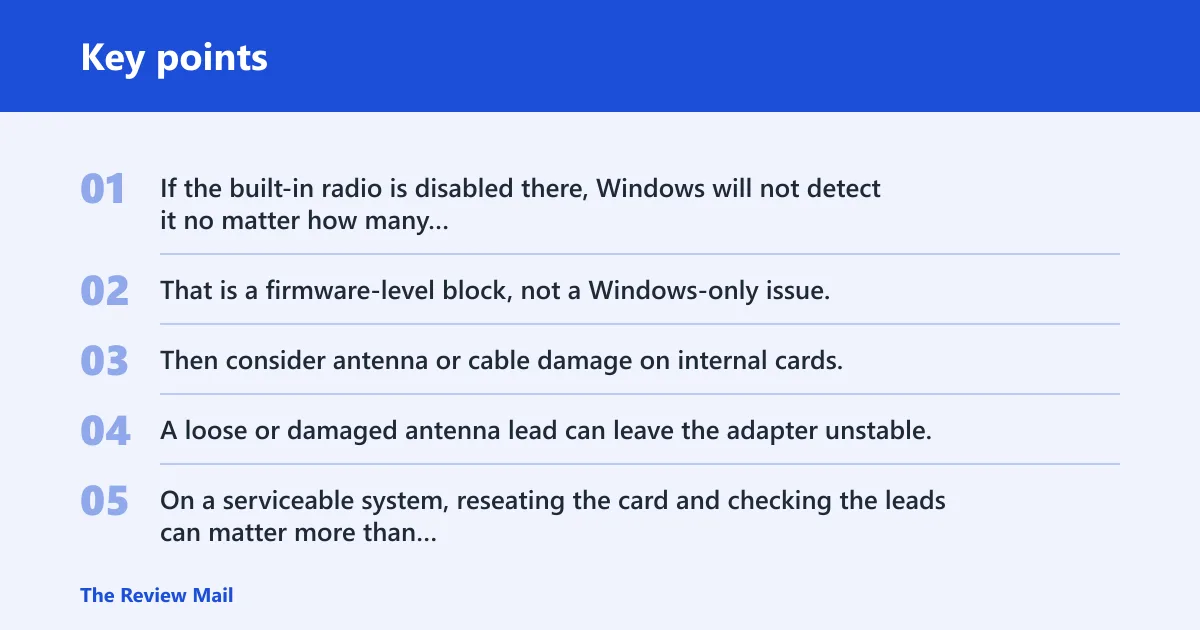
Start with BIOS or UEFI wireless settings. If the built-in radio is disabled there, Windows will not detect it no matter how many driver packages you try. That is a firmware-level block, not a Windows-only issue.
Then consider antenna or cable damage on internal cards. A loose or damaged antenna lead can leave the adapter unstable, and the symptom may look like random dropouts or a card that disappears after wake. On a serviceable system, reseating the card and checking the leads can matter more than software resets.
If the adapter disappears after waking, after a power cycle, or after a board repair, hardware failure becomes more likely. A USB Wi‑Fi dongle is a practical temporary workaround when the internal card is gone or dead, especially if you need network access before deeper repair.
For dual-boot systems, a Linux thread can help with diagnosis. The pattern there is often a kernel or module mismatch, not a dead radio. In one forum case, an Intel Alder Lake-P PCH CNVi WiFi device showed driver N/A, device ID 8086:51f0, kernel 5.15.74-3-MANJARO, and a build error tied to a missing chanctx_conf member in ieee80211_bss_conf; the suggested fix was switching to the 6.0 kernel and installing iwlwifi-next From AUR.
Frequently asked questions
Why is my pc not detecting wifi adapter?
Check the adapter in three states: disabled in ncpa.cpl, broken in Device Manager, or missing because BIOS, firmware, or hardware is blocking it. That order matters. If Wi‑Fi is grayed out, enable it first. If Device Manager shows nothing, move to firmware and hardware checks.
Why does my pc not detect wifi?
Windows may not detect Wi‑Fi because the radio is off, WLAN AutoConfig is stopped, or the driver has failed. Start with Airplane mode, the vendor hotkey, and ncpa.cpl. If the adapter is still absent from Device Manager, the issue is no longer a simple Windows setting.
Pc wifi adapter not showing up
If the adapter does not show up, open Device Manager and check Network adapters. A missing entry points to BIOS disablement, hardware failure, or a device that is not enumerating correctly. If you see Code 10 or Code 43 instead, install the correct OEM driver rather than guessing.
Pc not detecting usb wifi adapter
A USB adapter that is not detected can be a bad port, a power issue, or a driver mismatch. Try another USB port, check Device Manager, and make sure the dongle’s package matches the chipset and Windows version. If it works elsewhere, the problem is likely local to the PC.
How do I get windows to detect my wifi adapter again?
Start with the disabled branch, then the driver branch, then the missing-device branch. Enable the adapter in ncpa.cpl, confirm WLAN AutoConfig is running, reinstall the correct Intel, Realtek, or MediaTek driver if the device exists, and use Network Reset or netsh winsock reset only after that.
Should I use a usb wifi dongle if the internal card is gone?
Yes, if the internal card is missing or dead and you need network access now. A USB Wi‑Fi dongle is a sensible temporary fix while you sort out BIOS settings, a failed card, or damaged antenna leads. It is a workaround, not proof that the internal hardware recovered.