
Fix Windows Registry Corrupted Files
To fix Windows registry corrupted files, first decide whether you are dealing with live registry damage, boot-time hive damage, or leftover keys. Only the first two need repair, and boot failures usually call for an offline recovery step. Using the wrong fix wastes time, can trigger failed boots, or can alter working settings for no reason. This guide applies to supported versions of Windows Server.
What corrupted registry files usually mean
The Windows Registry is a central settings database for the OS, installed apps, and hardware. When it is damaged, Windows may crash, show error messages, run slowly, or fail to boot. The quickest first check is simple: does Windows still open normally? That split tells you whether you can use repair tools inside Windows or need recovery media.
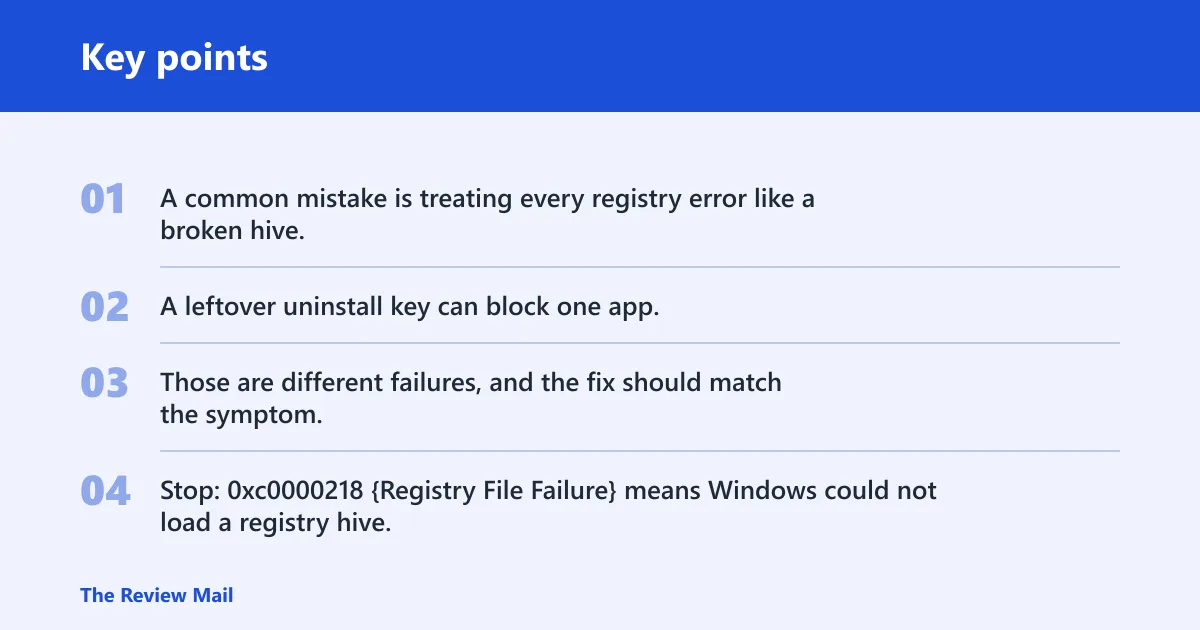
A common mistake is treating every registry error like a broken hive. A leftover uninstall key can block one app, while a damaged hive can stop Windows before the desktop appears. Those are different failures, and the fix should match the symptom. Stop: 0xc0000218 {Registry File Failure} means Windows could not load a registry hive.
Registry corruption vs leftover entries
| Symptom | Likely cause | Safest fix | When to escalate |
|---|---|---|---|
| Windows opens, but one app fails with a registry error | Corrupted system files, or stale keys left by an install or uninstall | Run SFC, then DISM, then retry the app | Escalate if the same error returns after repair and a reboot |
| PC does not restart, or shows a boot-time registry failure | Damaged registry hive after shutdown trouble | Use Startup Repair or System Restore from recovery | Escalate if Windows Recovery Environment cannot fix startup |
| A key appears in a registry query after an uninstall | Leftover or orphaned entry | Leave it alone unless it breaks something specific | Escalate only if a real symptom points to that key |
What usually causes the problem?
Most registry trouble starts after an unexpected shutdown, failed update, or crash. A power failure or some other unexpected shutdown event may cause a corrupted registry hive. If Windows does not restart, the registry hives may be corrupted. To determine whether this is the cause of the issue, look for Microsoft Learn event ID 6008 entries. If corruption reaches a registry hive instead of a single key, other files may be corrupted too, and faulty hardware becomes a possibility.
Say a server restarts into a black screen after a power cut, then shows Stop: 0xc0000218 {Registry File Failure}. That points more toward boot-time hive damage than an orphaned entry. A small app-specific key problem would not usually block startup.
- Check whether the problem started right after a shutdown, update, uninstall, or malware warning.
- If Windows still opens, open Event Viewer and look for Event ID 6008, which points to an unexpected shutdown.
- Open Windows Security and run Virus & threat protection > Scan options > Full scan.
- If the same boot issue returns after clean shutdowns, move to recovery steps instead of editing registry keys.
Can SFC and DISM repair it?
Yes, if the problem comes from damaged Windows files rather than a broken hive. Start with sfc /scannow in an elevated Command Prompt, then run DISM /Online /Cleanup-Image /RestoreHealth if SFC finds problems it cannot fix. After DISM finishes, run SFC again.
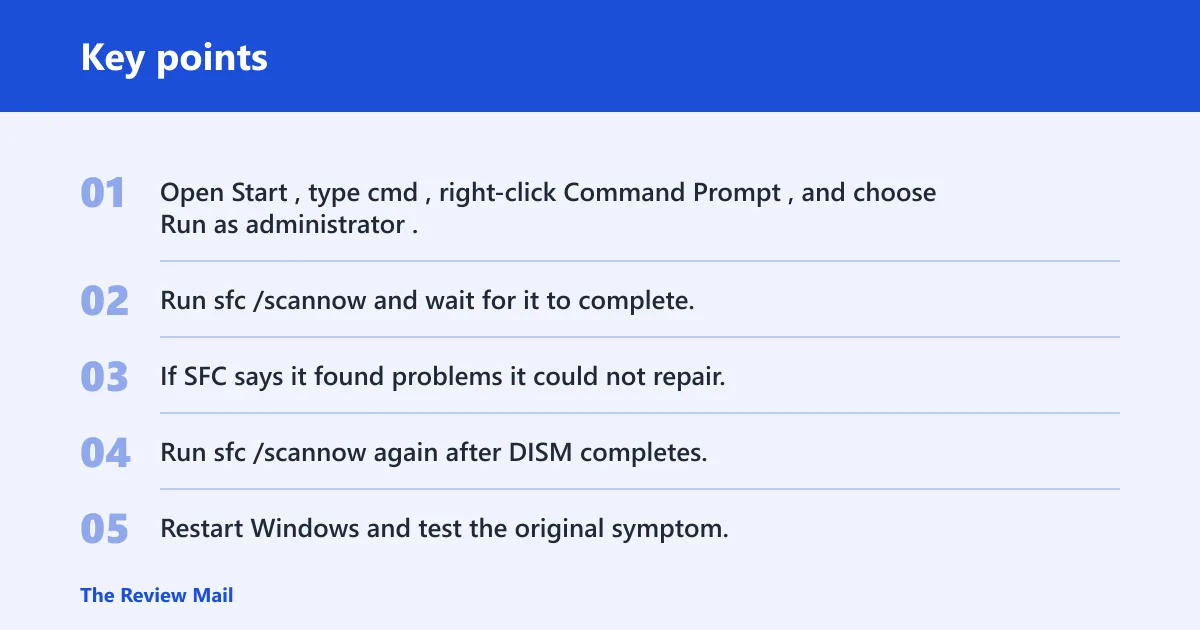
This is the least destructive repair path. On supported versions of Windows Server, SFC can repair protected system files, and DISM can repair the Windows image if SFC cannot complete the job.
- Open Start, type cmd, right-click Command Prompt, and choose Run as administrator.
- Run
sfc /scannowand wait for it to complete. - If SFC says it found problems it could not repair, run
DISM /Online /Cleanup-Image /RestoreHealth. - Run
sfc /scannowagain after DISM completes. - Restart Windows and test the original symptom.
Say your server opens the desktop, but Settings throws an error after an update. SFC may repair the missing protected file first. If it cannot, DISM can repair the Windows image and give SFC a clean source to finish the job.
Can System Restore fix a corrupted registry?
Yes, if you have a restore point from before the problem began. System Restore rolls back system files, settings, and registry entries to an earlier state. It fits well when the issue started after a driver change, update, or app install, and Windows still reaches the recovery flow. (Wikipedia)
Skip this if there is no restore point from before the failure, or if the machine will not load far enough to launch restore normally. In that case, use recovery media or move to startup repair first.
- Open Control Panel > Recovery > Open System Restore.
- Select a restore point dated before the registry symptom began.
- Review the affected programs list, then confirm the restore.
- Let Windows restart and finish the rollback.
What if Windows will not boot?
If Windows will not boot far enough to run in-OS fixes, move to Startup Repair first. It runs from Windows Recovery Environment or repair media and is built for boot problems. If you cannot start the recovery environment normally, you can interrupt startup during boot or use installation media to reach the repair options.
Startup Repair is the first built-in step for boot problems. If that fails, try System Restore from the same recovery menu before attempting more invasive repair steps.
- Force recovery by interrupting boot three times, or boot from Windows installation media.
- Choose Repair your computer > Troubleshoot > Advanced options > Startup Repair.
- If available, try System Restore from the same Advanced options menu.
- If the target system is Windows 7, use its recovery environment or installation disc instead of the newer recovery menus.
What if the issue keeps coming back?
Recurring problems usually mean the cause was not only the registry. A malware scan, a bad driver, or another damaged Windows component may be putting the same settings back into a broken state. If SFC, DISM, and System Restore all fail, Windows Reset becomes the next step.
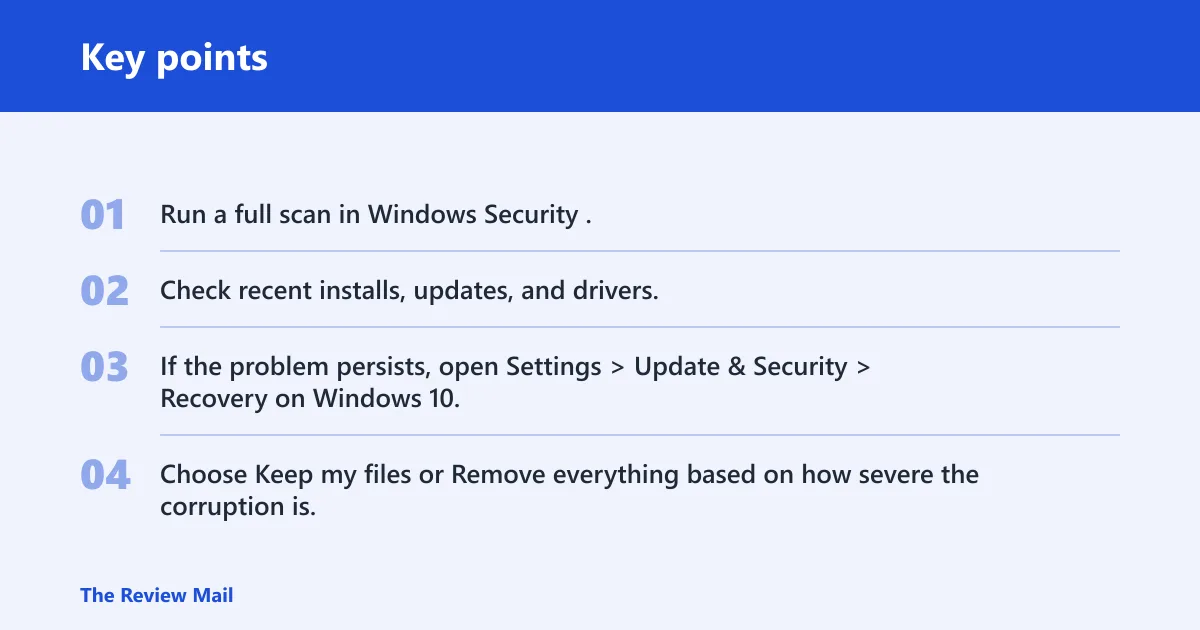
Windows Reset is a last resort. It may keep files or remove them depending on the mode you choose, but it can reinstall Windows and clear deeper corruption that repair tools cannot reach.
- Run a full scan in Windows Security.
- Check recent installs, updates, and drivers, then remove the most recent change if the timing fits.
- If the problem persists, open Settings > Update & Security > Recovery on Windows 10, or Settings > System > Recovery on Windows 11, and select Reset this PC.
- Choose Keep my files or Remove everything based on how severe the corruption is.
Is there a built-in Windows command to clean the registry?
No. Windows does not include a built-in command line tool to clean orphaned registry entries. Use targeted registry editing only when you know exactly which entry is causing the problem. Manual registry editing is risky because one wrong deletion can break logon, applications, or hardware detection.
Registry cleaners are also a poor fit for real hive damage or boot failure, because they do not repair the Windows files that are usually involved. If a tool claims to “fix” all registry problems in one pass, treat that as a red flag.
Will sfc /scannow repair registry problems?
It can help when the registry symptom comes from corrupted protected system files, but it does not repair every registry problem. Use sfc /scannow first from an elevated Command Prompt, then pair it with DISM /Online /Cleanup-Image /RestoreHealth if SFC cannot finish the job.
If the machine still fails to boot, SFC is the wrong first move because you cannot rely on an online repair session. Use Startup Repair or System Restore from recovery instead.
Is it safe to use registry cleaning software?
It is safer to avoid it for repair work. Cleaning tools can remove entries they think are stale, but they do not reliably fix corrupted hives, and they can delete keys that still matter. That is why the least destructive path is backup, SFC, DISM, restore, then reset if needed.
If a tool claims to “fix” all registry problems in one pass, treat that as a red flag. A damaged boot hive, a bad shutdown, and a leftover uninstall key need different responses.
Frequently asked questions
What causes registry corruption?
Most often it follows a power failure, crash, or unexpected shutdown. Malware can also change registry settings, and bad uninstallers can leave broken references behind. If the machine will not restart and the error mentions a registry hive, the problem may be deeper than leftover entries.
What should I do if DISM and SFC do not fix the issue?
Move to System Restore if the problem started recently. If Windows will not boot, use Startup Repair from recovery media or Windows Recovery Environment. If the machine still fails after that, reset the PC from Settings > Update & Security > Recovery on Windows 10, or Settings > System > Recovery on Windows 11.
How do I fix corrupted registry files on supported versions of Windows Server?
Use SFC first, then DISM if needed. If the issue began after a change and you have a restore point, use System Restore. If Windows will not boot, use Startup Repair from the recovery environment or installation media.
What if Windows does not restart after the problem began?
The registry hives may be corrupted. Check Event Viewer for Event ID 6008 entries to confirm whether an unexpected shutdown occurred, and then use recovery options instead of editing registry entries by hand.
What if hardware is the cause?
If corruption is not limited to registry hives, faulty hardware is a possibility. In that case, the hardware vendor must thoroughly investigate the condition of all computer components.