Unable to Connect to the Proxy Server
“Unable to connect to the proxy server” usually points to a browser proxy setting, a Windows-wide proxy, or a policy setting. Fix the source that matches the symptom, starting with browser settings, then Windows proxy controls, then policy or network reset. Skip the wrong layer and you can waste time, and sometimes stay offline after changing the wrong switch. This guide shows how to find the source of the proxy error and apply the smallest fix for Chrome, Edge, Firefox, Windows, or a managed PC.
This guide is part of our Windows performance problems: full list and fixes series.
Proxy triage matrix
| Symptom pattern | Most likely cause | Safest next step |
|---|---|---|
| Every app fails, including Edge, Outlook, and Windows Update | Windows proxy settings, Internet Properties LAN settings, or a system network stack issue | Open Windows Settings, go to Network & internet, then Proxy. After that, check Internet Properties > Connections and LAN settings. Confirm by opening two different apps and a normal website. |
| Only Chrome shows the proxy error | Chrome extension, Chrome policy, or corrupted browser cache files | Disable proxy-related extensions, check chrome://policy, then clear cache or reset Chrome. Confirm by loading the same site in Edge and Chrome. |
| The error appears only when a VPN is connected | Separate proxy settings stored inside the VPN profile | Open the VPN’s advanced options and review proxy settings for this VPN connection. Confirm by connecting once with the VPN off and once with it on. |
| Proxy settings come back after reboot | Policy, MDM, security software, or adware restores them | Check chrome://policy, then look for device management or security software that rewrites proxy values. Confirm after a restart, not only immediately after change. |
| A work PC changes settings back, or you do not have admin control | Organization-managed policy or remote management | Document the exact setting path and ask IT to review policy scope. Confirm by checking whether the same value reappears after reboot or sign-in. |
Is the error system-wide or browser-only?
If one browser shows “unable to connect to the proxy server” but Outlook, Edge, and Windows Update still work, start with browser settings, extensions, or cache. If several apps fail, the proxy source is usually Windows-wide, a VPN profile, or a managed policy. That split saves time, and the wording can vary between Chrome’s proxy error, “ERR_PROXY_CONNECTION_FAILED,” and a plain “No internet” message when the proxy path is the real problem.
Quick checks for Chrome, Edge, Outlook, and Windows update
Open a second browser and a Windows app that reaches the internet. Chrome alone points toward a browser source. Edge plus Outlook plus system updates failing points toward Windows or policy. If a VPN is active, test once with it disconnected, because a VPN can carry its own proxy settings.
Say your laptop shows the Chrome error, but Edge opens sites normally and Outlook still syncs mail. That pattern usually means Chrome, not Windows, is holding the bad proxy source. If both Chrome and Edge fail, but the VPN connection works, Windows or the VPN profile becomes the more likely source.
What a browser-only error usually points
A browser-only failure can mean the browser is reading a proxy from an extension, a browser policy, or a cached configuration. Chrome can also show older wording such as proxy error -130 or ERR_PROXY_CONNECTION_FAILED, while newer builds may say “No internet” or “there is something wrong with the proxy server.” On managed devices, Chrome Enterprise policy guidance is the most reliable place to confirm whether the browser is following a policy rather than a local preference, so check chrome://policy and the managed settings view before you assume the browser is broken.
What a system-wide error usually points
When every network app fails, check the Windows proxy path first: open Settings, choose Network & internet, then Proxy. Windows supports automatic detection, setup scripts, and manual proxy configuration there, and Microsoft documents that these are the main Windows proxy controls. A system-wide error can also come from Internet Properties > Connections > LAN settings, where “Use a proxy server for your LAN” and “Automatically detect settings” live. On Windows, Internet Properties and the Settings app can both affect proxy behavior, so it is safer to treat them as related controls rather than assuming one always overrides the other.
Check Windows proxy settings
Start with the Windows proxy page before you touch resets or registry values. Windows keeps proxy controls in Settings under Network & internet > Proxy. That page can hold a manual server, a setup script, or automatic detection, and any one of those can send traffic to a dead address. Microsoft’s support article “Use a proxy server in Windows” confirms that Windows can inherit or apply proxy configuration at the system level, so a bad value here can affect more than one app.
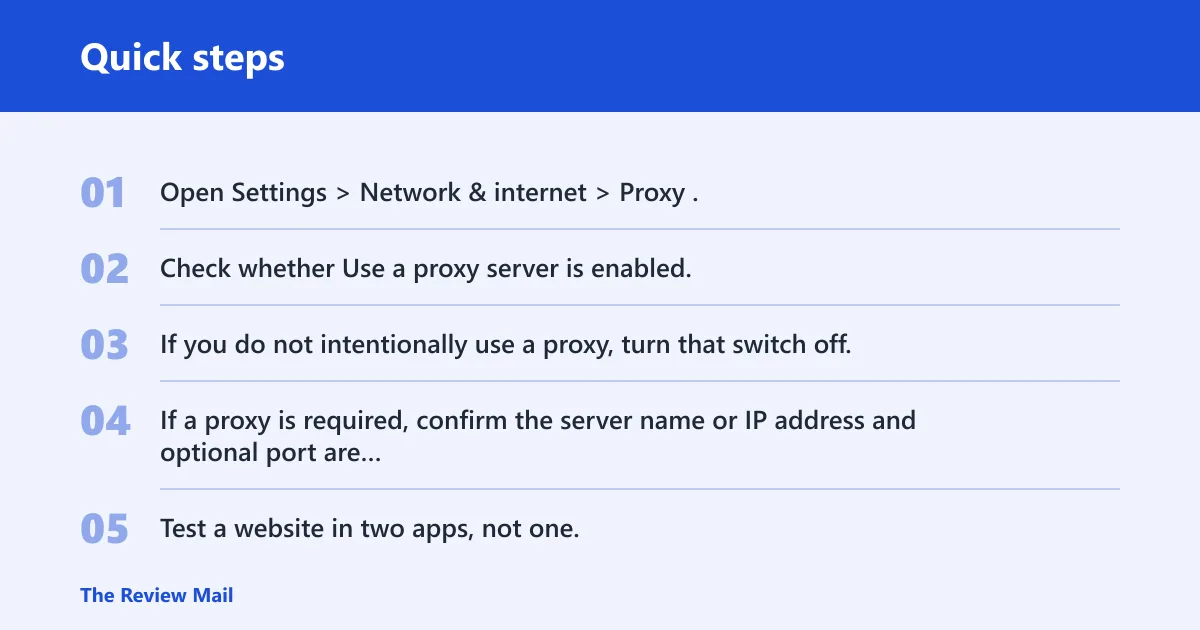
Open Settings Network & internet proxy
In Windows 11, open Settings, then Network & internet, then Proxy. Review all three areas: automatic detection, setup script, and manual proxy setup. Microsoft’s layout separates them for a reason, and a bad value in only one section can still break browsing.
Review manual proxy setup and the toggle
- Open Settings > Network & internet > Proxy.
- Check whether Use a proxy server is enabled.
- If you do not intentionally use a proxy, turn that switch off.
- If a proxy is required, confirm the server name or IP address and optional port are correct.
- Test a website in two apps, not one.
Manual proxy setup requires a proxy server name or IP address and an optional port. If the address is old, misspelled, or pointing to a retired server, Windows will keep trying to use it. Use a known-good address only if your network actually requires one. If the value keeps returning after you change it, that is the point to check for policy or registry persistence rather than repeatedly toggling the UI.
Check the setup script option
If your environment uses a script, open the setup script section and confirm the script address in the Edit setup script dialog box. Windows supports setup scripts as one of its proxy methods, so a stale PAC file can cause the same error even when the manual proxy switch is off. Microsoft’s Windows proxy guidance also treats proxy behavior as a system configuration issue, not just a browser preference, which is why a broken script can affect multiple apps.
Review Internet Properties and LAN settings
Open Internet Properties, then the Connections tab, then LAN settings. Check “Use a proxy server for your LAN” and “Automatically detect settings.” These classic Internet Options controls can still influence proxy behavior alongside the Settings app, so do not ignore them when the system keeps using a dead proxy. Microsoft’s LAN settings documentation is the best reference here because it describes these controls as part of Windows’ supported proxy path.
Why does Chrome keep showing this error?
Chrome keeps showing the proxy error when its own proxy source is bad. That source can be a browser extension, a policy pushed by an administrator, or the Windows settings Chrome inherits. Chrome often uses the system proxy on Windows unless a policy or extension changes the path, so a local browser reset will not always fix a Windows-level proxy problem.
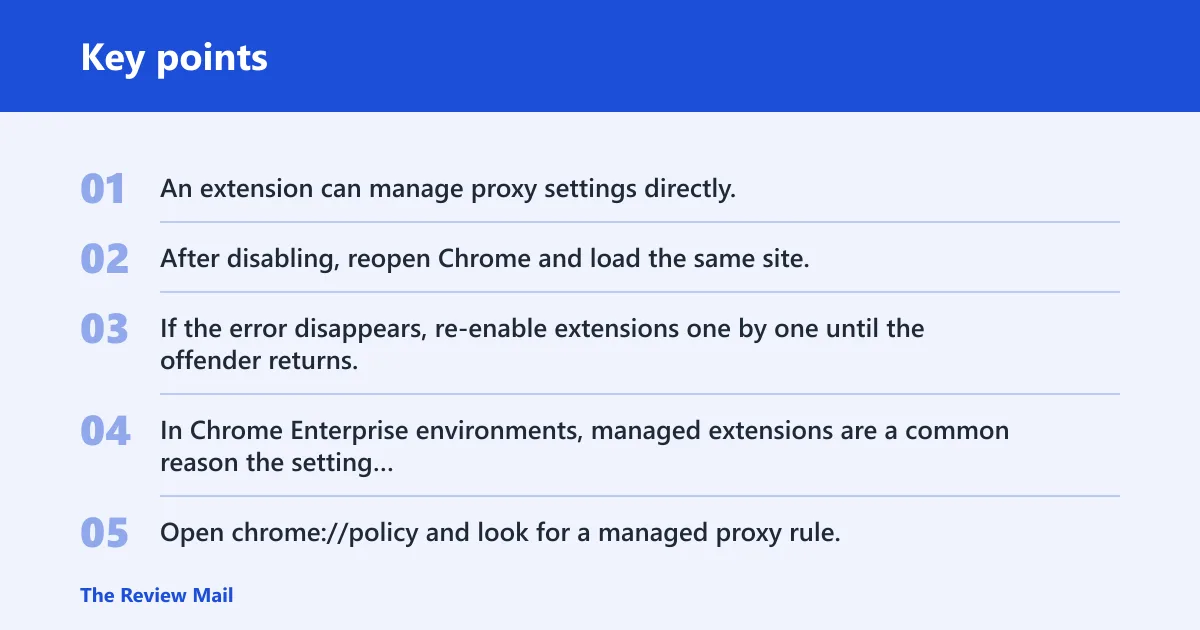
Check extensions that can manage proxy settings
Disable proxy-related extensions first. An extension can manage proxy settings directly, which means Chrome may ignore the Windows choice. After disabling, reopen Chrome and load the same site. If the error disappears, re-enable extensions one by one until the offender returns. In Chrome Enterprise environments, managed extensions are a common reason the setting comes back after restart.
Review administrator-managed policies in chrome://policy
Open chrome://policy and look for a managed proxy rule. Google’s Chrome Enterprise and help documentation use chrome://policy as the supported way to inspect browser policies, and that is the right place to verify whether the proxy is enforced rather than locally chosen. If Chrome is under administrator-managed policies, the setting may reapply after every restart. That matters on work devices, where the browser can be controlled even when the Windows switch looks correct.
Reset Chrome settings or clear corrupted cache files
Reset Chrome settings as a secondary step if extensions and policies do not explain the error. That is safer than assuming the browser is broken when only one cached route failed. If Chrome works after resetting settings but fails again after a restart, the stronger clue is that a policy or extension is reapplying the proxy setting.
Can a VPN cause proxy server connection errors?
Yes. Microsoft says VPN proxy settings must be configured separately, and the VPN profile can use different proxy values from Windows itself. A VPN can still carry its own proxy configuration and break browsing when the profile is wrong. (Microsoft Support)
Check per-VPN proxy settings in advanced options
Open the VPN connection’s advanced options and look for proxy settings for this VPN connection. Some profiles keep a separate proxy field that does not match the Windows proxy page. If the VPN connection has its own proxy, it can fail even when the desktop proxy is clean.
Compare the VPN profile against Windows proxy settings
Compare the VPN’s proxy values with Settings > Network & internet > Proxy. If the VPN expects a proxy and Windows also has one, the two settings can conflict. If the VPN should not use a proxy, remove that value from the VPN profile and leave the system setting alone. Microsoft’s guidance makes the distinction clear: VPN proxy settings are separate from the main Windows proxy configuration, so check both when the error appears only on the VPN.
Test with the VPN disconnected, then reconnect
Disconnect the VPN and retry the same site. If the error disappears, the VPN profile is the likely source. Reconnect and test again to confirm the failure follows the VPN, not the browser or the site. If the error returns only when the tunnel is up, you can focus on the VPN profile instead of the browser cache or Windows proxy page.
How do I reset Windows network settings for a proxy error?
Use network resets after you have checked the proxy source. The safest order is DNS first, then the IP stack, then Winsock. Microsoft’s support guidance for network reset steps is the better citation here than a third-party blog, because these commands change real network components and should be used deliberately.
Run ipconfig /flushdns
Open Command Prompt as an administrator and run ipconfig /flushdns. This clears stale DNS lookups, which can help if the site name is resolving incorrectly, but it does not change proxy configuration itself. After the command completes, retry the same site and note whether the error changes from proxy wording to a more general connection failure.
Run netsh int ip reset
Next, run netsh int ip reset. Microsoft’s network reset guidance includes this kind of stack reset as part of fixing persistent connectivity issues. It resets parts of the IP stack, which can help when the proxy error appears after another network change or after a VPN uninstall.
Run netsh winsock reset
Then run netsh winsock reset. This resets Winsock catalog entries that can interfere with network traffic. Finish with a restart, then verify whether the same site loads in two apps. If the proxy error returns, the source is still active somewhere else.
Could malware or adware be changing the proxy?
Yes. Malware and adware can change browser or proxy settings, and the setting may return after you remove the obvious adware component. That is why a one-time cleanup is not enough. Run an anti-malware scan before you change the proxy again, or the bad value may reappear.
Why proxy settings may reappear after removal
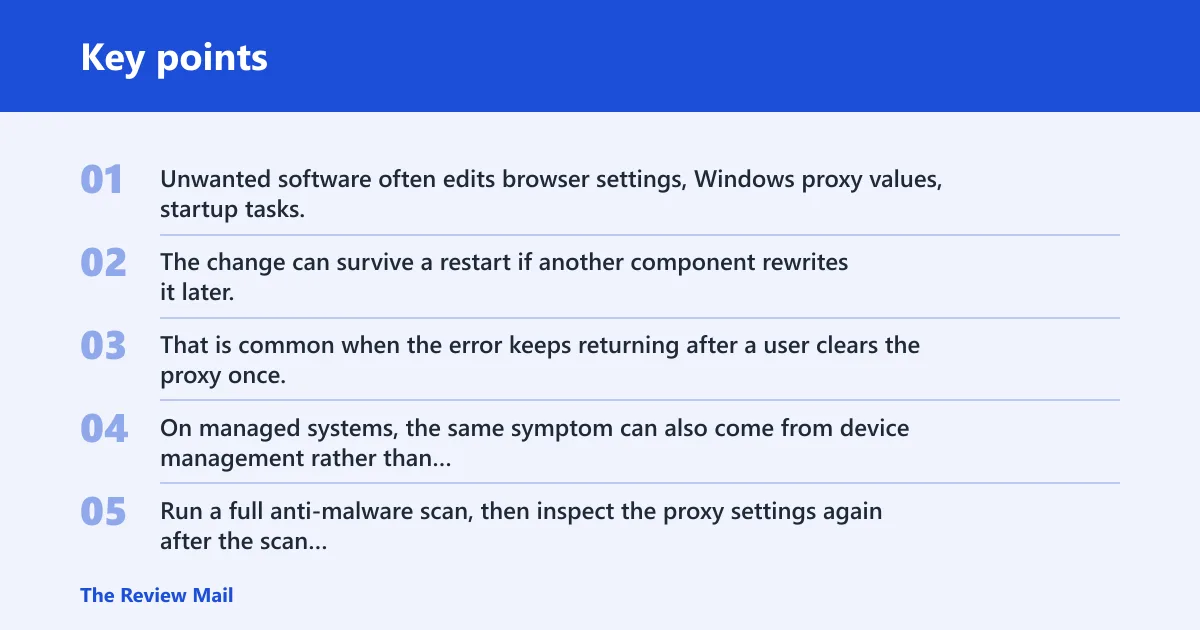
Unwanted software often edits browser settings, Windows proxy values, startup tasks, or policy-like artifacts that restore them. The change can survive a restart if another component rewrites it later. That is common when the error keeps returning after a user clears the proxy once. On managed systems, the same symptom can also come from device management rather than malware, so reappearance alone is not proof of infection.
Run an anti-malware scan before changing settings again
Run a full anti-malware scan, then inspect the proxy settings again after the scan finishes. If the scan removed something, check Windows Proxy, Internet Properties, and Chrome policies one more time. Changing the settings before cleaning the source can waste time.
Check whether a browser extension or security tool restored the proxy
A browser extension or security tool can also restore proxy values after removal. If settings reappear after reboot, the reapplication source is likely still installed. Verify the exact setting path that changed, then review startup tools, security software, and browser add-ons that are allowed to manage the connection. If the computer is managed, confirm whether the behavior matches an organizational policy before you edit registry values.
Inspect registry proxy values only when the setting persists
If the proxy keeps coming back after you have checked the Windows UI, Internet Properties, Chrome policy, extensions, and any VPN profile, inspect the registry values ProxyEnable and ProxyServer under HKEY_CURRENT_USER\Software\Microsoft\Windows\CurrentVersion\Internet Settings. These values are commonly used to store system proxy state on Windows, so persistent reappearance often points here. Warning: only do this on a device you administer, and preferably with IT approval on a managed PC; changing registry values on a company-managed machine can break enforced settings or violate policy. Before editing, export the relevant registry branch or create a restore point so you can roll back if needed. If ProxyEnable is set when you do not want a proxy, or ProxyServer contains an old or wrong server, that is the point to correct the value rather than repeatedly changing the GUI. After any registry change, reboot and verify the setting does not return.
Frequently asked questions
Why does my browser say unable to connect to the proxy server?
The browser usually cannot reach a configured proxy, or it is being pointed to the wrong one. The source may be the browser itself, Windows proxy settings, a VPN profile, or a policy. Start by checking whether only one app fails or whether every network app is affected. If Chrome is the only affected app, Google Chrome Enterprise policy pages are the fastest way to verify whether a policy is forcing the value.
How do I turn off proxy settings in Windows 11?
Open Settings, then Network & internet, then Proxy, then switch off Use a proxy server if you do not need one. Also review automatic detection and setup scripts, then check Internet Properties > Connections > LAN settings. Confirm the change by reopening a browser and a system app. If the setting returns after reboot, check for policy, MDM, or the registry values ProxyEnable and ProxyServer.
What is the difference between proxy connection failed and proxy authentication required?
Proxy connection failed means the browser or system cannot reach the proxy server at all. Proxy authentication required means the proxy is reachable, but it wants valid credentials. The first points to address, routing, or policy problems; the second points to login details or permission settings.
Why does Chrome keep showing unable to connect to the proxy server?
Chrome may be reading a bad proxy from an extension, administrator policy, or Windows settings. Check chrome://policy, disable proxy-managing extensions, and reset Chrome settings before assuming the browser is broken. If Edge and Outlook work, the problem is usually Chrome-specific rather than system-wide. If Chrome only fails on one Windows account, that can also hint at a user-level policy or extension rather than a machine-wide network issue.
Could malware change my proxy settings?
Yes. Malware or adware can change browser or proxy settings, and those changes can return after cleanup if another component is still active. Run an anti-malware scan before changing the proxy again. If the setting reappears after reboot, check browser extensions, security software, managed policies, and the registry values ProxyEnable and ProxyServer.