IRQL_GT_ZERO_AT_SYSTEM_SERVICE BSOD Fix Windows 11
Fix the likeliest cause first. If the crash started after a driver or software change, roll that back before you touch BIOS or run deeper checks. IRQL_GT_ZERO_AT_SYSTEM_SERVICE is bug check 0x0000004A.
This stop error can appear on Windows 11 and Windows 10. The practical task is to sort the crash into one of four patterns: recent change, startup-only crash, load-triggered crash, or no-boot crash. That order saves time.
What IRQL_GT_ZERO_AT_SYSTEM_SERVICE means
Likely causes, ranked by how often they fit the symptom pattern
| Cause | What usually gives it away | Next safest step |
|---|---|---|
| Recent driver or software change | Crash began after a GPU, Wi-Fi, storage, RGB, or peripheral app update | Roll back or uninstall that change first |
| Memory fault | Random crashes, failed boots, or errors that shift from one app to another | Run Windows Memory Diagnostics Tool |
| Storage fault | Freezes during file copies, disk noises, or repair loops | Run ChkDsk and then check system files |
| Firmware or board setting issue | Crash started after a BIOS change or firmware update | Reset BIOS defaults, then test firmware updates later |
According to tomshardware.com — Tom’s Hardware says IRQL_NOT_LESS_OR_EQUAL appears in Windows 11 or 10.
What caused the crash on your PC?
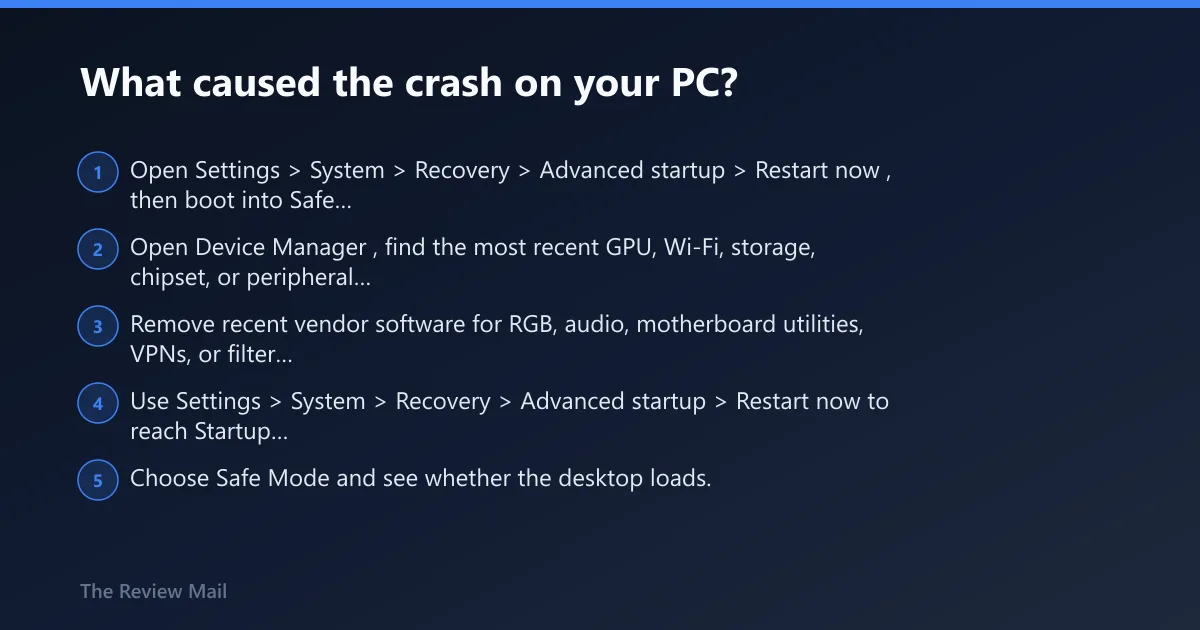
The crash pattern decides the next move. If it started right after a change, undo that change first. If it only appears under load, focus on the newest device driver and hardware health. If it happens during startup or no boot, move to Safe Mode, memory checks, and disk repair in that order.
Recent driver or software change
- Open Settings > System > Recovery > Advanced startup > Restart now, then boot into Safe Mode if the PC is unstable.
- Open Device Manager, find the most recent GPU, Wi-Fi, storage, chipset, or peripheral device, then use Properties > Driver > Roll Back Driver or Uninstall device.
- Remove recent vendor software for RGB, audio, motherboard utilities, VPNs, or filter drivers from Settings > Apps > Installed apps.
Startup-only crash
- Use Settings > System > Recovery > Advanced startup > Restart now to reach Startup Settings.
- Choose Safe Mode and see whether the desktop loads.
- If Safe Mode works, remove the most recent driver update from Device Manager and undo any startup app changes in Task Manager > Startup apps.
- If the crash still appears, run msconfig, open Services, check Hide all Microsoft services, then choose Disable all for a clean boot test.
Load-triggered crash
- Note the trigger: gaming, video export, large file copies, or heavy browser use.
- Update the device driver tied to that load from Device Manager first. If the vendor provides a newer stable package, install it from the OEM website rather than from a random download source.
- Check the device most involved in the crash: GPU for gaming, Wi-Fi for network spikes, storage for file copies.
- Run
sfc /scannowand thenDISM /Online /Cleanup-Image /CheckHealthif the system files may be damaged.
No-boot crash
- From recovery, open Safe Mode first. If it fails, collect the exact STOP code and any parameters from
C:\Windows\Minidump\*.dmp. - Run Windows Memory Diagnostic if it can boot far enough to start a test.
- If the machine will not boot reliably, use memtest86+ from external media for a deeper memory test.
- Only after those checks, move to BIOS defaults and firmware updates.
How do I fix IRQL_GT_ZERO_AT_SYSTEM_SERVICE BSOD in Windows 11?
Start with rollback, not firmware. On Windows 11, a cautious fix path is to roll back the most recent driver or software change, then try Safe Mode and a clean boot, then check Windows Update and OEM driver packages, then test memory and storage, and only after that look at BIOS or UEFI settings.
- Open Settings > Windows Update and install every pending patch.
- Open Settings > Apps > Installed apps and remove the last GPU, Wi-Fi, storage, RGB, or peripheral utility you added.
- Open Device Manager, then update or roll back the newest device driver.
- If the system still crashes, run Windows Memory Diagnostic,
chkdsk, and thenDISM /Online /Cleanup-Image /CheckHealth.
Safe Mode entry:
Settings > Recovery > Advanced startup > Restart now > Troubleshoot > Advanced options > Startup Settings

Driver rollback path:
Device Manager > (device) > Properties > Driver tab > Roll Back Driver / Uninstall device

System file checks:
sfc /scannow
DISM /Online /Cleanup-Image /CheckHealth
Is a driver causing the BSOD?
Yes, a driver is a common suspect when the crash begins after an update, a new device, or a fresh app that installs a filter driver. The safest first move is to roll back the newest driver, especially for GPU, Wi-Fi, storage, chipset, or peripheral software.
- Open Device Manager.
- Find the most recently changed device, then open Properties > Driver.
- Select Roll Back Driver if available; otherwise choose Uninstall device and reboot.
- If the vendor provides a newer stable package, install it from the OEM website rather than from a random download source.
- If the crash returns, use verifier only after rollback and clean boot fail.
Should you run Driver Verifier for this BSOD?
Driver Verifier is a later step, not the first step. Use it after rollback, clean boot, and Safe Mode checks fail, because it can make a bad driver fail faster and make the system harder to boot. Launch it with verifier from an elevated prompt.
- Open Command Prompt (Admin).
- Run verifier.
- Choose the standard settings and focus on non-Microsoft drivers.
- If the PC loops, return to Safe Mode and disable it with verifier /reset.
Could RAM or storage be the problem?
Yes. Memory and disk faults can produce the same stop code, especially when crashes happen under load, during file copies, or during boot. Start with Windows Memory Diagnostics Tool for a quick pass, then move to Memtest86+ if the machine will not stay up long enough for Windows to test.
- Run Windows Memory Diagnostic by typing mdsched.exe in Start.
- If errors appear, test one stick at a time and reseat the modules only after power is off.
- Run
chkdskon the system volume to check for disk or file-system errors. - Run
sfc /scannow, thenDISM /Online /Cleanup-Image /RestoreHealthif system files may be damaged. - If Windows will not boot reliably, create external media and run memtest86+.
Can corrupted system files cause this blue screen?
Yes. Corruption can sit beside a driver fault and make the crash repeat after restarts. If the blue screen began after a failed update, sudden power loss, or another repair attempt, run sfc /scannow first and then DISM /Online /Cleanup-Image /CheckHealth before changing firmware settings.
Should you update BIOS or reset firmware settings?
Yes, but later in the order. A BIOS update or a reset to defaults can help when the crash began after a firmware change or when the OEM lists stability fixes for your board. It is not the first move if the symptom started right after a driver or app update.
- Check the motherboard or system support page for a firmware update that matches the exact model.
- If the crash started after a BIOS change, enter firmware setup and choose the option to reset settings to defaults.
- After the reset, leave memory overclocking and other tuning features off until the system is stable.
- Test again before applying any further firmware changes.
Why BIOS work comes after driver and memory checks
Firmware changes can muddy the result if the real problem is a bad driver, failing RAM, or a disk that is already corrupt. Driver rollback and memory tests give clearer evidence. BIOS changes are worth it when the pattern points there, not before.
What does bug check 0x0000004A mean?
It helps to review the bug check with debugging tools if you can collect a dump. The !analyze debug extension displays information about the bug check and can be helpful in determining the root cause.