Vpn Connection Windows 11
It means Windows has a profile, but the connection path, credentials, or VPN type does not match what the server expects. The fastest first check is the status shown beside the profile in Settings. Open Settings > Network & internet > VPN and read the status next to the profile before you change anything.
What a VPN connection error means
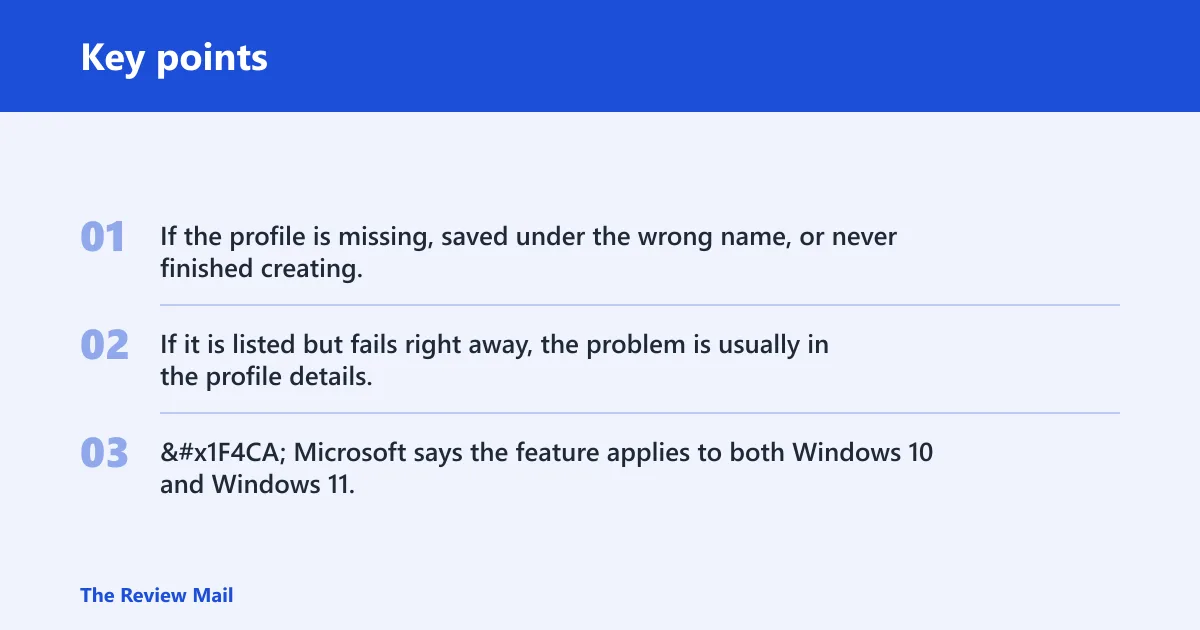
If the profile is missing, saved under the wrong name, or never finished creating, Windows cannot connect at all. If it is listed but fails right away, the problem is usually in the profile details, not the network itself.
📊 Microsoft says the feature applies to both Windows 10 and Windows 11. Source: Microsoft.
VPN setup matrix
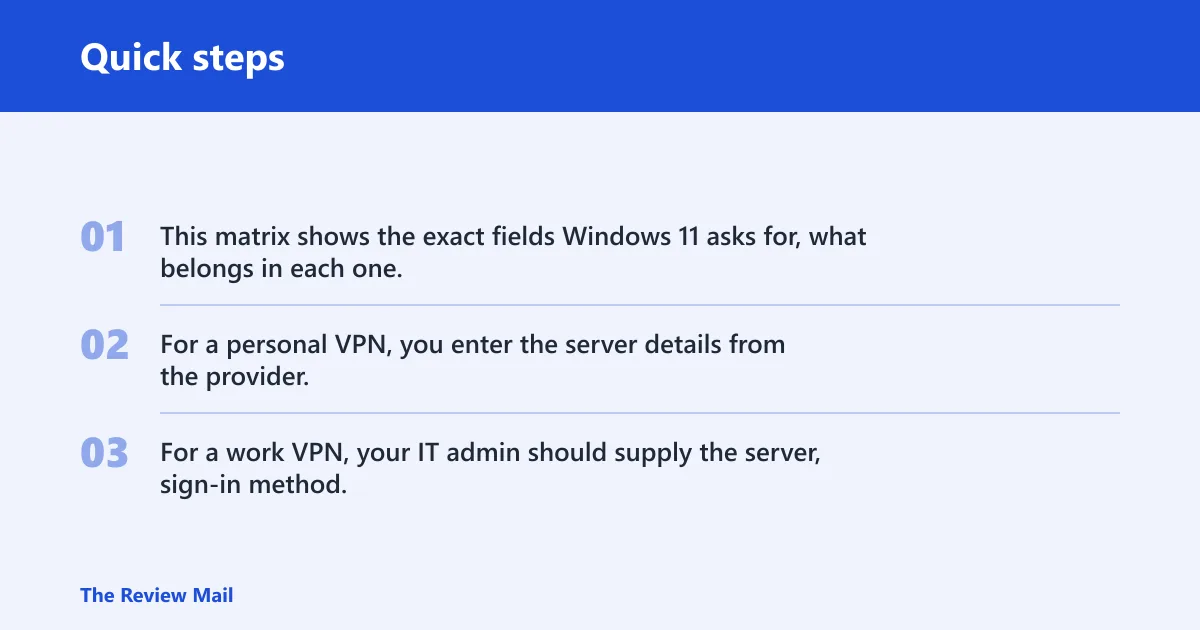
This matrix shows the exact fields Windows 11 asks for, what belongs in each one, and the symptom you usually get when the entry is wrong. For a personal VPN, you enter the server details from the provider. For a work VPN, your IT admin should supply the server, sign-in method, and any certificate or smart card requirements.
| Setup path | Exact field | Required input | Common mistake | Likely symptom |
|---|---|---|---|---|
| Personal VPN | Connection name | A clear label you can identify later, such as the provider name or location | Using the same name for two profiles | You edit or connect the wrong profile |
| Personal VPN | Server name or address | The server string from the provider | Typing a website address instead of the VPN server address | Connect fails or times out |
| Personal VPN | VPN type | IKEv2, PPTP, L2TP/IPsec, SSTP, or Automatic if the provider allows it | Leaving a type that does not match the server | The profile saves, but never connects |
| Personal VPN | Sign-in info | Username and password, one-time password, certificate, or smart card | Saving an old password or skipping a required certificate | Credential prompt repeats or connection is rejected |
| Work VPN | Server name or address | The exact value issued by IT | Guessing from memory or copying a similar server | Connection fails before authentication |
| Work VPN | VPN type | The protocol IT says to use | Choosing Automatic when the server needs a specific protocol | Profile saves, then stalls or errors on connect |
| Work VPN | Sign-in info | The issued method, plus any certificate or smart card | Entering a personal password where a certificate is required | Repeated sign-in failure |
| Multiple profiles | Taskbar quick settings | One profile toggle, or Manage VPN connections when several are listed | Toggling a profile that is not the one you want | The wrong VPN connects or nothing changes |
How do I connect a VPN on Windows 11?
Open Settings > Network & internet > VPN, then select the saved profile and choose Connect. Windows needs a completed VPN profile before it can connect, and Microsoft says you can also connect from the taskbar using the Network, Volume, or Battery icon.
- Open Settings > Network & internet > VPN.
- Select the profile that matches the server or account you want.
- Choose Connect.
- If prompted, enter the sign-in method issued by your provider or IT admin.
- Wait for Connected to appear in Settings, or for the blue shield to appear on the taskbar.
A common first-timer mistake is clicking the profile with the closest name. Suppose two profiles exist, one for work and one for a travel server; the wrong one may connect, then fail on access because the server and credentials do not match.
How do I create a VPN connection on Windows 11?
Windows 11 includes built-in tools for a manual VPN profile in Settings, and Microsoft’s built-in VPN provider is the one to choose for that workflow. You need the server details before you start; without them, there is nothing useful to save.
- Go to Settings > Network & internet > VPN.
- Select Add VPN.
- Set VPN provider to Windows (built-in).
- Enter the Connection name.
- Enter the Server name or address.
- Choose the VPN type your provider or IT admin supplied.
- Enter the Sign-in info and save the profile.
Windows supports manual profile creation for personal VPN services and work profiles alike. If your provider gives no server details, ask for them before you try to build the connection.
Did you edit the wrong VPN profile?
Yes, and that is one of the most common reasons a Windows 11 VPN connection keeps failing after “saving” a profile. Open the profile whose name matches the server and account, then use Edit on that exact entry; do not edit a similarly named profile.
- Open Settings > Network & internet > VPN.
- Select the profile that matches the server and account you intend to use.
- Choose Edit.
- Correct the Connection name, Server name or address, VPN type, and Sign-in info.
- Save the changes, return to the same VPN page, and connect again.
Return to Settings > Network & internet > VPN after saving and confirm you are connecting the edited profile. If the profile is for work, ask IT to confirm the server, certificate, and sign-in method before you keep retrying.
Is the server, VPN type, or sign-in method wrong?
When a profile saves but will not connect, the server address, protocol, or sign-in method usually needs a correction. Microsoft lists username and password, one-time password, certificate, and smart card as valid sign-in methods, so your profile has to match what the provider actually issued.
- Open Settings > Network & internet > VPN.
- Select the profile, then choose Edit.
- Check Server name or address against the provider or IT note.
- Set the correct VPN type: IKEv2, PPTP, L2TP/IPsec, SSTP, or Automatic if allowed.
- Re-enter the username, password, or one-time password if prompted.
- Save, then connect again from the same VPN page.
Say your profile is saved with IKEv2, but the service expects SSTP. The profile may still look valid, yet it will fail at connect time until the type matches the server.
Is the certificate or smart card missing?
If the provider or IT admin issued a certificate or smart card, you must install or insert it before you try again. A stale password cannot replace a required certificate, and a saved profile will still fail if the token is missing.
- Confirm which sign-in method the provider or IT admin issued.
- Install the certificate or insert the smart card.
- Open Settings > Network & internet > VPN.
- Select the profile, choose Edit, and verify the sign-in method.
- Save the profile and connect again.
Store the values in a secure note, especially when the profile uses a certificate or smart card. If the profile is for work, ask IT to confirm the certificate, server, and sign-in method rather than guessing.
Still not working?
If the profile still refuses to connect, disconnect it from the same VPN page, then try again without changing anything else. If one VPN is listed, use the toggle in quick settings; if several are listed, open Manage VPN connections from the Network, Volume, or Battery icon and pick the right profile.
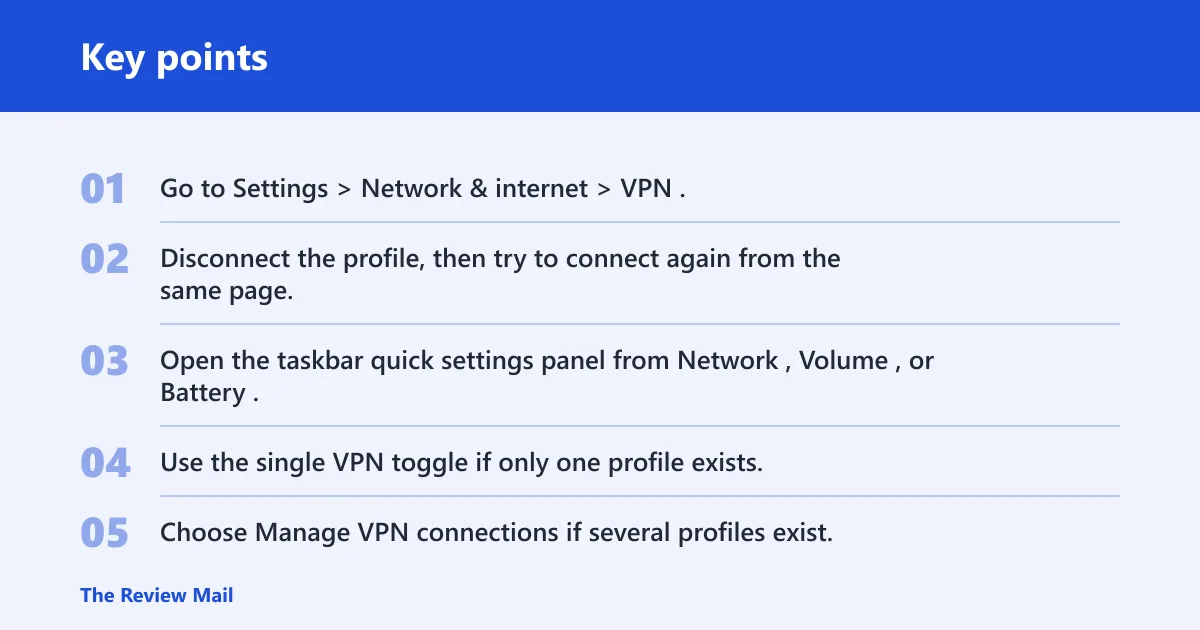
- Go to Settings > Network & internet > VPN.
- Disconnect the profile, then try to connect again from the same page.
- Open the taskbar quick settings panel from Network, Volume, or Battery.
- Use the single VPN toggle if only one profile exists.
- Choose Manage VPN connections if several profiles exist.
- If the profile still fails, remove it and recreate it with Add VPN.
You can also remove and rebuild a broken profile instead of editing the same bad data forever. For work VPNs, send IT the exact error text and the profile name so they can verify the server and authentication settings.
Settings > Network & internet > Advanced network settings > Network resetUse Network reset only if you need to rebuild network components; it can remove adapters, reset network settings, and usually requires a restart. That is a broader fix than a normal VPN profile edit, so save it for cases where profile changes do not help.
How do I remove a VPN connection from Windows 11?
Open the VPN list, choose the profile you no longer need, and remove it. Windows 11 can connect, disconnect, and delete VPN connections from Settings, so you do not need a separate app just to delete a manual profile.
- Open Settings > Network & internet > VPN.
- Select the profile you want to delete.
- Choose Remove.
- Confirm the deletion.
If the profile was only saved with bad credentials, removing it can be faster than repairing every field one by one. Recreate it through Add VPN after you get the correct server and sign-in details.
How do I share a VPN connection through a mobile hotspot on Windows 11?
Windows 11 lets you turn on a mobile hotspot, but that does not create a standard built-in “share this VPN to other devices” workflow for a manual VPN profile. If you need other devices to use the same protected tunnel, the practical options are a VPN-capable router, a device running a VPN client, or a managed network setup from your provider.
Do not assume the hotspot will tunnel through the VPN just because the PC is connected. Check your provider’s rules first; some services allow sharing, while others do not.
How do I back up or export VPN connections in Windows 11?
Windows 11’s built-in VPN profile tool does not appear to provide a simple export button for manual VPN profiles. The safest fallback is to record the profile details you would need to recreate it later: connection name, server name or address, VPN type, and sign-in method.
If you are rebuilding on a new device, create the profile again through Settings > Network & internet > VPN > Add VPN. For work profiles, IT should provide the exact server and authentication requirements again.
Frequently asked questions
Does Windows 11 have its own built-in VPN?
Windows 11 includes a built-in VPN provider for manual profile creation in Settings, rather than a consumer VPN service of its own. You still need server details from a provider or your IT admin, then you create the profile under Settings > Network & internet > VPN > Add VPN.
How do I verify that my VPN is connected in Windows 11?
Check Settings > Network & internet > VPN for Connected, then confirm the blue shield appears on the taskbar. Microsoft also says recognized VPN connections show a blue shield, and the taskbar quick settings area can show the active profile.
What should I do if my VPN won’t connect on Windows 11?
First, confirm you are opening the correct profile and that the server name, VPN type, and sign-in method match the provider or IT instructions. If the profile is broken, remove it and recreate it through Settings > Network & internet > VPN > Add VPN.