Windows 11 Running Slow Fix
For a Windows 11 running slow fix, match the symptom to the cause: startup slowdown points to startup apps, post-update lag points to driver or update issues, and constant disk thrash points to storage or paging. Guessing wrong wastes time and can leave the real bottleneck in place while the PC stays unresponsive. This guide maps the main slowdown patterns to the fastest checks and fixes, from Task Manager to storage and update repair.
Slowdown triage table
Use this first. It cuts through the guesswork.
| Slowdown pattern | Most likely cause | Next action | When to use DISM, SFC, or uninstall an update |
|---|---|---|---|
| Slow only at startup | Startup apps, update tasks, or login items loading at once | Open Task Manager with Ctrl + Shift + Esc, then check Startup apps and the Processes tab for items that may be slowing startup. | Use DISM or SFC only if the slowdown also stays after startup; uninstall the latest update if the boot slowdown began right after a specific KB |
| Slow after login but recovers later | Background indexing, Defender scans, or pending updates | Wait for background work to finish, then check Windows Update and Windows Security | Use update rollback if the timing matches a recent update and the lag repeats every sign-in; use DISM or SFC if the problem persists across reboots |
| Slow with high disk use | Low free space, drive optimization needs, or update corruption | Free space with Storage Sense, then review drive optimization and pending updates | Use DISM or SFC if Windows files seem damaged; uninstall the latest update if high disk use started right after it installed |
| Slow with no obvious resource spike | Driver conflict, power mode, malware, or system file damage | Check optional driver updates, run a Quick scan, and review power mode | Use DISM and SFC after the quick checks; uninstall the latest update if the slowdown began with a recent build or KB |
📊 Windows 11 and Windows 10 are both covered by the Microsoft performance guide. Source: Microsoft.
What should you check first when Windows 11 is very slow?
Restart first, then open Task Manager with Ctrl + Shift + Esc and look at the Processes tab. Sort by CPU, memory, or disk to see what is actually busy. If one app, updater, or security tool dominates usage, that is usually the fastest lead, not a random tweak. (Microsoft Support)
Check the right tabs in Task Manager
Task Manager is the quickest way to separate a system-wide slowdown from one noisy app. Use the Processes tab for live CPU, memory, and disk use, then open the Startup tab to see what launches with Windows. Microsoft also advises monitoring resource usage there, and a Microsoft Q&A answer says to sort by CPU or Disk.
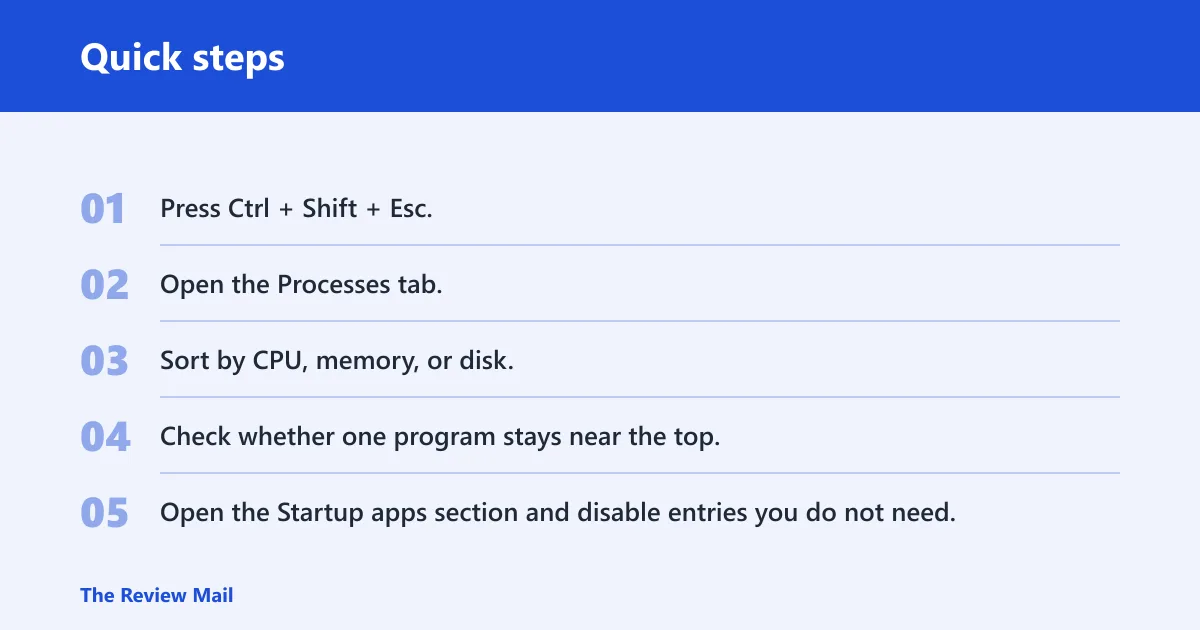
- Press Ctrl + Shift + Esc.
- Open the Processes tab.
- Sort by CPU, memory, or disk.
- Check whether one program stays near the top.
- Open the Startup apps section and disable entries you do not need.
Suppose a laptop takes two minutes to reach the desktop, then feels normal after five more minutes. That pattern often points to startup apps or background update work, not a permanent fault. If a game, browser, or file sync tool sits on top of the list every time, that app is the first suspect.
Use the slowdown pattern to narrow the cause
Slow only at boot usually means startup items. Slow after login but better later often means update tasks, indexing, or Defender activity. Slow only inside one app points to that app, its plug-ins, or a driver it depends on. Slow everywhere with no clear spike needs a wider check.
Is Windows Update causing the slowdown?
Windows Update is one of the first places to check after a new slowdown, because Microsoft recommends checking for updates first and notes that optional updates may include non-critical drivers. Recent updates can also bring fixes, so the goal is to separate a missing patch from a bad timing match with a specific KB or build.
Install pending updates first
Open Settings, select Windows Update, and install anything pending before chasing deeper repairs. Some slowdowns clear once a patch finishes, restarts, and background maintenance settles. Microsoft Q&A also identifies background maintenance as a specific post-update cause, which explains why a PC may feel sluggish for a while after sign-in.
Do not skip optional driver updates
Optional updates matter more than many guides suggest. They may include non-critical drivers for GPU, storage, or security components, and those can affect lag, stutter, or slow disk behavior. If the slowdown began after hardware behavior changed, check whether an optional driver update is available before moving to repair commands.
When to suspect the update itself
Check the KB or build number if the lag started soon after Patch Tuesday or another recent install. A recent update that lines up with the first day of the problem is a stronger clue than a vague “it got slow last week” memory. Microsoft Q&A suggests reinstalling an update in some cases, which also implies rollback is reasonable when the timing is exact.
A common first-timer mistake is to uninstall the newest update just because the PC feels slow. That is too broad. If the lag started three days later, or after a driver changed, the update may not be the cause at all.
Slow boot and login fixes
Startup delays usually come from too many apps loading at once, not from one dramatic failure. If the PC is slow only before or just after sign-in, focus on Startup apps, update tasks, and any service that keeps reopening in the background.
Disable unnecessary startup apps
Open Task Manager, go to the Startup tab, and turn off entries you do not need right away, especially chat tools, cloud sync clients, game launchers, and vendor utilities. Cutting startup load often shortens boot time and reduces background strain after login.
Wait for background work to finish
Right after an update, Windows may still be indexing files, checking Defender definitions, or finishing maintenance. That can make the desktop feel sticky even when nothing is broken. If the PC becomes normal after a few minutes, that points more to background work than to a lasting fault.
Check for apps that reopen after sign-in
Some apps restart themselves after login even if you close them before shutting down. If Task Manager shows the same program returning every boot, disable its startup entry first. If the slowdown stays after that change, move to Windows Update and security checks.
Slow apps or stutter inside Windows
When the desktop is usable but apps open slowly, frames stutter, or File Explorer hangs, look at disk pressure, malware checks, and storage health before repair commands. Low free space and background scans can make Windows 11 feel far slower than the hardware suggests.
Can low disk space make Windows 11 run slowly?
Yes. Low disk space can slow Windows 11 because the system has less room for temporary files, updates, paging, and cleanup tasks. If the drive is nearly full, use Storage Sense in Settings > System > Storage to clear temporary files and reclaim space quickly. Microsoft says Storage Sense can be run immediately from Settings.
Run a Quick scan in Windows security
Open Windows Security under Privacy & security, then choose Virus & threat protection and run a Quick scan. Microsoft’s guide uses that scan, and it is the right first pass when the PC is sluggish with no clear explanation. Malware can slow a system, but security software itself can also add background load while scanning.
Use drive optimization when appropriate
Open Defragment and Optimize Drives from Start search and run optimization if the system drive is an HDD or another drive type that benefits from maintenance. Microsoft includes optimizing drives in its performance guidance. This is less useful on some SSD setups, so treat it as a maintenance step, not a magic fix.
Say your desktop feels fine, but File Explorer takes several seconds to open folders and the disk light stays busy. That pattern often points to storage pressure, not graphics settings. Freeing space and checking drive optimization usually make more sense than changing visual effects first.
What Windows settings can I change to make Windows 11 faster?
Two settings help when the PC is under strain: power mode and visual effects. They do not fix every slowdown, but they can reduce overhead on older hardware or systems already struggling with heat, battery limits, or busy background tasks.
Set power mode to Best performance
Power mode can be set to Best performance in Windows 11. That setting favors responsiveness over battery life and can help a laptop stay snappier under load. The trade-off is higher power use, more heat, and faster battery drain, so it is a better fit for plugged-in use or older hardware that needs every bit of responsiveness.
Reduce visual effects
Open the appearance and performance settings and choose Adjust for best performance if the desktop feels laggy when moving windows or opening menus. Microsoft notes that visual effects can be reduced this way. The trade-off is less visual polish, but the UI overhead drops.
Close background apps that keep waking up
Background apps can keep using CPU, memory, or disk even when you are not actively opening them. Check Task Manager for anything that wakes up repeatedly, then close or disable what you do not need. That matters more on older PCs, where Microsoft warns performance gains may be limited.
Should I run DISM or SFC if Windows 11 is sluggish?
Run DISM and SFC after the faster checks, not before them. These tools are for cases where Windows files or the system image may be damaged, or when the slowdown has no clear cause after update, storage, malware, and startup checks. They are repair steps, not the first stop.
Run DISM first
Open an admin Command Prompt and run DISM /Restorehealth. DISM repairs the Windows image, which can help when system components are damaged or update-related files did not finish cleanly. If it completes without errors, move on to SFC next.
Run sfc /scannow after DISM
After DISM, run sfc /scannow. System File Checker looks for corrupted Windows files and replaces what it can. When SFC finishes, restart the PC so the repairs can take effect. If the slowdown remains and the timing matches a recent update, return to the update section and consider rollback.
When to stop and roll back an update
If the slowdown began right after one KB or build and the problem repeats after restarts, stop chasing generic fixes. Check the update history, compare the date with the symptom, and consider uninstalling the latest update if the match is tight. That is especially relevant when the PC was fine before the install and only regressed afterward.
How do you tell whether the slowdown is from updates or drivers?
Use timing and behavior. If the slowdown started after a Windows update and improves later, background maintenance is more likely. If the slowdown appears after a device change, a new GPU issue, broken storage behavior, or odd stutter in specific apps, a driver is more likely. Optional driver updates are worth checking before more invasive repair.
Use the symptom pattern as the clue
A driver issue often shows up as app stutter, display lag, audio oddities, or disk behavior that does not make sense from the visible workload. An update problem more often lines up with a reboot, a build change, or a KB installed right before the slowdown. Check Windows Update history and Task Manager together, not in isolation.
Keep the hardware in mind
Older PCs may not improve much, even after cleanup and tuning. That does not mean the steps failed; it means the machine may already be close to its limit. On modern hardware, the same fix can be more noticeable because there is more headroom.
Frequently asked questions
Why is my Windows 11 running slow after an update?
A recent update can trigger background maintenance, driver changes, or a temporary regression. Check Windows Update first, including optional driver updates, and compare the slowdown with the KB or build number. If the timing matches exactly and the problem repeats after restarts, uninstalling the latest update is worth considering.
How do I fix Windows 11 running slow?
Restart first, then use Task Manager to find whether CPU, memory, disk, or one app is busy. After that, check Windows Update, run a Quick scan in Windows Security, clear space with Storage Sense, and disable unnecessary startup apps. Use DISM and SFC only if the basic checks do not explain it.
How do I know if startup apps are slowing down my PC?
If the PC is slow only during boot or right after login, Startup apps are a likely cause. Open Task Manager and review the Startup tab for entries you do not need immediately. If disabling a few items shortens boot time and reduces post-login lag, startup load was part of the problem.