Cannot Connect to WiFi Windows 10: Fixes That Work
If Windows 10 cannot connect to Wi‑Fi, use a 4-point split: confirm the password, test another device, power-cycle the router, and check for an ISP outage before changing Windows settings. A bad fix wastes time, and it can hide a modem, router, or account problem. This guide helps you identify whether Windows 10, the router, the password, or the ISP is the real blocker.
Wi‑Fi diagnosis matrix
Start with the symptom, not the fix. That keeps you from reinstalling drivers when the real problem is a bad password, a hidden SSID, or a router that only fails on one band.
| Exact symptom | Likely cause | Fastest test | Recommended fix |
|---|---|---|---|
| No Wi‑Fi network list appears | Airplane mode on, Wi‑Fi off, disabled adapter, or driver issue | Check the quick toggle and Device Manager | Turn off Airplane mode, enable Wi‑Fi, then run the Network troubleshooter or update the adapter driver |
| Password prompt returns after entry | Saved profile mismatch, wrong password, or router security change | Forget the known network and reconnect | Re-enter the password carefully and check the router security settings |
| Connected, but no internet | Router, modem, ISP, or captive portal issue | Open a browser and test another device | Sign in to the portal, then restart modem and router in order; if other devices also fail, contact the ISP |
| Network appears after reset, then disappears again | Driver problem, band mismatch, or a router compatibility change | Check another SSID or the 2.4 GHz band | Update the Wi‑Fi driver, test the other band, and review router settings |
📊 Microsoft’s guide applies to both Windows 10 and Windows 11. Source: Microsoft.
Is Wi‑Fi turned off in Windows 10?
If the network list is empty, begin with the simplest blocker: Wi‑Fi or Airplane mode may be off. Microsoft says to turn Airplane mode off when diagnosing Wi‑Fi problems, and Windows has a quick toggle that can shut off wireless radios in one step. That takes seconds to check.
Check Airplane mode first
- Open the Action Center or Quick Settings panel.
- Confirm Airplane mode is off.
- Confirm the Wi‑Fi toggle is on.
- If the switch is already on, turn it off and back on once.
If Airplane mode was on, the fix is immediate. If it was already off, move to the adapter itself.
Confirm the adapter is enabled
Open Settings, then go to Network & Internet. If Wi‑Fi is missing from the left side or the adapter seems absent, check Device Manager for the wireless card. A disabled adapter can look like a deeper Windows fault when it is only turned off.
Say your laptop shows no wireless networks after a sleep cycle, but the same router appears on a phone in the next room. That points first to the laptop’s radio state, not the router or the ISP.
Can Windows 10 see any networks?
If Windows can see networks but will not join any of them, the problem may be the adapter, its driver, or Windows networking settings. Microsoft recommends the Network troubleshooter from Settings > Network and Internet > Status. Pureinfotech uses the same path for Windows 10 and also points to the Network Adapter troubleshooter under Additional troubleshooters.
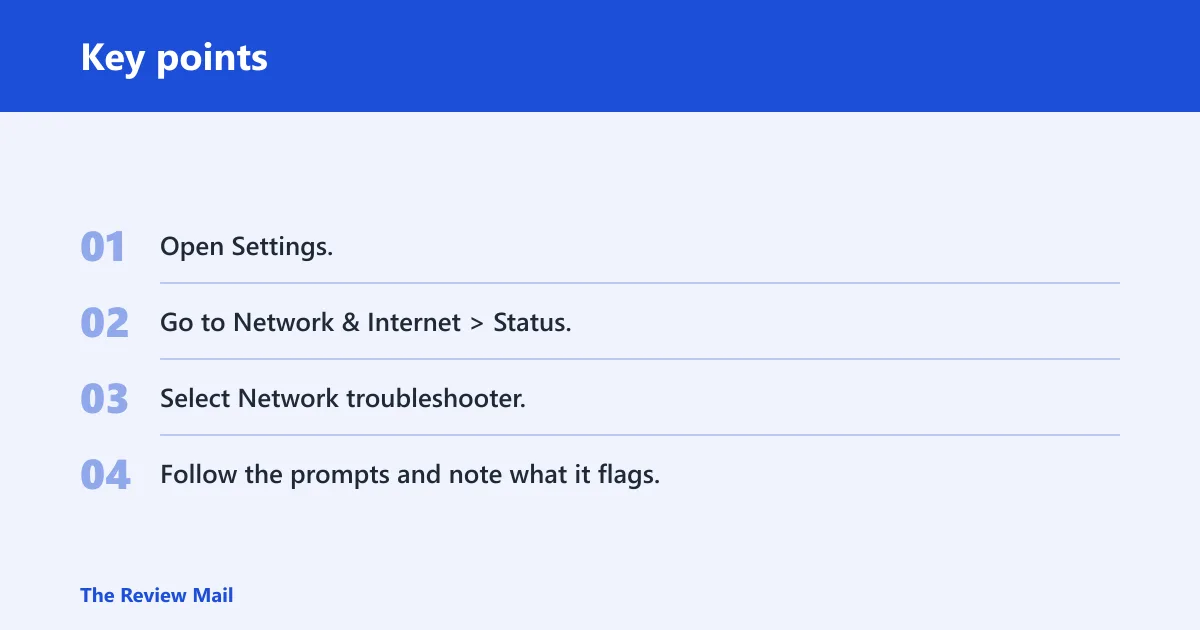
Run the built-in Network troubleshooter
The Network troubleshooter may catch wireless adapter and connectivity issues. It can also point you toward obvious service problems, but it will not fix a bad router setting or a captive portal that still needs browser sign-in.
- Open Settings.
- Go to Network & Internet > Status.
- Select Network troubleshooter.
- Follow the prompts and note what it flags.
Check device Manager for the wi‑Fi adapter
Open Device Manager and expand Network adapters. If the wireless adapter has a warning icon, missing entry, or disabled state, Windows may not be loading it correctly. That is a stronger sign of a device or driver problem than a router issue.
Update the wireless driver from the manufacturer
Pureinfotech recommends getting driver updates from the manufacturer’s support website. That matters because Wi‑Fi drivers can be outdated or buggy after a Windows update, and the device maker often posts the version that fits the hardware best.
Use the exact adapter model from Device Manager, then compare the manufacturer’s download notes with the installed version. If the problem started after patching, the driver is worth checking before you replace hardware.
Why does Windows reject the password?
If Windows asks for the password again and again, the saved profile may not match the router anymore. Microsoft advises forgetting the Wi‑Fi network and reconnecting, which makes Windows build a fresh profile. That helps after router security changes, password changes, or profile corruption.
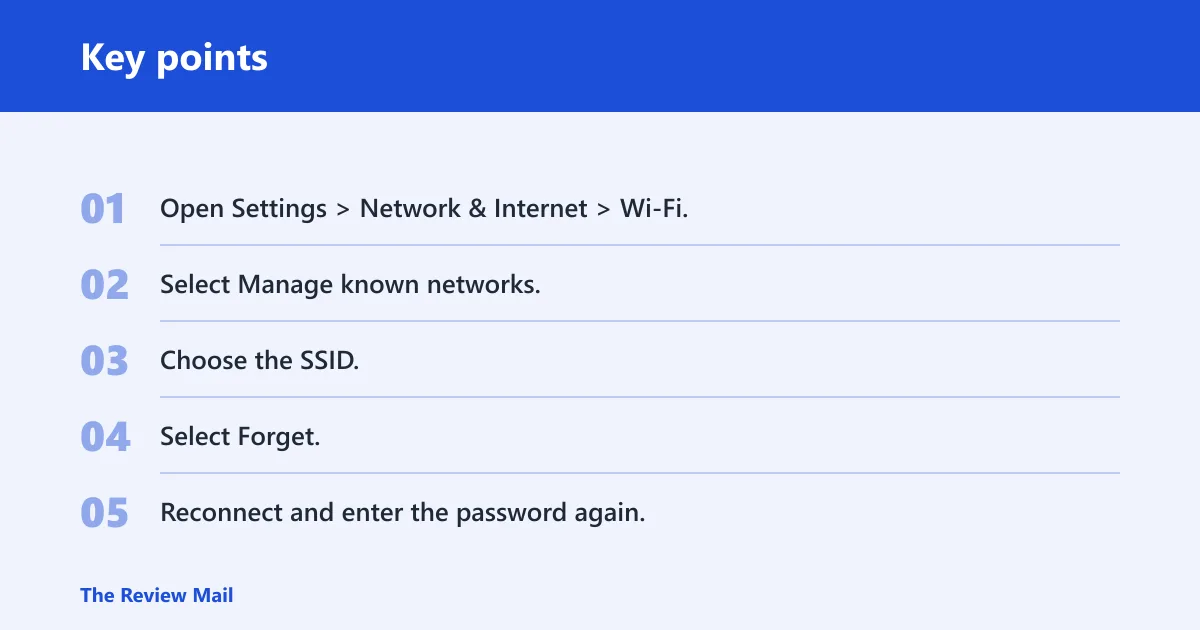
Use Forgot known networks
- Open Settings > Network & Internet > Wi‑Fi.
- Select Manage known networks.
- Choose the SSID.
- Select Forget.
- Reconnect and enter the password again.
After a router change, the saved network name can stay the same while the security settings change underneath it. Windows then keeps rejecting a password that was once valid.
Re-enter the password carefully
Check for caps lock, a swapped character, or a copied password with a trailing space. On public or shared networks, the password may also have changed without notice. If one device joins and another does not, the saved profile on the failing device is the better suspect.
Check router security settings after changes
Some older adapters struggle with newer router settings, especially if the router was switched to a stricter security mode. If the password is correct and the device still loops back to the prompt, try the router’s other band or review the router’s Wi‑Fi security mode.
Suppose a desktop can join a 2.4 GHz guest network but not the main Wi‑Fi after a router replacement. That points to a compatibility or profile issue, not a broken internet account.
Router, modem, or ISP problem?
If another device also cannot get online, stop blaming Windows for a moment. The fastest way to separate a local problem from an ISP problem is to restart the modem and router in the right order, wait at least 30 seconds, and then test another device. Microsoft advises the 30-second wait.
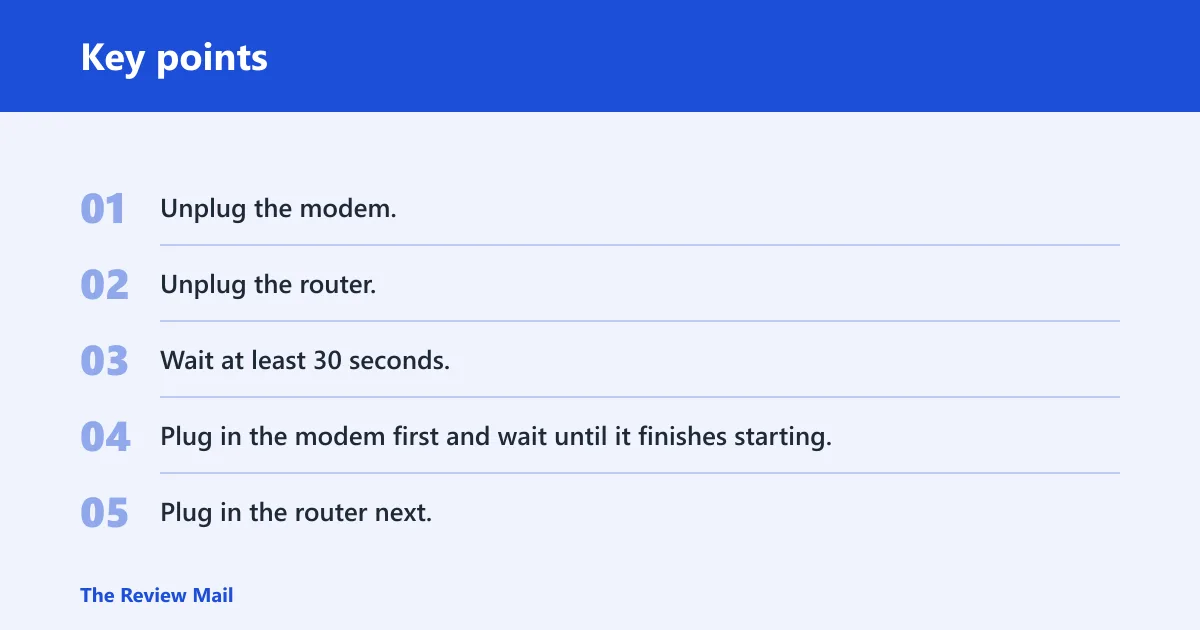
Restart modem and router in the right order
- Unplug the modem.
- Unplug the router.
- Wait at least 30 seconds.
- Plug in the modem first and wait until it finishes starting.
- Plug in the router next.
- Reconnect the PC and test again.
This order matters because the router should receive a clean upstream session from the modem rather than inherit a stale one. If the internet returns after the restart, the fault was likely local or session-related. (Microsoft Support)
Test another device and another SSID
Try a phone or another laptop on the same network. Then try a different SSID if one is available, such as a guest network or a hotspot. If one SSID works and another does not, the issue is likely router-side compatibility, not the PC.
Know when to stop troubleshooting Windows
If no device can connect, or if the router loses internet on every device after a clean restart, move away from Windows fixes and check the modem, router, or ISP account status. If only one Windows 10 PC fails while other devices work, return to the adapter, driver, or saved profile.
Public Wi‑Fi login page problems
Public Wi‑Fi can look connected while still blocking internet access until you sign in through a browser. That is likely a captive portal, which is commonly reported in places like hotels, restaurants, airports, and airlines. A browser login page issue is different from a true wireless failure.
Spot a captive portal
If the network shows connected, but no pages open, try a browser first. The login page may appear only after you open a site. If it does, complete the sign-in. If it does not, the network may be blocking portal access or the link may be weak.
Separate portal blocking from true Wi‑Fi failure
A browser that never loads the sign-in page does not automatically mean the adapter is broken. Public Wi‑Fi often blocks normal browsing until the portal opens. If another phone on the same network gets the login screen while the PC does not, the browser or DNS path on the PC is the more likely issue.
Picture a hotel Wi‑Fi network that says “connected” on Windows 10, but every browser page redirects nowhere. That usually calls for a portal check first, not a network reset.
Should you try another band?
Yes, if the router offers both 2.4 GHz and 5 GHz bands. Band compatibility matters because some adapters connect more reliably on one band than the other. A band mismatch can look like a password failure or a random connect-disconnect loop.
Try 2.4 GHz and 5 GHz separately
If the router broadcasts both bands under different SSIDs, test each one. If the router uses one shared name, separate the bands temporarily if the router settings allow it. A device that joins 2.4 GHz but not 5 GHz is pointing to compatibility, range, or interference.
A common mistake is to keep clicking the same Wi‑Fi network in Windows 10 even after it repeatedly says it cannot connect. Switching bands gives you a cleaner answer in one step.
What if the problem started after a Windows 10 update?
If the issue began right after a patch, start with the adapter driver and the Network troubleshooter before making bigger changes. Some updates alter networking behavior or expose an old driver flaw. If the network vanished after a reset and returns only briefly, the adapter or router settings deserve more attention than the update itself.
Use Network reset with care
Network reset can remove and reinstall network adapters, requires a restart, and may clear saved wireless credentials. The same source says to open Settings > Network & Internet > Status, click Network reset, then Reset now, and restart.
That can fix stubborn adapter corruption. It also means you may need to reconnect VPNs, re-create virtual switches, and re-enter enterprise Wi‑Fi details after the restart.
Check for side effects after reset
After a reset, saved SSIDs disappear, and some work or school network settings may need to be rebuilt. If you rely on a VPN client or virtual machine network switch, plan for extra setup time before you use Network reset.
Frequently asked questions
Can’t connect to wifi windows 10
Start with the failure stage: no networks, password loop, connected but no internet, or a network that vanishes after reset. Then check Airplane mode, run the Network troubleshooter from Settings > Network and Internet > Status, and test another device before changing drivers or resetting network settings.
Can’t connect to public wifi windows 10
Public Wi‑Fi often needs a captive portal sign-in page. Open a browser after connecting and wait for the login screen. If another device sees the portal and your PC does not, the issue is likely the browser path or a local Windows network setting, not the hotspot itself.
Can’t connect to wifi after windows 10 update
If the problem began after an update, check the Wi‑Fi adapter driver in Device Manager and use the manufacturer’s support site for the latest version. Then run the Network troubleshooter. If the network still fails only on one PC, a driver or saved profile issue is more likely than an ISP outage.
Why cannot connect to internet windows 10
“Connected, but no internet” usually points to the router, modem, ISP, or a captive portal. Restart modem and router in the correct order, waiting at least 30 seconds before powering back on. If other devices fail too, the problem is outside Windows.
Can t login to windows 10 without internet?
Most local Windows sign-ins do not need an active internet connection. If you mean a work, school, or Microsoft account prompt, the answer depends on the account type and whether the device has cached credentials. Wi‑Fi repair is still the right first step if network access is blocking sign-in.