Fix MBR Command Windows 11: Step-by-Step
Use bootrec /fixmbr only after you confirm the PC boots in Legacy BIOS/MBR mode, not UEFI/GPT; if the disk is GPT, this command is the wrong fix. Microsoft’s recovery documentation ties bootrec to Windows Recovery Environment (WinRE), while its bootsect guidance is for legacy boot code repair on the correct system volume. If you are on GPT/UEFI, use the EFI boot path instead. Microsoft docs: bootrec, bootsect, Recovery options in Windows (WinRE), and diskpart/list disk. This guide shows how to verify the boot mode, then choose the safest command path for true MBR damage.
Editorial note: The recovery paths below reflect Windows 11 WinRE behavior commonly seen on 22H2/23H2 systems: bootrec runs from WinRE, diskpart can confirm GPT with the asterisk in list disk, Startup Repair is the safest first pass, and bootrec /fixboot may return Access is denied when the system is not in the expected legacy boot path. For GPT/UEFI systems, this article points to EFI repair instead of leaving you at a dead end.
Is this really an MBR problem?
The safest first move is Startup Repair. If that fails, verify that the machine uses Legacy BIOS/MBR booting before you run a manual command. MBR sits in the first sector of the disk, also called Sector 0, and it stores boot code plus partition table information; that fix only applies to MBR-based systems, not GPT/UEFI ones. Microsoft’s Startup Repair and recovery guidance recommends trying automatic repair before command-line boot repairs.
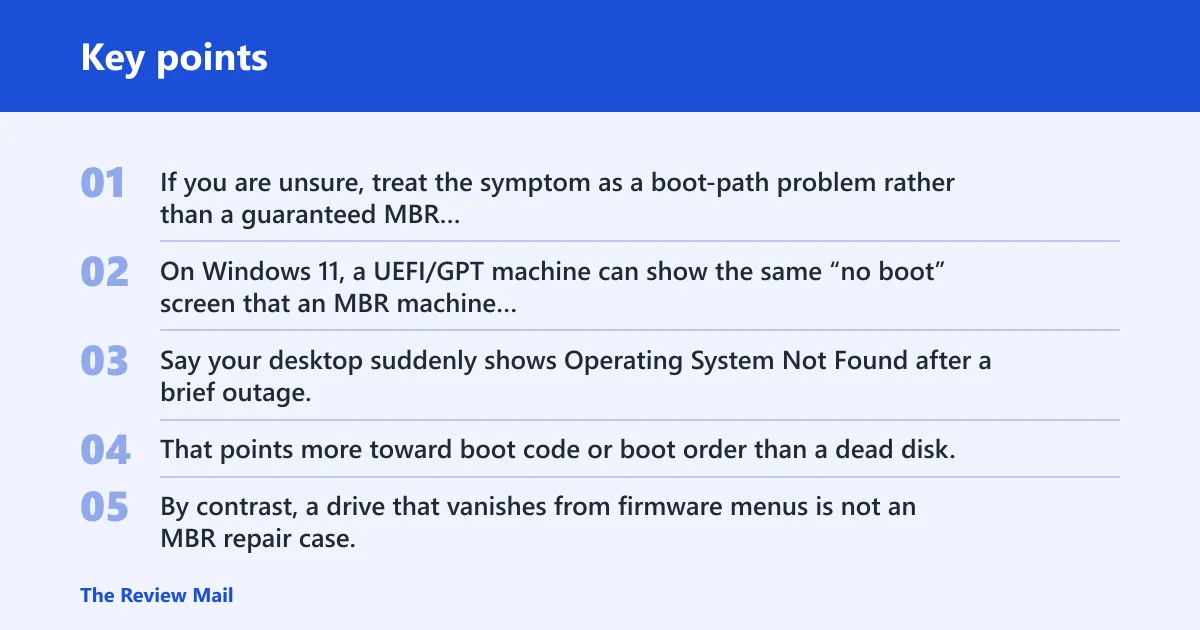
If you are unsure, treat the symptom as a boot-path problem rather than a guaranteed MBR failure. On Windows 11, a UEFI/GPT machine can show the same “no boot” screen that an MBR machine shows, but the fix path is different.
| Symptom | Likely boot layer | Safest next step | When to stop and image the drive first |
|---|---|---|---|
| Operating System Not Found | MBR, boot sector, or firmware order | Check firmware boot order, then run Startup Repair | If the message appears after a power loss and the disk is clicking or dropping out |
| Invalid Partition Table | MBR, partition table, or disk layout error | Confirm MBR versus GPT before using Command Prompt | If partition entries look unstable or the disk was recently cloned |
| Windows boots to automatic repair, then loops | BCD, EFI, or firmware | Inspect boot mode and EFI settings first | If the repair loop repeats after a failed disk scan |
| No Windows installation is found by repair commands | BCD, disk failure, or GPT/EFI mismatch | Run bootrec /scanos only after confirming the boot model | If the drive is missing from firmware or intermittently unreadable |
Say your desktop suddenly shows Operating System Not Found after a brief outage, but firmware still lists the SATA drive normally. That points more toward boot code or boot order than a dead disk. By contrast, a drive that vanishes from firmware menus is not an MBR repair case. Microsoft’s WinRE and disk utilities are designed for exactly this sort of triage: confirm the boot environment first, then repair the boot layer that actually matches it.
Common causes, ranked
Most often, the problem is not the MBR itself. Wrong boot mode, a damaged BCD store, or a UEFI setup on a GPT disk can produce the same failure screen, so treat this as a decision tree rather than a single command fix. Microsoft documents bootrec for boot-record troubleshooting in WinRE, but it is not a universal fix for all no-boot cases.
Corrupt boot code or partition
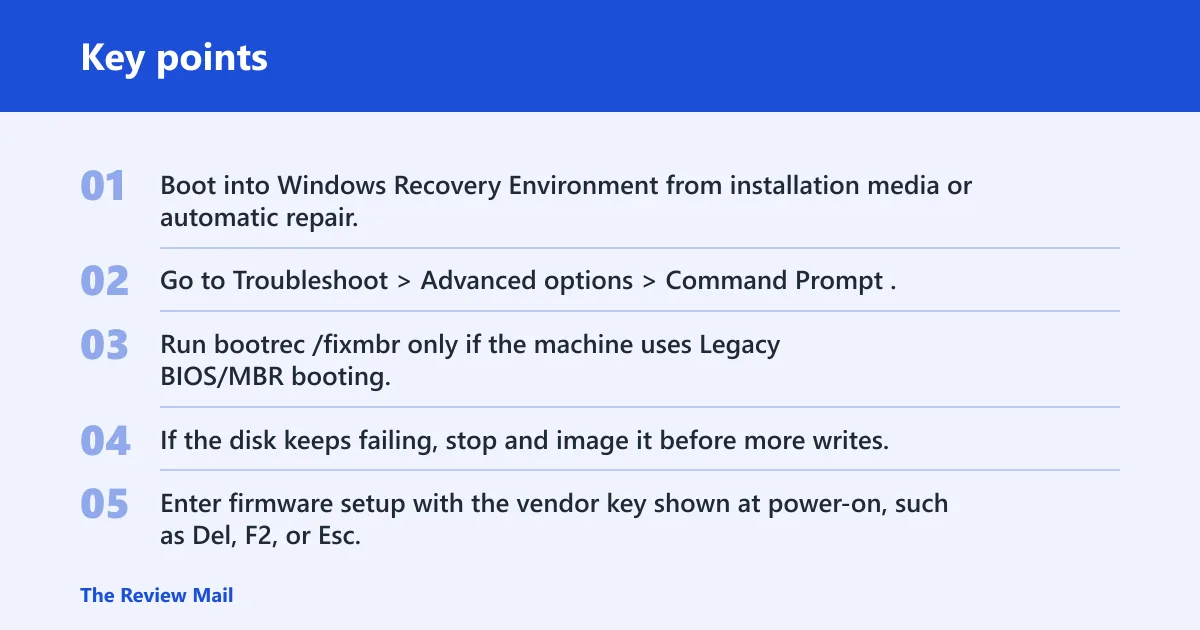
- Boot into Windows Recovery Environment from installation media or automatic repair.
- Go to Troubleshoot > Advanced options > Command Prompt.
- Run
bootrec /fixmbronly if the machine uses Legacy BIOS/MBR booting. - If the disk keeps failing, stop and image it before more writes.
Wrong boot mode or boot order
- Enter firmware setup with the vendor key shown at power-on, such as Del, F2, or Esc.
- Check the boot mode label, Legacy, UEFI, or mixed mode.
- Move the internal system drive above USB devices in the boot order.
- Save changes and retest before touching the disk from Command Prompt.
BCD damage
- Open WinRE and launch Command Prompt.
- Run
bootrec /scanosto look for Windows installations. - Run
bootrec /rebuildbcdif the installation is found. - If the boot list still fails, continue only after confirming MBR versus GPT.
Disk errors or failed cloning
- Disconnect external USB drives so the firmware sees one boot target.
- Check whether the disk was cloned from a different partition style.
- If the partition table looks unstable, stop repairs and image the disk first.
- Only after that, move to file recovery or vendor disk tools.
How do you check MBR vs GPT?
Check this before any repair command. Windows 11 PCs may use GPT with UEFI instead of MBR, and MBR repair methods are intended for systems that use MBR. If the disk is GPT, repair the EFI bootloader path rather than the MBR. Microsoft’s diskpart and list disk commands are the standard way to verify GPT in WinRE.
- Open firmware setup and look for a boot mode label: Legacy BIOS, UEFI, or both.
- If you can reach WinRE, open Troubleshoot > Advanced options > Command Prompt.
- Run
diskpart, thenlist disk. - Look for a star under the GPT column. A star means GPT, not MBR.
- If the disk is GPT, look for the EFI partition instead of using
bootrec /fixmbr.
Picture a laptop set to UEFI boot, with a 100 MB EFI partition and a GPT disk. In that setup, MBR repair is the wrong branch. The fix belongs in the EFI boot files, and the EFI partition may need a drive letter before those files can be repaired. For a deeper walkthrough, see the companion guide how to rebuild the EFI bootloader in Windows 11.
Can Startup Repair fix a damaged MBR?
Sometimes, yes. Startup Repair is the first repair to try, and it can fix boot files, boot order problems, and some boot sector issues without you typing commands. Microsoft positions it as an automatic recovery option in WinRE, so it is the safest first pass before you touch the boot record by hand. It is still a first attempt, not a guarantee, so do not assume the problem is solved just because the tool runs.
- Boot from Windows installation media or a recovery drive.
- Select Repair your computer.
- Go to Troubleshoot > Advanced options > Startup Repair.
- Let the process finish, then restart once.
- If the same error returns, continue to Command Prompt only after the MBR/GPT check.
On Windows 11, Startup Repair often succeeds when the issue is simply a bad boot path or a minor BCD problem. It often fails when the disk is misidentified as legacy on a GPT system, or when the drive itself is unstable. If startup recovery keeps looping, check disk health before repeating boot repairs: how to check disk health and SMART in Windows.
How do you repair MBR with bootrec?
Use bootrec from Windows Recovery Environment, not from inside normal Windows. Microsoft documents bootrec as a WinRE command for boot-record troubleshooting, and the usual path is bootrec /fixmbr first, then the next commands only if the symptom still points to boot-layer damage. /fixmbr writes a fresh Master Boot Record without modifying partitions.
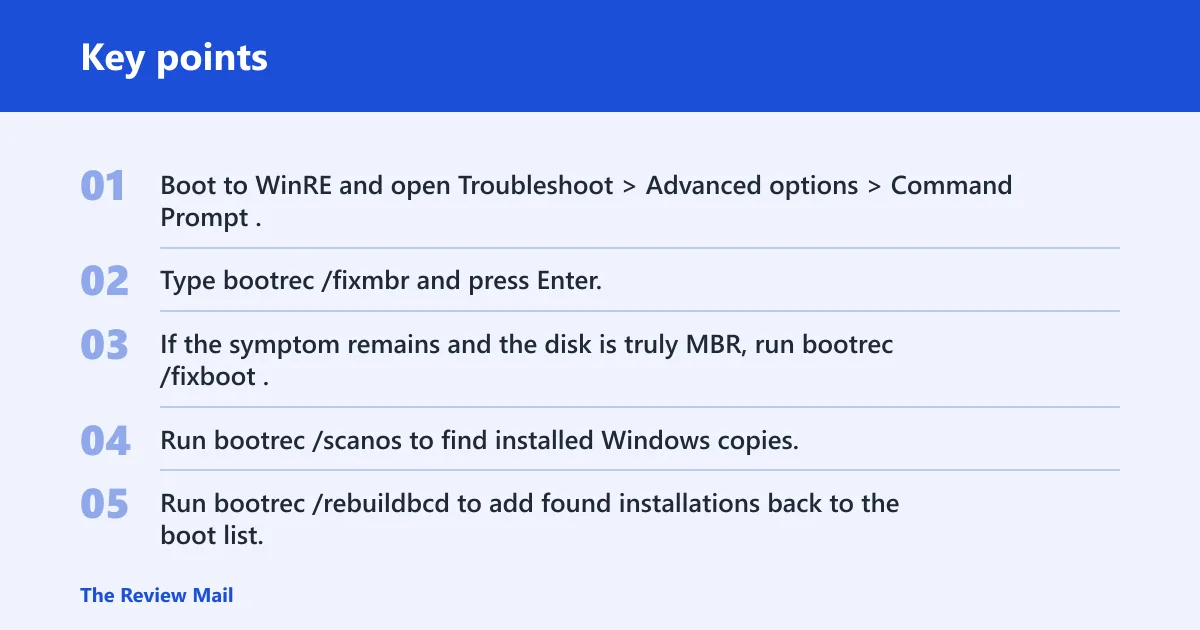
- Boot to WinRE and open Troubleshoot > Advanced options > Command Prompt.
- Type
bootrec /fixmbrand press Enter. - If the symptom remains and the disk is truly MBR, run
bootrec /fixboot. - Run
bootrec /scanosto find installed Windows copies. - Run
bootrec /rebuildbcdto add found installations back to the boot list. - Restart and test once before repeating anything.
| Command outcome | What it usually means | Next step | Stop and image first when |
|---|---|---|---|
bootrec /fixmbr success | The MBR code was rewritten | Restart and test boot | The disk still drops out or the error changes to a partition-table message |
/fixboot Access is denied | Boot sector or EFI access issue | Try bootsect if the system is Legacy BIOS/MBR | The disk appears unstable or you are unsure whether it is GPT |
/rebuildbcd finds no installations | Windows is not being detected | Check the boot mode and EFI partition before retrying | The drive may be failing or the partition table looks altered |
bootsect fallback | Boot sector code needs rewriting | Use it only on the correct active system volume | You cannot identify the system partition with confidence |
Sample output you may see in WinRE is straightforward: The operation completed successfully. That result means the command wrote the targeted boot code, but it does not guarantee the machine will boot if the firmware, disk, or boot mode is still wrong. On Windows 11, a successful bootrec run can still be followed by the same no-boot screen if the underlying path is GPT/UEFI and you repaired the MBR instead.
What if bootrec /fixboot says Access is denied?
That message usually means the boot sector path needs different handling, or the machine is not in the boot mode you think it is. On Legacy BIOS/MBR systems, bootsect is the common fallback. On GPT/UEFI systems, the right fix is usually in the EFI partition, not the MBR. Microsoft’s bootsect documentation specifically targets legacy boot code updates, while WinRE and disk-partition guidance help you identify the correct path first.
- Confirm the disk is MBR, not GPT.
- In WinRE Command Prompt, identify the system volume with
diskpartandlist volume. - If the machine is Legacy BIOS/MBR, run
bootsect /nt60 sys. - Restart and check whether the error changes.
- If the disk is GPT, stop using MBR commands and work on the EFI boot path instead.
A common first-timer mistake is to rerun /fixboot over and over after an access error. That can waste time and, on the wrong disk type, push you farther from the real fault. If you already know the machine is GPT/UEFI, jump to the EFI repair companion guide instead of forcing an MBR workflow.
What if repair still fails?
If the same failure returns after Startup Repair, /fixmbr, and a boot-mode check, stop before more writes. At that point, the issue is often EFI, firmware, or a failing disk rather than the MBR alone. If the drive may be failing, image or back it up before any deeper repair. Microsoft’s recovery flow favors escalation from Startup Repair to WinRE commands, then to disk or firmware checks when the boot path is still unresolved.
- Recheck firmware boot mode and boot order.
- On GPT systems, inspect the EFI partition and its boot files.
- If the partition table seems unstable, stop and image the drive first.
- Use file recovery or vendor diagnostics next, not another blind bootrec pass.
- If the PC still will not boot, seek vendor or professional support.
Safe GPT/UEFI branch: if diskpart shows a GPT star or firmware is set to UEFI, follow the EFI repair path rather than MBR repair. That usually means assigning a drive letter to the EFI System Partition, then rebuilding the boot files for the installed Windows copy. See how to rebuild the EFI bootloader in Windows 11 for the UEFI-safe workflow.
Prevention: keep firmware boot order limited to the internal system drive and remove stray USB devices before starting the PC. If you are planning a disk migration, review MBR vs GPT conversion guidance for Windows 11 before you clone or repartition.
Frequently asked questions
How do I fix MBR in CMD on Windows 11?
Boot into WinRE, open Troubleshoot > Advanced options > Command Prompt, then run bootrec /fixmbr if the disk is Legacy BIOS/MBR. After that, use bootrec /fixboot only if the boot sector still needs repair. Microsoft’s WinRE and bootrec documentation places these commands in recovery mode, not regular Windows. If the disk is GPT, this path is not the right one.
What commands repair MBR in Windows 11?
The standard sequence is bootrec /fixmbr, bootrec /fixboot, bootrec /scanos, and bootrec /rebuildbcd, all from WinRE Command Prompt. Use that order only when the machine is actually booting in Legacy BIOS/MBR mode. Microsoft’s documentation for bootrec and WinRE supports that recovery flow. On GPT/UEFI systems, focus on the EFI boot files instead.
How do I repair an MBR corrupted error without losing data?
Start with Startup Repair, then verify whether the disk is MBR before entering Command Prompt. bootrec /fixmbr does not change partitions, but it still writes to the boot sector area. If the disk is unstable, image or back it up first, then continue. For disk-health triage, it helps to check SMART before more writes: how to check disk health and SMART in Windows.
How do I know if my PC has MBR or GPT?
Open WinRE Command Prompt and run diskpart, then list disk. A star in the GPT column means GPT. You can also check firmware setup for UEFI mode. Microsoft’s disk-partition guidance uses this exact check. If either check points to GPT/UEFI, do not use MBR repair commands.
Sources
- Microsoft Support: Recovery options in Windows / Windows Recovery Environment (WinRE)
- Microsoft Support: bootrec command reference
- Microsoft Support: bootsect command reference
- Microsoft Support: DiskPart command-line options and list disk / GPT column
- Microsoft Support: Startup Repair in Windows recovery