Windows 11 Stuck on Startup Screen
If Windows 11 is stuck on the startup screen, power it off once, disconnect external devices, and start Automatic Repair; if it still freezes before the spinning dots after a few tries, hardware may be involved. Waiting can waste time, and repeated forced shutdowns can increase file damage or stress a failing drive. This guide shows what to try at each boot stage and when to stop and check RAM, storage, or power.
Windows 11 stuck decision table
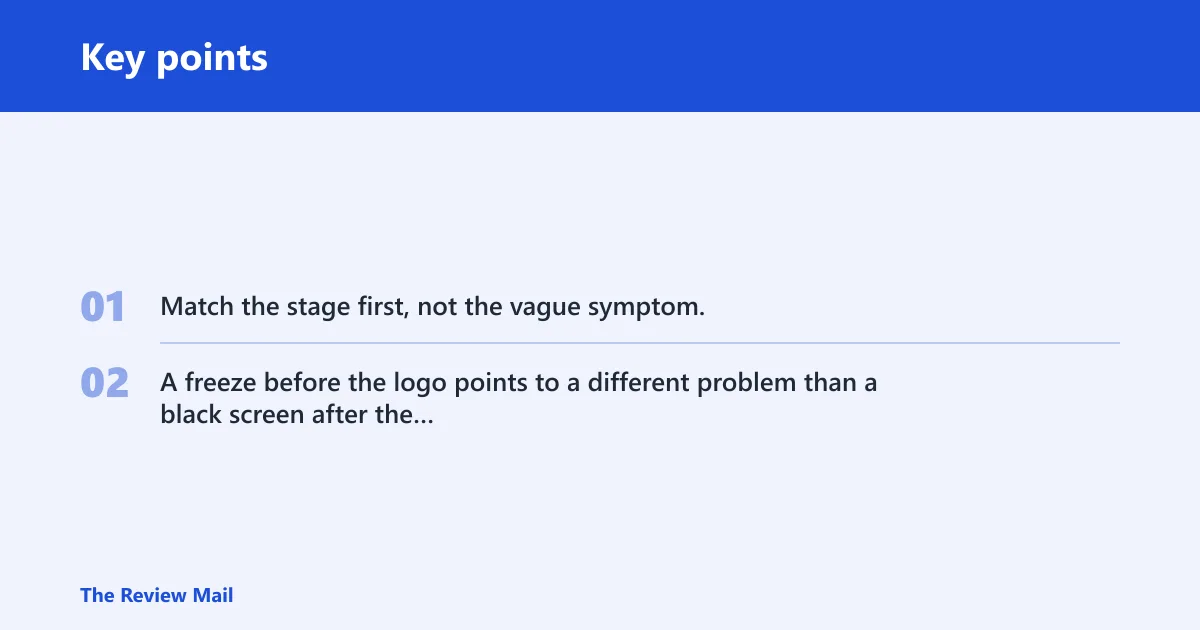
Match the stage first, not the vague symptom. A freeze before the logo points to a different problem than a black screen after the logo, and a machine that reaches WinRE but not Safe Mode needs a different response than one that loops on the logo.
| What you see | Most likely cause | First fix to try | Back up files first? | Stop and escalate when |
|---|---|---|---|---|
| Before the logo | BIOS/UEFI boot order, USB interference, or very early hardware trouble | Unplug USB devices and confirm the system drive is first in BIOS/UEFI | Yes, if you can reach recovery or Safe Mode later | It still freezes with all externals removed |
| Logo or spinning dots | Failed update, corrupted boot files, or startup component damage | WinRE > Troubleshoot > Advanced options > Startup Repair | Yes, if WinRE opens and your files are not yet copied | Startup Repair fails twice |
| Black screen with cursor | Display driver conflict or a bad startup setting | Boot to Safe Mode, then roll back the display adapter | Yes, if the desktop never appears but recovery tools do | Safe Mode does not load |
| WinRE loop | Repair keeps failing or the boot path is badly damaged | Try System Restore, then offline repair steps | Yes | Recovery opens but every repair ends at the same screen |
| Safe Mode works, normal boot fails | Driver, update, Fast Startup, or startup app conflict | Uninstall the latest quality update, then disable Fast Startup | Yes | The same normal boot failure returns after those changes |
Why is Windows 11 stuck on startup screen?
Most often, the cause is a failed update, a bad driver, or boot-file damage. Less often, it is a storage problem, BIOS/UEFI setting, or a USB device blocking the boot process. If the PC reaches WinRE but not Safe Mode, treat that as a stronger sign of a deeper boot or hardware issue.
Say your PC stops on the logo after a recent quality update and never reaches sign-in. That pattern fits update-related boot failure better than an app problem, because the failure happens before the desktop can load. A black screen with a mouse pointer usually points more toward graphics or display-driver trouble.
Likely causes, from most to least common
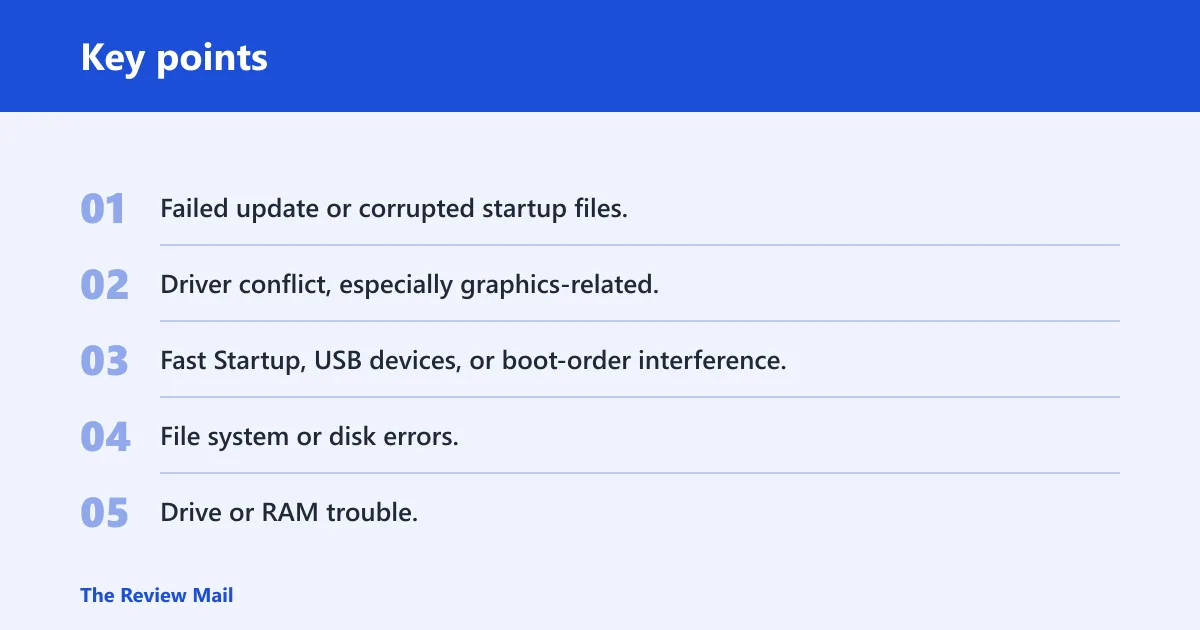
- Failed update or corrupted startup files.
- Driver conflict, especially graphics-related.
- Fast Startup, USB devices, or boot-order interference.
- File system or disk errors.
- Drive or RAM trouble.
Check USB devices and boot order first
Remove anything that can change the boot path before you try deeper repairs. USB storage, docks, card readers, and some external adapters can slow startup or send the firmware to the wrong device.
- Shut the PC down completely.
- Unplug external drives, printers, hubs, docks, and memory cards.
- Power on and enter BIOS/UEFI setup with the key shown on the first screen.
- Set the internal system drive as the first boot device.
- Save changes, exit, and try one normal boot.
MiniTool lists unnecessary USB devices as a boot interference factor, and that is one of the fastest checks to clear. If the machine still freezes with nothing external attached, move to recovery tools.
Use WinRE and startup repair
Windows Recovery Environment, or WinRE, is the recovery path you usually get after repeated failed boots. From there, open Troubleshoot, then Advanced options, then Startup Repair. If BitLocker is enabled, you may need the recovery key before some repair options will open. It is the first automated repair to try when boot configuration or startup components are damaged.
- Power the PC off while it is booting, then turn it back on.
- Repeat until WinRE appears after repeated failed boots.
- Select Troubleshoot > Advanced options > Startup Repair.
- Choose the Windows 11 installation if prompted.
- Let the tool finish, then restart once.
If Startup Repair loops back to the same screen, do not keep repeating it forever. At that point, back up files from recovery if possible and move to Safe Mode or rollback options.
How do you get into Safe Mode?
From WinRE, open Startup Settings to reach Safe Mode. Press 4 or F4 for Safe Mode, or 5 or F5 for Safe Mode with Networking. If Safe Mode loads but normal boot fails, the fault is usually a driver, update, or startup conflict rather than a broken Windows install.
- In WinRE, go to Troubleshoot > Advanced options > Startup Settings.
- Select Restart.
- Press 4 or F4 for Safe Mode.
- Press 5 or F5 for Safe Mode with Networking if you need downloads.
- Once in Safe Mode, remove the most recent change first.
Suppose Safe Mode opens, but the normal desktop freezes at the spinning dots. That split usually means Windows can start with fewer drivers and services, so the repair target is the added software layer, not the base installation.
Fix update, driver, and startup conflicts
When Safe Mode works, use it to remove recent changes in this order: update, graphics driver, then boot-related startup settings. That sequence fits the most common software causes and keeps you from changing more than one thing at once.
- Open Settings > Windows Update > Update history > Uninstall updates, then remove the latest quality update if the freeze began after Patch Tuesday or another recent update.
- Open Settings > System > Power & battery > Additional power settings > Choose what the power buttons do, then turn off Fast Startup.
- Open Device Manager > Display adapters, right-click the graphics adapter, then choose Properties > Driver > Roll Back Driver if available.
- If rollback is not available, choose Uninstall device, then restart and let Windows reload the display driver.
- If the problem started after a recent app, use Settings > Apps > Installed apps to remove it before the next boot test.
A common first-timer mistake is changing the driver, the update, and Fast Startup in one pass. That makes it hard to tell which fix mattered. Change one item, then test a normal boot.
Run file and disk checks
If boot repair and rollback steps do not hold, check Windows files and the disk itself. Use these from an elevated Command Prompt or Windows Terminal in Safe Mode, in this order: system files first, image repair second, storage check last.
- Open Command Prompt as administrator.
- Run
sfc /scannow. - When SFC finishes, run
DISM /Online /Cleanup-Image /RestoreHealth. - Then run
chkdskC: /f and allow the restart if Windows asks for one. - Test a normal boot after each command, not after all three if the first one already fixes it.
SFC and DISM repair Windows components that should load before the desktop. chkdsk looks for file-system errors on C:, which matters when the freeze follows a disk hiccup, a sudden power loss, or repeated forced shutdowns.
Still not working?
If WinRE opens but Safe Mode does not, or the machine keeps restarting at the same point, this may no longer be a simple Windows problem. That pattern raises the odds of a failing drive, bad RAM, or firmware trouble. Back up files first if recovery access still exists, then move to a more invasive repair.
- Use Troubleshoot > Advanced options > System Restore if a restore point exists and the freeze began after a recent change.
- If restore fails, prepare for Reset this PC while keeping files, or a clean reinstall if the machine cannot stay stable enough for reset.
- If the PC cannot hold a boot long enough to reach recovery tools, test the drive and memory with vendor diagnostics or service support.
Keep a recent backup, and do not leave a machine with recurring boot freezes in a repeated force-shutdown cycle. That can turn a recoverable software fault into a storage problem.
Frequently asked questions
Why is my windows 11 installation stuck?
It usually means Windows cannot finish early boot tasks because of an update failure, boot-file damage, driver conflict, or a device the firmware is trying to start first. The fastest practical check is to unplug external devices, then try WinRE and Startup Repair before changing drivers or restoring the system.
How do I fix Windows 11 stuck on boot screen?
Start with WinRE: Troubleshoot > Advanced options > Startup Repair. If that fails, enter Safe Mode with 4 or F4, remove the latest quality update in Windows Update history, and turn off Fast Startup in power settings.
What should I do if Windows 11 keeps restarting on startup?
That restart loop often points to a bad update, a damaged driver, or a failed disk read. Use WinRE to open System Restore first, then try Safe Mode. If the loop appears before Safe Mode can load, back up files from recovery and stop treating it as a minor startup glitch.
How do I get into Safe Mode when Windows 11 is stuck?
Power the PC off during boot until WinRE appears, then choose Troubleshoot > Advanced options > Startup Settings > Restart. Press 4 or F4 for Safe Mode, or 5 or F5 for Safe Mode with Networking if you need internet access.
Can a bad update cause Windows 11 to hang on loading screen?
Yes. A recent faulty update can leave the system stuck on the logo, spinning dots, or a restart loop. If the freeze began right after an update, remove the latest quality update from Settings > Windows Update > Update history > Uninstall updates.
How do I know if my drive or RAM is causing the boot freeze?
If WinRE works but Safe Mode will not load, or the system keeps restarting at the same point after update and driver fixes, suspect hardware. Run chkdsk C: /f first for the drive, but confirm the Windows partition letter in WinRE if you are running it there. If the problem persists, test memory with the system or vendor diagnostics before a reset or reinstall.