Driver Cannot Be Loaded on This Device
“Driver cannot be loaded on this device” usually means Windows blocked the driver, the file is missing, or the wrong driver is attached to the device. Check the error details first, because the fix depends on which of those three applies. If you ignore that split, hardware can stay unusable, peripherals can fail, and a security block can remain in place while you reinstall the wrong package. This guide shows how to identify each case and apply the right fix on Windows 11 and Windows 10.
What the error means
The message points to a loading failure, but the cause is not always the same. Sometimes Windows cannot find the driver file. Sometimes the device has the wrong version, the wrong architecture, or a damaged install. In some Windows 11 cases, Windows Security blocks a kernel driver outright, which needs a different fix path.
Generic load failure vs security block
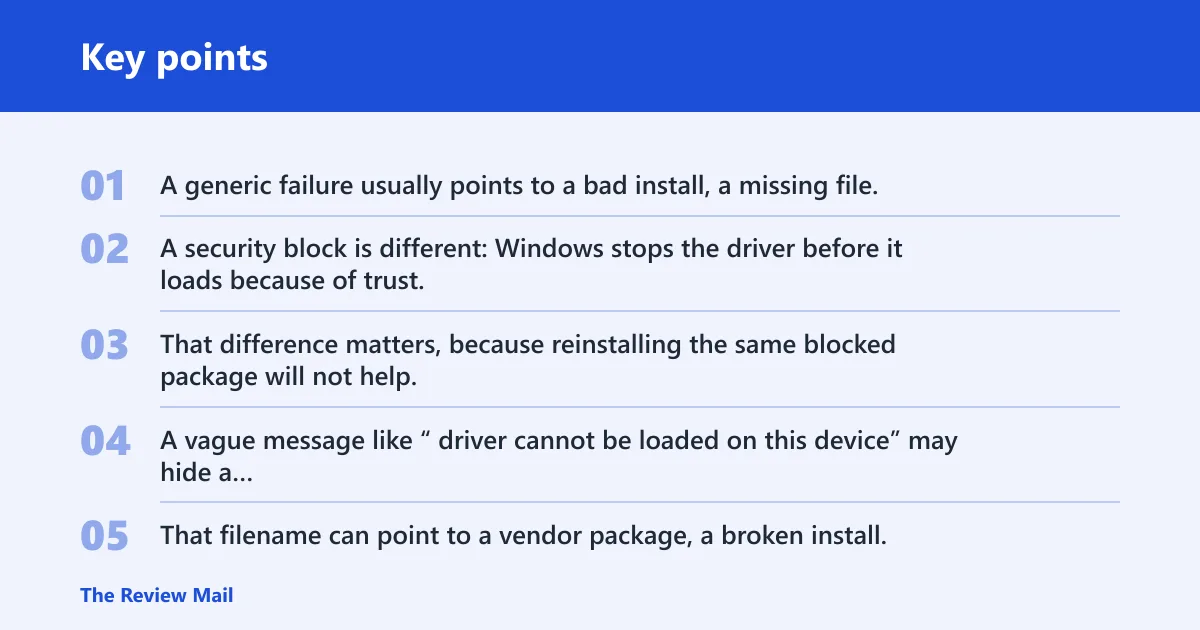
A generic failure usually points to a bad install, a missing file, or a driver that no longer matches the device. A security block is different: Windows stops the driver before it loads because of trust, signing, or kernel-protection rules. That difference matters, because reinstalling the same blocked package will not help.
Why the exact driver name matters
The exact filename tells you where to start. A vague message like “driver cannot be loaded on this device” may hide a device-specific name in the alert, such as ene.sys or iqvw64e.sys. That filename can point to a vendor package, a broken install, or a security-remediation case.
Where to find the device name in Windows
Open Device Manager and find the device with a warning symbol, then open its Properties. The device name, status text, and driver details help separate a missing driver from a blocked one. Microsoft says Device Manager can update drivers automatically or manually.
Driver error decision table
Use the error wording to choose the first safe action. If the message names a specific file, treat that file as the lead clue. If the issue started right after a Windows Update or driver update, rollback is often safer than a fresh install. If the driver looks blocked or unsigned, stop before you keep reinstalling it.
| Exact error wording | Likely cause | Safest first action | When to stop and use vendor/security remediation |
|---|---|---|---|
| driver cannot be loaded on this device | Generic failure, missing file, bad match, or blocked driver | Open Device Manager and inspect the device name, status, and Driver tab | Stop if the driver is unsigned, named as a security-sensitive kernel file, or fails again after reinstall |
| ene.sys cannot be loaded on this device | Often a vendor or kernel-level driver issue; may also be blocked by Windows security | Check whether the device recently changed, then try rollback or the OEM driver package | Stop if the package is not from the device manufacturer or if Windows security flags the file again |
| iqvw64e.sys cannot be loaded on this device | High-risk kernel driver, often tied to security blocking or remediation | Do not keep reinstalling. Confirm the source and check Windows security guidance first | Stop immediately if the file is unsigned, unexpected, or tied to software you do not need |
| driver unavailable after an update | Recent update replaced a working version with a bad one | Use Roll Back Driver from the Driver tab if it appears there | Stop if rollback is unavailable and the manufacturer package is the only safe source |
Why is Windows saying this?
Windows says this when the driver file cannot load for one of a few concrete reasons: the file is missing, the wrong Windows version or architecture is installed, the INF or package is corrupted, or Windows security blocks a kernel driver. The fix depends on which one applies.
Missing driver files
If the package was removed, interrupted, or never installed correctly, Windows may still show the device but fail when it tries to load the driver. In that case, a reinstall from the manufacturer or from Windows Update is more useful than repeated restarts.
Wrong Windows version or architecture
Microsoft says manual drivers must match the version and architecture of Windows. A 64-bit driver will not fix a 32-bit system, and a package built for a different Windows version may not install correctly or may refuse to load. That mismatch is common after moving a device between systems. (Microsoft Support)
Corrupted INF or broken install
A damaged INF file or incomplete install can leave Windows with a device entry but no working driver. The package may appear present while the actual load step fails. Reinstalling the device through Device Manager is the cleanest first repair when corruption seems likely.
Blocked or unsigned kernel driver
Some failures are security related, especially with kernel drivers on Windows 11 and Windows 10. If Windows blocks the file, the problem is not that the device needs a newer random driver. It is that the existing file is not allowed to load under current security rules.
Say your Wi-Fi adapter starts failing right after a feature update, and Device Manager now shows the adapter with a warning icon. That pattern points more toward a bad update or rollback candidate than a missing cable or dead device.
How do you find the failing driver?
Start with the exact device name and status text in Device Manager, then open the Driver tab to see the file path, provider, and version. If the alert mentions a filename such as ene.sys or iqvw64e.sys, write that name down before you change anything. That detail drives the rest of the fix.
Use Device Manager properties
- Open Device Manager.
- Find the device with the warning icon.
- Open Properties.
- Check the General tab for the status message.
- Open the Driver tab for provider, version, and file details.
Microsoft says Device Manager can update drivers automatically or manually. It also gives you the rollback path, but only if the device exposes that option.
Check the Driver tab and device status
The Driver tab is where Windows places the Roll Back Driver option. Microsoft says this is the place to return to a previous version after a recent update causes trouble. Rollback requires administrator permissions, so it may prompt for approval.
Read the exact filename in the alert
If Windows names the file directly, treat that as the most useful clue. A filename tied to a known vendor package often means reinstall or rollback. A filename tied to a security-sensitive kernel driver often means you need vendor guidance or a security fix, not a generic update sweep.
What should you try first?
Start with the least disruptive fix that matches the timing of the failure. If the problem began right after an update, rollback is usually safer than reinstalling the same package. If the device was removed or never completed setup, reinstall it through Device Manager. If that fails, move to Windows Update or the manufacturer site.
Roll back a recent driver change
Microsoft says the Roll Back Driver option sits in the Driver tab, and you need administrator permissions to use it. This is the safest first move when the error started after a Windows Update or a driver update. It restores the prior version without forcing a full manual search.
Reinstall the device from Device Manager
Microsoft says you can reinstall a driver by uninstalling the device in Device Manager and restarting Windows. That clears the current device entry and gives Windows a chance to reload it cleanly. If the driver does not reinstall, Microsoft says to try the automatic or manual update methods next.
Restart after removal and let Windows reload the device
A restart matters because it lets Windows rebuild the device entry and reload a fresh driver path. If the problem was a temporary bad state, this can clear it without extra steps. If the error returns, do not keep repeating the same removal without checking the exact driver name.
Manual driver install path
When automatic search fails, the next safe move is a manual download from the device manufacturer. Microsoft says to get manual drivers from the manufacturer site and match the version and architecture of Windows. On Device Manager, use Browse my computer for drivers to point Windows at the downloaded package.
Download from the manufacturer site
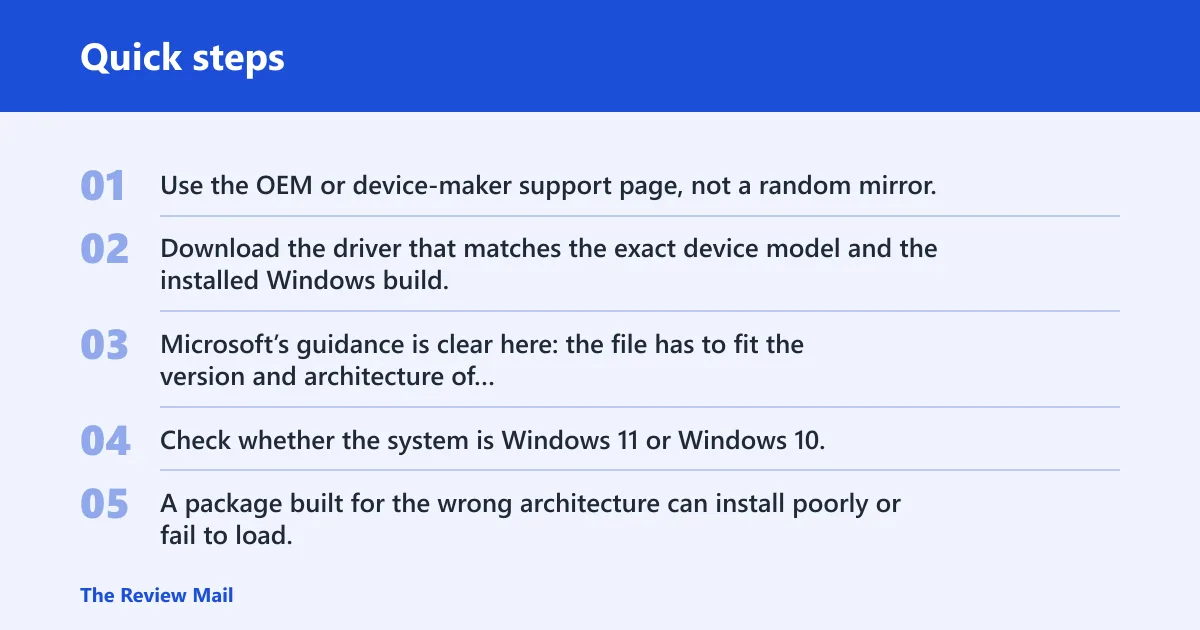
Use the OEM or device-maker support page, not a random mirror. Download the driver that matches the exact device model and the installed Windows build. Microsoft’s guidance is clear here: the file has to fit the version and architecture of Windows.
Match Windows version and architecture
Check whether the system is Windows 11 or Windows 10, then match x64 or ARM64 as applicable. A package built for the wrong architecture can install poorly or fail to load. That is one reason a correct-looking file still produces the same error.
Use Browse my computer for drivers
In Device Manager, choose the manual path and select Browse my computer for drivers. Point Windows to the folder that contains the extracted driver files. If the vendor package includes setup software, do not assume the EXE is the right fix path; the driver folder often matters more.
Check Windows Update if the manual search stalls
Microsoft says driver updates for most hardware are automatically downloaded and installed through Windows Update, and it can surface updated drivers when Device Manager search fails. If the manufacturer package is not obvious, check Windows Update before trying a third-party updater.
Picture a laptop with a Bluetooth adapter that stopped working after a driver refresh. If Device Manager shows the adapter but the driver version changed yesterday, rollback is the first move. If the adapter disappears entirely, reinstall or manual install is the better path.
When should you stop troubleshooting?
Stop the generic fix loop when the message points to a security block, a high-risk kernel file, or a driver that keeps failing after reinstall and rollback. At that point, the problem is no longer “find a newer driver.” It is “identify the correct vendor package or remove the risky component.”
Security block or unsigned driver
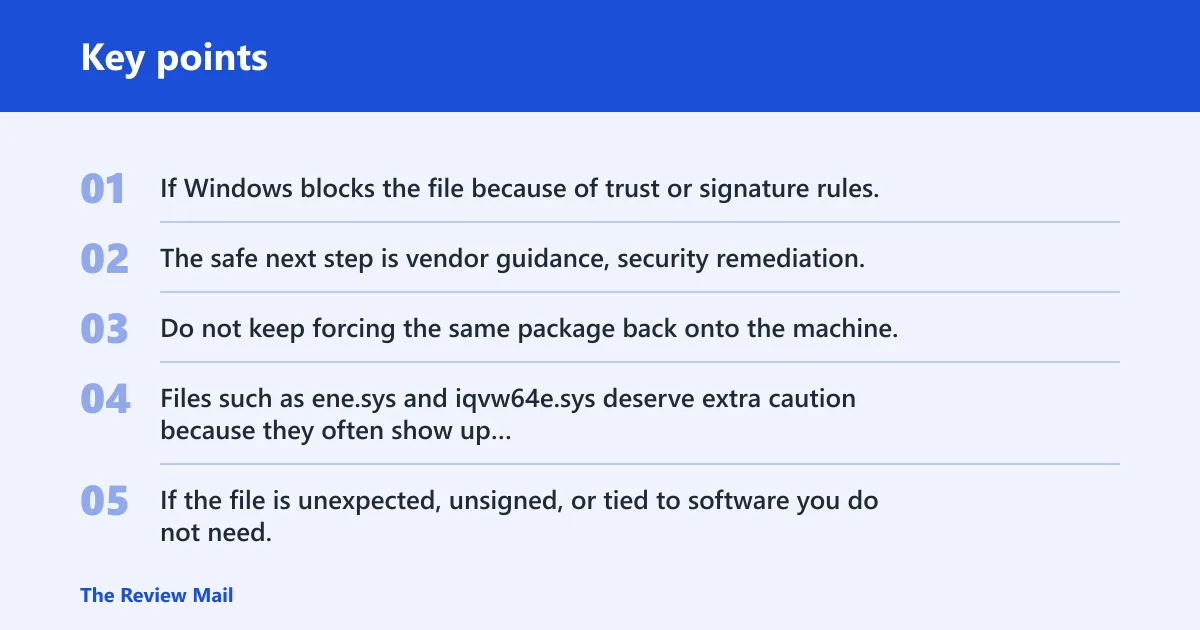
If Windows blocks the file because of trust or signature rules, another updater will not solve the core issue. The safe next step is vendor guidance, security remediation, or removal of the software that installed the driver. Do not keep forcing the same package back onto the machine.
High-risk vendor file
Files such as ene.sys and iqvw64e.sys deserve extra caution because they often show up in cases where Windows blocks a kernel-level driver. If the file is unexpected, unsigned, or tied to software you do not need, treat that as a stop signal rather than a simple update prompt.
Device still fails after reinstall and rollback
If you have tried rollback, reinstall, and the correct manufacturer package, the device may have a deeper compatibility or security problem. At that point, remove the device if it is optional, or move to the vendor’s support path if it is built in. Repeating the same install rarely changes the result.
Third-party updater pitch
Driver Booster 14 Free is a third-party updater that IObit says supports Windows 11/10/8.1/8/7, claims 19,000,000+ free device drivers in its database, and says it can scan and update drivers for Windows in one click. IObit also says its drivers are verified with Microsoft WHQL and an IObit security scan, with support for 1,200+ major brands.
That kind of tool can help with routine driver maintenance, but it is not the first choice for a blocked, unsigned, or kernel-level driver on Windows 11 or Windows 10. For those cases, the safer path is device-specific repair, rollback, or vendor/security remediation.
Frequently asked questions
How do I fix driver is unavailable?
Open Device Manager, find the device, and check its Properties before changing anything. If the problem started after an update, use Roll Back Driver in the Driver tab. If the driver is missing or corrupted, reinstall the device and then use Windows Update or the manufacturer package if needed.
What to do when driver is unavailable
First, identify the exact device and filename tied to the error. Then choose the matching path: rollback for a recent bad update, reinstall for a broken install, or manual install from the manufacturer if Windows cannot find the driver. Do not keep updating unrelated drivers.
How to download driver manually
Download the package from the device manufacturer’s site, not a generic download page. Make sure it matches your Windows version and architecture, then install it through Device Manager using Browse my computer for drivers. If the package still fails, check Windows Update for a newer recommended version.
Why is it saying driver is unavailable?
Windows says that when it cannot load the right file for the device. The usual reasons are a missing driver, a wrong architecture, a corrupted install, or a security block. The error text and filename tell you which one is most likely, so check those first.
What does driver is unavailable mean?
It means the device is present, but Windows cannot load the driver needed to operate it. That may be a simple reinstall issue, or it may be a security block on a kernel driver. The fix depends on the exact device name, file name, and whether the issue started after an update.
Why does windows say a driver cannot be loaded on this device?
Windows says that when the driver fails its load step, not just its install step. The cause may be a missing file, a mismatch with Windows 11 or Windows 10, or a blocked driver such as a security-sensitive kernel file. Identify the exact filename before trying another package.
Is this a driver problem or a Windows security block?
It is a driver problem if the file is missing, the package is corrupt, or the wrong version was installed. It is more likely a security block if the filename is a sensitive kernel driver, the issue affects a recent Windows 11 update, or Windows Security specifically flags the file.
How do I find the exact driver that is failing?
Use Device Manager, open the device’s Properties, and read the status text on the General tab. Then check the Driver tab for the provider and file name. If the alert itself names a file like ene.sys or iqvw64e.sys, that is the exact clue to follow before you reinstall anything.